
PINKCAT BC-Black
PINKCAT Wireless Vertical Mouse User Manual
Model: BC-Black
Introduction
Thank you for choosing the PINKCAT Wireless Vertical Mouse. This manual provides detailed instructions for setting up, operating, and maintaining your new ergonomic mouse. Designed for comfort and efficiency, this mouse aims to reduce wrist and forearm strain during extended use.
Key Features:
- Ergonomic Natural Grip: Promotes a natural handshake position to reduce wrist and forearm pain.
- Adjustable DPI: Three sensitivity levels (1000/1200/1600 DPI) for precise tracking.
- Plug and Play: Easy 2.4G RF wireless connection with USB Nano Receiver.
- Wide Compatibility: Supports Windows 7/8/10/XP/Vista/Linux, Laptop, PC, Desktop, and Mac.
- Featured Buttons: Includes Forward/Backward buttons for enhanced browsing efficiency. (Note: Not compatible with MAC OS).
Package Contents
Please verify that all items are present in your package:
- 1 x PINKCAT Wireless Vertical Mouse
- 1 x USB Nano Receiver
- 1 x AA Battery (pre-installed or included)
Product Overview
Familiarize yourself with the components of your PINKCAT Wireless Vertical Mouse.

Figure 1: Front view of the PINKCAT Wireless Vertical Mouse with labels for Left Button, Right Button, Premium Scroll Wheel, Forward Button, Backward Button, and DPI Switch Button.
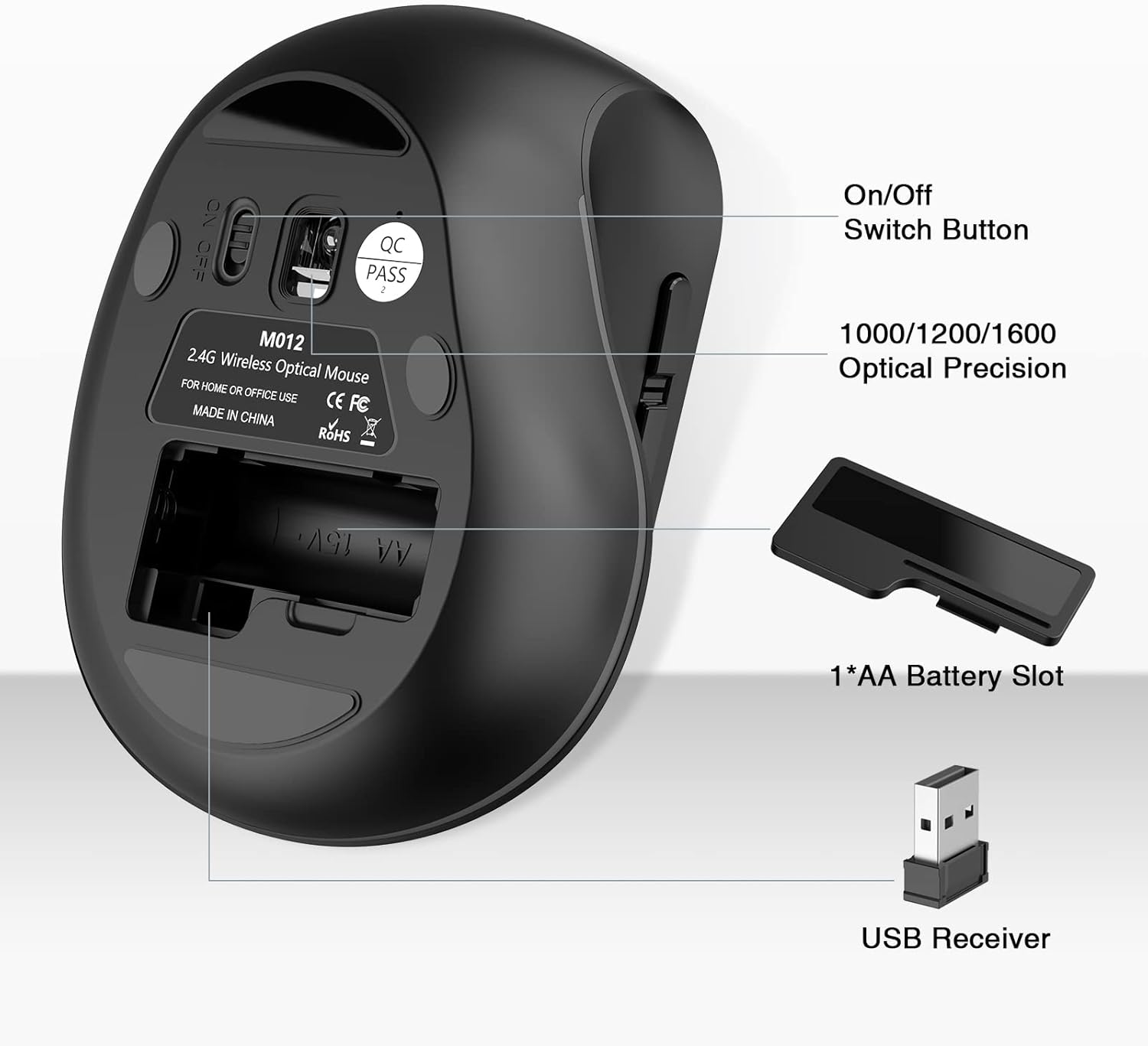
Figure 2: Underside view of the mouse, highlighting the On/Off Switch Button, 1*AA Battery Slot, and the storage location for the USB Receiver.
Setup
- Install Battery: Open the battery compartment cover on the underside of the mouse. Insert one AA battery, ensuring correct polarity. Close the cover. (Note: The USB Nano receiver is stored inside the battery compartment for safekeeping during transport).
- Retrieve USB Receiver: Carefully remove the USB Nano receiver from its storage slot within the battery compartment.
- Connect Receiver: Plug the USB Nano receiver into an available USB port on your computer (laptop, PC, desktop, or Mac).
- Power On: Slide the On/Off switch on the bottom of the mouse to the "ON" position.
- Automatic Connection: The mouse should automatically connect to your computer. No additional drivers are required for most operating systems.

Figure 3: The PINKCAT Wireless Vertical Mouse and its accompanying USB receiver, ready for connection.
Operating Instructions
Holding the Mouse
The PINKCAT Wireless Vertical Mouse is designed for an ergonomic "handshake" grip. Position your hand naturally over the mouse, allowing your wrist to remain in a neutral, un-twisted position. This design helps alleviate pressure and reduce the risk of cramping.

Figure 4: Visual comparison demonstrating the natural, ergonomic grip of the PINKCAT Vertical Mouse compared to a traditional mouse, highlighting wrist posture.
Adjusting DPI Sensitivity
The mouse features three adjustable DPI (Dots Per Inch) levels: 1000, 1200, and 1600. DPI controls the sensitivity of the mouse cursor movement. To switch between DPI settings, press the DPI Switch Button located on the side of the mouse (refer to Figure 1). Each press will cycle through the available DPI levels.

Figure 5: Illustration of the three adjustable DPI settings (1000, 1200, 1600) and how to switch between them using the DPI button.
Using Forward/Backward Buttons
The mouse is equipped with dedicated Forward and Backward buttons on its side (refer to Figure 1). These buttons are designed to enhance web browsing efficiency, allowing you to navigate web pages quickly. Note: Forward/Backward buttons are not compatible with MAC OS. All buttons are non-programmable.

Figure 6: Visual representation of the Forward and Backward buttons and their function for navigation.
Power Saving Mode
To conserve battery life, the mouse will automatically enter a sleep mode after a period of inactivity. To wake the mouse, simply click any button or move the mouse. It will reconnect instantly.

Figure 7: Depiction of the mouse's automatic power-saving feature, indicating it enters sleep mode after 10 minutes of inactivity.
Maintenance
- Cleaning: Use a soft, dry cloth to clean the surface of the mouse. For stubborn dirt, a slightly damp cloth can be used, but ensure no moisture enters the internal components.
- Battery Replacement: When the mouse performance degrades or it stops responding, it's likely time to replace the AA battery. Follow the steps in the "Setup" section to replace the battery.
- Storage: When not in use for extended periods, turn off the mouse using the On/Off switch to conserve battery life. Store the USB receiver in its designated slot within the battery compartment to prevent loss.
Troubleshooting
| Problem | Possible Cause | Solution |
|---|---|---|
| Mouse not responding. | Battery is low or dead. Mouse is turned off. USB receiver is not properly connected. Mouse is in sleep mode. | Replace the AA battery. Ensure the On/Off switch is in the "ON" position. Re-insert the USB receiver into a different USB port. Click any button or move the mouse to wake it up. |
| Cursor movement is erratic or jumpy. | Dirty optical sensor. Mouse used on an unsuitable surface. Low battery. | Clean the optical sensor on the bottom of the mouse with a soft cloth. Use the mouse on a clean, non-reflective mouse pad or surface. Replace the battery. |
| Forward/Backward buttons not working on Mac. | These buttons are not compatible with macOS. | This is expected behavior. The buttons are designed for Windows/Linux systems. |
| Short battery life. | Frequent use. Battery quality. Mouse not turned off when not in use. | Ensure the mouse is turned off when not in use for extended periods. Use a high-quality AA battery. |
Specifications
- Model: BC-Black
- Connectivity: 2.4G RF Wireless
- Operating Distance: Up to 10 meters (30 feet)
- DPI Levels: 1000 / 1200 / 1600 DPI
- Movement Detection Technology: Optical
- Power Source: 1 x AA Battery (included)
- Product Dimensions: 11.5 x 8.5 x 0.04 inches
- Compatibility: Windows 7/8/10/XP/Vista/Linux, Mac (Forward/Backward buttons not supported on Mac)
- Special Features: Ergonomic Design, Silent Click, Power Saving Mode
Warranty and Support
For warranty information and technical support, please contact PINKCAT customer service. Refer to the contact information provided with your product packaging or visit the official PINKCAT website.
Manufacturer: tonew
Service Email: PINKCAT@totoptrade.com
Related Documents - BC-Black
 |
Standivarius Ergo Kit Black, Solo-X Keyboard, and AVE Mouse Setup Guide Comprehensive setup and user guide for the Standivarius Ergo Kit Black, Solo-X wireless keyboard, and AVE vertical mouse, covering installation, features, and troubleshooting for an ergonomic workstation. |
 |
AJAZZ T520 Gaming Mouse User Manual and Specifications Official user manual and technical specifications for the AJAZZ T520 gaming mouse, detailing features, setup, usage, button layout, troubleshooting, and system requirements. |
 |
CELLA V8 2025 User Manual: Wine and Beverage Refrigeration Guide Comprehensive user manual for CELLA V8 2025 wine and beverage refrigerators. Covers installation, operation, safety, maintenance, and troubleshooting for various CELLA models. |
 |
Dancover Folding Garage (Car), Large Assembly Manual Assembly instructions and contact details for the Dancover Folding Garage (Car), Large model (2.8x6.24x2.3m). Includes material list and step-by-step guidance. |
 |
EVGA X15 Gaming Mouse Quick Guide A quick guide to setting up and using the EVGA X15 MMO Gaming Mouse, including button layouts, LED indicators, and compliance information. |
 |
Multibrackets M Laptop Workstation Black Installation Manual Detailed installation guide for the Multibrackets M Laptop Workstation Black, covering setup, safety, specifications, and warranty information. Ensure proper mounting for your workstation. |