
Yehua G5
YEHUA Wireless WiFi Display Dongle G5 User Manual
Model: G5
1. Introduction
This user manual provides comprehensive instructions for the YEHUA Wireless WiFi Display Dongle G5. This device allows you to wirelessly mirror or extend content from your mobile devices (smartphones, tablets, laptops) to a larger display such as a TV, monitor, or projector, utilizing HDMI connectivity. It supports Miracast, AirPlay, and DLNA protocols for versatile compatibility.
2. Important Safety Information
- Power Supply: The HDMI dongle requires an external power supply of at least 5V/2A. Ensure you use a compatible power adapter to prevent damage and ensure stable operation.
- HDCP Limitations: Due to copyright protection (HDCP), this wireless dongle is not compatible with subscription video services such as Netflix, Amazon Video, HBO GO, Hulu, Disney+, and similar platforms. Content from these services cannot be mirrored or streamed.
- Miracast Compatibility: Before attempting to use Miracast, verify that your Android smart device supports this feature. Not all Android devices have native Miracast support.
- Ventilation: Ensure the device is placed in a well-ventilated area to prevent overheating.
- Liquid Exposure: Do not expose the device to water or other liquids.
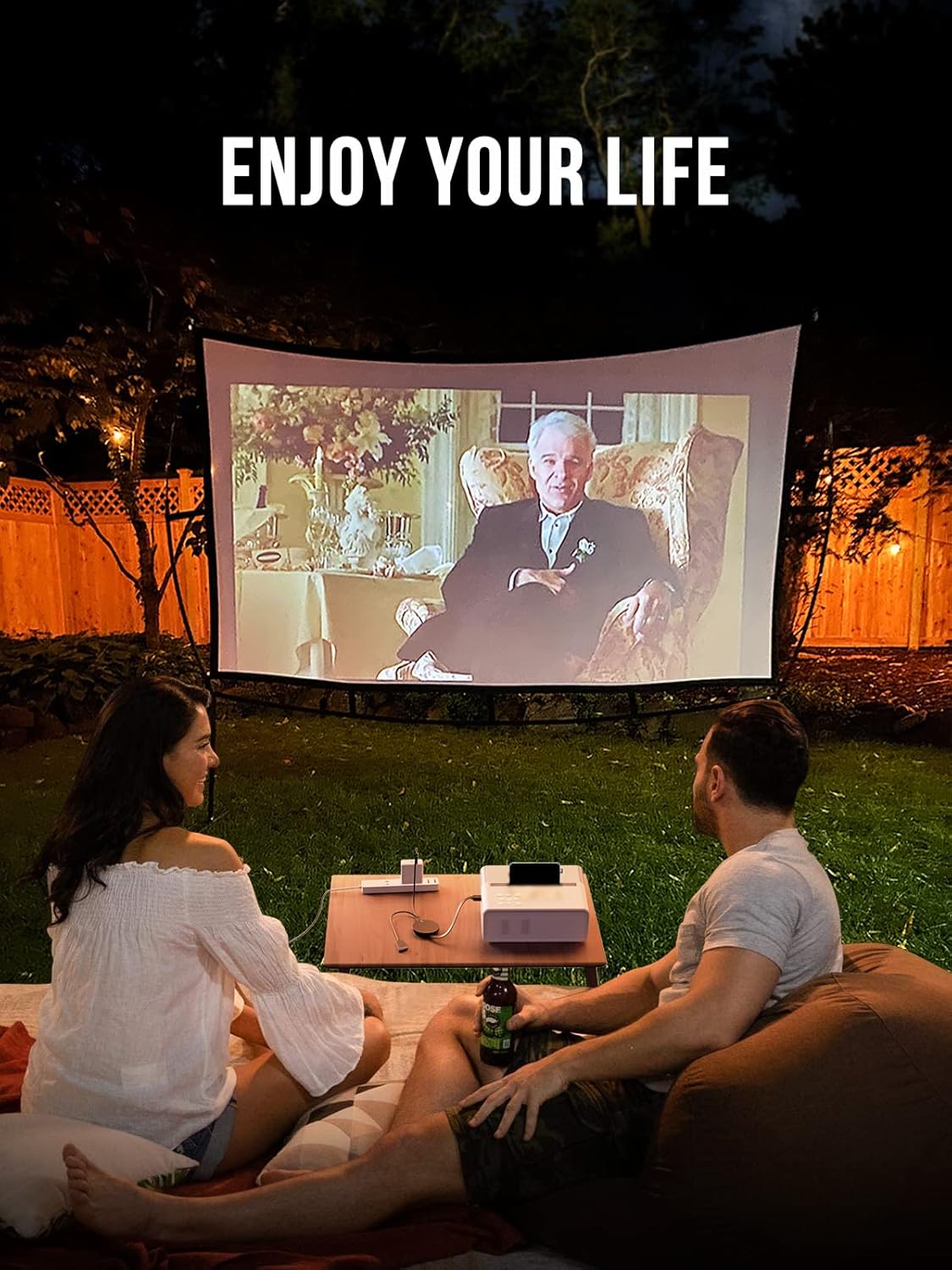
Figure 2.1: Important tips regarding app compatibility and HDCP protection. Shows a list of apps that are supported (Line, Facebook, Twitter, Reddit, Office, YouTube) and not supported (TikTok, Netflix, Hulu, Mediaset Play, Disney+, Amazon Prime) due to HDCP.
3. Product Overview
The YEHUA G5 Wireless Display Dongle is a compact and portable device designed for seamless media streaming. It features a standard HDMI connector for display output and a USB port for power input.

Figure 3.1: Front view of the YEHUA Wireless WiFi Display Dongle G5, showing its compact, circular design with an integrated HDMI cable.
4. Setup Guide
Follow these steps for the initial setup of your YEHUA G5 dongle:
- Connect to Display: Plug the HDMI connector of the dongle into an available HDMI port on your TV, monitor, or projector.
- Connect Power: Connect the USB power cable to the dongle's USB port and then plug the other end into a 5V/2A USB power adapter (not included) or a compatible USB port on your display device. Ensure the power supply meets the minimum requirement for stable operation.
- Select HDMI Input: On your display device, select the corresponding HDMI input source to view the dongle's startup screen.
- Initial Setup Screen: The screen will display instructions, including the dongle's Wi-Fi network name (SSID) and password, along with an IP address for advanced settings.

Figure 4.1: Diagram showing the connection of the YEHUA G5 dongle's USB and HDMI ports to a power adapter and display, compatible with iOS, MacOS, Android, and Windows devices.

Figure 4.2: Close-up view of the YEHUA G5 dongle connected to the HDMI and USB ports of a television, illustrating proper physical setup.
5. Operating Instructions
The YEHUA G5 dongle supports multiple mirroring protocols. Choose the appropriate method based on your device.
5.1. AirPlay (for iOS/macOS Devices)
- Connect to Dongle's Wi-Fi: On your iOS device (iPhone/iPad) or macOS device, go to Wi-Fi settings and connect to the dongle's Wi-Fi network (SSID displayed on the TV screen).
- Enable Screen Mirroring: For iOS, swipe down from the top-right corner (or up from the bottom for older models) to open Control Center, then tap "Screen Mirroring" or "AirPlay Mirroring". Select the YEHUA dongle from the list.
- Your device's screen will now be mirrored to the connected display.

Figure 5.1: Step-by-step guide for connecting an iPhone to the YEHUA G5 dongle using AirPlay for screen mirroring.
5.2. Miracast (for Android/Windows Devices)
- Enable Wireless Projection: On your Android device, look for "Wireless Projection," "Smart View," "Screen Cast," "Multi-screen," or similar options in your quick settings or display settings. For Windows, use "Project to a wireless display" in the Action Center.
- Select Dongle: Select the YEHUA dongle from the list of available devices.
- Your device's screen will now be mirrored to the connected display.

Figure 5.2: Step-by-step guide for connecting an Android phone to the YEHUA G5 dongle using Wireless Projection (Miracast).
5.3. DLNA / EZMira App (for Media Streaming)
For DLNA streaming or enhanced features, you can use the EZMira app (available for iOS and Android) or a DLNA-compatible media player.
- Download EZMira App: Search for "EZMira" in your device's app store and install it.
- Connect to Dongle's Wi-Fi: Ensure your device is connected to the dongle's Wi-Fi network.
- Launch App: Open the EZMira app. It will automatically detect the dongle.
- Stream Content: Use the app to browse and stream local media files (photos, videos, music) or access web content directly to your display.

Figure 5.3: Steps illustrating the download and connection process using the EZMira application for enhanced streaming.

Figure 5.4: Example of streaming content, such as a video, from a mobile device to a TV using the EZMira app.
5.4. Usage Scenarios
- Extended Mode: Use the dongle to extend your desktop, allowing you to multitask across two screens.
- Mirror Screen: Duplicate your device's screen for presentations, gaming, or sharing content with a larger audience.
- Entertainment: Enjoy movies, photos, and music on a big screen from your mobile device.

Figure 5.5: Illustration of extended mode, where a laptop screen is extended to a television, suitable for family entertainment or work.

Figure 5.6: Example of mirror screen functionality in a business meeting, displaying a laptop screen on a large monitor for collaborative viewing.

Figure 5.7: A couple enjoying an outdoor movie projected onto a large screen, demonstrating the dongle's use for entertainment.
6. Troubleshooting
| Problem | Possible Cause | Solution |
|---|---|---|
| No display on TV/monitor. | Incorrect HDMI input selected, insufficient power, loose connection. | Ensure the TV is on the correct HDMI input. Check that the dongle is powered by a 5V/2A adapter. Reconnect HDMI and USB cables securely. |
| Cannot connect to dongle's Wi-Fi. | Incorrect password, dongle not powered on, device too far. | Verify the Wi-Fi password displayed on the TV. Ensure the dongle is powered. Move your device closer to the dongle. |
| Screen mirroring is laggy or disconnects. | Wi-Fi interference, weak signal, network congestion. | Reduce distance between device and dongle. Minimize other Wi-Fi activity. Ensure dongle has stable 5V/2A power. |
| Cannot stream Netflix/Amazon Video. | HDCP copyright protection. | This is an inherent limitation due to HDCP. The dongle is not designed to bypass this protection. |
| Android device does not find the dongle for Miracast. | Device does not support Miracast, or feature is disabled. | Verify your Android device's specifications for Miracast support. Ensure "Wireless Projection" or similar feature is enabled. |
7. Specifications
| Feature | Detail |
|---|---|
| Brand | Yehua |
| Model Number | G5 |
| Connectivity Technology | Wi-Fi, HDMI |
| Connector Type | HDMI |
| Special Feature | Wireless Display |
| Resolution | 1080p |
| Supported Internet Services | (Not compatible with HDCP-protected services like Netflix, Hulu, Amazon Video) |
| Color | Black |
| Compatible Devices | Xiaomi, Samsung, Huawei, iPhone (iOS, Android, Windows, macOS) |
| Memory Storage Capacity | 16 GB (Internal, for firmware) |
| Power Requirement | 5V/2A (external) |
8. Warranty and Support
For warranty information and technical support, please refer to the official YEHUA website or contact your retailer. Keep your purchase receipt as proof of purchase.
For further assistance, please visit: www.yehua.com (Note: This is a placeholder URL as no specific support link was provided in the product data.)