
1. Introduction
Thank you for choosing the UINO A883 Gaming Mouse. This manual provides detailed instructions on how to set up, operate, and maintain your new gaming mouse. The A883 is designed for professional gaming, featuring 7 programmable buttons, adjustable DPI, and vibrant RGB lighting.

Figure 1.1: The UINO A883 Gaming Mouse, showcasing its ergonomic design and illuminated scroll wheel and logo.
2. Package Contents
- 1 x UINO A883 Gaming Mouse
- 1 x User Manual
3. Specifications
| Feature | Description |
|---|---|
| Product Model | A883 PROGRAMMABLE GAMING MOUSE |
| Keys | 7 programmable keys |
| Light Effect | Colorful breathing light effect |
| DPI | 4-level adjustable, Max. 6400 DPI (Default: 800/1600/3200/6400) |
| Voltage/Current | DC 5V / 100mA |
| Report Rate | 125Hz |
| Connectivity | USB plug and play (Wired) |
| Switch Life | 20 million cycles |
| Cable Length | 150cm |
| Item Weight | 125g (4.4 ounces) |
| Item Size (L*W*H) | 125*68*39mm |
| Supported OS | Windows 2000 / XP / Win7 / Win8 / Win10 / Vista 32bit / iOS or latest |
| Movement Detection Technology | Optical |
| Special Feature | Ergonomic Design |
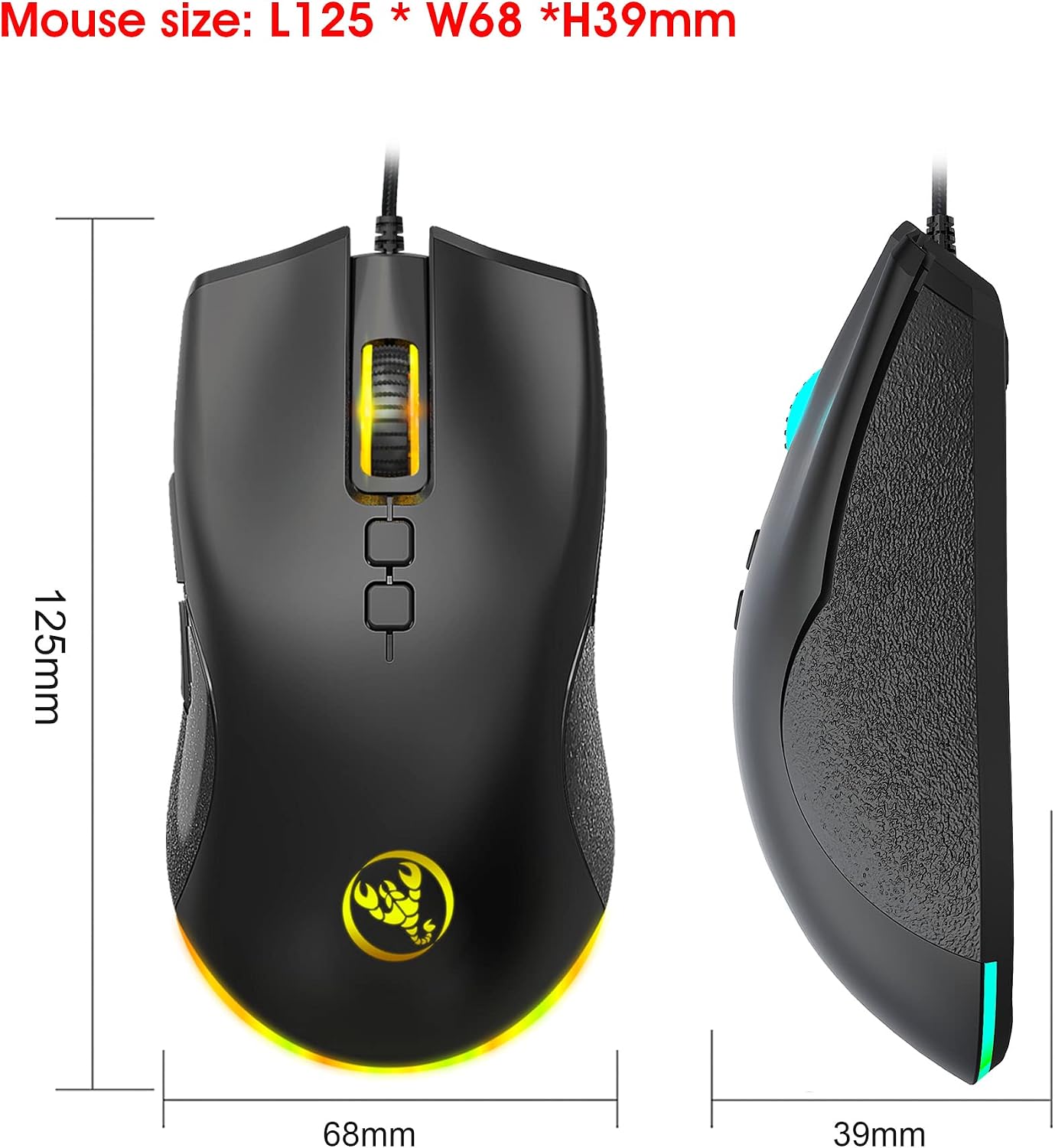
Figure 3.1: Dimensions of the UINO A883 Gaming Mouse, showing length, width, and height measurements.
4. Setup
4.1 Basic Connection
- Connect the USB cable of the UINO A883 Gaming Mouse to an available USB port on your computer.
- The mouse is plug-and-play and should be automatically recognized by your operating system.
4.2 Software Installation (for Macro Programming)
To utilize the full functionality of the 7 programmable buttons and custom settings, you need to install the dedicated macro programming software.
- Download the macro programming software from the website provided by the seller. (Please refer to the product packaging or seller's information for the specific download link).
- After downloading, open the software directly. No installation wizard is typically required.
- Ensure the mouse is successfully connected and functioning normally before opening the A883 macro programming software to access its features.
5. Operating Instructions
The UINO A883 Gaming Mouse features a high-performance program control decoder chip for smooth and precise control. It offers various customizable settings to enhance your gaming experience.
5.1 Button Settings
The mouse features 7 programmable buttons. The software driver supports custom settings for each of these buttons (1-7).

Figure 5.1: Labeled diagram of the 7 programmable buttons on the UINO A883 Gaming Mouse, including Left, Right, Mid, DPI+, DPI-, Forward, and Back buttons, along with the brand lighting logo and tail light strip.
5.2 DPI Setting
The mouse supports 4-level adjustable DPI settings. The default DPI values are 800, 1600, 3200, and 6400. You can cycle through these DPI levels using the dedicated DPI buttons (DPI+ and DPI-) on the mouse.
5.3 Light Mode
The UINO A883 Gaming Mouse features a colorful breathing light effect. This lighting provides a strong visual impact and can be customized or controlled via the software.

Figure 5.2: The UINO A883 Gaming Mouse displaying its cool colorful breathing light effect from the rear, highlighting the illuminated tail and dynamic lighting.

Figure 5.3: A lineup of UINO A883 Gaming Mice, demonstrating the brilliant illumination and cool colorful breathing light effects available in various hues.
5.4 Mouse Parameters
Within the macro programming software, you can adjust various mouse parameters, including:
- Pointer Precision: Adjust the sensitivity and accuracy of the mouse pointer.
- Wheel Speed: Control the scrolling speed of the mouse wheel.
- Double Click Speed: Set the time interval for a double-click to be registered.
5.5 Custom Settings and Macro Programming
The software allows for custom macro editing to support various game effects and personalized commands.
- Open the A883 macro programming software.
- Navigate to the 'Custom Settings' or 'Macro' section.
- Record and write macro definition commands as needed. The software supports quick import/export of macro files.
- After configuring your settings, click 'Applications' to apply them.
- Then, click 'Save Configuration' to save your customized profile.
- To ensure all customizations are active, you should start the driver software again the next time you use the mouse.

Figure 5.4: Screenshot of the 7-Key Macro Programming Design software interface, showing options for button settings, DPI, and custom macro editing for game effects.
6. Maintenance
To ensure the longevity and optimal performance of your UINO A883 Gaming Mouse, follow these maintenance guidelines:
- Cleaning: Use a soft, dry cloth to wipe the mouse surface. For stubborn dirt, slightly dampen the cloth with water. Avoid using harsh chemicals or abrasive cleaners.
- Sensor Care: Keep the optical sensor on the underside of the mouse clean and free from dust or debris to ensure accurate tracking.
- Cable Management: Avoid sharp bends or excessive pulling on the USB cable to prevent damage.
- Storage: Store the mouse in a cool, dry place when not in use, away from direct sunlight or extreme temperatures.

Figure 6.1: Top view of the UINO A883 Gaming Mouse, highlighting the 3D non-slip transparent roller, designed for light transmission and anti-slip, sweat-proof performance.

Figure 6.2: A hand demonstrating the ergonomic design of the UINO A883 Gaming Mouse, which offers comfortable grips for long-term usage and features durable switches supporting up to 20 million clicks.
7. Troubleshooting
If you encounter issues with your UINO A883 Gaming Mouse, please refer to the following common problems and solutions:
- Mouse not responding:
- Ensure the USB cable is securely plugged into a working USB port on your computer.
- Try plugging the mouse into a different USB port.
- Restart your computer.
- DPI settings not changing:
- Ensure you are pressing the correct DPI adjustment buttons.
- Verify that the mouse driver software is running and properly configured.
- Macro functions not working:
- Make sure the macro programming software is installed and running.
- Ensure you have saved your custom configurations within the software.
- Restart the driver software after saving new settings.
- Lighting not working or incorrect:
- Check the lighting settings within the macro programming software.
- Ensure the mouse is receiving sufficient power from the USB port.
- Mouse tracking issues:
- Clean the optical sensor on the bottom of the mouse.
- Use the mouse on a clean, uniform surface or a mouse pad.
8. System Requirements
The UINO A883 Gaming Mouse is compatible with the following operating systems:
- Windows 2000
- Windows XP
- Windows 7
- Windows 8
- Windows 10
- Windows Vista (32-bit)
- iOS (or latest versions)
9. Warranty Information
Warranty information for the UINO A883 Gaming Mouse is not explicitly detailed in the provided product description. Please refer to the product packaging, the seller's website, or contact the seller directly for specific warranty terms and conditions.
10. Support
For technical support, troubleshooting assistance, or inquiries regarding your UINO A883 Gaming Mouse, please contact the seller or manufacturer through the contact information provided at the point of purchase or on the official UINO website.