
Explore One B09W2DV1PM
Explore One 4K WiFi Action Camera User Manual
Your comprehensive guide to setting up, operating, and maintaining your Explore One 4K WiFi Action Camera.
1. Product Overview
The Explore One 4K WiFi Action Camera is designed for capturing high-quality video and photos in various environments, from everyday adventures to extreme sports. Its compact and durable design, combined with 4K resolution and Wi-Fi connectivity, makes it an ideal companion for documenting your experiences.

Image: The Explore One 4K WiFi Action Camera and its included accessories, displayed on its retail packaging.
2. Package Contents
Please check the box for the following items:
- Explore One 4K WiFi Action Camera
- Waterproof Case
- Rechargeable Battery
- USB Charging Cable
- Various Mounting Accessories (e.g., helmet mount, bike mount, adhesive mounts)
- Tripod
- User Manual
- Micro SD Card (32GB)
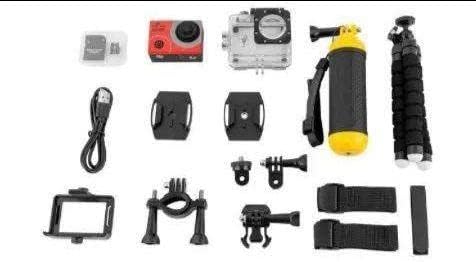
Image: All accessories and the camera included in the Explore One 4K WiFi Action Camera package.
3. Setup Guide
3.1 Battery Installation
- Open the battery compartment cover on the bottom of the camera.
- Insert the rechargeable battery, ensuring the correct polarity.
- Close the battery compartment cover securely.
3.2 Micro SD Card Insertion
- Locate the micro SD card slot on the side of the camera.
- Insert the micro SD card with the gold contacts facing the back of the camera until it clicks into place.
- To remove, gently push the card in until it springs out.
3.3 Using the Waterproof Case
The waterproof case allows the camera to be submerged up to 30 meters. Ensure the camera is securely placed inside the case and the latch is firmly closed before use in water.

Image: The action camera inside its waterproof case, attached to a flexible tripod.
4. Operating Instructions
4.1 Power On/Off
- Power On: Press and hold the Power/Mode button on the front of the camera for 3 seconds.
- Power Off: Press and hold the Power/Mode button for 3 seconds.
4.2 Mode Switching
Press the Power/Mode button repeatedly to cycle through different modes: Video, Photo, Playback, and Settings.
4.3 Recording Video
- Switch to Video mode.
- Press the Shutter/OK button on top of the camera to start recording. A red indicator light will blink.
- Press the Shutter/OK button again to stop recording.
4.4 Taking Photos
- Switch to Photo mode.
- Press the Shutter/OK button to take a photo.
4.5 Wi-Fi Connection
The camera features Wi-Fi connectivity, allowing you to control it remotely and view live footage on your smartphone or tablet. Download the dedicated app (refer to the manual for app name) from your device's app store.
- Turn on the camera's Wi-Fi from the settings menu.
- On your smartphone, go to Wi-Fi settings and connect to the camera's Wi-Fi network (SSID and password will be displayed on the camera screen).
- Open the app to control the camera and view live footage.

Image: Live view from the action camera displayed on a smartphone via Wi-Fi connection.
5. Mounting Options
The Explore One 4K WiFi Action Camera comes with a variety of mounts to suit different activities and perspectives. These include mounts for helmets, bicycles, and flat surfaces, as well as a flexible tripod for stable shots or vlogging.

Image: Children using the action camera mounted on their helmets while cycling.
6. Maintenance and Care
- Cleaning: Use a soft, dry cloth to clean the camera body. For the lens, use a specialized lens cleaning cloth. Do not use harsh chemicals.
- Waterproof Case: After use in saltwater, rinse the waterproof case with fresh water and let it air dry. Ensure no sand or debris is trapped in the seals.
- Battery Care: Store the battery in a cool, dry place. If not used for extended periods, charge and discharge the battery periodically to maintain its life.
- Storage: Store the camera and accessories in a dry, dust-free environment away from direct sunlight and extreme temperatures.
7. Troubleshooting
- Camera not turning on: Ensure the battery is fully charged and correctly inserted.
- Cannot record/take photos: Check if the micro SD card is inserted correctly and has sufficient free space. The card might need to be formatted (this will erase all data).
- Wi-Fi connection issues: Ensure Wi-Fi is enabled on the camera and your smartphone. Try restarting both devices.
- Poor video quality: Check the resolution settings in the camera menu. Ensure the lens is clean.
If problems persist, please refer to the full user manual or contact customer support.
8. Technical Specifications
| Feature | Specification |
|---|---|
| Brand | Explore One |
| Video Capture Resolution | 4K |
| Screen Size | 2 inches |
| Flash Memory Type | Micro SD Card |
| Connectivity Technology | Wi-Fi |
| Feature | Lightweight |
| Waterproof Depth | Up to 30 meters (with waterproof case) |
9. Warranty and Support
Your Explore One 4K WiFi Action Camera is covered by a limited warranty. Please refer to the warranty card included in your package for specific terms and conditions. For technical support, troubleshooting assistance, or warranty claims, please contact the retailer or manufacturer's customer service department. Contact information can typically be found on the product packaging or the official brand website.