
Samsung VM55B-U
Samsung VM55B-U Monitor
User Manual
Introduction
Welcome to the user manual for your Samsung VM55B-U monitor. This guide provides essential information for setting up, operating, maintaining, and troubleshooting your device. Please read this manual thoroughly before use to ensure safe and optimal performance.
Important Safety Information
Always observe the following safety precautions to prevent injury or damage to the product:
- Do not expose the monitor to rain or moisture.
- Do not block ventilation openings. Ensure adequate space around the monitor for airflow.
- Use only the specified power source and cable provided with the monitor.
- Refer all servicing to qualified service personnel. Do not attempt to repair the monitor yourself.
- Avoid placing heavy objects on the power cord or monitor.
What's in the Box
Before proceeding with the setup, please verify that all components are present in the package:
- Samsung VM55B-U Monitor
- Power Cable
- User Manual (this document)
- Other accessories (e.g., remote control, HDMI cable, stand components) may vary by region or retailer.
Setup
Physical Installation
The Samsung VM55B-U monitor is designed for versatile installation, supporting both landscape and portrait orientations. For wall mounting, ensure you use a VESA compatible mount with dimensions of 600 x 400 mm.

Front view of the Samsung VM55B-U monitor.

Side profile of the Samsung VM55B-U monitor, highlighting its slim design.

The Samsung VM55B-U monitor displayed in portrait orientation.
Connecting Cables
Follow these steps to connect your monitor to power and video sources:
- Connect the provided power cable to the monitor's power input and then to a grounded electrical outlet.
- Connect your video source (e.g., computer, media player) to the monitor using an appropriate cable (HDMI, DisplayPort, etc.). Ensure the cable is securely connected to both the source device and the monitor's input port.
- If using network features, connect an Ethernet cable to the LAN port on the monitor.
- For USB connectivity, connect your USB devices to the available USB ports.
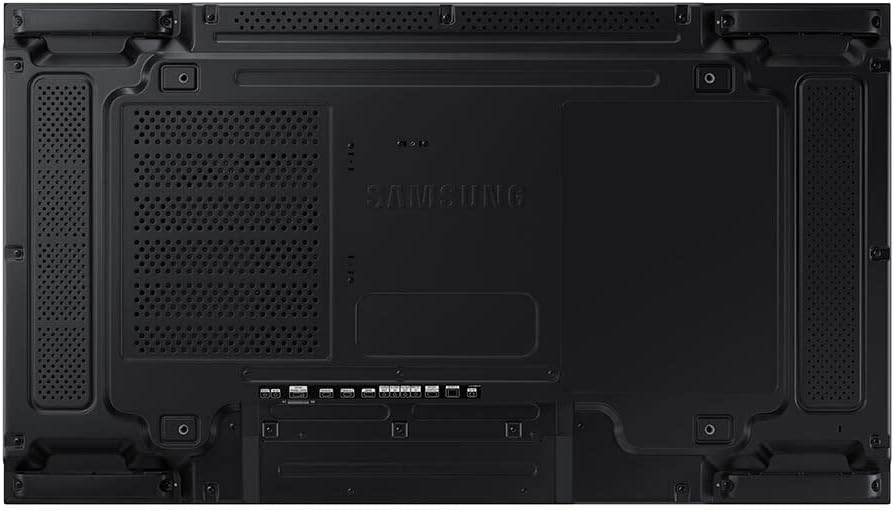
Rear view of the Samsung VM55B-U monitor, showing various input and output ports including power, video, and network connections.
Operating
Power On/Off
To turn the monitor on or off, locate the power button, typically on the bottom or side bezel, and press it. The power indicator light will illuminate when the monitor is on.
Input Source Selection
After connecting your video sources, you may need to manually select the active input. Use the input selection button on the monitor or navigate through the On-Screen Display (OSD) menu to choose the correct source (e.g., HDMI1, DisplayPort).
On-Screen Display (OSD) Menu
The OSD menu allows you to adjust various display settings. Access the OSD by pressing the Menu button. Use the navigation buttons to browse options such as:
- Picture: Brightness, Contrast, Sharpness, Color Tone, Gamma.
- Screen: Aspect Ratio, H-Position, V-Position.
- System: Language, Power Saving, Information.
- Input: Select input source.
Refer to the detailed OSD guide for specific menu options and advanced settings.
Maintenance
Cleaning the Monitor
To maintain the clarity and longevity of your screen, follow these cleaning guidelines:
- Always turn off and unplug the monitor before cleaning.
- Gently wipe the screen with a soft, lint-free cloth (e.g., microfiber cloth).
- For stubborn marks or fingerprints, lightly dampen the cloth with a screen-specific cleaning solution. Never spray liquid directly onto the screen.
- Avoid using abrasive cleaners, alcohol, benzene, or thinners, as these can damage the screen surface.
- Clean the monitor casing with a soft, dry cloth.
General Care
To ensure optimal performance and extend the life of your monitor:
- Keep the monitor away from direct sunlight, excessive heat sources, and high humidity.
- Ensure proper ventilation around the unit by not blocking any vents.
- Avoid placing heavy objects on the monitor or its cables.
- If moving the monitor, handle it carefully and avoid impacts.
Troubleshooting
If you encounter issues with your Samsung VM55B-U monitor, refer to the table below for common problems and their solutions. If the problem persists, contact customer support.
| Problem | Possible Cause | Solution |
|---|---|---|
| No Power | Power cable not connected; Power outlet not active. | Ensure power cable is securely connected to the monitor and a working electrical outlet. Check the power switch on the monitor. |
| No Signal / Blank Screen | Video cable not connected; Incorrect input source selected; Source device not powered on. | Verify video cable (HDMI, DisplayPort) is securely connected to both the monitor and the source device. Select the correct input source using the monitor's OSD menu. Ensure the source device is powered on and outputting a signal. |
| Image is Blurry or Distorted | Incorrect resolution setting; Poor quality video cable. | Adjust the display resolution on your source device to match the monitor's native resolution (1920 x 1080 pixels). Try a different, higher-quality video cable. |
| No Sound (if applicable) | Volume too low; Audio cable not connected; Incorrect audio output selected on source. | Increase monitor volume. Ensure audio cable is connected (if separate). Check audio output settings on your source device. |
Specifications
Detailed technical specifications for the Samsung VM55B-U monitor:
| Display Diagonal | 139.7 cm (55") |
| Resolution | 1920 x 1080 pixels (Full HD) |
| Display Brightness | 500 cd/m² |
| Pixel Pitch | 0.63 x 0.63 mm |
| Placement Supported | Indoor |
| Orientation | Landscape/Portrait |
| Bezel Width (top) | 2.25 mm |
| VESA Mounting | 600 x 400 mm |
| Connectivity | Ethernet LAN, USB |
| Typical Power Consumption | 220 W |
| Standby Power Consumption | 0.5 W |
| Energy Efficiency Class (SDR) | G |
| Dimensions (W x D x H) | 1213.5 mm x 73.1 mm x 684.3 mm |
| Model Number | LH55VMBUBGBXEN |
Warranty and Support
Your Samsung VM55B-U monitor includes 1 year of technical support. For further assistance, troubleshooting, or warranty claims, please contact Samsung customer support or visit the official Samsung website for the most up-to-date support information.
Samsung Official Website: www.samsung.com