
Introduction
This manual provides comprehensive instructions for the TSUSF V87 Full ECU Key Programmer, a versatile diagnostic and programming tool designed for automotive systems. It supports various functions including IMMO, Airbag Reset, ECU, Eeprom, Car Radio, and more. Please read this manual thoroughly before operation to ensure proper and safe use of the device.
Key Features
- Comprehensive Functions: Supports airbag, dashboard, car radio, ECU, eeprom, IMMO, and MCU programming.
- Special Functions: Includes DPF off, PINABS, PINCODE SMATRA3, PINCODE SENSOR SPEED LIMIT, and ODO Adjust.
- MR IR Adapter: Suitable for car key programming, supporting read/write operations.
- RFID Adapter: Designed for automatic identification and read/write operations of car keys.
- 35080-160 Adapter: Includes functionality of 35080-080 adaptation and IC.
- PCF79XX Adapter: Compatible with chips such as PCF7922, PCF7941, PCF7945, PCF7952, PCF7953, PCF7961 for data reading.
- System Compatibility: Operates with Windows XP, Windows Vista, Windows 7, and Windows 8.

Figure 1: Overview of TSUSF V87 Programmer Functions.
Package Contents
Verify that all items listed below are present in your package:
- 1 x Main Unit (TSUSF V87 Programmer)
- 1 x RFID adapter
- 1 x Eeprom adapter
- 1 x UART/MBUS/BDM adapter
- 1 x DB44 adapter
- 1 x Can Adapter
- 1 x K-line Adapter
- 1 x Welding Line
- 1 x OBD Cable
- 1 x USB Cable
- 1 x CD (Software/Drivers)
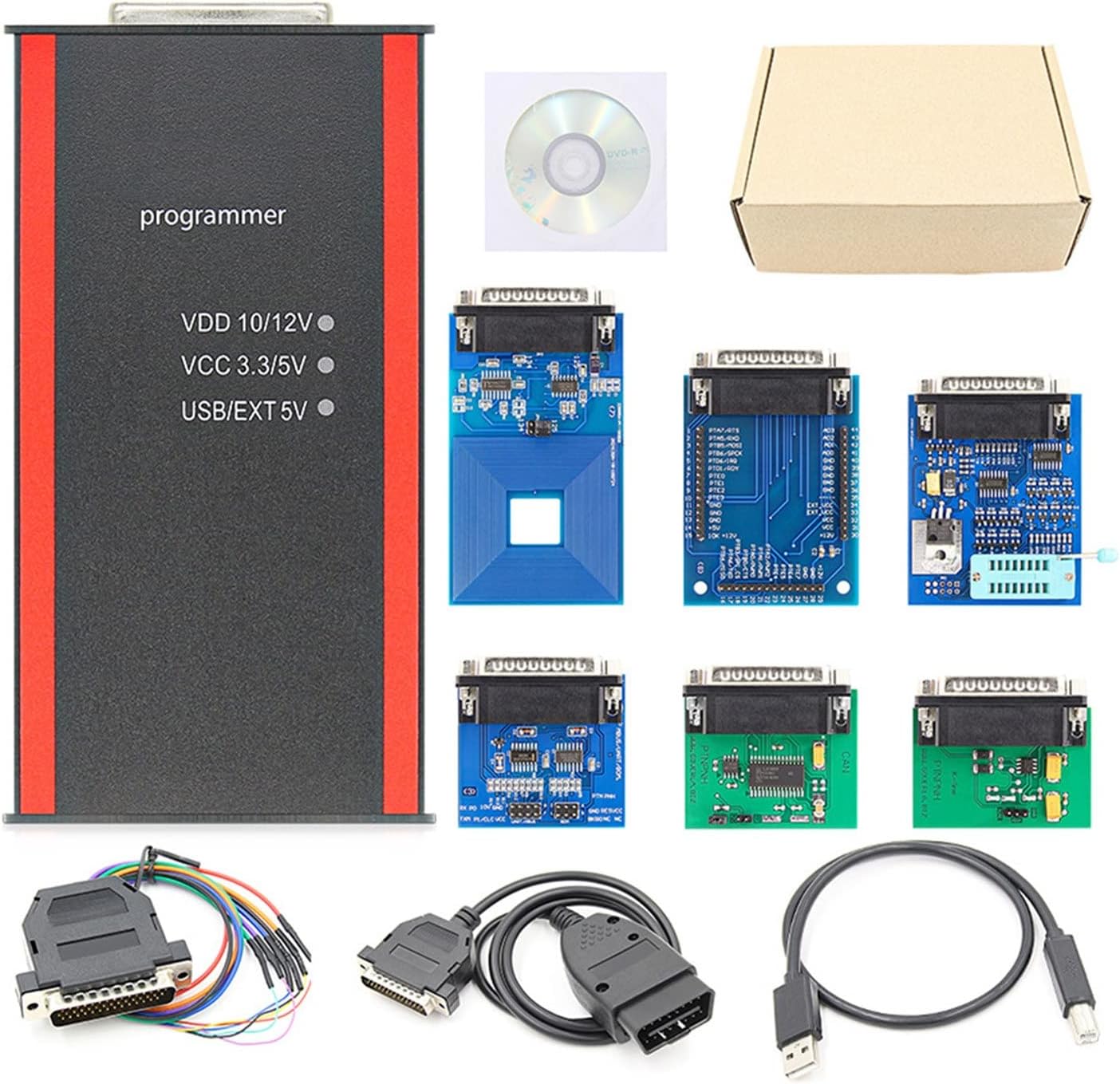
Figure 2: Complete Package Contents of the TSUSF V87 Programmer.
Setup Guide
System Requirements
- Operating System: Windows XP, Windows Vista, Windows 7, or Windows 8.
- Connectivity: Available USB Port.
- Installation: CD-ROM drive for software installation (if not downloaded).
Software Installation
- Insert the provided CD into your computer's CD-ROM drive.
- Follow the on-screen instructions to install the necessary drivers and software for the TSUSF V87 programmer. If the software does not auto-run, navigate to the CD drive and run the setup executable.
- Restart your computer if prompted after installation to ensure all changes take effect.
Hardware Connection
- Connect the USB cable to the TSUSF V87 Main Unit.
- Connect the other end of the USB cable to an available USB port on your computer. The device should be recognized by your operating system. If drivers are not automatically installed, refer to the software installation steps.
- For vehicle-specific operations, connect the OBD cable to the Main Unit and then to the vehicle's OBD-II port. Ensure a secure connection.
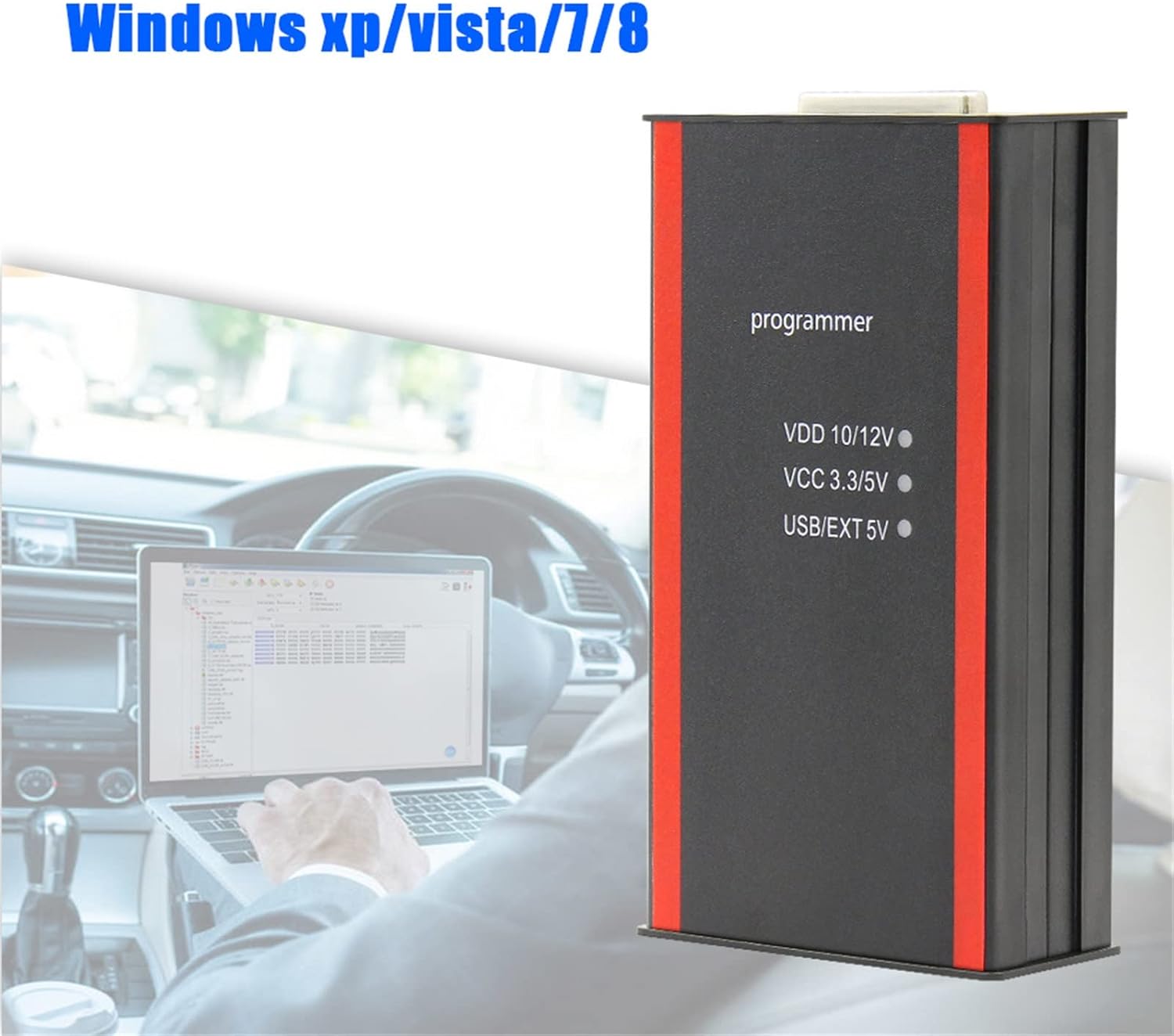
Figure 3: TSUSF V87 Programmer connected to a laptop for operation.
Operating Instructions
The TSUSF V87 programmer offers a wide range of functions. Always ensure the device is properly connected and the vehicle's battery is adequately charged before performing any operations to prevent data corruption or damage.
General Operation Workflow
- Launch the TSUSF V87 software on your computer.
- Select the desired function from the main menu (e.g., IMMO, Airbag Reset, ECU, Eeprom).
- Follow the software's prompts, which will guide you through the specific steps for each operation. This may involve selecting vehicle make/model, reading data, modifying parameters, or writing new data.
- Always back up original data before performing write operations, if the software allows, to prevent irreversible changes.
Specific Functions
IMMO and Key Programming
This function allows for working with vehicle immobilizers, transponders, and keys. It supports copying, preparation, and unlocking of keys.
- Select "IMMO" or "Key Programming" in the software.
- Use the RFID adapter for automatic key identification and read/write operations as instructed by the software.
- Follow the on-screen prompts to read existing key data, generate new key data, or program new keys to the vehicle's immobilizer system.
Airbag Reset and Crash Data Deletion
The programmer can work with airbag computers to delete crash data after an accident, allowing for the reuse of the airbag module (after necessary repairs and inspections).
- Select "Airbag" or "SRS Reset" in the software.
- Connect the programmer to the vehicle's OBD-II port or directly to the airbag module if required by the software.
- Follow the software's instructions to read crash data and perform the reset procedure.
ECU and Eeprom Operations
This function enables reading and writing data from various Electronic Control Units (ECUs) and Eeprom chips found in vehicles.
- Select "ECU" or "Eeprom" in the software.
- Depending on the specific ECU/Eeprom, you may need to use the Eeprom adapter, UART/MBUS/BDM adapter, or other specific adapters provided.
- Carefully follow the software's instructions for data reading, modification, and writing. Incorrect operations can potentially damage the ECU.
Car Radio Unlocking
The device can assist in unlocking multimedia tape recorders.
- Select the "Car Radio" function.
- Follow the software's prompts to connect to the car radio unit and perform the unlocking procedure.
DPF Off and ODO Adjust
Special functions include removing the particulate filter (DPF) in the dump and adjusting odometer readings. Use these functions responsibly and in compliance with local regulations.
- Navigate to "Special Functions" in the software.
- Select "DPF Off" or "ODO Adjust" and follow the specific instructions provided by the software for the vehicle model.
Maintenance and Care
- Cleaning: Wipe the main unit and adapters with a soft, dry cloth. Do not use liquid cleaners, abrasive materials, or solvents, as these can damage the device.
- Storage: Store the device and its accessories in a cool, dry place, away from direct sunlight, excessive dust, and extreme temperatures.
- Cable Care: Avoid bending or crimping cables excessively. Always disconnect cables by pulling the connector, not the cable itself, to prevent internal wire damage.
- Software Updates: Regularly check for software updates from the manufacturer's website or through the provided software. Keeping your software updated ensures optimal performance, bug fixes, and compatibility with new vehicle models.
Troubleshooting
| Problem | Possible Cause | Solution |
|---|---|---|
| Device not recognized by computer. | Missing or incorrect drivers; faulty USB connection; incompatible USB port. | Reinstall drivers from the provided CD or manufacturer's website. Try a different USB port or cable. Ensure the USB cable is securely connected. Avoid using unpowered USB hubs. |
| Software fails to launch or crashes. | Incomplete installation; compatibility issues with OS; corrupted software files. | Reinstall the software completely. Ensure your operating system meets the minimum requirements. Run the software as administrator. Temporarily disable antivirus if it interferes. |
| Unable to connect to vehicle ECU/module. | Incorrect cable connection; vehicle ignition off; incompatible vehicle model; faulty OBD-II port; low vehicle battery. | Verify all cables are securely connected. Ensure vehicle ignition is on (but engine off, unless specified). Check vehicle compatibility list in the software. Test OBD-II port with another device if possible. Ensure vehicle battery is fully charged. |
| Operation fails or gives an error message. | Incorrect procedure; low vehicle battery voltage; software bug; vehicle communication error. | Review the operating instructions for the specific function carefully. Ensure vehicle battery is fully charged. Consult the software's error code documentation or manufacturer support. Try the operation again. |
Technical Specifications
- Model: V87
- Brand: TSUSF
- Color: Onecolor
- Item Weight: Approximately 1 kg
- Power Source: Corded Electric (USB powered)
- Supported Operating Systems: Windows XP, Windows Vista, Windows 7, Windows 8
- Key Functions: IMMO, Airbag Reset, Dashboard Reset, ECU, Eeprom, MCU, Car Radio Unlocking, DPF Off, Key Programming, Anti-theft Programming.
Warranty and Support
For detailed warranty information regarding your TSUSF V87 Full ECU Key Programmer, please refer to the documentation provided with your purchase or contact your retailer directly. Warranty terms may vary based on region and point of purchase.
For technical support, software updates, or further assistance with product operation, please visit the official TSUSF website or contact their customer service department. Always ensure you are using the latest software version for optimal performance and compatibility.
Note: Unauthorized modifications or repairs to the device will void the warranty.