
INLAND 12700KPROZ790PWFD5
INLAND CPU Motherboard Intel Core i7-12700K & MSI PRO Z790-P WiFi DDR5 Instruction Manual
Model: 12700KPROZ790PWFD5
1. Product Overview
This manual provides detailed instructions for the INLAND CPU Motherboard bundle, featuring the Intel Core i7-12700K processor and the MSI PRO Z790-P WiFi DDR5 motherboard. This bundle is designed for high-performance computing, offering advanced features for gaming, content creation, and professional applications.

Image: Overview of the INLAND CPU Motherboard bundle, showing the Intel Core i7-12700K processor box and the MSI PRO Z790-P WiFi DDR5 motherboard.
2. Package Contents
Verify that all items listed below are included in your package. If any items are missing or damaged, contact your retailer.
- Intel Core i7-12700K Processor
- MSI PRO Z790-P WiFi DDR5 Motherboard
- I/O Shield
- 3 x M.2 Clips
- 2 x SATA Cables
- Wi-Fi Antenna
- Driver DVD (for system drivers and utilities)
- European Union Regulatory Notice
- Quick Installation Guide
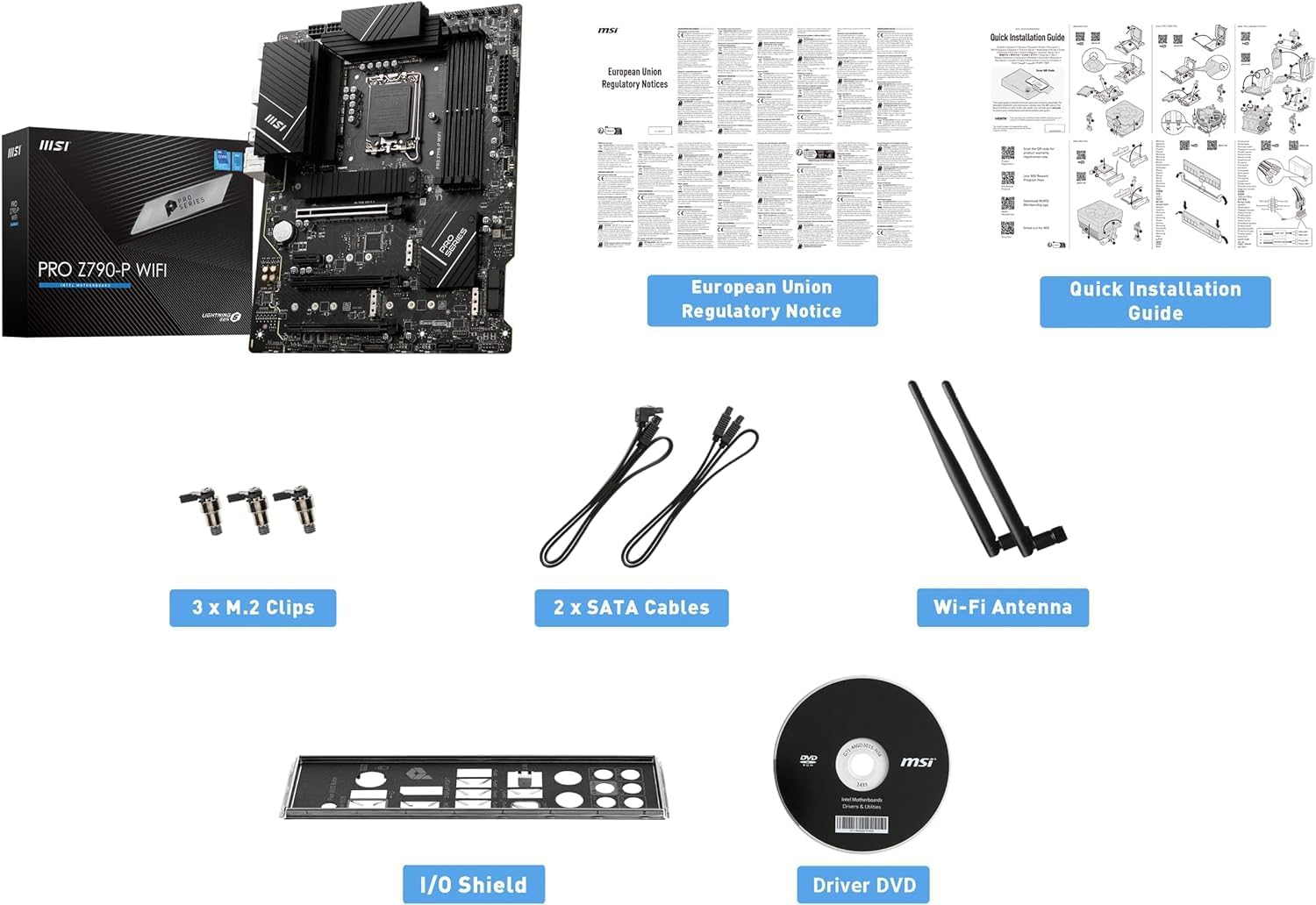
Image: All components included in the INLAND CPU Motherboard bundle, including the CPU, motherboard, I/O shield, M.2 clips, SATA cables, Wi-Fi antenna, driver DVD, and documentation.
3. Intel Core i7-12700K Processor Features
The Intel Core i7-12700K is a 12th Generation processor designed for high performance. Key features include:
- Cores: 12 (8 Performance-cores + 4 Efficient-cores)
- Threads: 20
- Max Turbo Frequency: Up to 5.0 GHz
- Socket: LGA 1700
- Integrated Graphics: Intel UHD Graphics 770
- Memory Support: DDR5 and DDR4
- PCI Express Version: PCIe 5.0 & 4.0
- Max # of PCI Express Lanes: 20
- Unlocked & Overclockable: Yes
- Processor Base Power: 125 W
- Total L2 Cache: 12 MB
- Smart Cache: 25 MB

Image: Close-up of the Intel Core i7-12700K processor, highlighting its specifications.
4. MSI PRO Z790-P WiFi DDR5 Motherboard Features
The MSI PRO Z790-P WiFi DDR5 motherboard provides a stable and feature-rich platform for your system. Key features include:
- Form Factor: ATX
- CPU Socket: LGA 1700 (Supports 12th and 13th Gen Intel Core processors)
- Chipset: Intel Z790
- RAM Memory Technology: Dual Channel DDR5 7000+MHz (OC) up to 192GB
- Power Design: 14+1+1 DRPS with 55A DrMOS for stable power delivery
- Cooling: Premium Cooling design with Extended Heatsink, Heavy Plated VRM Heatsink, 7W/mK Thermal Pad, and Chipset Heatsink.
- Storage: 4x PCIe 4.0 x4 M.2 slots, 6x SATA 6Gb/s ports
- PCIe Slots: Lightning Gen 5 PCIe slot with Steel Armor for enhanced durability and bandwidth.
- USB: USB 3.2 Gen 2x2 Type-C for high-speed data transfer.
- Networking: 2.5G LAN with Wi-Fi 6E Solution and Bluetooth 5.3.
- Audio: AUDIO BOOST for high-quality sound.
- PCB: 6-Layer 2oz copper PCB for improved signal integrity and durability.
- Operating System Support: Windows 11/10 Supported.

Image: The MSI PRO Z790-P WiFi DDR5 motherboard, showcasing its design and features.

Image: Diagram illustrating the 14+1+1 phase power design of the MSI PRO Z790-P WiFi DDR5 motherboard, ensuring stable power delivery to the CPU.

Image: Visual representation of the cooling components on the MSI PRO Z790-P WiFi DDR5 motherboard, including heatsinks for VRM and chipset, and M.2 Shield Frozr.

Image: Diagram showing the multiple M.2 slots (4x PCIe Gen4) and SATA ports (6x) available on the MSI PRO Z790-P WiFi DDR5 motherboard for various storage configurations.

Image: Close-up of the rear I/O panel of the MSI PRO Z790-P WiFi DDR5 motherboard, highlighting the USB 3.2 Gen 2x2 Type-C port for high-speed connectivity.

Image: Illustration of the DDR5 memory slots on the MSI PRO Z790-P WiFi DDR5 motherboard, emphasizing support for high-frequency DDR5 modules.

Image: Detailed view of the Lightning Gen 5 PCIe slot with Steel Armor on the MSI PRO Z790-P WiFi DDR5 motherboard, designed for next-generation graphics cards.
MSI Z790 Series Motherboard Overview Video
Video: An official overview of the MSI Z790 Series Motherboards, highlighting key features and design elements relevant to the PRO Z790-P WiFi DDR5 model.
5. Setup Guide
This section provides a general guide for setting up your CPU and motherboard. Refer to the detailed Quick Installation Guide included in your package for specific steps and diagrams.
5.1. Preparing the Motherboard
- Static Discharge: Before handling components, ensure you discharge any static electricity by touching a grounded metal object.
- Install I/O Shield: If not pre-installed, secure the I/O shield into your computer case.
- Mount Motherboard: Carefully align the motherboard with the standoffs in your computer case and secure it with screws.
5.2. Installing the CPU
- Open CPU Socket: Gently lift the load lever and open the CPU socket cover on the motherboard.
- Align CPU: Carefully align the Intel Core i7-12700K processor with the LGA 1700 socket. Ensure the triangular mark on the CPU matches the mark on the socket. Do not force the CPU into place.
- Close CPU Socket: Lower the socket cover and push down the load lever until it clicks into place, securing the CPU.
- Apply Thermal Paste & Cooler: Apply a thin, even layer of thermal paste to the CPU (if not pre-applied on your cooler) and install your CPU cooler according to its manufacturer's instructions.
5.3. Installing RAM (DDR5 Memory)
- Open DIMM Slot Clips: Open the retention clips on both ends of the DDR5 DIMM slots.
- Insert RAM Modules: Align the notch on the DDR5 memory module with the key in the DIMM slot. Insert the module firmly until the clips snap into place. Refer to your motherboard manual for recommended dual-channel configurations.
5.4. Installing Storage Devices
- M.2 SSDs: For M.2 NVMe SSDs, insert the drive into an M.2 slot and secure it with the provided M.2 clip or screw. Ensure the M.2 Shield Frozr heatsink is installed over the SSD for optimal cooling.
- SATA Drives: Connect SATA data cables from your SSDs/HDDs to the SATA ports on the motherboard. Connect power cables from your power supply to the drives.
5.5. Connecting Peripherals and Power
- Graphics Card: Install your graphics card into the primary PCIe 5.0 x16 slot and secure it. Connect necessary PCIe power cables from your power supply.
- Power Supply: Connect the 24-pin ATX power connector and the 8-pin (or 4+4-pin) CPU power connector from your power supply to the motherboard.
- Front Panel Connectors: Connect the front panel headers (power button, reset button, USB ports, audio jacks) from your case to the corresponding pins on the motherboard. Refer to the motherboard manual for pin layouts.
- Wi-Fi Antenna: Attach the Wi-Fi antenna to the connectors on the rear I/O panel.
- External Peripherals: Connect your monitor, keyboard, mouse, and other peripherals.
6. Operating Instructions
Once all components are installed and connected, you can power on your system.
- Initial Boot: Press the power button on your computer case. The system should power on and display the BIOS/UEFI screen.
- BIOS/UEFI Configuration: Access the BIOS/UEFI setup (usually by pressing DEL or F2 during boot) to configure boot order, enable XMP for RAM, and adjust other settings as needed.
- Operating System Installation: Install your preferred operating system (Windows 10 or 11 recommended) from a bootable USB drive or DVD.
- Driver Installation: After OS installation, install all necessary drivers from the included Driver DVD or download the latest versions from the MSI website for your motherboard and Intel website for your CPU. This includes chipset, graphics, audio, LAN, and Wi-Fi drivers.
- System Updates: Ensure your operating system and all drivers are up to date for optimal performance and security.
7. Maintenance
Regular maintenance helps ensure the longevity and optimal performance of your system.
- Dust Removal: Periodically clean dust from inside your computer case, especially from fans, heatsinks, and vents, using compressed air. Ensure the system is powered off and unplugged before cleaning.
- Driver Updates: Keep your motherboard and component drivers updated to the latest versions from the manufacturer's websites.
- BIOS/UEFI Updates: Check the MSI website for BIOS/UEFI updates. Update only if necessary and follow the instructions carefully to avoid system instability.
- Cable Management: Ensure internal cables are neatly managed to promote good airflow within the case.
- Temperature Monitoring: Use monitoring software to keep an eye on CPU and motherboard temperatures, especially during heavy loads, to prevent overheating.
8. Troubleshooting
If you encounter issues, refer to the following common troubleshooting steps:
- No Power:
- Check all power connections (24-pin ATX, 8-pin CPU, GPU power).
- Ensure the power supply switch is in the ON position.
- Test the power supply with another system or a power supply tester.
- No Display:
- Ensure the monitor is connected to the graphics card (or motherboard if using integrated graphics) and powered on.
- Reseat the graphics card and RAM modules.
- Try booting with only one RAM stick.
- System Instability/Crashes:
- Check CPU and GPU temperatures.
- Ensure all drivers are correctly installed and up to date.
- Run memory diagnostic tools to check for RAM errors.
- Verify power supply wattage is sufficient for all components.
- Slow Performance:
- Check for background processes consuming resources.
- Ensure storage drives are not full.
- Verify XMP profile is enabled for RAM in BIOS/UEFI.
- Check for thermal throttling.
- Network Connectivity Issues:
- Ensure LAN cable is properly connected or Wi-Fi antenna is attached.
- Update LAN/Wi-Fi drivers.
- Check router/modem status.
For more specific troubleshooting or persistent issues, consult the MSI motherboard manual or contact technical support.
9. Specifications
| Component | Feature | Specification |
|---|---|---|
| Intel Core i7-12700K CPU | Cores | 12 (8 Performance + 4 Efficient) |
| Threads | 20 | |
| Max Turbo Frequency | Up to 5.0 GHz | |
| CPU Socket | LGA 1700 | |
| Integrated Graphics | Intel UHD Graphics 770 | |
| Memory Support | DDR5 & DDR4 | |
| PCI Express Version | PCIe 5.0 & 4.0 | |
| Max # of PCI Express Lanes | 20 | |
| Processor Base Power | 125 W | |
| Cache | 12 MB L2, 25 MB Smart Cache | |
| MSI PRO Z790-P WiFi DDR5 Motherboard | Form Factor | ATX |
| CPU Socket | LGA 1700 | |
| Chipset | Intel Z790 | |
| RAM Memory Technology | DDR5 (Dual Channel, up to 7000+MHz OC, 192GB Max) | |
| PCIe Slots | 1x PCIe 5.0 x16, 1x PCIe 4.0 x16 (x4 mode), 3x PCIe 3.0 x1 | |
| M.2 Slots | 4x PCIe 4.0 x4 M.2 slots | |
| SATA Ports | 6x SATA 6Gb/s | |
| USB Ports | USB 3.2 Gen 2x2 Type-C, USB 3.2 Gen 2, USB 3.2 Gen 1, USB 2.0 | |
| LAN | 2.5G LAN | |
| Wireless Connectivity | Wi-Fi 6E, Bluetooth 5.3 | |
| Audio | AUDIO BOOST | |
| Operating System | Windows 11/10 64-bit |
10. Warranty and Support
This product is manufactured by Inland. For warranty information and technical support, please refer to the documentation included with your product or visit the official websites of INLAND and MSI.
- Manufacturer: Inland
- Standard Return Policy: 30 days (refund/replacement)
- Optional Protection Plans: Available (e.g., 4-Year Protection Plan, Complete Protect)
It is recommended to register your product with MSI to ensure access to full warranty benefits and support resources.
Related documents12700KPROZ790PWFD5


Ask a question about this manual
Ask about setup, troubleshooting, compatibility, parts, safety, or missing instructions. Manuals+ will review the question and use this page’s manual context to help answer it.