
1. Introduction
Thank you for choosing the UINO A867 Wired Gaming Mouse. This manual provides detailed instructions for setting up, operating, and maintaining your new gaming mouse. Please read this manual thoroughly to ensure optimal performance and longevity of your device.
2. Product Features
- High-Performance Sensor: Equipped with the Sunplus SPCP190 professional game chip for smooth movement and precise control.
- Adjustable DPI: Four-level DPI settings (1000/1600/3200/6400) for customizable sensitivity.
- RGB Lighting: Dynamic RGB marquee effect with up to 6 lighting patterns. Lighting can be turned off.
- 7 Buttons: Features 7 responsive buttons for enhanced gaming and productivity.
- Ergonomic Design: Human body engineering design for comfortable use during extended sessions.
- Durable Switches: Switches rated for 20 million clicks.
- Wide Compatibility: Supports Windows 2000 / XP / win7 / win8 / win10 Vista 32bit, and IOS or later operating systems.
- Advanced Navigation: Sunplus SPCP190 advanced navigation detection technology for maximum motion detection up to 32 inches per second (ips) with accelerations up to 12G.
3. Package Contents
Please check the package for the following items:
- 1 x UINO A867 Wired Gaming Mouse
- 1 x User Manual
4. Setup Guide
- Connect the Mouse: Plug the USB connector of the UINO A867 Gaming Mouse into an available USB port on your computer.
- Automatic Installation: Your operating system will automatically detect and install the necessary drivers. This process may take a few moments.
- Ready for Use: Once the drivers are installed, the mouse is ready for immediate use. No additional software is required for basic functionality.
5. Operating Instructions
5.1 Button Functions
The UINO A867 Gaming Mouse features 7 buttons. Refer to the diagram below for button identification and their default functions:
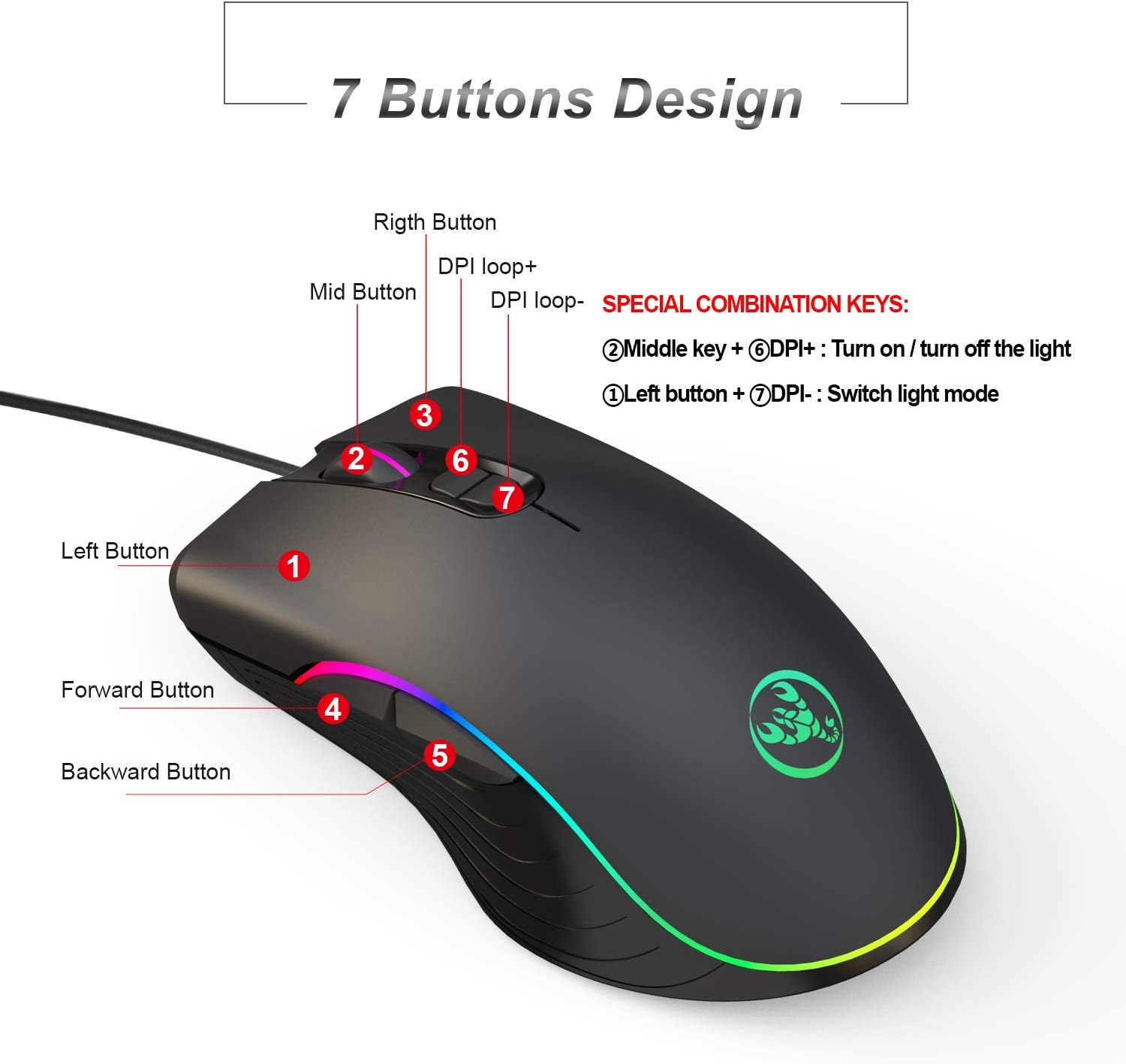
Image Description: This image illustrates the ergonomic design of the UINO A867 gaming mouse and labels its seven buttons. The main left and right click buttons are prominent, with a scroll wheel (Middle Button) in between. On the left side, there are two thumb buttons (Forward and Backward). Two smaller buttons, labeled DPI+ and DPI-, are located behind the scroll wheel.
- Left Button (1): Primary click function.
- Middle Button (2): Scroll wheel and middle click function.
- Right Button (3): Secondary click function.
- Forward Button (4): Navigates forward in web browsers or file explorers.
- Backward Button (5): Navigates backward in web browsers or file explorers.
- DPI+ (6): Increases the DPI sensitivity.
- DPI- (7): Decreases the DPI sensitivity.
5.2 DPI Adjustment
The mouse supports four adjustable DPI levels. Press the DPI+ (6) or DPI- (7) buttons to cycle through the DPI settings. Each DPI level is indicated by a specific LED color:

Image Description: This image visually explains the DPI settings of the UINO A867 mouse. It shows the main mouse with its DPI buttons labeled, and then displays four smaller mouse icons, each glowing a different color (green, purple, blue, red) to represent the 1000, 1600, 3200, and 6400 DPI levels, respectively.
- 1000 DPI: Indicated by Green light
- 1600 DPI: Indicated by Purple light
- 3200 DPI: Indicated by Blue light
- 6400 DPI: Indicated by Red light
5.3 RGB Lighting Control
The UINO A867 mouse features dynamic RGB lighting with multiple effects. You can control the lighting using special key combinations:

Image Description: This image highlights the seven RGB backlit modes available on the UINO A867 mouse. Icons represent modes like Wave, Full Lighted, Go Without Trace, Flash, Rainbow, Breathing, Reactive, and Off. The mouse itself is shown with vibrant RGB lighting, emphasizing its aesthetic features.
- Turn On/Off Light: Press and hold the Middle key (2) + DPI+ (6) simultaneously.
- Switch Light Mode: Press and hold the Left button (1) + DPI- (7) simultaneously to cycle through the 6 available lighting patterns.
6. Maintenance
To ensure the longevity and optimal performance of your UINO A867 Gaming Mouse, follow these maintenance guidelines:
- Cleaning: Use a soft, dry cloth to wipe the surface of the mouse. For stubborn dirt, a slightly damp cloth can be used, but ensure no moisture enters the mouse.
- Avoid Liquids: Do not expose the mouse to liquids or excessive moisture.
- Storage: Store the mouse in a clean, dry environment when not in use.
- Cable Care: Avoid bending or twisting the cable excessively to prevent internal damage.
7. Troubleshooting
If you encounter any issues with your UINO A867 Gaming Mouse, please refer to the following common solutions:
- Mouse Not Responding:
- Ensure the USB cable is securely plugged into a working USB port on your computer.
- Try plugging the mouse into a different USB port.
- Restart your computer.
- Cursor Movement is Erratic or Slow:
- Clean the optical sensor at the bottom of the mouse with a soft, dry cloth.
- Ensure you are using the mouse on a clean, non-reflective surface or a mouse pad.
- Adjust the DPI settings using the DPI+ / DPI- buttons.
- RGB Lighting Not Working:
- Ensure the lighting is not turned off. Press Middle key (2) + DPI+ (6) to toggle the lighting.
- Try switching light modes by pressing Left button (1) + DPI- (7).
- Buttons Not Functioning:
- Check if the mouse is properly connected to the computer.
- Test the mouse on another computer to determine if the issue is with the mouse or the computer.
8. Specifications
| Product Model | A867 RGB Gaming Mouse |
| Sensor | Sunplus SPCP190 Optical |
| DPI Settings | 1000 / 1600 / 3200 / 6400 |
| Number of Buttons | 7 (Not programmable) |
| Lighting Effect | RGB Marquee Effect (6 patterns) |
| Voltage / Current | DC 5V / 100mA |
| Interface | USB Plug and Play |
| Switch Life | 20 Million Cycles |
| Cable Length | 150 cm |
| Item Weight | 132g |
| Item Dimensions (L*W*H) | 12.8 * 7.1 * 4.5 cm |
| Max Motion Detection | 32 inches per second (ips) |
| Acceleration | 12G |
| Compatibility | Windows 2000 / XP / win7 / win8 / win10 Vista 32bit, IOS or latest |
Additional images showing internal components and features:

Image Description: This image focuses on the 'Game chip', specifically the Sunplus SPCP190, emphasizing its high-performance capabilities as an optical mouse system single chip, crucial for smooth and precise control.

Image Description: This image highlights the 'Micro-positioning game engine' and optical sensor of the mouse, indicating its high performance, low loss, and precise game-level motion detection. It visually represents the advanced technology behind the mouse's tracking capabilities.
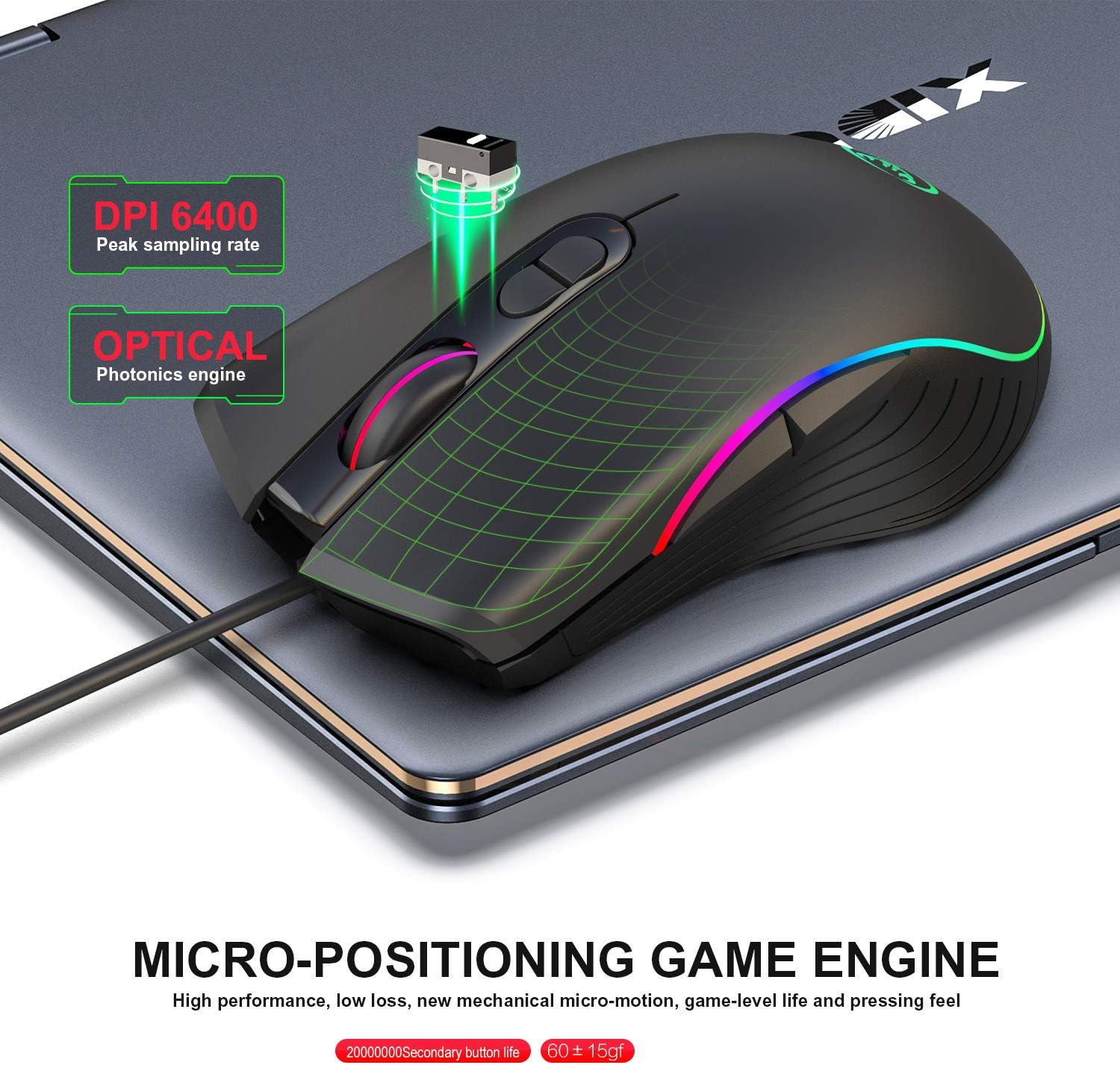
Image Description: This image provides a detailed look at several internal and external features of the mouse. It points out the 'Game non-slip wheel', the range of DPI settings (1000/1600/3200/6400), the 'Multi-color backlight', the 'Switch life' of 20 million cycles, the 'Bump anti-slip flank' for grip, and the 'RGB Marquee effect' lighting.
9. Warranty and Support
For warranty information or technical support, please refer to the documentation provided with your purchase or contact UINO customer service through their official website or the retailer where the product was purchased. Please have your product model (A867) and purchase details ready when contacting support.