
HP TP01-3070
HP Pavilion Desktop PC TP01-3070 User Manual
Model: TP01-3070
Brand: HP
Product Overview
The HP Pavilion Desktop PC TP01-3070 is designed for everyday computing, offering performance, durability, and connectivity. This desktop features a sleek snow-white finish and is built to integrate seamlessly into your home or office environment.

Image: The HP Pavilion Desktop PC TP01-3070 tower, accompanied by its wired keyboard and mouse, showcasing its compact and clean design.
Key features include a 12th Generation Intel Core i7-12700 processor, 12 GB SDRAM, and a 512 GB PCIe NVMe M.2 Solid State Drive for fast performance and ample storage. It comes pre-installed with Windows 11 Home and offers extensive connectivity options.
Setup Guide
1. Unpacking the System
Carefully remove all components from the packaging. Ensure the following items are present:
- HP Pavilion Desktop TP01-3070 PC Tower
- HP 310 white wired keyboard
- HP 310 white wired mouse
- Power Adapter
- Setup Poster (Quick Start Guide)

Image: A visual representation of the contents included in the HP Pavilion Desktop PC package, showing the desktop tower, wired keyboard and mouse, power adapter, and setup poster.
2. Connecting Peripherals
Connect the wired keyboard and mouse to the available USB ports on the desktop. The desktop features multiple USB ports on both the front and rear panels.
- Front Ports: 4x SuperSpeed USB Type-A (5Gbps), 1x SuperSpeed USB Type-C, Headphone/Microphone Combo, HP 3-in-1 Media Card Reader.
- Rear Ports: 4x USB 2.0 Type-A, HDMI Out, VGA.
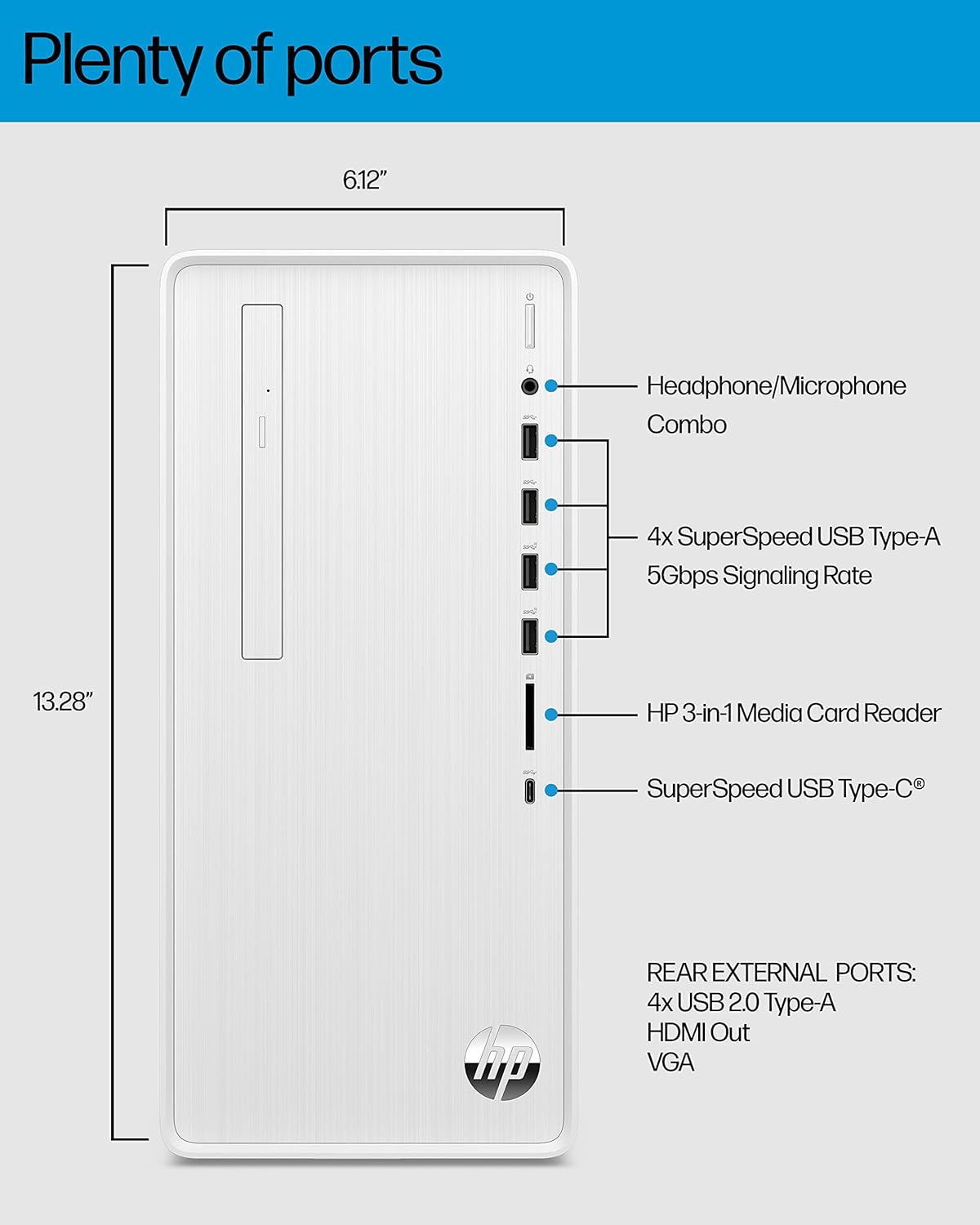
Image: A detailed diagram illustrating the various front and rear ports available on the HP Pavilion Desktop PC, including USB, audio, video, and media card reader connections.
Connect your monitor to either the HDMI Out or VGA port. Ensure the monitor is powered on.
3. Powering On
Connect the power adapter to the desktop and then to a power outlet. Press the power button located on the front panel of the desktop to turn it on.
Follow the on-screen instructions for the initial Windows 11 Home setup, including network configuration and user account creation.
Operating the System
Windows 11 Home
The HP Pavilion Desktop PC comes with Windows 11 Home pre-installed. This operating system offers a refreshed user interface, enhanced productivity features, and new ways to connect and create.
Familiarize yourself with the Start menu, taskbar, and File Explorer for navigation and application management.
Connectivity
The system supports Wi-Fi 6 (2x2) and Bluetooth for wireless connectivity. To connect to a Wi-Fi network, click the network icon in the taskbar and select your desired network. For Bluetooth devices, go to Settings > Bluetooth & devices to pair.
HP QuickDrop software is pre-installed to facilitate quick and secure file transfers between your PC and mobile devices.

Image: The HP Pavilion Desktop PC positioned next to a monitor displaying the Windows 11 Home operating system, highlighting its powerful connectivity features.
Performance and Graphics
Equipped with a 12th Generation Intel Core i7-12700 processor and Intel UHD Graphics 770, this desktop is capable of handling dynamic multitasking and smooth 4K content streaming.
The 12 GB SDRAM ensures smooth operation even with multiple applications open, and the 512 GB SSD provides rapid boot times and application loading.

Image: The HP Pavilion Desktop PC alongside a monitor displaying video editing software, illustrating its superior performance capabilities for demanding tasks.
Audio and Entertainment
The desktop supports immersive 5.1 surround sound, requiring compatible speakers or a home theater system connected to the audio output ports. Enjoy streaming your favorite content or gaming with enhanced audio.

Image: The HP Pavilion Desktop PC next to a monitor displaying a streaming service interface, demonstrating its capability for modern entertainment.
Maintenance
System Updates
Regularly check for and install Windows updates to ensure system stability, security, and optimal performance. Go to Settings > Windows Update.
Cleaning
Keep the desktop clean by regularly dusting the exterior with a soft, dry cloth. Ensure ventilation grilles are free from obstructions to maintain proper airflow and prevent overheating.
Data Backup
It is recommended to regularly back up important data to an external drive or cloud storage to prevent data loss.
Troubleshooting
No Power
- Ensure the power cable is securely connected to both the desktop and the power outlet.
- Verify the power outlet is functional by plugging in another device.
- Check the power adapter for any visible damage.
No Display
- Confirm the monitor is powered on and the video cable (HDMI or VGA) is securely connected to both the desktop and the monitor.
- Try connecting the monitor to a different video port on the desktop if available.
- Test the monitor with another device if possible to rule out monitor issues.
Slow Performance
- Close unnecessary applications running in the background.
- Check for and install any pending Windows updates.
- Run a disk cleanup and optimize drives (for SSD) through Windows tools.
- Scan for malware or viruses.
Peripheral Not Responding
- Ensure the peripheral (keyboard, mouse, etc.) is properly connected to a USB port.
- Try connecting the peripheral to a different USB port.
- Restart the computer.
- Check Device Manager in Windows for driver issues.
Specifications
| Feature | Detail |
|---|---|
| Model Number | TP01-3070 |
| Processor | 12th Generation Intel Core i7-12700 (2.1 GHz) |
| RAM | 12 GB DDR4 SDRAM |
| Storage | 512 GB PCIe NVMe M.2 Solid State Drive |
| Graphics | Intel UHD Graphics 770 (Integrated) |
| Operating System | Windows 11 Home |
| Wireless Connectivity | Wi-Fi 6 (802.11a/b/g/n/ac) and Bluetooth |
| USB Ports (Front) | 4x SuperSpeed USB Type-A, 1x SuperSpeed USB Type-C |
| USB Ports (Rear) | 4x USB 2.0 Type-A |
| Video Output | HDMI Out, VGA |
| Audio | Headphone/Microphone Combo Jack (Front), 5.1 Surround Sound Support |
| Dimensions (LxWxH) | 6.12 x 11.93 x 13.28 inches |
| Weight | 13.14 pounds |
| Color | Snow White |
Warranty Information
This HP Pavilion Desktop PC TP01-3070 comes with a 1-year limited hardware warranty from the date of purchase. This warranty covers defects in materials and workmanship under normal use.
For detailed terms and conditions, please refer to the warranty documentation included with your product or visit the official HP support website.
Support and Resources
For further assistance, technical support, or to download updated drivers and software, please visit the official HP Support website:
You can also find additional resources and community forums for troubleshooting and tips.
Environmental Considerations
The HP Pavilion Desktop is designed with sustainability in mind, incorporating water-based paint and shipping in completely recyclable packaging. It is ENERGY STAR certified and EPEAT Silver registered.

Image: The HP Pavilion Desktop PC against an abstract blue background, representing its sustainable design features, including water-based paint and recyclable packaging.