
1. Introduction
Thank you for purchasing the Mouset Car MP3 Player Model 1051. This device is designed to provide high-quality audio entertainment in your vehicle, featuring Bluetooth connectivity, an FM tuner, and support for various media formats via USB, SD card, and AUX input. Please read this manual carefully before installation and operation to ensure proper use and to maximize your listening experience.
2. Safety Information
- Electrical Safety: Ensure the car's ignition is off before installation. Incorrect wiring can cause damage to the unit or the vehicle's electrical system. Consult a professional if you are unsure about the wiring.
- Voltage: This unit is designed for 12V DC negative ground systems. Do not attempt to install it in vehicles with other voltage systems (e.g., 24V) unless specified. The product box indicates compatibility with 12V systems.
- Driving Safety: Do not operate the unit in a way that distracts you from driving. Always prioritize road safety.
- Temperature: Avoid exposing the unit to extreme temperatures or direct sunlight for prolonged periods.
- Moisture: Keep the unit away from water and excessive moisture.
3. Package Contents
Please check that all items are present in the package:
- Mouset Car MP3 Player Unit (Model 1051)
- Remote Control
- Wiring Harness
- Installation Accessories (e.g., mounting frame, keys)
- User Manual (this document)

Image 3.1: The Mouset Car MP3 Player unit and its accompanying remote control.
4. Product Overview
4.1 Front Panel
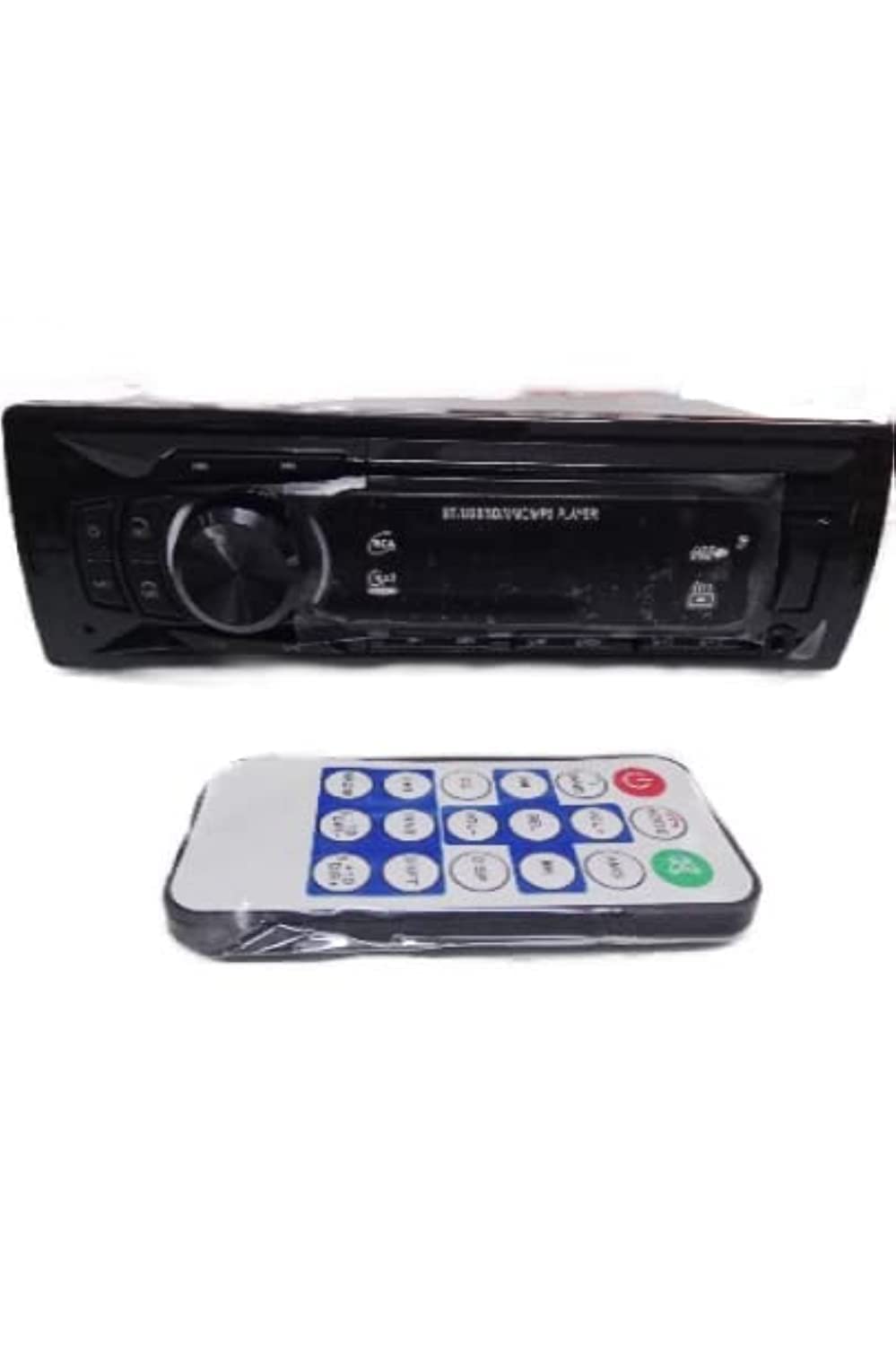
Image 4.1: Front panel of the Mouset Car MP3 Player.
- Power/Mode Button: Press to turn on/off, short press to switch modes (FM/USB/SD/BT/AUX).
- Volume Knob: Rotate to adjust volume. Press to access audio settings (Bass, Treble, Balance, Fader, EQ).
- USB Port: Connect USB flash drives for media playback.
- SD Card Slot: Insert SD cards for media playback.
- AUX Input (3.5mm Jack): Connect external audio devices.
- Display Screen: Shows current time, radio frequency, track information, etc.
- Band/AMS Button: In FM mode, short press to switch radio bands (FM1/FM2/FM3). Long press for automatic station scan and memory.
- Play/Pause/Mute Button: Play/pause media, mute audio.
- Next/Previous Track/Seek Buttons: Skip tracks or seek radio stations.
- EQ Button: Cycle through preset equalizer settings (Pop/Rock/Class).
- Clock Button: Display or set the clock.
4.2 Remote Control
Image 4.2: The remote control for the Mouset Car MP3 Player.
The full-function remote control allows convenient operation of the unit from a distance. Refer to the button labels on the remote for specific functions, which generally mirror the front panel controls.
5. Setup
5.1 Installation
Warning: Incorrect installation can cause damage to the unit or vehicle. If you are not confident with electrical wiring, please seek professional assistance.
- Disconnect Battery: Before starting, disconnect the negative terminal of your car battery to prevent short circuits.
- Remove Old Unit: Carefully remove your existing car stereo.
- Mounting: Install the mounting sleeve into the dashboard opening. Bend the tabs outwards to secure it.
- Wiring: Connect the provided wiring harness to your vehicle's wiring. Match colors and functions carefully.
- Yellow Wire: Connect to constant 12V power (battery).
- Red Wire: Connect to switched 12V power (ignition/ACC).
- Black Wire: Connect to ground.
- Speaker Wires: Connect to your car's speakers (ensure correct polarity). The unit supports 4 channels.
- Antenna: Connect the car's radio antenna cable to the unit.
- Insert Unit: Slide the MP3 player unit into the mounting sleeve until it clicks into place.
- Reconnect Battery: Reconnect the negative terminal of your car battery.
5.2 Initial Power On
After installation, turn on your car's ignition. Press the Power button on the unit or remote control. The display should light up, indicating the unit is powered on.
6. Operating Instructions
6.1 Basic Functions
- Power On/Off: Press the Power button.
- Volume Control: Rotate the Volume Knob clockwise to increase, counter-clockwise to decrease.
- Mode Selection: Short press the Mode button to cycle through available sources: FM, USB, SD, Bluetooth (BT), AUX.
- Mute: Press the Play/Pause/Mute button to mute audio. Press again to unmute.
6.2 Radio (FM) Operation
- Select FM Mode: Press the Mode button until "FM" appears on the display.
- Change Band: Press the BAND button to switch between FM1, FM2, and FM3.
- Auto Seek: Long press the BAND/AMS button to automatically scan and store strong stations into presets.
- Manual Seek: Short press the Next/Previous Track/Seek buttons to manually tune to the next/previous station.
- Preset Stations: Short press the numbered buttons (1-6) to select a stored preset station. To store a station, tune to the desired frequency, then long press a numbered button (1-6) until you hear a beep.
6.3 USB/SD Card Playback
- Insert Media: Insert a USB flash drive into the USB Port or an SD card into the SD Card Slot. The unit will automatically switch to USB/SD mode and begin playback.
- Play/Pause: Press the Play/Pause button.
- Next/Previous Track: Press the Next/Previous Track buttons.
- Repeat/Random: Use the corresponding buttons on the remote control (if available) or cycle through options via the menu.
6.4 Bluetooth Operation
- Enter Bluetooth Mode: Press the Mode button until "BT" appears on the display. The unit will enter pairing mode.
- Pairing: On your mobile device, search for Bluetooth devices and select "CAR BT" or a similar name. Enter "0000" if a PIN is required. Once paired, the display will show "BT ON" or a similar indicator.
- Audio Playback: Play audio from your paired device. Use the unit's Play/Pause and Next/Previous Track buttons to control playback.
- Hands-Free Calling: When a call comes in, the unit may automatically switch to call mode. Use the Answer/End Call button (if available on the unit or remote) to manage calls.
6.5 AUX Input
- Connect Device: Connect your external audio device (e.g., smartphone, MP3 player) to the 3.5mm AUX Input jack on the front panel using an audio cable.
- Select AUX Mode: Press the Mode button until "AUX" appears on the display.
- Playback: Control playback directly from your connected external device. The unit's volume control will still function.
6.6 Audio Settings
- EQ Presets: Press the EQ button to cycle through preset equalizer modes: Pop, Rock, Class.
- Manual Audio Adjustment: Press the Volume Knob to cycle through Bass, Treble, Balance, and Fader settings. Rotate the knob to adjust each setting.
6.7 Clock Setting
- Display Clock: Press the CLK button to display the current time.
- Set Clock: Long press the CLK button until the hour digits flash. Use the Volume Knob or Next/Previous Track buttons to adjust the hour. Press CLK again to switch to minute adjustment, then adjust minutes. Press CLK one more time to save and exit.
7. Maintenance
- Cleaning the Unit: Use a soft, dry cloth to wipe the front panel. Do not use abrasive cleaners or solvents.
- Cleaning Ports: Ensure USB and SD card slots are free from dust and debris. Use compressed air if necessary.
- Remote Control Battery: If the remote control stops responding, replace its battery (typically a CR2025 coin cell).
8. Troubleshooting
| Problem | Possible Cause | Solution |
|---|---|---|
| No power | Incorrect wiring; Blown fuse; Loose connection. | Check wiring connections (Yellow, Red, Black). Check the fuse in the unit's wiring harness. Ensure battery is connected. |
| No sound | Volume too low; Mute activated; Incorrect speaker wiring; Faulty speakers. | Increase volume. Deactivate mute. Check speaker connections and polarity. Test with different speakers if possible. |
| Radio reception is poor | Antenna not connected; Weak signal; Damaged antenna. | Ensure antenna is securely connected. Try tuning to stronger stations. Check antenna for damage. |
| USB/SD not playing | Unsupported file format; Corrupted media; Incorrectly inserted. | Ensure files are MP3/WMA/WAV. Try a different USB/SD card. Reinsert the media. |
| Bluetooth not pairing | Unit not in pairing mode; Device too far; Incorrect PIN; Previous connection interference. | Ensure unit is in BT mode. Keep devices close. Try "0000" for PIN. Delete previous pairings on your phone and retry. |
9. Specifications
| Model Number | 1051 |
| Power Output | 60 Watts x 4 Channels |
| Supported Audio Formats | MP3, WMA, WAV |
| Connectivity | Bluetooth, Auxiliary (3.5mm Jack), USB, SD Card |
| Tuner | FM Tuner with 18 Presets |
| Special Features | Digital Clock Display, Preset EQ (Pop/Rock/Class), Full Function Remote Control |
| Compatible Devices | Smartphone, Tablet, Personal Computer, Speaker, Amplifier |
| Power Supply | 12V DC (Negative Ground) |

Image 9.1: Product packaging displaying key specifications.
10. Warranty and Support
10.1 Warranty Information
This product comes with a standard manufacturer's warranty against defects in materials and workmanship. The warranty period and terms may vary by region. Please retain your proof of purchase for warranty claims. For specific warranty details, refer to the documentation provided with your purchase or contact your retailer.
10.2 Customer Support
If you encounter any issues or have questions regarding the Mouset Car MP3 Player Model 1051 that are not covered in this manual, please contact our customer support team. You can typically find contact information on the product packaging or the retailer's website.