
Introduction
The UINO J600 is a high-performance mechanical USB wired gaming mouse designed for precision and customization. Featuring 9 programmable buttons, adjustable DPI up to 6400, and customizable LED lighting, it offers an ergonomic design for comfortable extended use. This manual provides detailed instructions for setup, operation, and maintenance of your J600 gaming mouse.
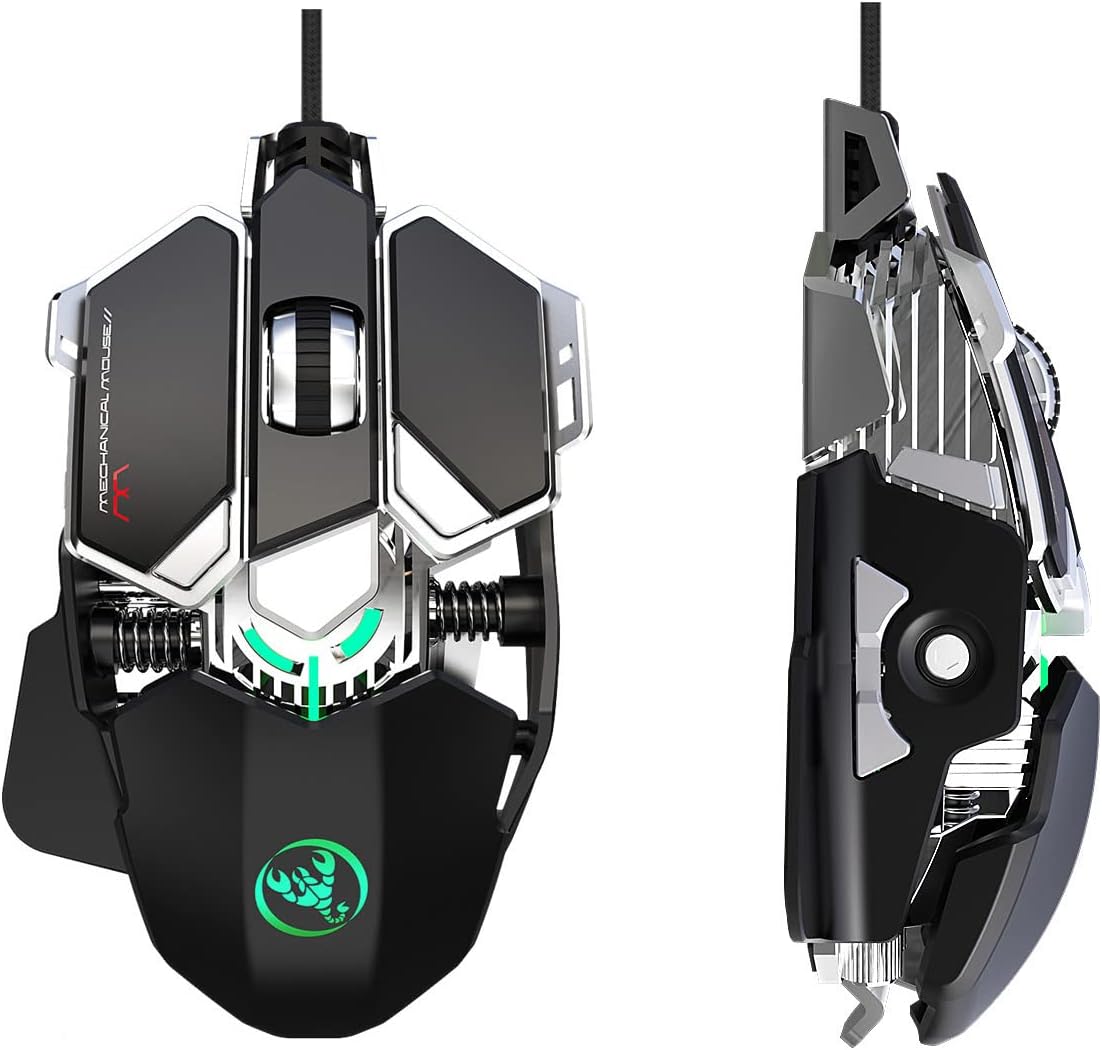
Image: Front and side view of the UINO J600 Mechanical USB Wired Gaming Mouse, showcasing its ergonomic design and mechanical elements.
Setup Instructions
- Connect the Mouse: Plug the USB connector of the UINO J600 gaming mouse into an available USB port on your computer. The mouse is plug-and-play, and basic functionality will be available immediately.
- Download Software: For full customization and macro programming, download the dedicated macro programming software from the official UINO website.
- Install Software: Locate the downloaded file (e.g., "setup.exe") and run it to install the software on your computer. Follow the on-screen prompts to complete the installation.
- Launch Driver: After successful installation, a "J600" driver icon will appear on your desktop. Double-click this icon to launch the customization software.
Operating Instructions
The UINO J600 mouse features a professional game chip for smooth motion and precise control. The customization software allows you to configure various settings to enhance your gaming and productivity experience.
Button Settings
The mouse features 9 programmable buttons. Use the customization software to assign specific functions, macros, or key combinations to each button (1-9).

Image: Diagram illustrating the default button layout of the UINO J600 mouse, labeling Left, Right, Middle, DPI+, DPI-, Forward, Back, Display Desktop, and Fire Key 3 buttons.
DPI Settings
The mouse supports 12-level adjustable DPI, with a maximum of 6400 DPI. Default settings include 800, 1600, 2400, 3200, 4800, and 6400 DPI. You can cycle through these settings using the dedicated DPI buttons on the mouse or customize them further in the software. The LED light color changes to indicate the current DPI level.

Image: Visual guide showing the UINO J600 mouse and the corresponding LED light colors for each DPI setting: Green (800), Purple (1600), Blue (2400), Red (3200), Yellow (4800), and Cyan-blue (6400).
LED Settings
Customize the mouse's LED lighting effects through the software. Options typically include: always on, custom breathing, spectral cycle, or off. The mouse features 16.8 million color backlight options.
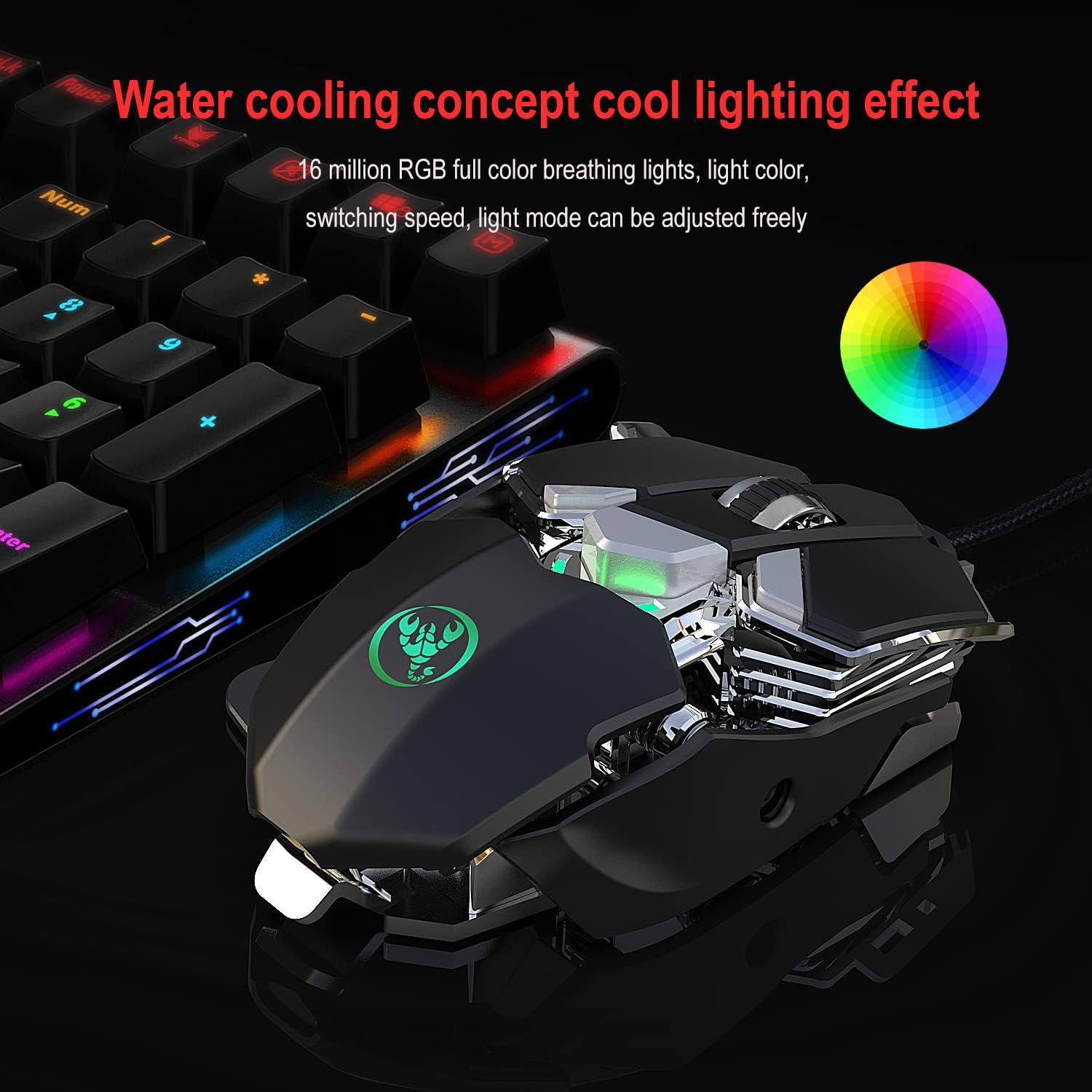
Image: The UINO J600 mouse displaying its customizable RGB lighting effects, with a color spectrum wheel indicating 16 million color options.
Mouse Parameters
Within the software, you can adjust various mouse parameters such as pointer precision, scroll wheel speed, and double-click speed to suit your preferences.
Custom Macro Settings
The software supports custom macro editing, allowing you to create complex sequences of commands for in-game actions or productivity tasks.
Saving Configuration
After making any changes in the software, click "Applications" and then "Save Configuration." To ensure all customized features are active, you should restart the driver software the next time you use the mouse.
Specifications
| Feature | Description |
|---|---|
| Product Model | J600 Mechanical Macros Define Gaming Mouse |
| Design | Human body engineering, Ergonomic |
| Programmable Keys | 9 |
| DPI Levels | 12-level adjustable, Max. 6400 DPI (800-1600-2400-3200-4800-6400) |
| Lighting | Cool LED variable light effect, 16.8 million colors |
| Voltage / Current | DC 5V / 100mA |
| Connectivity | USB Wired, Plug and Play |
| Switch Life | 20 million cycles |
| Cable Length | 150 cm |
| Item Weight | 137.5 g |
| Item Dimensions (L*W*H) | 130*80*35 mm |
| Compatibility | Windows 2000 / XP / win7 / win8 / win10 Vista 32bit, IOS or latest |
| Movement Detection Technology | Laser |

Image: Exploded view of the UINO J600 mouse, detailing its modular structure and internal components such as the braided wire, micro switch, PCP board, electroplated skeleton structure, and sandblasting base.

Image: Close-up of the professional A6653 game chip used in the UINO J600 mouse, highlighting its role in stable transmission and accurate control with features like 6600 frequency sweep, 20G acceleration, and 60in/s moving speed.
Maintenance
- Cleaning: Use a soft, dry cloth to clean the mouse surface. For stubborn dirt, a slightly damp cloth can be used, ensuring no moisture enters the internal components. Avoid harsh chemicals or abrasive cleaners.
- Cable Care: Avoid sharply bending or twisting the USB cable to prevent damage. Store the cable neatly when not in use.
- Sensor Maintenance: Keep the optical sensor on the underside of the mouse clean and free from dust or debris to ensure accurate tracking.
Troubleshooting
- Mouse Not Responding:
- Ensure the USB cable is securely plugged into a working USB port on your computer.
- Try plugging the mouse into a different USB port.
- Restart your computer.
- Test the mouse on another computer to determine if the issue is with the mouse or the computer.
- Software Not Launching/Functioning:
- Ensure the mouse is connected to the computer.
- Reinstall the macro programming software.
- Check for software updates on the official UINO website.
- Ensure your operating system is compatible with the software (Windows 2000 / XP / win7 / win8 / win10 Vista 32bit, IOS or latest).
- Inconsistent Tracking:
- Clean the optical sensor on the underside of the mouse.
- Use the mouse on a clean, uniform surface or a high-quality mouse pad.
- Adjust DPI settings to a lower value if tracking is too sensitive.
Warranty Information
Specific warranty details for the UINO J600 Mechanical USB Wired Gaming Mouse are not provided in this manual. Please refer to the product packaging or the official UINO website for warranty terms and conditions.
Customer Support
For further assistance, technical support, or inquiries regarding your UINO J600 gaming mouse, please visit the official UINO website or contact their customer service department. Contact information is typically available on the product packaging or the manufacturer's website.