
1. Introduction
This manual provides essential information for setting up, operating, maintaining, and troubleshooting your HP 14-inch HD Laptop. This device is equipped with a 14-inch HD display, an Intel Celeron Dual-Core Processor, 4GB of RAM, and a 64GB Solid State Drive (SSD), running on Windows 11. Please read this manual thoroughly to ensure proper use and longevity of your laptop.
2. Setup
2.1 Unboxing and Initial Power-On
Carefully remove the laptop and its accessories from the packaging. Ensure all components are present: the HP 14-inch HD Laptop, power adapter, and any included documentation.
- Connect the power adapter to the laptop's charging port and then to a power outlet.
- Open the laptop lid. The laptop may power on automatically, or you may need to press the power button, typically located on the keyboard deck.

Image 1: Front view of the HP 14-inch HD Laptop displaying the Windows 11 operating system.
2.2 Windows 11 Initial Setup
Upon first boot, you will be guided through the Windows 11 setup process. Follow the on-screen instructions to:
- Select your region and keyboard layout.
- Connect to a Wi-Fi network.
- Accept the license agreement.
- Create or sign in with a Microsoft account.
- Set up a PIN for quick login.
- Adjust privacy settings.
2.3 Connecting to Wi-Fi
During the initial setup, you will be prompted to connect to a wireless network. If you skip this step or need to connect later:
- Click the Wi-Fi icon in the taskbar (bottom right corner of the screen).
- Select your desired network from the list of available networks.
- Enter the network security key (password) if prompted, then click 'Connect'.
3. Operating Instructions
3.1 Basic Navigation
- Touchpad: Use the touchpad for cursor control. Tap to click, two-finger tap for right-click, and two-finger scroll for scrolling.
- Keyboard: The keyboard provides standard input. Familiarize yourself with function keys (Fn) for brightness, volume, and other system controls.
3.2 Connecting Peripherals
Your HP 14-inch HD Laptop includes various ports for connecting external devices.
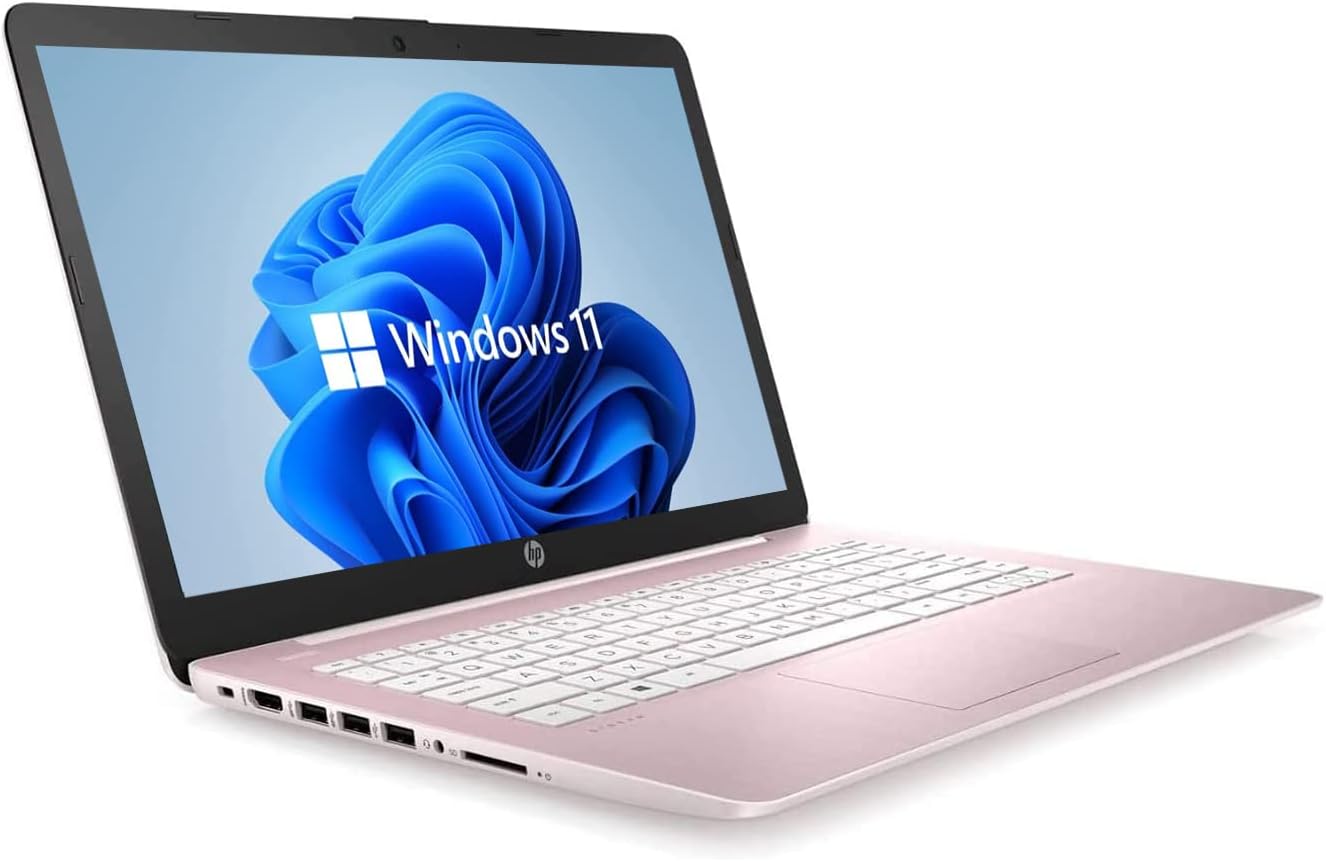
Image 2: Side view of the HP 14-inch HD Laptop, highlighting the USB Type-A ports and the SD card reader.
- USB Type-A Ports (3x): Connect USB devices such as external hard drives, mice, or keyboards.
- SD Card Reader (1x): Insert an SD card to transfer photos or files.
- Headphone/Microphone Combo Jack (1x): Connect headphones, external speakers, or a headset with a microphone.
3.3 Webcam and Microphone
The integrated HP Webcam and digital microphone are located at the top center of the display. These are used for video calls, online meetings, and recording audio/video.
3.4 Bluetooth Connectivity
To connect Bluetooth devices (e.g., wireless headphones, speakers, or mice):
- Go to 'Settings' > 'Bluetooth & devices'.
- Ensure Bluetooth is turned 'On'.
- Click 'Add device' and select 'Bluetooth'.
- Choose your device from the list and follow any pairing instructions.
4. Maintenance
4.1 General Care
- Keep the laptop clean by gently wiping surfaces with a soft, lint-free cloth. Avoid harsh chemicals.
- Ensure ventilation openings are clear to prevent overheating.
- Avoid exposing the laptop to extreme temperatures, direct sunlight, or moisture.
4.2 Software Updates
Regularly update your Windows 11 operating system and drivers to ensure optimal performance and security.
- Go to 'Settings' > 'Windows Update'.
- Click 'Check for updates' and install any available updates.
4.3 Battery Care
- For optimal battery life, avoid constantly discharging the battery to 0% or keeping it at 100% for extended periods.
- Store the laptop in a cool, dry place if not used for a long time.
4.4 Storage Management
With a 64GB SSD, efficient storage management is crucial. Regularly:
- Delete unnecessary files and applications.
- Utilize cloud storage services for large files.
- Consider an external storage device for additional capacity.
5. Troubleshooting
5.1 Common Issues and Solutions
| Issue | Possible Solution |
|---|---|
| Laptop does not power on | Ensure the power adapter is securely connected and the outlet is functional. Try a different outlet. |
| Slow performance or lagging | Close unnecessary applications. Check for Windows updates. Manage storage to free up space. Restart the laptop. |
| Wi-Fi connection issues | Restart your router and modem. Ensure Wi-Fi is enabled on the laptop. Forget and reconnect to the network. |
| Display problems (e.g., no image) | Connect an external monitor to check if the issue is with the laptop's display. Adjust brightness settings. |
| Battery not charging | Verify the power adapter and charging port are not damaged. Ensure the adapter is correctly plugged in. |
5.2 Further Assistance
For more detailed troubleshooting or issues not covered here, refer to the official HP support website or Windows 11 help resources.
6. Specifications
The following table outlines the key technical specifications for your HP 14-inch HD Laptop:
| Feature | Specification |
|---|---|
| Screen Size | 14 Inches |
| Screen Resolution | 1366 x 768 pixels (HD) |
| Processor | Intel Celeron Dual-Core (up to 2.60 GHz) |
| RAM | 4 GB DDR4 |
| Storage | 64 GB SSD |
| Graphics Coprocessor | Intel Integrated Graphics |
| Operating System | Windows 11 |
| Wireless Connectivity | 802.11a/b/g/n/ac (2x2) Wi-Fi, Bluetooth |
| Ports | 3x USB Type-A, 1x SD Card Reader, 1x Headphone/Microphone Combo Jack |
| Webcam | HP Webcam with Integrated Digital Microphone |
| Color | Dale Pink |
| Item Weight | 3.24 pounds |
| Product Dimensions (LxWxH) | 12.9 x 8.9 x 0.9 inches |
7. Warranty and Support
7.1 Amazon Renewed Guarantee
This product is part of the Amazon Renewed program. It has been professionally inspected and tested to work and look like new. Renewed products are eligible for replacement or refund under the Amazon Renewed Guarantee if you are not satisfied with your purchase. Please refer to the Amazon Renewed Guarantee terms for full details.
7.2 HP Support
For technical support, driver downloads, or additional product information, please visit the official HP support website. Have your product model number (HP 14-inch Laptop) and serial number ready when contacting support.