
PboyiqiS B09VKH66MS
User Manual
PboyiqiS Keyboard Case with Detachable Keyboard and Mouse Combo
Product Overview
This manual provides detailed instructions for the PboyiqiS Keyboard Case, designed for iPad Air 13-inch (M3 2025/M2 2024) and iPad Pro 12.9-inch (6th, 5th, 4th, 3rd Gen) models. It includes a detachable Bluetooth keyboard and a wireless mouse, offering enhanced productivity and protection for your device.

Figure 1: PboyiqiS Keyboard Case with iPad and mouse, showcasing the black color variant.
Package Contents
- Keyboard Case
- Detachable Bluetooth Keyboard
- Wireless Mouse
- USB Cable (for charging)
Compatible Models
This keyboard case is compatible with the following iPad models:
- iPad Air 13-inch (M3 2025 Release) - Models: A3268, A3269, A3271
- iPad Air 13-inch (M2 2024 Release) - Models: A2898, A2903, A2904
- iPad Pro 12.9-inch (6th Generation 2022) - Models: A2764, A2437, A2766
- iPad Pro 12.9-inch (5th Generation 2021) - Models: A2378, A2461, A2379, A2462
- iPad Pro 12.9-inch (4th Generation 2020) - Models: A2229, A2069, A2232, A2233
- iPad Pro 12.9-inch (3rd Generation)
Please verify your iPad model number before use to ensure compatibility.
Setup Instructions
1. Charging the Keyboard
Before initial use, fully charge the keyboard using the provided USB cable. Connect the USB cable to the keyboard's charging port and a power source. The charging indicator light will illuminate and turn off once fully charged.
2. Pairing the Keyboard with Your Tablet
- Ensure the keyboard is fully charged and turned on. The indicator light will briefly illuminate and then turn off.
- Press the "FN" key and the "C" key simultaneously to activate the keyboard's Bluetooth pairing mode. The Bluetooth indicator light will start blinking.
- On your iPad, navigate to Settings > Bluetooth.
- Locate and select the keyboard from the list of available devices (it may appear as "Bluetooth Keyboard" or a similar name).
- Once selected, the keyboard will connect to your iPad. The Bluetooth indicator light on the keyboard will stop blinking and remain solid or turn off, indicating a successful connection.
3. Pairing the Mouse with Your Tablet
The mouse typically connects via Bluetooth. Refer to the mouse's specific instructions for pairing, which usually involves turning it on and entering pairing mode, then selecting it from your iPad's Bluetooth settings.
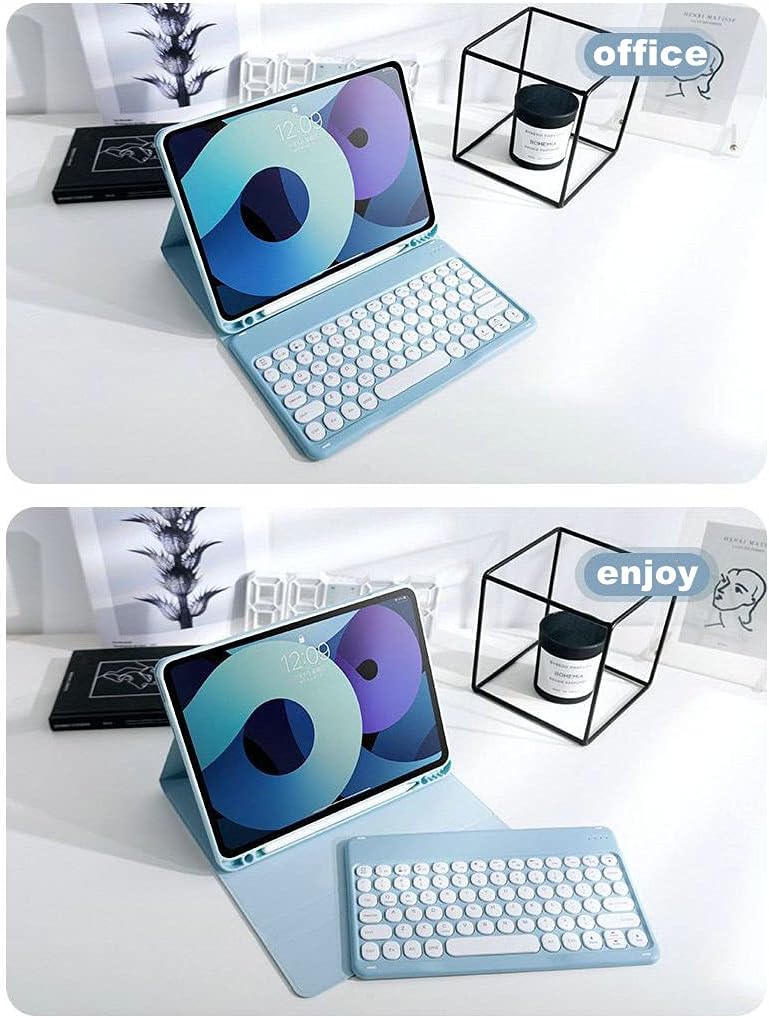
Figure 2: Illustration of the keyboard and mouse setup with an iPad, highlighting the detachable nature of the keyboard.
Operating Instructions
Keyboard Usage
- Automatic Sleep Mode: The keyboard will automatically enter sleep mode if it is not used for over 15 minutes to conserve battery. To reactivate, press any key.
- Bluetooth Reconnection: If your iPad enters sleep mode, the Bluetooth pairing with the keyboard will automatically interrupt. To reconnect, simply wake up your iPad and press any key on the keyboard. The connection should re-establish automatically.
- Detachable Design: The keyboard can be detached from the case for flexible use.
Mouse Usage
- The wireless mouse functions like a standard computer mouse, providing precise navigation on your iPad screen.
- Ensure the mouse is charged and connected via Bluetooth for optimal performance.
Case Features
- Pencil Holder: The case includes a dedicated slot for storing your Apple Pencil (or similar stylus), ensuring it is always accessible.
- Kickstand Function: The case features a built-in kickstand, allowing you to adjust the viewing angle of your iPad for comfortable typing, viewing, or drawing.

Figure 3: The keyboard case demonstrating its adjustable kickstand feature for various viewing angles.
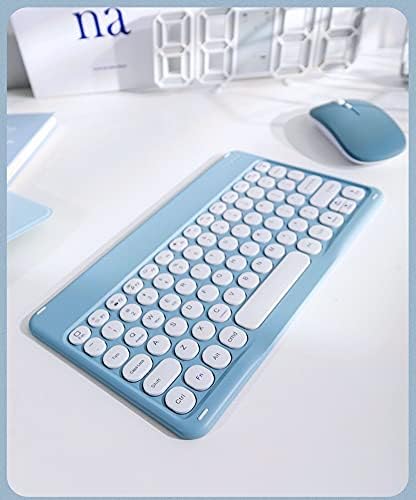
Figure 4: Close-up view of the keyboard case, emphasizing the integrated pencil holder and the design of the cute round keys.
Maintenance and Care
- Keep the keyboard and case clean by wiping with a soft, dry cloth.
- Avoid exposing the product to extreme temperatures, direct sunlight, or moisture.
- Do not use harsh chemicals or abrasive cleaners.
- Store the product in a cool, dry place when not in use for extended periods.
Troubleshooting
Keyboard Not Connecting / Not Detected
- Check Battery: Ensure the keyboard is fully charged. Low battery can prevent connection.
- Re-enable Bluetooth: Turn off and then turn on Bluetooth on your iPad.
- Re-pair Keyboard: Go to iPad Bluetooth settings, "Forget" or "Unpair" the keyboard, then repeat the pairing steps (FN+C).
- Restart Devices: Restart both your iPad and the keyboard.
Keys Not Responding or Incorrect Input
- Check Connection: Ensure the keyboard is properly connected via Bluetooth.
- Clean Keys: Dust or debris under keys can cause issues. Gently clean around the affected keys.
- Firmware Update: While rare for this type of device, check the manufacturer's website for any available firmware updates if issues persist.
Mouse Not Responding
- Check Battery: Ensure the mouse has sufficient battery charge.
- Re-pair Mouse: Unpair and re-pair the mouse via iPad Bluetooth settings.
- Surface: Ensure you are using the mouse on a suitable, non-reflective surface.
Keyboard Enters Sleep Mode Too Quickly
- The keyboard is designed to enter sleep mode after 15 minutes of inactivity to save power. This is normal operation. Press any key to wake it up.
Specifications
| Feature | Detail |
|---|---|
| Model Number | B09VKH66MS |
| Brand | PboyiqiS |
| Connectivity | Bluetooth |
| Keyboard Type | Detachable Bluetooth Keyboard |
| Mouse Type | Wireless Mouse |
| Special Features | Removable Keyboard, Mouse, Pencil Holder, Kickstand |
| Number of Keys | 78 |
| Power Source | 1 Lithium Polymer Battery (Keyboard) |
| Package Dimensions | 16.34 x 10.04 x 1.54 inches |
| Item Weight | 1.1 pounds |
| Included Components | USB Cable |
Warranty and Support
PboyiqiS is committed to customer satisfaction. If you encounter any quality issues with your keyboard case, please contact us directly. We offer a refund or replacement for quality-related problems without requiring a return of the product.
For further assistance or inquiries, please refer to the contact information provided with your purchase or visit the official PboyiqiS support channels.
Please retain your purchase receipt for warranty purposes.
no relevant documents
Ask a question about this manual
Ask about setup, troubleshooting, compatibility, parts, safety, or missing instructions. Manuals+ will review the question and use this page’s manual context to help answer it.