
1. Product Overview
The DICOTA Mobile Stand D31889 is a versatile and portable accessory designed to elevate your laptop or tablet, promoting an ergonomic working posture. Constructed from high-quality aluminum with silicone pads, it offers stability and prevents scratches to your device and work surface. Its open-back design facilitates airflow, preventing device overheating.
- Universally compatible with most laptops and tablets.
- Enables an ergonomic work setup anywhere.
- Made of high-quality aluminum for durability.
- Open back design prevents device overheating.
- Silicone pads prevent scratches and ensure stability.
2. Safety Information
- Ensure the stand is placed on a stable, flat surface before placing any device on it.
- Do not overload the stand beyond its intended capacity.
- Keep out of reach of small children to prevent accidental injury.
- Avoid exposing the stand to extreme temperatures or direct sunlight for prolonged periods.
- Do not attempt to modify or disassemble the stand.
3. Package Contents
The package contains the following item:
- 1 x DICOTA Mobile Stand D31889
4. Setup Instructions
- Unfold the Stand: Gently pull the two main arms of the stand apart. The stand is designed to unfold smoothly into its operational position.

Image: The DICOTA Mobile Stand in its compact, folded state, ready for unfolding.
- Position the Support Arms: Once unfolded, ensure the support arms are fully extended and locked into place. The stand will form a stable triangular structure.
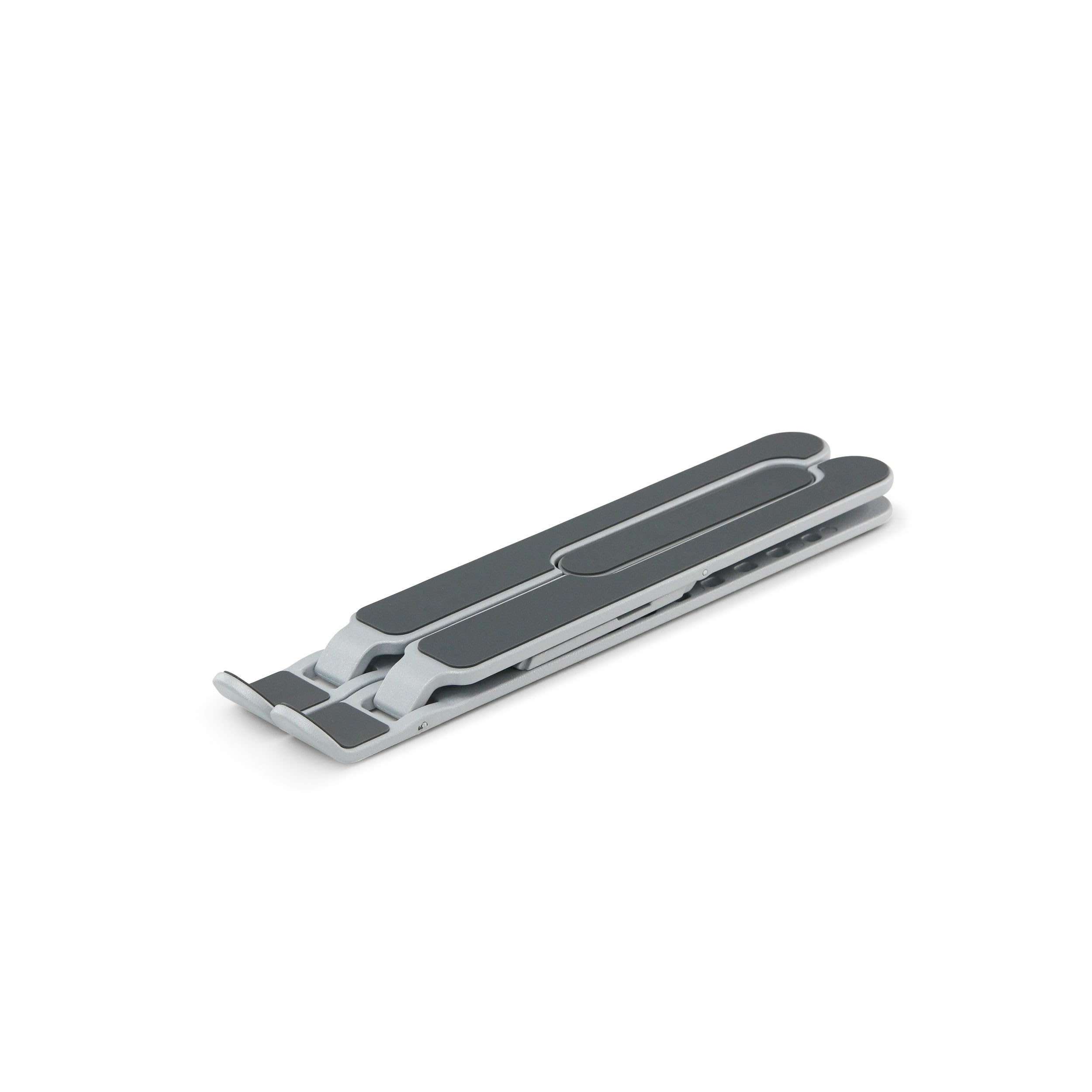
Image: The DICOTA Mobile Stand partially unfolded, showing the support arms extending.
- Place on a Stable Surface: Position the unfolded stand on a flat, stable surface such as a desk or table. Verify that all silicone pads are in contact with the surface to prevent slipping.
5. Operating Instructions
- Place Your Device: Carefully place your laptop or tablet onto the silicone-padded support arms of the stand. Ensure the device is centered and stable.
- Adjust for Ergonomics: The stand elevates your device to a comfortable viewing height, promoting better posture and reducing neck and eye strain. Position your external keyboard and mouse for optimal ergonomic setup.
- Ensure Airflow: The open design of the stand allows for unrestricted airflow around your device, which helps dissipate heat and prevents overheating during prolonged use.
6. Maintenance
- Cleaning: Wipe the stand with a soft, damp cloth. Avoid using abrasive cleaners or solvents, as these may damage the aluminum finish or silicone pads.
- Storage: When not in use, fold the stand back into its compact form for easy storage and transport.
- Inspection: Periodically check the stand for any signs of wear or damage. If any damage is observed, discontinue use.
7. Troubleshooting
- Issue: Stand feels unstable or wobbly.
- Solution: Ensure the stand is fully unfolded and all support arms are locked into position. Verify that it is placed on a completely flat and stable surface. Check that all silicone pads are clean and making full contact with the surface.
- Issue: Device slips on the stand.
- Solution: Confirm that the silicone pads on the stand's support arms are clean and free of dust or debris. Ensure your device is placed centrally on the stand. The stand is designed for universal compatibility, but extremely thin or unusually shaped devices might require careful placement.
8. Specifications
| Brand | Dicota |
| Model Number | D31889 |
| Compatible Devices | Laptops, Tablets |
| Material | Silicone, Aluminum |
| Color | Gray |
| Item Dimensions (L x W x H) | 4.72 x 0.31 x 0.31 inches (folded) |
| Item Weight | 0.34 Kilograms |
| Mounting Type | Tabletop |
9. Warranty and Support
For warranty information and customer support, please refer to the documentation provided with your purchase or visit the official Dicota website. Keep your proof of purchase for any warranty claims.
Official Dicota Website: www.dicota.com