
MACROM M-AN1000DAB
Macrom M-AN1000DAB Car Stereo User Manual
Model: M-AN1000DAB
Introduction
This manual provides detailed instructions for the installation, operation, and maintenance of your Macrom M-AN1000DAB 2 DIN 10.1" Car Stereo. This unit integrates Android OS, DAB+ digital radio, Bluetooth connectivity, and dual USB ports, offering a comprehensive in-car entertainment and navigation solution. Please read this manual thoroughly before using the device to ensure proper operation and to prevent damage.

Figure 1: Front view of the Macrom M-AN1000DAB car stereo, showing its 10.1-inch display with a YouTube video playing. The unit features physical buttons on the left side for power, home, navigation, volume control, and microphone.
Setup and Installation
Proper installation is crucial for the optimal performance and safety of your car stereo. It is highly recommended that installation be performed by a qualified professional.
1. Package Contents
- Macrom M-AN1000DAB Head Unit
- Power Harness
- GPS Antenna
- USB Cables
- Mounting Hardware
- User Manual (this document)
2. Wiring Diagram and Connections
Refer to the detailed wiring diagram provided with your unit for specific connections. Ensure all connections are secure before powering on the device.

Figure 2: Rear view of the Macrom M-AN1000DAB unit, illustrating the various input/output ports and connectors for power, speakers, antenna, and other peripherals. A yellow warning sticker is visible, indicating screw length maximums.
3. Mounting the Unit
The unit is designed for 2 DIN installation. Secure the unit firmly into the dashboard opening using the provided mounting brackets. Ensure adequate space for ventilation.
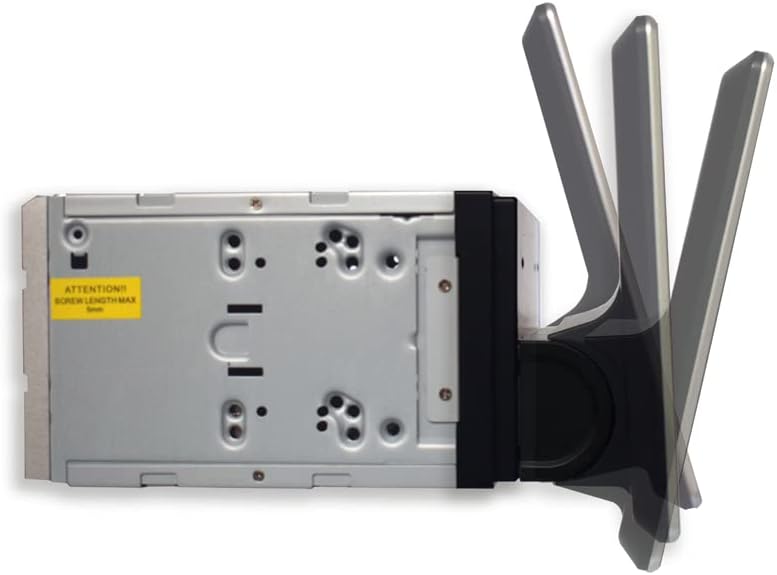
Figure 3: Side view of the Macrom M-AN1000DAB demonstrating the adjustable screen angle feature, allowing users to tilt the display for optimal viewing.
4. Initial Power-On
After installation, turn on your vehicle's ignition. The unit should power on automatically. Follow any on-screen prompts for initial setup, such as language selection and time zone settings.
Operating Instructions
1. Basic Controls and Interface
The unit features a 10.1-inch capacitive touchscreen for primary interaction. Physical buttons on the left side provide quick access to essential functions:
- Power Button: Press to turn the unit on/off or put it into standby.
- Home Button: Returns to the main Android home screen.
- Navigation Button: Launches the default navigation application.
- Volume Buttons (+/-): Adjusts the audio volume.
- Microphone: For voice commands and hands-free calling.
2. Android OS Navigation
The unit runs on an Android operating system, similar to a tablet or smartphone. Swipe left/right on the screen to navigate between home screens. Tap icons to open applications.

Figure 4: The unit's display showing the Google Play Store icon, indicating access to a wide range of Android applications for download and installation.
3. DAB+ Digital Radio
To access DAB+ radio, tap the "DAB+" icon on the home screen. The unit will scan for available digital radio stations. You can then browse and select stations from the list.

Figure 5: The DAB+ radio interface on the Macrom M-AN1000DAB, showing a list of available digital radio stations and current station information.
4. Bluetooth Connectivity
Pairing a Device:
- Go to the Bluetooth settings on the car stereo.
- Enable Bluetooth on your mobile device.
- Search for available devices on your mobile device and select "Macrom M-AN1000DAB".
- Confirm the pairing code on both devices if prompted.
5. Navigation
The unit supports navigation applications. Tap the Navigation button or the navigation app icon on the screen to launch. Ensure a GPS antenna is properly connected for accurate positioning.
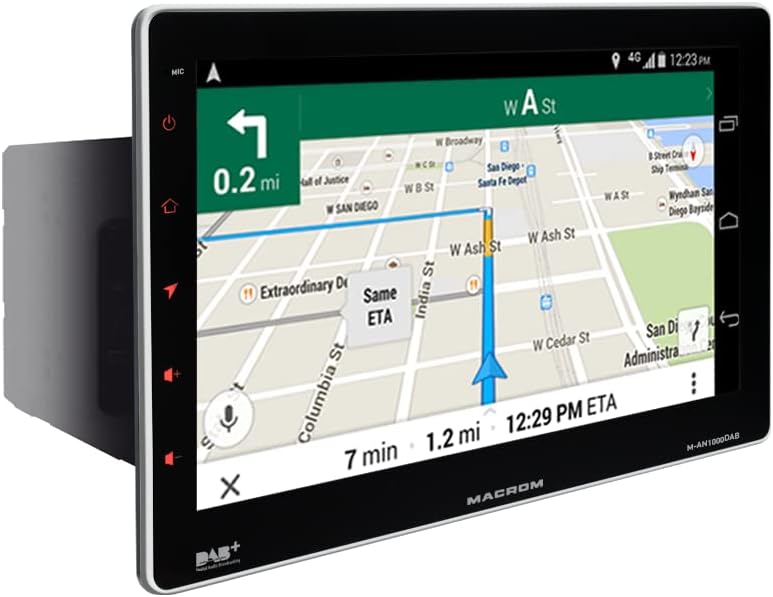
Figure 6: The navigation interface on the Macrom M-AN1000DAB, showing a map with route guidance and estimated time of arrival.
6. USB Media Playback
Connect a USB drive to one of the unit's USB ports. The unit will automatically detect compatible media files (audio, video, images) and allow playback through the respective media player applications.
Maintenance
1. Cleaning the Unit
Use a soft, dry cloth to clean the display and exterior of the unit. For stubborn marks on the screen, a slightly damp, lint-free cloth can be used. Avoid using abrasive cleaners, solvents, or spray cleaners directly on the unit.
2. Software Updates
Periodically check the official Macrom website for available software updates. Updates can improve performance, add new features, or fix bugs. Follow the instructions provided with the update package carefully to avoid damaging the unit.
Troubleshooting
| Problem | Possible Cause | Solution |
|---|---|---|
| Unit does not power on. | No power supply; incorrect wiring; blown fuse. | Check power connections and vehicle fuse box. Consult a professional for wiring inspection. |
| No sound. | Volume too low; mute activated; speaker wiring issue. | Increase volume; check mute setting; verify speaker connections. |
| Bluetooth connection unstable. | Interference; device too far; pairing issue. | Ensure devices are close; clear obstacles; re-pair the device. |
| DAB+ signal poor or no stations found. | Weak signal area; antenna issue. | Relocate vehicle; check DAB+ antenna connection and condition. |
| Touchscreen unresponsive. | System crash; temporary software glitch. | Perform a soft reset (press and hold power button for 10 seconds) or disconnect vehicle battery for a few minutes. |
System Reset
If the unit experiences persistent issues, a system reset may resolve them. Locate the small reset button (often recessed) and press it with a non-metallic pointed object (e.g., a pen tip). This will restart the unit without erasing user data in most cases.
Specifications
| Feature | Detail |
|---|---|
| Brand | MACROM |
| Model | M-AN1000DAB (8053839213570) |
| Display Size | 10.1 inches |
| Operating System | Android |
| Connectivity | Bluetooth, USB |
| Audio Output Mode | Bluetooth |
| Surround Configuration | 4.0 Channels |
| Compatible Devices | Smartphone |
| Supported Internet Services | DAB+ |
| Color | Black |
| First Available Date | March 11, 2022 |
Warranty and Support
This Macrom product is covered by a manufacturer's warranty. For specific warranty terms and conditions, please refer to the warranty card included with your product or visit the official Macrom website. Keep your proof of purchase for warranty claims.
Customer Support
For technical assistance, troubleshooting beyond this manual, or service inquiries, please contact Macrom customer support through their official website or authorized service centers. Provide your product model number (M-AN1000DAB) and serial number (if applicable) when contacting support.
Related Documents - M-AN1000DAB
 |
Macrom M-AN6560D Android Multimedia Monitor User Manual Comprehensive user manual for the Macrom M-AN6560D Android Multimedia Monitor, covering installation, features, settings, safety precautions, and specifications. |
 |
Macrom M-AN900/M-AN900DAB Android Multimedia Monitor User Manual Comprehensive user manual for the Macrom M-AN900 and M-AN900DAB Android Multimedia Monitors, covering setup, features, settings, and specifications. Learn how to operate your device for navigation, audio, video, Bluetooth, and more. |
 |
Macrom M-DL7000D Multimedia Navigation Receiver User Manual Comprehensive user manual for the Macrom M-DL7000D Multimedia Navigation Receiver, detailing its features, operation, installation, and specifications. Includes guidance on CarPlay, Android Auto, Bluetooth, radio functions, audio settings, and troubleshooting. |
 |
Macrom M-AN700/M-AN700DAB Android Multimedia Monitor User Manual Comprehensive user manual for the Macrom M-AN700 and M-AN700DAB Android Multimedia Monitor, covering safety precautions, product overview, settings, radio, DAB, video, music, Bluetooth, navigation, dual screen functionality, specifications, and declaration of conformity. |
 |
Macrom M-DL3200D Ricevitore Radio Manuale d'Uso Manuale d'uso dettagliato per il ricevitore radio Macrom M-DL3200D, che copre installazione, funzionamento, caratteristiche audio, connettività Bluetooth, USB/SD e specifiche tecniche. |
 |
Macrom T1003DAB Android Multimedia Monitor User Manual Comprehensive user manual for the Macrom T1003DAB Android Multimedia Monitor, covering installation, features, settings, and specifications. Learn how to use Apple CarPlay, Android Auto, DAB+ radio, and more. |