
1. Introduction
The Tecnoware ERA PLUS DC UPS is designed to provide continuous power and protection for your essential network devices such as WiFi routers, modems, VoIP phones, and surveillance cameras. This compact and versatile device safeguards against power outages and voltage fluctuations, ensuring uninterrupted operation for up to 240 minutes. Additionally, it functions as an 8800mAh power bank for charging mobile devices and offers Power over Ethernet (PoE) capabilities for compatible equipment. Its dual functionality replaces your device's original power supply, streamlining your setup with a single, efficient unit.
2. Safety Information
Please read all safety instructions carefully before using the device. Failure to follow these instructions may result in electric shock, fire, or serious injury.
- Do not expose the UPS to rain, moisture, or extreme temperatures.
- Ensure proper ventilation around the unit to prevent overheating.
- Do not disassemble or attempt to repair the UPS. Refer all servicing to qualified personnel.
- Keep the device away from flammable materials.
- Use only the provided power cable and connectors.
- Verify the voltage requirements of your connected devices before use.
3. Package Contents
Verify that all items are present in the package:
- 1 x Tecnoware UPS ERA PLUS DC Unit
- 8 x DC Output Connectors
- 1 x DC Output Cable with 2 Connectors
- 1 x Power Supply Cable
- 1 x User Manual

Image: The Tecnoware ERA PLUS DC UPS unit shown with its array of included DC output connectors.
4. Product Overview
Familiarize yourself with the various components and indicators of your ERA PLUS DC UPS.
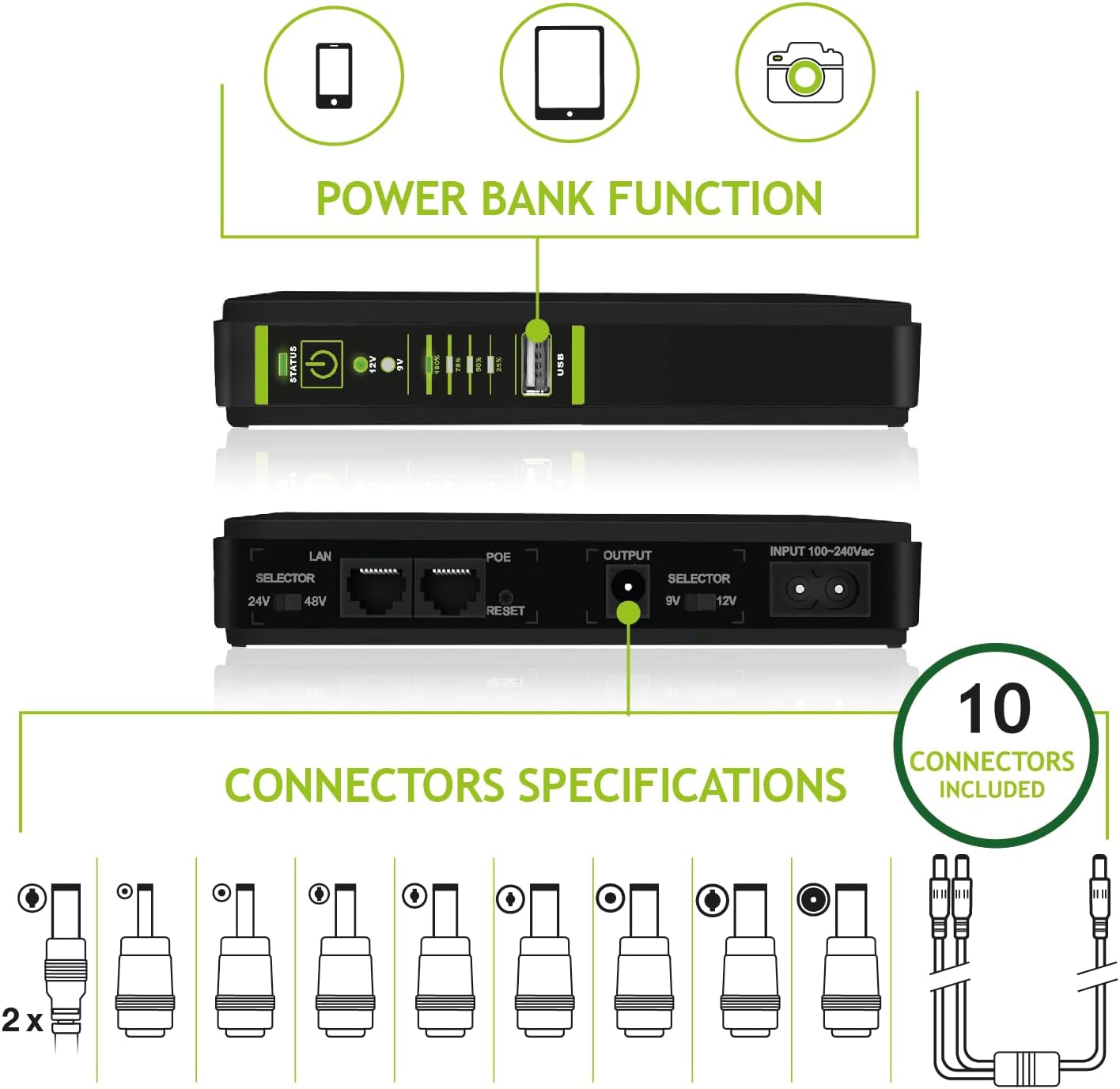
Image: Detailed diagram illustrating the ports, buttons, and LED indicators on the Tecnoware ERA PLUS DC UPS.
Front Panel Indicators and Buttons:
- On/Off Button: Powers the unit on or off.
- Line/Battery Mode Indicator: Shows if the UPS is operating on AC power (Line) or battery power (Battery).
- 9V DC Output Indicator: Illuminates when 9V DC output is selected.
- 12V DC Output Indicator: Illuminates when 12V DC output is selected.
- Battery Level Indicators (25%, 50%, 75%, 100%): Display the remaining battery charge.
- 5V USB Charger Port: For charging mobile devices.
Rear Panel Ports:
- Input 100-240Vac: AC power input for charging the UPS and providing pass-through power.
- Output 9V/12V DC: DC power output for connected devices.
- Selector 9V/12V: Switch to select the desired DC output voltage.
- LAN Input: Ethernet input for network connection.
- PoE Output (24V/48V): Power over Ethernet output for compatible devices.
- PoE Selector (24V/48V): Switch to select the desired PoE voltage.
- PoE Reset Button: Resets the PoE function.
5. Setup Instructions
Follow these steps for initial setup of your Tecnoware ERA PLUS DC UPS:
- Charge the UPS: Connect the provided power supply cable to the "Input 100-240Vac" port on the UPS and then to a wall outlet. Allow the unit to fully charge before first use. The battery level indicators will show charging progress.
- Determine Device Voltage: Check the power adapter of the device you intend to connect (e.g., modem, router) to determine its required DC input voltage (typically 9V or 12V).
- Select Output Voltage: Use the "Selector 9V/12V" switch on the rear panel of the UPS to match the voltage required by your device. The corresponding LED on the front panel will illuminate.
- Connect DC Output: Select the appropriate DC output connector from the included set that matches your device's power input port. Connect one end of the DC output cable to the UPS "Output" port and the other end (with the chosen connector) to your device.
- (Optional) PoE Connection: If your device supports Power over Ethernet (PoE), connect an Ethernet cable from your network to the "LAN Input" port on the UPS. Then, connect another Ethernet cable from the "PoE Output" port on the UPS to your PoE-compatible device. Select the correct PoE voltage (24V or 48V) using the "PoE Selector" switch.
- Power On: Press the On/Off button on the front panel to power on the UPS and your connected devices.

Image: The UPS providing power to a modem and a surveillance camera, demonstrating a typical setup.
6. Operating Instructions
6.1. Normal Operation
When connected to AC power, the UPS charges its internal battery and provides power to connected devices. The "Line/Battery Mode Indicator" will show "Line" (green). In the event of a power outage, the UPS will automatically switch to battery power, and the indicator will show "Battery" (orange), ensuring continuous operation of your devices.
6.2. Power Bank Function
The ERA PLUS DC UPS can also function as a portable power bank. Connect your smartphone, tablet, or other USB-powered device to the 5V USB Charger Port on the front panel using a standard USB cable. The UPS will begin charging your device.

Image: The UPS unit connected via USB, actively charging a smartphone, highlighting its power bank capability.
6.3. PoE Functionality
For devices that support Power over Ethernet, ensure the correct PoE voltage (24V or 48V) is selected via the "PoE Selector" switch. If a PoE device becomes unresponsive, you can use the "PoE Reset Button" to restart the PoE output without affecting other connected devices.
7. Maintenance
7.1. Cleaning
Wipe the exterior of the UPS with a soft, dry cloth. Do not use liquid cleaners or aerosols. Ensure the unit is powered off and unplugged before cleaning.
7.2. Battery Care
The UPS contains a built-in Lithium-ion battery. To maximize battery lifespan:
- Avoid fully discharging the battery frequently.
- Store the UPS in a cool, dry place if not in use for extended periods.
- Recharge the unit every 3-6 months if stored, to maintain battery health.
8. Troubleshooting
| Problem | Possible Cause | Solution |
|---|---|---|
| UPS does not power on. | Battery is fully discharged or unit is not connected to AC power. | Connect the UPS to a wall outlet and allow it to charge. Ensure the On/Off button is pressed. |
| Connected device is not receiving power. | Incorrect voltage selected, wrong connector used, or device is off. | Verify the selected output voltage matches your device. Ensure the correct DC connector is securely attached. Check if the device itself is powered on. |
| Short battery backup time. | Battery degradation or excessive load. | Ensure the UPS is fully charged. Reduce the number of connected devices or their power consumption. If the battery is old, its capacity may have diminished. |
| PoE device not working. | Incorrect PoE voltage selected or device is not PoE compatible. | Verify the PoE voltage setting (24V/48V) matches your device. Ensure your device is PoE compatible. Try pressing the PoE Reset button. |
9. Specifications
| Feature | Detail |
|---|---|
| Brand | Tecnoware Power Systems |
| Model Number | FGCERAPLDC252 |
| Product Dimensions | 10.5 x 2.8 x 16 cm |
| Item Weight | 500 grams |
| Battery Type | Lithium-ion (4 cells included) |
| Battery Capacity | 8800 mAh |
| Average Battery Life (Backup) | Up to 240 minutes (depending on load) |
| Input Voltage | 100-240 Vac |
| Output Voltage (DC) | 9V / 12V DC (selectable) |
| Output Wattage | 25 Watts |
| PoE Output | 24V / 48V DC (selectable) |
| Form Factor | Compact and adaptable |

Image: The UPS unit with its dimensions (16 cm height, 10.5 cm width, 2.8 cm depth) and weight (0.5 kg) clearly indicated.
10. Warranty and Support
Tecnoware Power Systems products are manufactured to high-quality standards. This product comes with a standard manufacturer's warranty. For specific warranty terms and conditions, please refer to the warranty card included in your package or visit the official Tecnoware Power Systems website.
For technical support, troubleshooting assistance, or inquiries regarding your product, please contact Tecnoware customer service through their official channels. Keep your purchase receipt and product model number (FGCERAPLDC252) handy when contacting support.
11. Product Videos
Video 1: Tecnoware ERA PLUS DC Overview
Description: This video provides a comprehensive overview of the Tecnoware ERA PLUS DC UPS, demonstrating its features, connectivity options, and how it protects your devices from power interruptions and surges. It highlights the ease of installation and its versatile applications for home and office network equipment.


