Introduction
The Emporia TOUCHsmart.2 is an innovative 4G mobile phone that combines the convenience of a touchscreen with the familiarity of physical buttons, making it exceptionally user-friendly. Designed with seniors in mind, it features a dedicated key for instant access to popular messaging applications, ensuring you stay connected with family and friends. This manual provides comprehensive instructions for setting up, operating, maintaining, and troubleshooting your device.

Figure 1: The Emporia TOUCHsmart.2 in its closed state, showcasing its sleek design and external display.
Setup
Package Contents
Please check that all items are present in your package:
- Emporia TOUCHsmart.2 Mobile Phone
- Charging Cradle
- USB-C Cable with Power Plug
- Headphones
- User Manual
- Messaging Training Book
- Additional Battery Cover (to cover emergency button if desired)
Inserting SIM Card and Battery
- Carefully remove the back cover of the phone.
- Insert your Nano SIM card into the designated SIM slot.
- If desired, insert a Micro SD card into the memory card slot for expanded storage.
- Insert the battery, ensuring the contacts align correctly.
- Replace the back cover securely.
Charging the Device
Before first use, fully charge your Emporia TOUCHsmart.2. You can use either the included USB-C cable or the charging cradle.
- Using the Charging Cradle: Place the phone into the charging cradle. Ensure it is seated correctly and the charging indicator appears on the screen.
- Using the USB-C Cable: Connect the USB-C cable to the phone's charging port and the other end to the power adapter. The USB-C connector is reversible, allowing for easy connection.
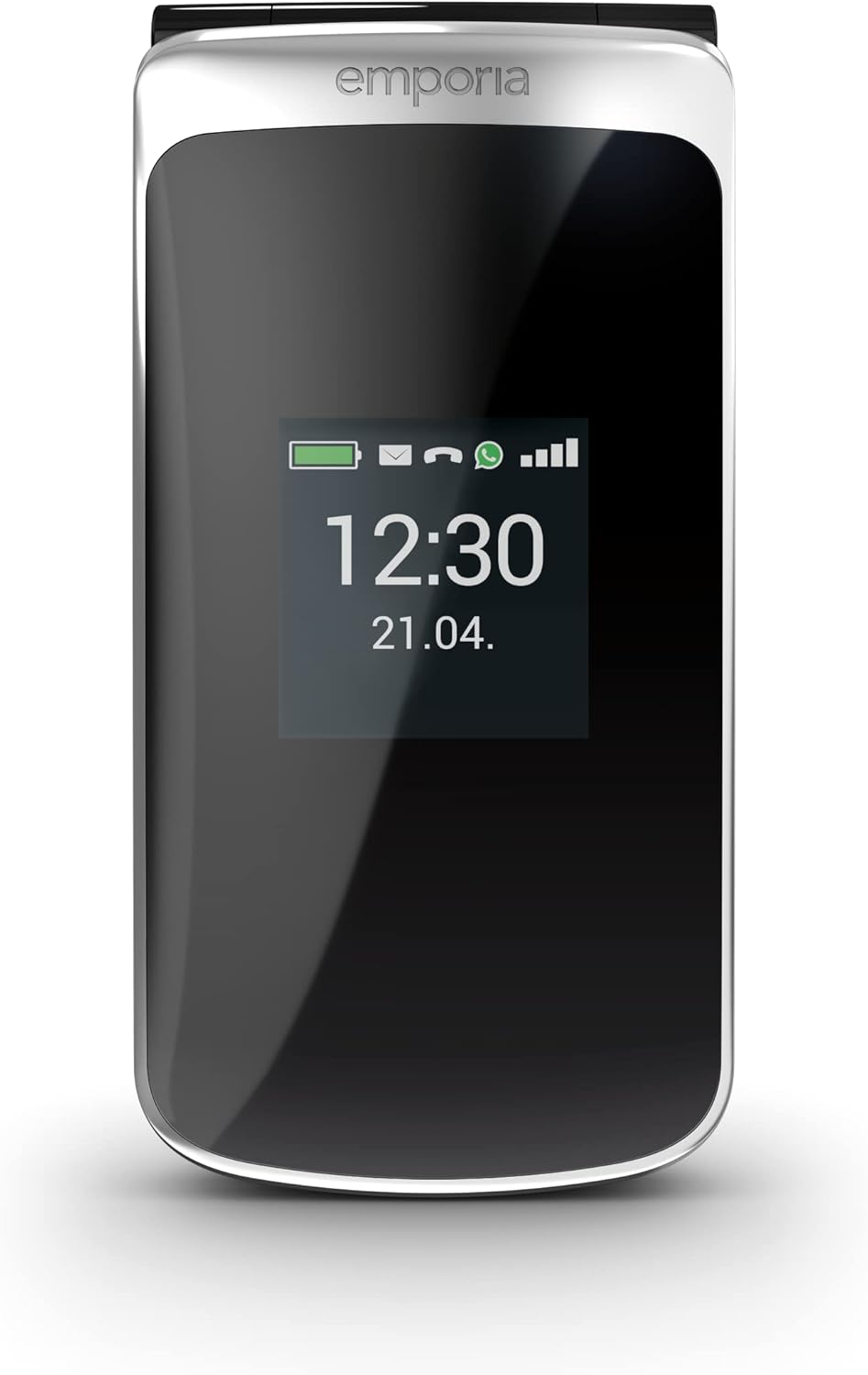
Figure 2: The Emporia TOUCHsmart.2 placed in its charging cradle for convenient charging.
Operating Your Emporia TOUCHsmart.2
Powering On/Off
- To Power On: Press and hold the Power button until the Emporia logo appears.
- To Power Off: Press and hold the Power button, then select 'Power off' from the options.
Navigating the Interface
The TOUCHsmart.2 offers dual navigation: via its touchscreen and physical keypad.
- Touchscreen: Tap icons to open apps, swipe to navigate menus.
- Keypad: Use the navigation keys and number pad for traditional phone operations.
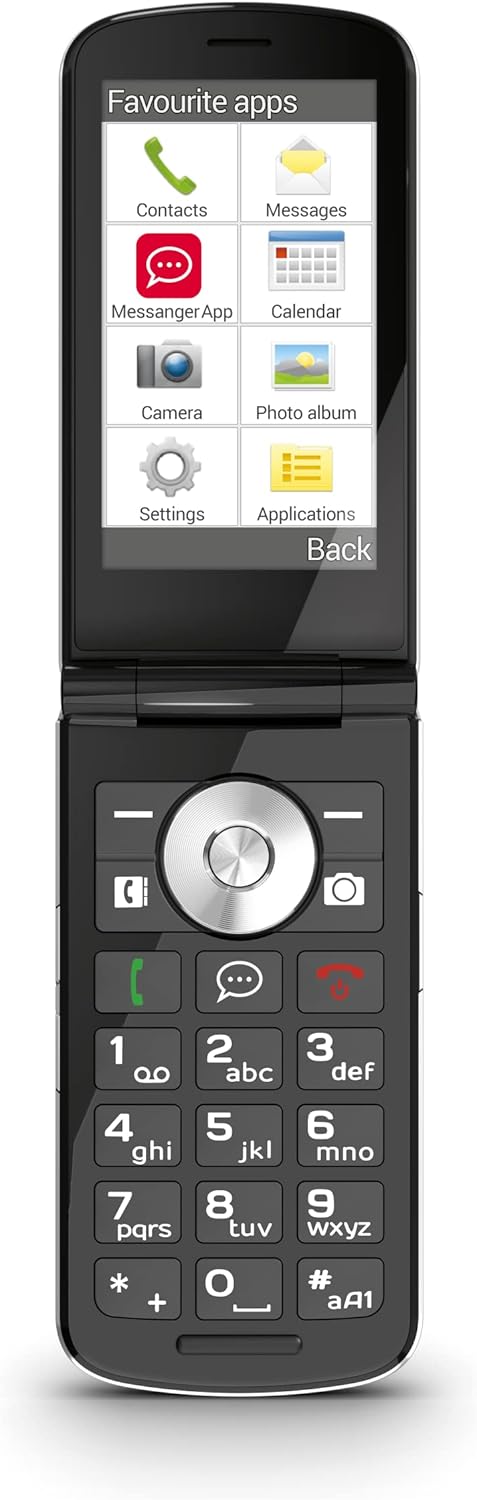
Figure 3: The phone opened, displaying the main menu with various application icons.
Making Calls
- Open the 'Phone' application.
- Dial the number using the keypad or select a contact from your address book.
- Press the green call button to initiate the call.
- To end a call, press the red hang-up button.
Messaging Apps (WhatsApp, Telegram, Signal)
The phone features a dedicated quick-selection key for your preferred messaging application. This allows for immediate access to communication with your contacts.

Figure 4: The phone opened, displaying the WhatsApp messaging interface.
Camera Functions
Your TOUCHsmart.2 is equipped with an 8 MP main camera and a 2 MP selfie camera, allowing you to capture photos and videos.
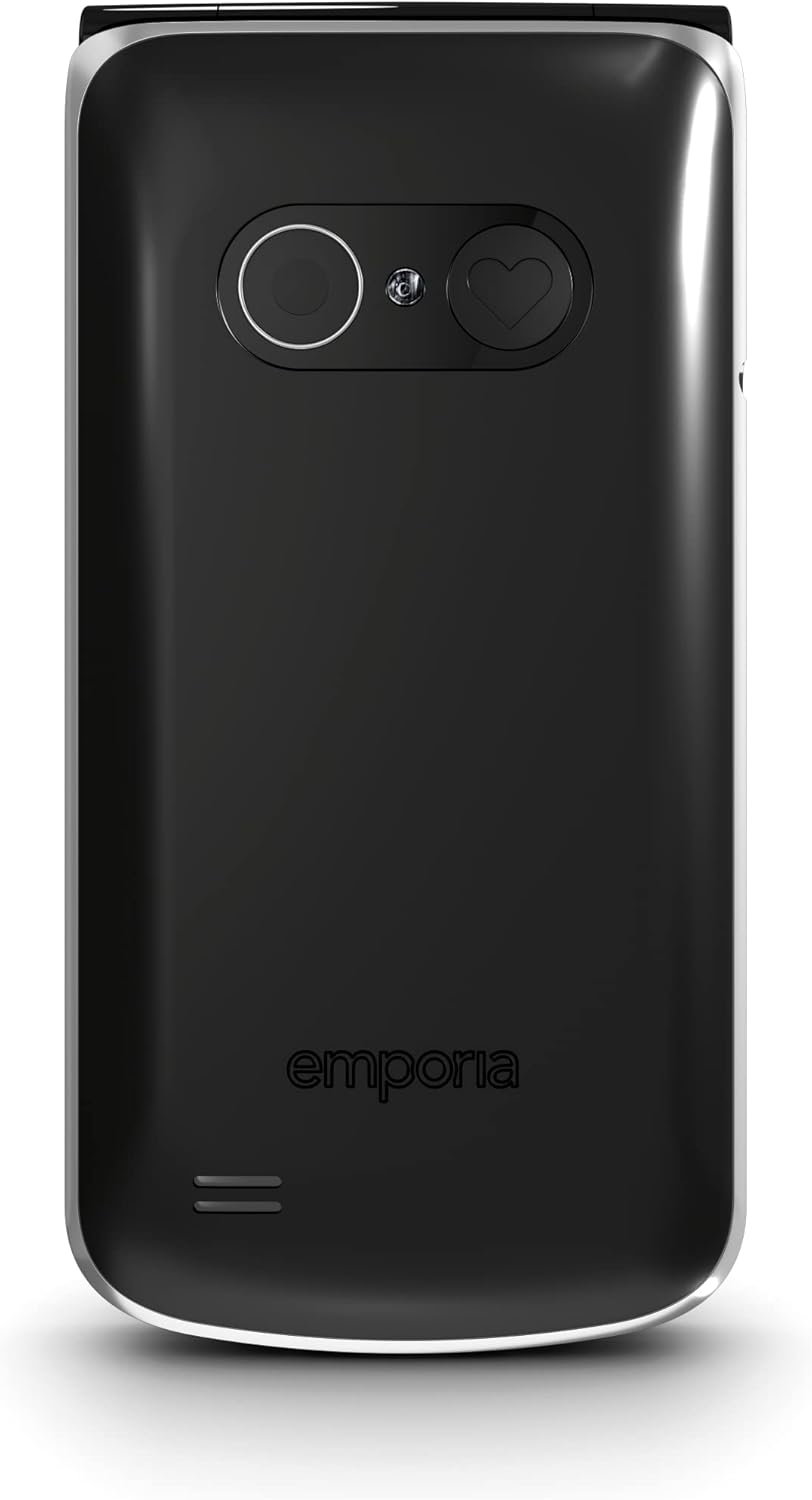
Figure 5: Rear view of the phone, highlighting the main camera and the emergency call button.
Wi-Fi Connection
To connect your phone to a Wi-Fi network:
- Activate the Wi-Fi function in the phone's settings.
- Tap 'Wi-Fi' and select one of the available networks from the displayed list.
- Enter the password for the chosen network and tap 'Connect'.
- 'Connected' will appear under the Wi-Fi network name in the list of available networks.
Emergency Call Button
The patented Emporia emergency call button provides enhanced safety. When pressed, it initiates a sequence of actions:
- Up to five pre-defined contacts are called until someone answers.
- A pre-set emergency SMS is sent to the specified numbers.
- The system confirms the emergency call, preventing it from reaching an answering machine by mistake.
- The emergency button can be deactivated if not desired.
Other Features
The TOUCHsmart.2 includes several useful features:
- Voice Assistant
- LED Flashlight
- Alarm Clock with Snooze Function
- FM Radio
- Calendar
- Hearing Aid Compatibility (M4/T4)
- Automatic call acceptance when the phone is opened.
Maintenance
Cleaning
To clean your phone, use a soft, dry, lint-free cloth. Avoid using harsh chemicals or abrasive materials.
Battery Care
To prolong battery life:
- Avoid exposing the phone to extreme temperatures.
- Charge the battery regularly, but avoid overcharging.
- If the phone will not be used for an extended period, store it with a partial charge.
Software Updates
Your phone runs on Android 8.1 Go. Periodically check for software updates to ensure optimal performance and security. Updates can typically be found in the phone's settings menu under 'System' or 'About phone'.
Troubleshooting
Common Issues and Solutions
- Phone Not Responding/Crashing: If your phone becomes unresponsive or crashes, try restarting it by pressing and holding the Power button. If the issue persists, perform a force restart by holding the Power button for an extended period (e.g., 10-15 seconds) until the device powers off.
- Cannot Connect to Wi-Fi: Ensure Wi-Fi is enabled and you have the correct network password. Try restarting your Wi-Fi router.
- Messaging App Issues (e.g., WhatsApp): Ensure your phone has an active internet connection (Wi-Fi or mobile data). Check if the app requires an update from its respective app store or website.
- No Mobile Data: Verify that mobile data is enabled in your phone's settings. Contact your network provider to ensure your plan includes mobile data and that your APN settings are correct.
- Poor Call Quality: Move to an area with better network reception. Ensure the earpiece and microphone are not obstructed.
Factory Reset
If you experience persistent issues, a factory reset may resolve them. Warning: A factory reset will erase all data on your phone. Back up important data before proceeding. Consult the phone's settings for the 'Factory data reset' option, usually found under 'System' or 'Backup & reset'.
Technical Specifications
| Feature | Specification |
|---|---|
| Brand | Emporia |
| Model Name | TOUCHsmart.2 |
| Model Number | V188.2_001_IT |
| Color | Black |
| Operating System | Android 8.1 Go |
| Screen Size | 3.25 Inches |
| Resolution | 480x854 pixels |
| Main Camera | 8 Megapixels |
| Front Camera | 2 Megapixels |
| RAM | 1 GB |
| Storage Capacity | 1 GB |
| Connectivity | USB-C, Bluetooth, Wi-Fi |
| Cellular Technology | LTE (4G) |
| Battery Composition | Lithium-ion |
| Special Features | Camera, Keypad, Radio, USB, Touchscreen, Emergency Button, Voice Assistant |
Warranty and Support
Warranty Information
Your Emporia TOUCHsmart.2 is covered by a standard manufacturer's warranty. Please refer to the warranty card included in your package for specific terms and conditions, including the warranty period and coverage details. Keep your proof of purchase for warranty claims.
Contacting Support
For technical assistance, troubleshooting beyond this manual, or warranty inquiries, please contact Emporia customer support. Contact details can typically be found on the Emporia website or in the documentation provided with your device.


