
LETTON V2020
LETTON Wireless Keyboard and Mouse Combo V2020 User Manual
Model: V2020 | Brand: LETTON
Introduction
This manual provides detailed instructions for the setup, operation, and maintenance of your LETTON Wireless Keyboard and Mouse Combo (Model V2020). Please read this manual thoroughly before use to ensure optimal performance and longevity of your device.
Package Contents
- 1 x Wireless Keyboard
- 1 x Wireless Mouse
- 1 x USB Receiver (stored inside the mouse battery compartment)
- 1 x User Manual (this document)
Setup Instructions
1. Install Batteries
The keyboard requires 2 AAA batteries and the mouse requires 1 AA battery (not included). Ensure correct polarity when inserting batteries.

Figure 1: Battery installation for the mouse and location of the USB receiver.
Detailed description: The image displays the underside of the wireless mouse, showing the battery compartment where an AA battery should be inserted. Next to it, a small slot indicates where the USB receiver is stored. A diagram also shows the keyboard's battery compartment for AAA batteries.
2. Connect USB Receiver
Locate the USB receiver stored in the mouse battery compartment. Plug the receiver into an available USB port on your computer (PC, laptop, desktop, etc.).
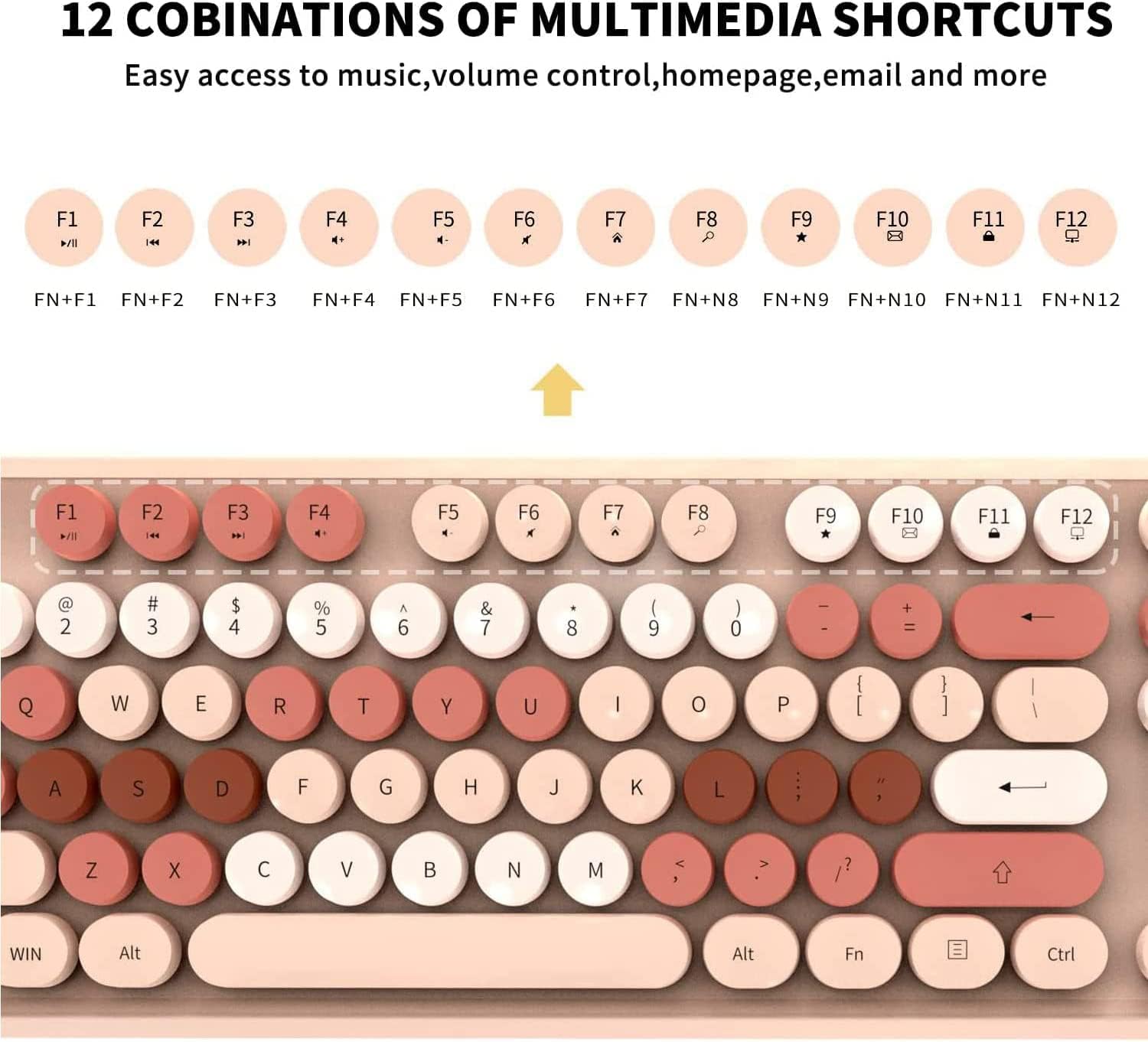
Figure 2: Plugging the 2.4GHz USB receiver into a computer.
Detailed description: This image illustrates the small USB receiver being inserted into a USB port on a laptop. The setup is shown to be plug-and-play, requiring no additional software installation.
The system will automatically install the necessary drivers. No additional software is required. The keyboard and mouse are pre-paired with the USB receiver.
Operating Instructions
Keyboard Features
- Full-Size Layout: 104 keys with a numeric keypad for comprehensive functionality.
- Round Keycaps: Designed for comfortable typing and a retro aesthetic.
- Multimedia Shortcuts: Access common functions quickly using Fn key combinations.

Figure 3: Overview of the 104-key full-size wireless keyboard.
Detailed description: This image provides a top-down view of the full-size keyboard, highlighting its 104 round keys and overall layout, including the numeric keypad and function keys.
Multimedia Shortcuts (Fn Key Combinations)
To use multimedia functions, press and hold the Fn key, then press the corresponding F-key.
| Key Combination | Function |
|---|---|
| Fn + F1 | Media Player |
| Fn + F2 | Volume Down |
| Fn + F3 | Volume Up |
| Fn + F4 | Mute |
| Fn + F5 | Previous Track |
| Fn + F6 | Next Track |
| Fn + F7 | Play/Pause |
| Fn + F8 | Stop |
| Fn + F9 | Open Web Browser |
| Fn + F10 | Open Email |
| Fn + F11 | My Computer |
| Fn + F12 | Calculator |
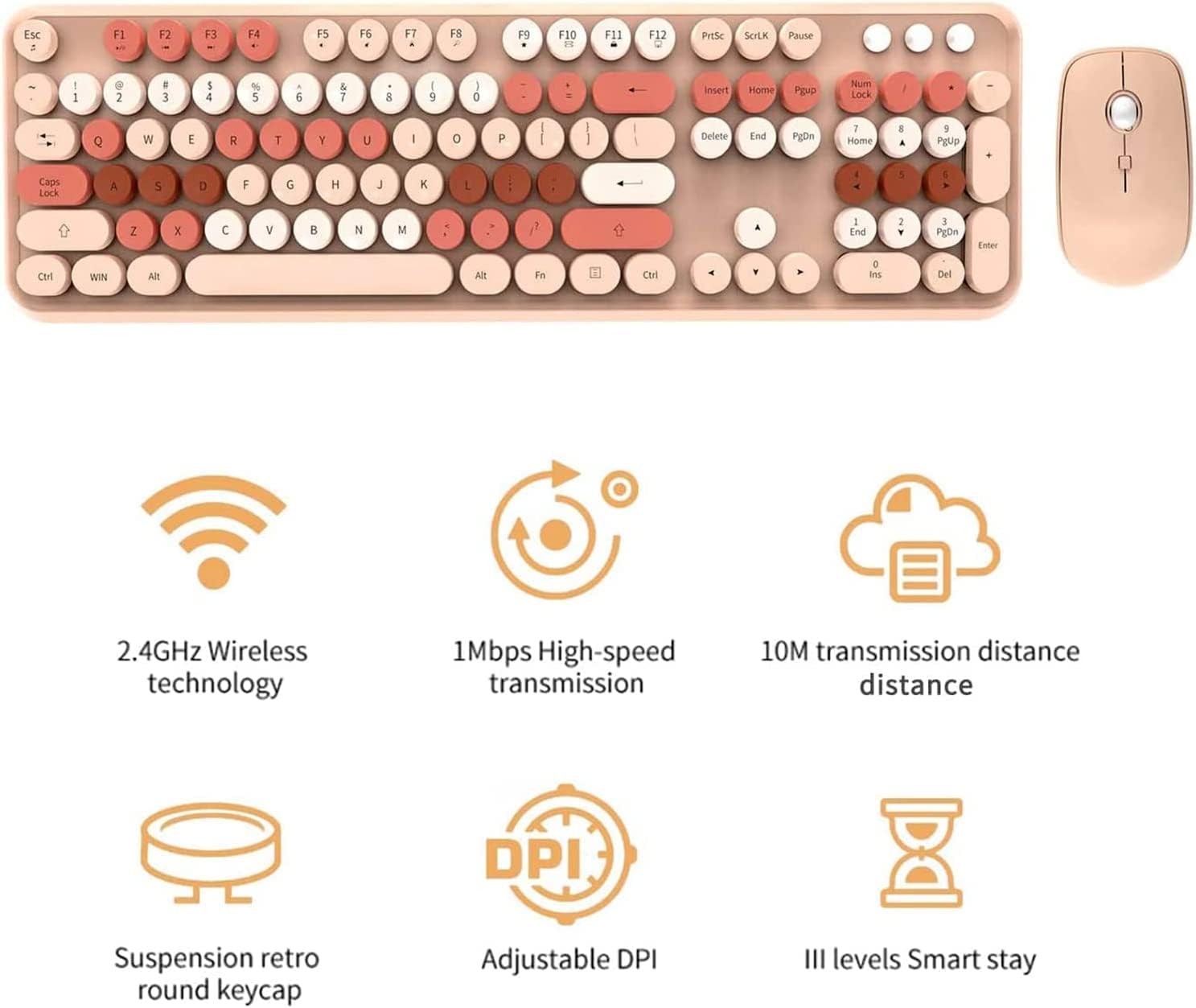
Figure 4: Multimedia function keys (F1-F12) with Fn key combinations.
Detailed description: This image highlights the top row of the keyboard, specifically the F1-F12 keys, which have secondary multimedia functions accessible by pressing them in combination with the 'Fn' key.
Mouse Features
- Adjustable DPI: Cycle through 800, 1200, and 1600 DPI settings for varied cursor speed and precision.
- Ergonomic Design: Comfortable grip for extended use.

Figure 5: Wireless mouse with labeled buttons and DPI information.
Detailed description: The image shows the wireless mouse from a top-down perspective, with labels pointing to the left click button, right click button, and the scroll wheel/middle button. Text indicates the adjustable DPI settings (800/1200/1600).
To adjust the DPI, press the middle key (scroll wheel) on the mouse. Each press will cycle through the available DPI settings.
Maintenance
- Cleaning: Use a soft, dry cloth to clean the keyboard and mouse. For deeper cleaning, the round keycaps are detachable.
- Battery Replacement: Replace batteries when the low battery indicator light on the keyboard illuminates. The keyboard uses 2 AAA batteries, and the mouse uses 1 AA battery.
- Storage: When not in use for extended periods, remove batteries and store the USB receiver in its designated slot within the mouse.

Figure 6: Detachable keycaps for simplified cleaning.
Detailed description: This image shows a close-up of the keyboard with some keycaps removed, illustrating their detachable nature for easy cleaning. A small cleaning brush is also visible, suggesting its use for maintenance.
Troubleshooting
- No Response:
- Ensure batteries are correctly installed and not depleted.
- Verify the USB receiver is securely plugged into a working USB port.
- Try plugging the USB receiver into a different USB port.
- Restart your computer.
- Lagging/Intermittent Connection:
- Ensure the keyboard and mouse are within the 33-foot operating range of the USB receiver.
- Minimize interference from other 2.4GHz wireless devices.
- Replace batteries if they are low.
- Keys Not Registering:
- Clean under the keycaps to remove any debris.
- Ensure keycaps are properly seated.
Specifications
| Feature | Detail |
|---|---|
| Brand | LETTON |
| Model | V2020 |
| Connectivity | 2.4GHz Wireless |
| Keyboard Layout | 104 Keys, Full Size |
| Mouse DPI | 800/1200/1600 (Adjustable) |
| Keyboard Battery | 2 x AAA (not included) |
| Mouse Battery | 1 x AA (not included) |
| Operating Range | Up to 33 feet (10 meters) |
| Compatibility | Windows (2000/ME/XP/7/8/10), Vista, PC, Laptop, Desktop, Notebook, Chromebook, Smart TVs |
| Dimensions (Keyboard) | 17.7 x 5.47 x 1.37 inches (approx.) |
| Weight (Keyboard) | 2.31 pounds (approx.) |
Warranty and Support
For warranty information and technical support, please contact LETTON customer service. Refer to the product packaging or the official LETTON website for the most current contact details.
Note: The manufacturer's contact information provided in one of the videos (alex@lettonworld.com) is for general inquiries. For specific product support, please refer to the official channels provided with your product purchase.
Video 1: Overview of the 2.4GHz Wireless Keyboard Mouse Combo. This video demonstrates the product's features and connectivity.
Ask a question about this manual
Ask about setup, troubleshooting, compatibility, parts, safety, or missing instructions. Manuals+ will review the question and use this page’s manual context to help answer it.