
1. Introduction
This manual provides detailed instructions for the operation and maintenance of your SEETEC ATEM173S 17.3-inch Multi-Camera Broadcast Monitor. Please read this manual thoroughly before using the product to ensure proper function and to prevent damage.
2. Safety Information
- Do not expose the monitor to rain or moisture to avoid fire or electric shock hazards.
- Do not open the casing. Refer all servicing to qualified personnel.
- Ensure proper ventilation around the monitor to prevent overheating.
- Use only the power adapter specified for this device.
- Clean the screen with a soft, dry cloth. Avoid using liquid cleaners.
3. Package Contents
Verify that all items are present in the package:
- SEETEC ATEM173S Monitor
- Power Adapter
- User Manual (this document)
- V-mount battery plate (pre-installed or included)
- USB Flash Disk (for LUT import)
4. Product Overview
The SEETEC ATEM173S is a 17.3-inch IPS broadcast monitor designed for multi-camera studio and television production environments. It features multiple input and output options, advanced monitoring tools, and flexible power solutions.
4.1 Front Panel Controls
The front panel includes buttons for menu navigation, input selection, and function shortcuts. Specific button functions are detailed in the 'Operating Instructions' section.
4.2 Rear Panel Connections
The rear panel provides various ports for video input/output, control, and power.

Image Description: This image displays the rear panel of the SEETEC ATEM173S monitor, highlighting its various input and output ports. Visible connections include four 3G-SDI inputs and outputs, one HDMI input, RS485 IN/OUT, GPI, USB for upgrades and LUT import, and a DC 12V power input. The image also details supported SDI and HDMI formats.
- 4 x 3G-SDI Input: For connecting SDI video sources (supports 2K).
- 4 x 3G-SDI Output: For looping through or distributing SDI signals (supports 2K).
- 1 x HDMI Input: For connecting HDMI video sources (supports 1080P).
- RS485 IN/OUT: For UMD control and daisy-chaining.
- GPI: General Purpose Interface for Tally control.
- USB: For firmware upgrades and 3D LUT file import.
- DC 12V Input: Main power connection.
- XLR Connector: Additional power input option.
- V-mount Battery Plate: For portable power solutions.
5. Setup
5.1 Power Connection
- Connect the provided DC 12V power adapter to the monitor's DC input port.
- Alternatively, attach a compatible V-mount battery to the V-mount plate for portable operation. An optional Anton Bauer plate can also be used.
- Ensure the power source is stable before turning on the monitor.
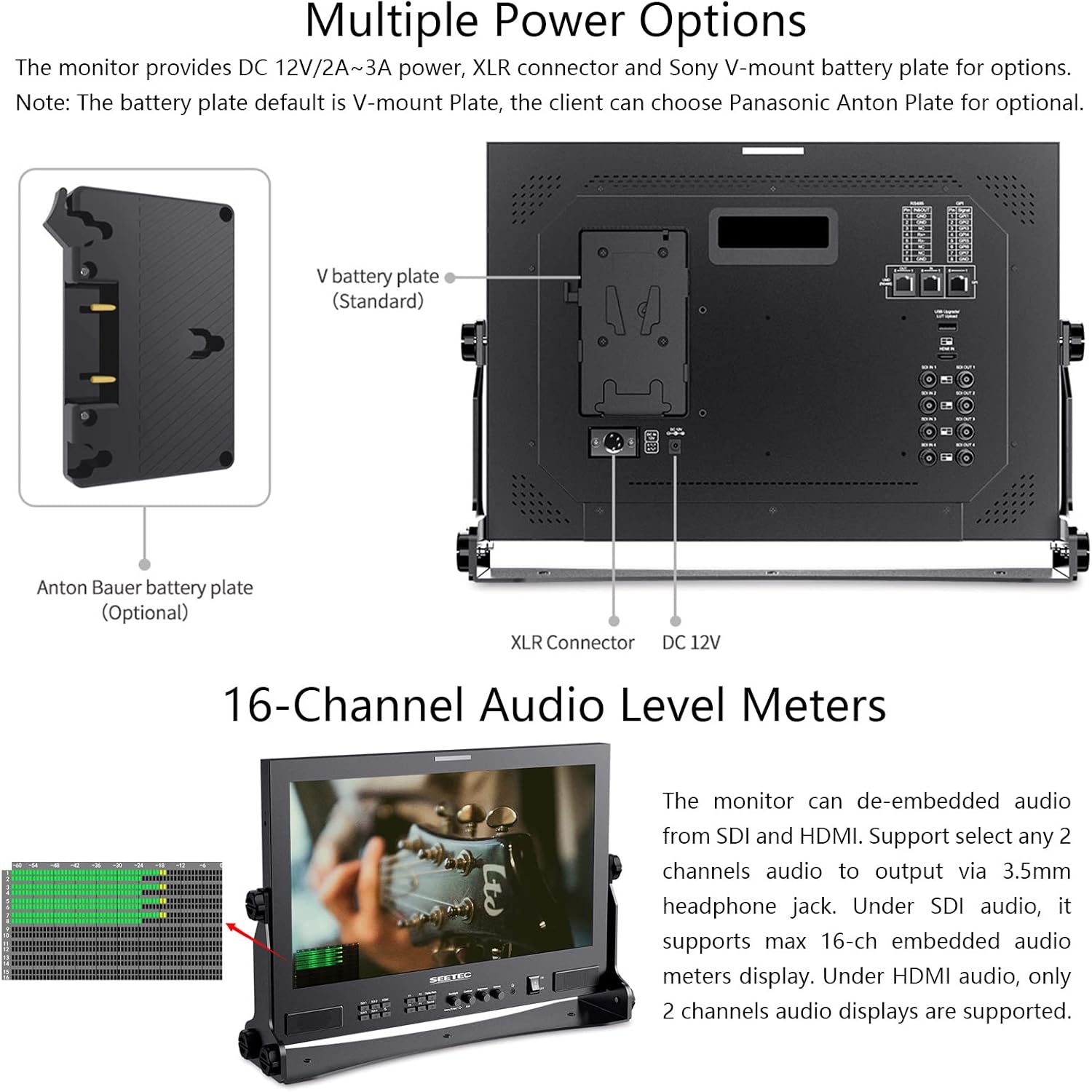
Image Description: This image illustrates the various power input options for the SEETEC ATEM173S monitor. It shows the DC 12V input, an XLR connector, and a V-mount battery plate (standard). An optional Anton Bauer battery plate is also indicated. This highlights the monitor's flexibility for different power setups.
5.2 Video Input Connection
- Connect your SDI video sources to the 3G-SDI IN ports (SDI IN 1-4).
- Connect your HDMI video source to the HDMI IN port.
- Use the 3G-SDI OUT ports to loop through or distribute the SDI signals to other devices.
6. Operating Instructions
6.1 Basic Operation
- Power On/Off: Press the power button on the front panel to turn the monitor on or off.
- Input Selection: Use the 'Source' button or menu options to switch between SDI 1-4 and HDMI inputs.
- Menu Navigation: Use the menu buttons (e.g., 'Menu', 'Up', 'Down', 'Enter') to navigate the on-screen display (OSD) menu and adjust settings.
6.2 Multiple Display Modes (Quad View, PIP)
The ATEM173S supports various display modes including full screen, Picture-in-Picture (PIP), and Quad View.

Image Description: This image shows the SEETEC ATEM173S monitor displaying four distinct video feeds simultaneously in a quad-split layout. Each quadrant shows a different scene, demonstrating the monitor's multi-camera monitoring capability. The monitor's front panel controls are visible below the screen.
- Quad View: Displays up to four SDI inputs simultaneously. In quad mode, the monitor supports displaying 4-channel audio meters and 4 time codes.
- Picture-in-Picture (PIP): Displays one input as the main image and another input in a smaller window. The size and position of the sub-window can be adjusted via the OSD menu.
6.3 3D LUT Functionality
The monitor supports 3D LUTs for color calibration and creative looks. It comes with built-in DE-log LUTs and allows user-defined LUTs.

Image Description: This image presents a split-screen view demonstrating the effect of a 3D LUT. The left side shows a scene (Venice canal) with a flat, uncorrected color profile ("Before Loading"), while the right side shows the same scene with enhanced colors and contrast after a 3D LUT has been applied ("After Loading"). This illustrates how 3D LUTs can recreate film looks.
- Loading Custom LUTs: Connect a USB flash disk containing .cube LUT files to the monitor's USB port. Navigate to the LUT menu in the OSD to import (up to 36 custom LUTs).
- Applying LUTs: Select desired LUTs from the menu to apply them to the video signal for real-time color transformation.
6.4 Accurate Waveform Monitoring
The ATEM173S includes professional waveform monitoring tools to analyze video signals.

Image Description: This image shows two SEETEC ATEM173S monitors side-by-side. The left monitor displays a video scene with a waveform overlay, while the right monitor shows the same scene with multiple scope displays (waveform, vectorscope, histogram) active simultaneously. Below the monitors, icons represent various monitoring functions like 3D LUT, Waveform, Vectorscope, Histogram, Picture In Picture, False Colors, Anamorphic Mode, Time Code, Nine Grid, Pixel-to-Pixel, Image Freeze, Screen Marker, Center Marker, and Embedded Audio.
- Available Scopes: Waveform (RGB Parade, YUV Parade, Y Parade), Vectorscope, Histogram, Audio Phase, and Level Displays.
- Activation: These functions can be activated individually or all at once via a dedicated menu option or shortcut.
6.5 Dynamic UMD & Tally Lights
The monitor supports Under Monitor Display (UMD) and Tally light functionality for professional broadcast environments.

Image Description: This image shows the SEETEC ATEM173S monitor from the front and rear. The front view highlights the Tally light indicator (red bar at the top) and a UMD display showing "CAMERA 1" at the bottom. The rear view details the GPI and RS485 connections used for Tally and UMD control. The image also illustrates different display modes like 4P (Quad View) and 2P PIP (Picture-in-Picture).
- UMD: Supports TSL 3.1/4.0 protocol with address selection (0-126) and displays up to 16 characters. UMD inputs via RS485 and outputs via RS485.
- Tally Lights: GPI controls Red Tally (recording) and Green Tally (preview), providing visual cues for camera status.
6.6 Audio Monitoring
The monitor provides integrated audio monitoring capabilities.
Image Description: This image shows the SEETEC ATEM173S monitor displaying a video feed with a 16-channel audio level meter overlay on the left side of the screen. This visual representation helps users monitor audio levels in real-time. The image also includes diagrams of the monitor's multiple power options (DC 12V, XLR, V-mount battery plate) and an optional Anton Bauer battery plate.
- Embedded Audio Meters: Supports up to 16-channel embedded audio meters display for SDI inputs.
- Headphone Output: A stereo headphone jack allows for monitoring selected audio channels. Under HDMI audio, only 2 channels are displayed.
7. Advanced Features
The ATEM173S includes a range of advanced features for precise video monitoring:
- HDR Monitoring: Supports High Dynamic Range for improved clarity and detail.
- Focus Assist: Highlights in-focus areas (Yellow, Red, Green, Blue, White options).
- False Colors: Assists in exposure adjustment by displaying different exposure levels as distinct colors.
- Zebra: Indicates overexposed areas (70IRE, 80IRE, 90IRE options).
- Timecode Display: Shows timecode information on screen.
- Under Scan, Over Scan: Adjusts the display area to show more or less of the image.
- Anamorphic Mode: De-squeezes anamorphic footage (1.25X, 1.33X, 1.5X, 2.0X, 2.0X mag options).
- Pixel to Pixel: Displays the image at its native resolution without scaling.
- Center Marker: Displays a crosshair at the center of the screen.
- Safety Marker: Overlays various aspect ratio guides (70%, 80%, 90%, 16:9, 16:10, 4:3, 5:4, 1.85:1, 2.35:1, user-defined).
- Marker Mat: Provides opaque overlays for various aspect ratios (16:9, 16:10, 4:3, 1.85:1, 2.35:1).
- Image Freeze: Pauses the current video frame.
8. Maintenance
- Cleaning: Use a soft, lint-free cloth to clean the monitor screen and casing. Do not use abrasive cleaners or solvents.
- Storage: When not in use for extended periods, store the monitor in a cool, dry place, away from direct sunlight and extreme temperatures.
- Firmware Updates: Periodically check the SEETEC website for available firmware updates to ensure optimal performance and access to new features. Updates can be installed via the USB port.
9. Troubleshooting
If you encounter issues with your ATEM173S monitor, refer to the following common problems and solutions:
- No Power:
- Ensure the power adapter is securely connected to both the monitor and a working power outlet.
- If using a battery, check that it is charged and properly attached.
- No Video Signal:
- Verify that the video source is powered on and outputting a signal.
- Check all SDI/HDMI cable connections.
- Ensure the correct input source is selected on the monitor.
- Confirm the input signal format is supported by the monitor (refer to Specifications).
- Image Distortion/Incorrect Colors:
- Check video cable integrity.
- Reset monitor settings to factory defaults via the OSD menu.
- Ensure no unintended 3D LUTs or color settings are applied.
- Audio Issues:
- Verify the audio source is active.
- Check headphone connection and volume levels.
- Ensure embedded audio is present in the video signal.
For persistent issues, contact SEETEC customer support.
10. Technical Specifications
| Feature | Specification |
|---|---|
| Screen Size | 17.3" IPS |
| Resolution | 1920×1080 pixels |
| Aspect Ratio | 16:9 |
| Brightness | 300cd/m² |
| Contrast Ratio | 700:1 |
| Viewing Angle | 89°/89°(L/R) 89°/89°(U/D) |
| Input Voltage | DC 12V |
| Power Consumption | ≤22W |
| Working Temperature | 0°C~50°C |
| Unit Size (W/O bracket) | 425L×296H×23D (mm) |
| Unit Weight | 2.84kg |
| SDI Support Format | 720p (60/59.94/50/30/29/25/24/23.98), 1080i (60/59.94/50), 1080p (60/59.94/50/30/29.97/25/24/24sF/23.98/23.98sF), 2048x1080i (60/59.94/50), 2048x1080p (60/59.94/50/30/29.97/25/24/23.98) |
| HDMI Support Format | 480i/576i/480p/576p, 720p (60/59.94/50/30/29.97/25/24/23.98), 1080i (60/59.94/50), 1080p (60/59.94/50/30/29.97/25/24/23.98) |
11. Warranty and Support
For warranty information and technical support, please refer to the official SEETEC website or contact your local distributor. Keep your purchase receipt as proof of purchase for warranty claims.
Website: www.seetec.cn (Example link, actual link may vary)