
Introduction
Thank you for choosing the Loolinn Z6pro GPS Drone. This manual provides essential information for safe operation, optimal performance, and proper maintenance of your drone. Please read it thoroughly before your first flight and retain it for future reference.
What's in the Box
- 1 x Loolinn Z6pro GPS Drone
- 1 x Carrying case
- 1 x Remote Control
- 1 x Remote Charging Cable
- 1 x Screwdriver
- 1 x Quick Start Guide
- 1 x User Manual
- 2 x Extra Propellers Sets
- 2 x Drone Batteries
- 2 x Battery Charging Cable
Product Overview
The Loolinn Z6pro is a lightweight, feature-rich GPS drone designed for beginners and adults. Weighing under 250 grams, it does not require a license for operation in many regions. It offers extended flight times, high-quality imaging, and intelligent flight features for a safe and enjoyable experience.

Figure 1: Loolinn Z6pro GPS Drone with Camera. This image shows the drone in its unfolded state, ready for flight, with its camera visible at the front.

Figure 2: The Loolinn Z6pro drone held in a hand, demonstrating its compact and lightweight design, weighing under 250 grams.
Setup
1. Unfolding the Drone
Carefully unfold the drone's arms until they lock into place. Ensure all propellers are free from obstruction.
2. Battery Installation and Charging
Insert a fully charged drone battery into the designated compartment on the drone. Use the provided charging cables to charge both drone batteries and the remote control. The drone comes with two batteries, offering approximately 25 minutes of flight time per battery.

Figure 3: Two Loolinn Z6pro drone batteries, highlighting their design and the inclusion of two units for extended flight.
3. Remote Control Setup
Ensure the remote control is charged. Attach your smartphone to the remote control's holder to utilize the FPV (First Person View) features via the dedicated app. The remote control features intuitive joysticks for precise flight control.
Operating Instructions
1. Power On
Press and hold the power button on the drone until the indicator lights illuminate. Power on the remote control. The drone and remote will automatically pair.
2. Take-off and Landing
Place the drone on a flat, open surface. Use the one-key take-off button on the remote control for automatic ascent. For landing, use the one-key landing button or manually descend using the left joystick.
3. Basic Flight Controls
- Left Joystick: Controls altitude (up/down) and rotation (left/right).
- Right Joystick: Controls forward/backward and left/right movement.
Flight Modes and Features
1. GPS Intelligent Return
The drone is equipped with advanced GPS functionality. In case of low battery or signal loss, the drone will automatically return to its take-off point, ensuring a safer flight and reducing the risk of loss.

Figure 4: The Loolinn Z6pro drone demonstrating its GPS Auto Return feature, flying back to its launch point over a scenic coastal area.
2. Follow Me Mode
Activate the intelligent Follow Me function via the app. The drone will automatically follow your movements, capturing your activities hands-free. This feature is ideal for recording dynamic footage.
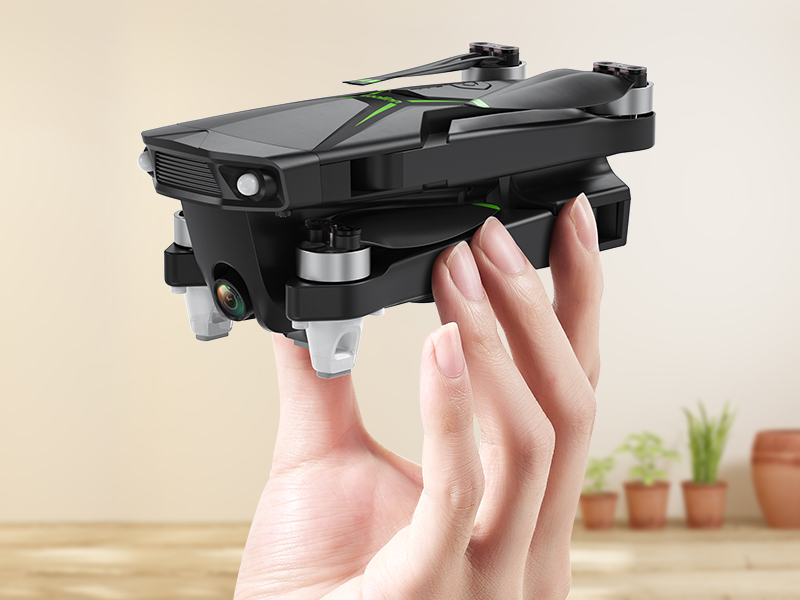
Figure 5: The Loolinn Z6pro drone utilizing its Follow Me mode, tracking a car on a winding road, capturing dynamic footage.
3. Obstacle Avoidance
The drone features intelligent obstacle avoidance to help prevent collisions during flight, enhancing safety and ease of use, especially for beginners.
Video 1: Loolinn Z6pro Drone with Camera, demonstrating GPS Return to Home and obstacle avoidance features, highlighting its suitability for beginners.
Camera Operation
The drone is equipped with an HD camera capable of capturing 4K photos and 2K videos. The camera angle is adjustable for versatile shooting. Insert an SD card (not included) into the drone for storing high-resolution photos and videos.

Figure 6: A visual comparison illustrating the quality of 4K photos and 2K videos captured by the Loolinn Z6pro drone's camera.
1. FPV (First Person View)
Connect your smartphone to the remote control and launch the Loolinn app to view real-time footage from the drone's camera. This 5GHz transmission provides a smooth video feed within a range of approximately 300 meters.

Figure 7: The Loolinn Z6pro remote control with a smartphone attached, showing the 5GHz FPV video feed from the drone.
Safety Guidelines
- No License Required: The Loolinn Z6pro weighs under 250 grams, meaning it typically does not require a pilot's license for recreational use in many countries. Always check local regulations.
- Fly in Open Areas: Operate the drone in open, clear environments away from people, animals, buildings, and power lines.
- Maintain Visual Line of Sight: Always keep the drone within your visual line of sight during flight.
- Check Weather Conditions: Avoid flying in strong winds, rain, or other adverse weather conditions.
- Pre-Flight Check: Before each flight, ensure batteries are fully charged, propellers are securely attached, and the drone is free from damage.
Video 2: Loolinn Z6pro GPS Drone with Camera, demonstrating its GPS Return to Home feature and lightweight design (under 250g), making it suitable for beginners.
Maintenance
- Propeller Inspection: Regularly check propellers for any signs of damage (cracks, bends). Replace damaged propellers immediately using the extra sets provided.
- Cleaning: Keep the drone and camera lens clean from dust and debris. Use a soft, dry cloth.
- Battery Care: Store batteries in a cool, dry place. Do not overcharge or completely discharge batteries.
- Storage: When not in use, fold the drone and store it securely in its carrying case.

Figure 8: An exploded view illustrating the brushless motors of the Loolinn Z6pro drone, emphasizing their role in stable flight and durability.
Troubleshooting
- Drone not powering on: Ensure the battery is fully charged and correctly inserted.
- Remote control not pairing: Make sure both the drone and remote are powered on and within range. Restart both devices if necessary.
- Unstable flight: Perform a compass calibration as per the Quick Start Guide. Check propellers for damage and replace if needed.
- Poor video feed: Ensure your smartphone is properly connected to the remote and the app is running. Check for interference in the 5GHz band.
- Drone not returning home: Verify GPS signal strength before flight. Ensure the take-off point is clear.
Specifications
| Brand | Loolinn |
| Model Name | Loolinn Z6pro Drone |
| Item Weight | 212 Grams (7.5 ounces) |
| Battery Capacity | 1700 Milliamp Hours |
| Flight Time | Up to 50 minutes (with 2 batteries) |
| Video Capture Resolution | 4K (Photos), 2K (Video) |
| Connectivity Technology | Radio / WIFI (5GHz) |
| Maximum Range | 984 Feet |
| Skill Level | Beginner |
| Special Features | 4K Camera, GPS Intelligent Return, Follow Me, Obstacle Avoidance |
Warranty and Support
Loolinn offers a 30-day full refund policy. Additionally, the product comes with lifetime top-notch customer service. For any issues or support, please refer to the contact information provided in your Quick Start Guide or User Manual.


