
1. Introduction
The TP-Link AX3000 WiFi 6 Range Extender (RE700X) is designed to expand your existing Wi-Fi network's coverage, eliminating dead zones and providing a stronger, more reliable connection throughout your home or office. This dual-band extender supports the latest Wi-Fi 6 technology, offering speeds up to 3 Gbps for smoother streaming, gaming, and downloading. It also features an Access Point Mode and OneMesh compatibility for a seamless whole-home Wi-Fi experience.

Figure 1: Front view of the TP-Link AX3000 WiFi 6 Range Extender (RE700X).
2. What's in the Box
Verify that all items are present in your package:
- Wi-Fi Range Extender RE700X
- Quick Installation Guide
3. Key Features
- WiFi 6 Speeds: Dual-band Wi-Fi speeds up to 3 Gbps (2402 Mbps on 5 GHz and 574 Mbps on 2.4 GHz) for smoother streaming and gaming.
- Expanded Coverage: Features 4 high-performance amplifiers to reach hard-to-cover areas and eliminate Wi-Fi dead zones.
- Gigabit Ethernet Port: Provides wired speed and reliability for devices like smart TVs, PCs, or game consoles.
- OneMesh Compatible: Create a seamless Wi-Fi network with a single Wi-Fi name when paired with a compatible OneMesh router, ensuring uninterrupted streaming as you move around your home.
- Built-In Access Point Mode: Easily transform your wired internet connection into a 2x2 MU-MIMO dual-band wireless access point by plugging in an Ethernet cable.
- Universal Compatibility: Works with all Wi-Fi-enabled devices, routers, gateways, or cable modems with Wi-Fi.
- Easy Setup: Simple setup and management using the TP-Link Tether app (Android, iOS) with an intelligent signal indicator to find the optimal location.

Figure 2: Overview of key features including 160MHz Bandwidth, 1000M Ethernet Port, AX3000 High-Speed WiFi, Dual Band, MU-MIMO, and OneMesh compatibility.
4. Setup Guide
Follow these steps to set up your TP-Link AX3000 WiFi 6 Range Extender:
4.1. Unboxing and Physical Overview
Before you begin, familiarize yourself with the extender's components and ports.

Figure 3: Labeled components of the RE700X, including Power Indicator, 2.4GHz Indicator, 5GHz Indicator, Reset Button, WPS Button, and Gigabit Port.
4.2. Using the TP-Link Tether App (Recommended)
- Download the Tether App: Search for "TP-Link Tether" on the App Store (iOS) or Google Play (Android) and install it on your smartphone or tablet.
- Power On: Plug the RE700X into an electrical outlet near your main router. Wait for the Power LED to turn solid blue.
- Connect to Extender: Open the Tether app. It should automatically detect your extender. Follow the on-screen instructions to connect to the extender's temporary Wi-Fi network (e.g., "TP-Link_Extender").
- Create Admin Password: The app will prompt you to create a new admin password for the extender.
- Select Host Network: Choose your existing 2.4GHz and 5GHz Wi-Fi networks from the list that you wish to extend. Enter the passwords for these networks when prompted.
- Confirm Settings: Review the settings and confirm. The extender will then apply the settings and connect to your main router.
- Relocate the Extender: Once connected, unplug the extender and move it to a location halfway between your router and the Wi-Fi dead zone. Ensure the Signal LED on the extender is solid blue, indicating a strong connection to your router. An open and unobstructed location is ideal for optimal signal.

Figure 4: Visual guide for setting up the RE700X using the TP-Link Tether app.
Video 1: Product Overview and Setup Guide for the TP-Link AX3000 WiFi 6 Range Extender.
4.3. Using the WPS Button (Alternative)
- Power On: Plug the RE700X into an electrical outlet near your main router.
- Press WPS on Router: Press the WPS button on your main router.
- Press WPS on Extender: Within two minutes, press the WPS button on your RE700X. The Signal LED should turn solid blue, indicating a successful connection.
- Relocate the Extender: Unplug the extender and move it to an optimal location (halfway between router and dead zone) where the Signal LED remains solid blue.
5. Operating Modes
5.1. Range Extender Mode
In this mode, the RE700X extends the coverage of your existing Wi-Fi network. Devices connect to the extender, which then relays the signal to and from your main router. This is ideal for expanding Wi-Fi to areas with weak or no signal.
5.2. Access Point Mode
The RE700X can function as a wireless access point. Connect an Ethernet cable from your router (or any wired internet source) to the Gigabit Ethernet port on the extender. The extender will then broadcast a new Wi-Fi network, converting your wired connection into a wireless one. This is useful for adding Wi-Fi capability to a wired-only network or creating a new Wi-Fi hotspot.

Figure 5: The RE700X operating in Built-In Access Point Mode, converting a wired connection to Wi-Fi.
5.3. OneMesh Functionality
When paired with a compatible TP-Link OneMesh router, the RE700X creates a unified Mesh network. This means your devices will automatically switch to the strongest Wi-Fi signal as you move around your home, without needing to manually switch networks. This provides seamless roaming and a single Wi-Fi name for your entire home.
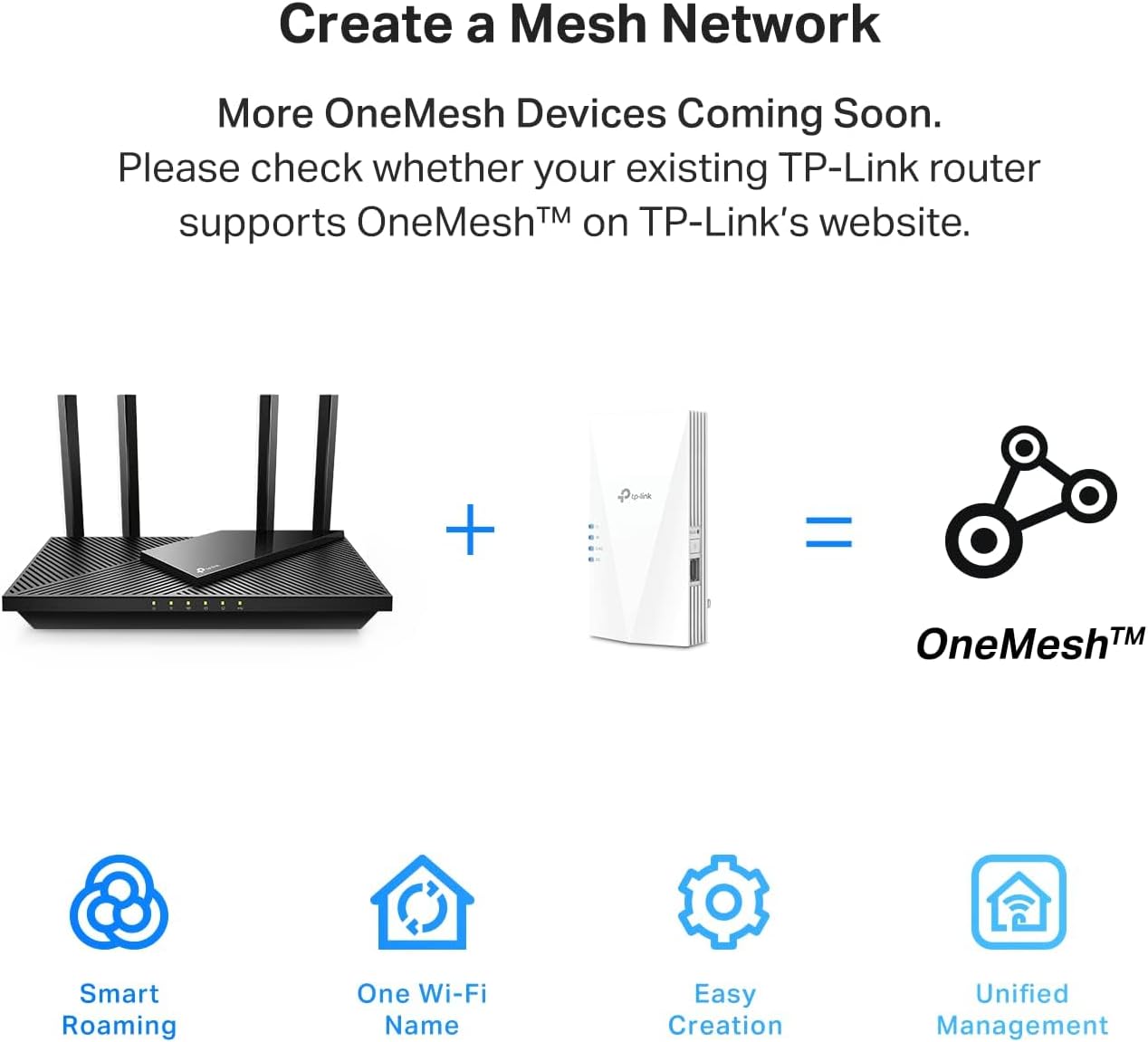
Figure 6: Illustration of how a OneMesh network is created by combining a OneMesh router and a OneMesh range extender.
6. Maintenance
- Cleaning: Use a soft, dry cloth to clean the device. Do not use liquid or chemical cleaners.
- Ventilation: Ensure the extender is placed in a well-ventilated area to prevent overheating. Do not block the ventilation holes.
- Environment: Avoid placing the device in direct sunlight, near heat sources, or in excessively humid or dusty environments.
- Firmware Updates: Regularly check for and install firmware updates via the Tether app or TP-Link's official website to ensure optimal performance and security.
7. Troubleshooting
Common Issues and Solutions:
- No Internet Access after Setup:
- Verify that your main router has internet access.
- Check the Signal LED on the extender. If it's not solid blue, relocate the extender closer to your router until it is.
- Ensure you entered the correct Wi-Fi password for your main network during setup.
- Reboot both your router and the extender.
- Weak Signal or Frequent Disconnections:
- Relocate the extender to an optimal spot, ensuring the Signal LED is solid blue. Avoid physical obstructions like thick walls or large metal objects.
- Check for interference from other electronic devices (e.g., microwaves, cordless phones).
- Update the extender's firmware to the latest version.
- Cannot Access Extender's Web Management Page:
- Ensure your device is connected to the extender's Wi-Fi network.
- Verify that the extender is powered on.
- Try clearing your browser's cache or using a different browser.
8. Specifications
| Feature | Detail |
|---|---|
| Product Dimensions | 5.87 x 3.07 x 1.42 inches |
| Item Weight | 9.1 ounces |
| Item Model Number | RE700X |
| Wireless Communication Standard | 802.11n, 802.11ax, 802.11b, 802.11g, 802.11ac |
| Data Transfer Rate | 3 Gigabits Per Second |
| Frequency Band Class | Dual-Band |
| Connector Type | RJ45 |
| Manufacturer | TP-Link |
| Country of Origin | Vietnam |
9. Warranty and Support
For warranty information, technical support, and additional resources, please visit the official TP-Link website or refer to the documentation included with your product.
- User Manual (PDF): Download User Manual
- Installation Manual (PDF): Download Installation Manual
- Protection Plans: Optional protection plans are available for purchase. Please refer to your retailer for details.


