1. Introduction
The Penoval AX Stylus Pen is designed to enhance your iPad experience, offering precision, comfort, and advanced features for drawing, writing, and navigation. This manual provides essential information for setting up, operating, maintaining, and troubleshooting your stylus.
2. Compatibility
The Penoval AX Stylus Pen is compatible with a wide range of iPad models released in 2018 and later. Ensure your iPad's iOS is upgraded to version 12.2 or above for optimal performance.
Compatible iPad Models:
- iPad (6th, 7th, 8th, 9th, 10th generation)
- iPad mini (5th, 6th generation)
- iPad Air (3rd, 4th, 5th generation), iPad Air M2 11" & 13"
- iPad Pro 11-inch (1st, 2nd, 3rd, 4th generation)
- iPad Pro 12.9-inch (3rd, 4th, 5th generation), 2024 iPad Pro M4 11" & 13"
Note: Magnetic attachment is NOT compatible with iPad 10th generation, 2024 iPad Pro (M4), and iPad Air (M2). For these models, consider using an eIP pen loop for storage.
Not Compatible with:
- iPad Pro 12.9" (1st Gen and 2nd Gen)
- iPad Pro 9.7"
- iPad Pro 10.5"
- iPad Mini 7

3. Setup
3.1 Turning On/Off
To turn on the Penoval AX Stylus, simply double-tap the power button located at the top of the pen. Double-tap again to turn it off. The stylus will automatically power off after 5 minutes of inactivity to conserve battery.

3.2 Charging
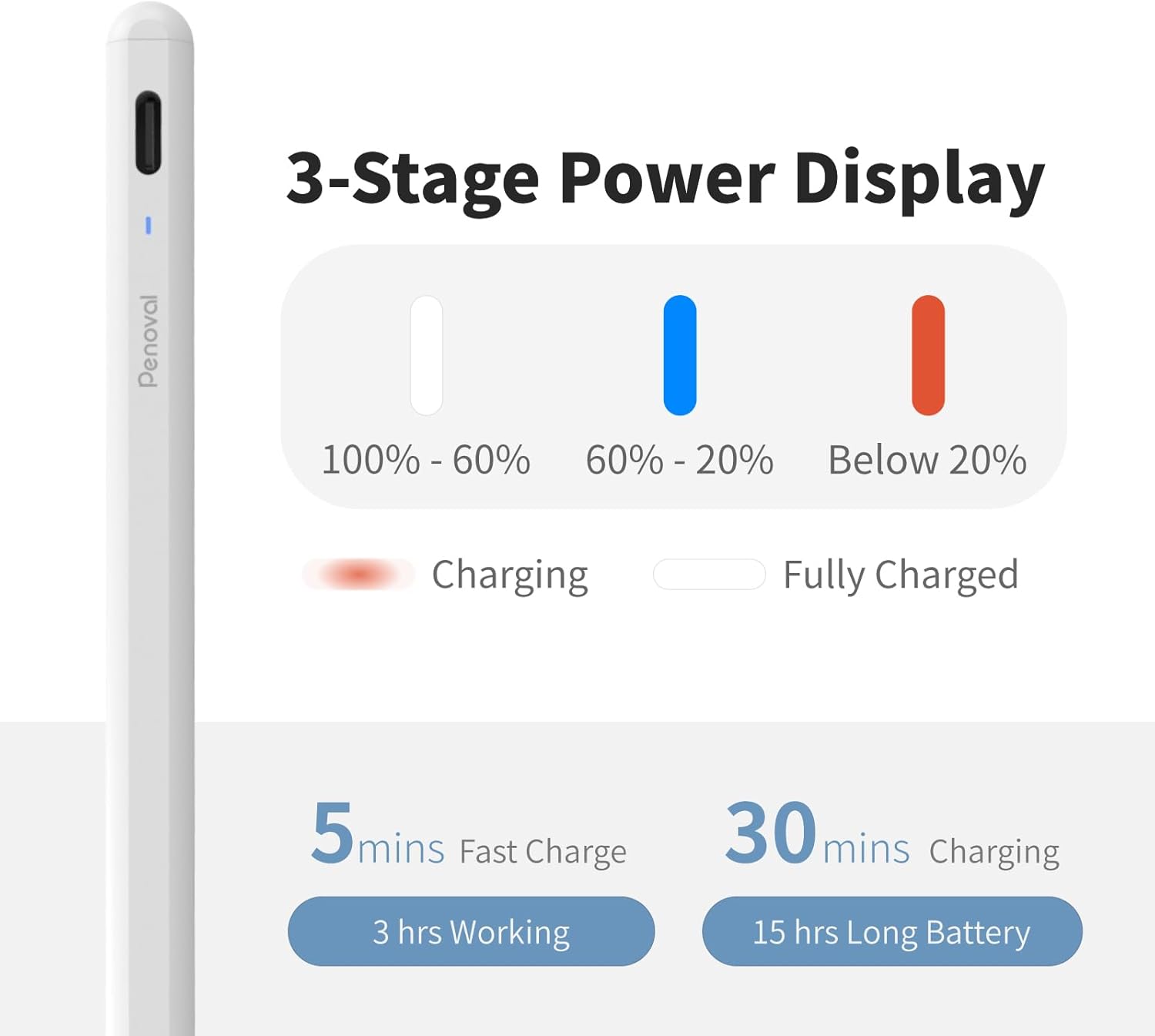
The stylus charges via a Type-C cable. A full charge takes approximately 30 minutes and provides up to 15 hours of continuous use. A quick 5-minute charge can provide 3 hours of working time.
3.3 Battery Indicator
The smart LED power indicator on the stylus clearly identifies the power status with different light colors:
- White: Battery level is above 60%.
- Blue: Battery level is between 20% and 60%.
- Red: Battery level is below 20%.
While direct Bluetooth connection is not required for basic functionality, you can connect the stylus via Bluetooth to your iPad to monitor its real-time battery percentage through the iPad's battery widget.
3.4 Initial Pairing (if applicable)
If your iPad was previously paired with an Apple Pencil, it is recommended to unpair the Apple Pencil before using the Penoval AX Stylus to avoid potential conflicts.
4. Operating Instructions
4.1 Palm Rejection
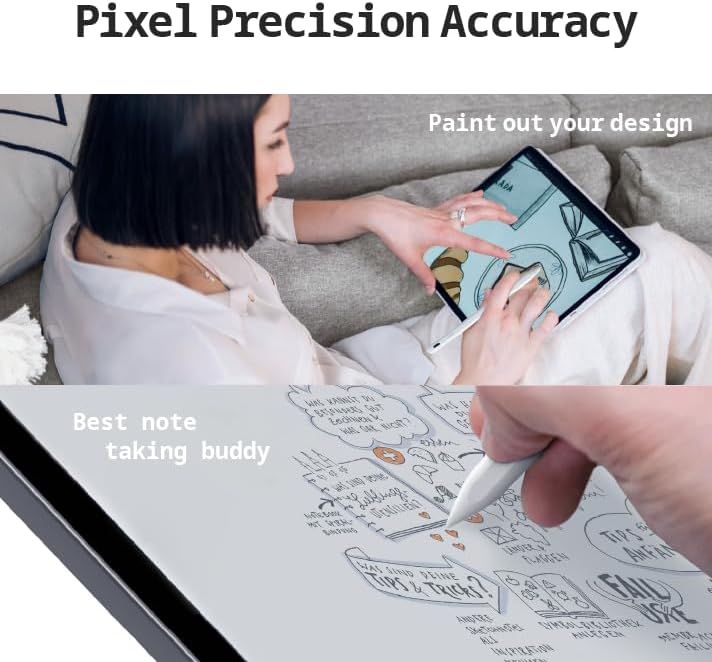
The Penoval AX Stylus features palm rejection technology, allowing you to rest your hand naturally on the iPad screen while writing or drawing without causing unintended marks. This provides a comfortable and intuitive user experience.

4.2 Tilt Sensitivity
The stylus supports tilt sensitivity, enabling you to create shadows and vary line thicknesses by simply tilting the pen at different angles, similar to using a traditional pencil.
4.3 Pixel Precision
Experience pixel-perfect accuracy with the Penoval AX Stylus, ensuring no delays, scratches, offsets, or broken lines during use. This precision makes it ideal for detailed drawing and accurate note-taking.
4.4 iOS Functions Support
The Penoval AX Stylus is fully compatible with key iOS functions, including:
- Scribble: Convert your handwriting to text.
- Geometry Sensing: Automatically perfect drawn shapes.
- Screenshot: Easily capture and annotate screenshots.
- Quick Notes: Access and create notes quickly from anywhere on your iPad.
4.5 Magnetic Attachment
The stylus features a magnetic design that allows it to securely attach to compatible iPad models (iPad Pro 12.9" 3rd generation or later, iPad Pro 11-inch, iPad Air 4) for convenient storage and to prevent loss.
4.6 Video Demonstration of Features
5. Maintenance
5.1 Replacing the Nib
The Penoval AX Stylus comes with replaceable nibs. To replace a worn nib:
- Gently unscrew the current nib counter-clockwise to remove it.
- Take a new replacement nib.
- Screw the new nib clockwise until it is securely in place.
The stylus is compatible with 1.4mm Apple Pencil nibs, and extra nibs are included in the package.

5.2 Cleaning
To clean your stylus, gently wipe it with a soft, dry cloth. Avoid using harsh chemicals or abrasive materials that could damage the finish or internal components.
6. Troubleshooting
6.1 Stylus Not Responding
- Ensure the stylus is turned on (double-tap the top button).
- Check the battery level using the LED indicator or your iPad's battery widget. Charge if necessary.
- Verify that your iPad model is compatible and its iOS is up to date (iOS 12.2 or above).
- If you previously used an Apple Pencil, ensure it is unpaired from your iPad's Bluetooth settings.
- Restart your iPad.
6.2 Inaccurate or Skipping Lines
- Check if the nib is securely screwed in. Tighten it if loose.
- Replace the nib if it appears worn or damaged.
- Ensure your iPad screen is clean and free of debris.
- Confirm that palm rejection is functioning correctly.
7. Specifications
| Feature | Detail |
|---|---|
| Model Number | AX |
| Dimensions | 7.56 x 2.48 x 0.67 inches (Package) |
| Item Weight | 2.39 ounces (0.07 Kilograms) |
| Material | Aluminum |
| Battery Type | 1 Lithium Ion battery (included) |
| Battery Life (Standby) | 15 Hours |
| Charging Time | 0.5 Hours (30 minutes) |
| Nib Compatibility | Compatible with 1.4mm Apple Pencil nibs |
| Special Features | Palm Rejection, Tilt Sensitivity, Magnetic Attachment, Pixel Precision, iOS Function Support (Scribble, Geometry Sensing, Screenshot, Quick Notes) |
8. Warranty and Support
The Penoval AX Stylus package includes the stylus, a replacement nib, a Type-C charging cable, and this user manual. For any warranty claims, technical support, or further inquiries, please refer to the contact information provided with your purchase or visit the official Penoval website.
Penoval is committed to providing high-quality products and customer satisfaction. Our products undergo rigorous testing to ensure reliability and durability.