
Introduction
This manual provides essential information for the proper setup, operation, and maintenance of your Samsung Galaxy Book Go NP340XLA-KA6US laptop. Please read this guide thoroughly to ensure optimal performance and longevity of your device.
1. Setup
1.1 Unboxing and Initial Inspection
Carefully remove all components from the packaging. Verify that all items listed in the 'What's in the Box' section are present. Inspect the laptop for any physical damage before proceeding.
1.2 Charging the Battery
Before first use, connect the provided power adapter to the laptop's USB-C charging port and a power outlet. Allow the battery to charge fully. The charging indicator light will change to indicate a full charge.
1.3 Powering On and Initial Configuration
Press the power button located on the side of the laptop. Follow the on-screen instructions to complete the initial setup of Windows 11, including language selection, network connection, and user account creation.

Figure 1: Front view of the Samsung Galaxy Book Go laptop.
2. Operating Your Laptop
2.1 Keyboard and Trackpad Usage
The integrated keyboard and trackpad provide standard input functionality. The trackpad supports multi-touch gestures for navigation and control within Windows 11.
2.2 Connectivity
Your laptop supports 802.11ac wireless connectivity for internet access. It also features USB-C ports for data transfer and charging, and a USB-A port for connecting various peripherals.
2.3 Performance and Multitasking
Equipped with a Qualcomm Snapdragon 7c Gen 2 processor, the Galaxy Book Go is designed for efficient performance in daily tasks, web browsing, and light productivity. The 8GB RAM variant allows for smooth multitasking across several applications.
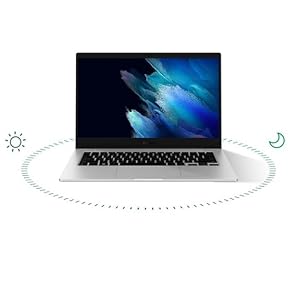
Figure 2: Qualcomm Snapdragon processor, central to the laptop's performance.
2.4 Quick Share Feature
Utilize the Quick Share feature for seamless file sharing between your Samsung Galaxy devices, including smartphones and tablets. This allows for rapid transfer of photos, videos, and documents.
3. Battery Management
The Samsung Galaxy Book Go offers an average battery life of up to 18 hours under typical usage conditions. To maximize battery life, adjust screen brightness, close unused applications, and enable power-saving modes when not connected to a power source.

Figure 3: Visual representation of the laptop's extended battery life.
For optimal battery health, avoid extreme temperatures and store the device with a partial charge if it will not be used for an extended period.
4. Maintenance
4.1 Cleaning Your Laptop
Use a soft, lint-free cloth to clean the screen and exterior surfaces. For stubborn smudges, slightly dampen the cloth with water or a screen-safe cleaning solution. Avoid harsh chemicals or abrasive materials.
4.2 Software Updates
Regularly check for and install Windows updates to ensure your system has the latest security patches and performance improvements. Samsung may also release firmware updates for your device, which can be found through the Samsung Update application.
5. Troubleshooting
If you encounter issues with your Samsung Galaxy Book Go, consider the following basic troubleshooting steps:
- No Power: Ensure the power adapter is securely connected and the outlet is functional. Try a different power outlet.
- Slow Performance: Close unnecessary applications, restart the laptop, or check for available system updates.
- Wi-Fi Connectivity Issues: Restart your router and modem. Check if Wi-Fi is enabled on your laptop and try reconnecting to the network.
- Peripheral Not Recognized: Ensure the peripheral is properly connected. Try a different USB port or restart the laptop.
For more complex issues, refer to the comprehensive support resources available on the official Samsung website or contact Samsung customer support.
6. Specifications
Key technical specifications for the Samsung Galaxy Book Go NP340XLA-KA6US:
| Feature | Specification |
|---|---|
| Model Number | NP340XLA-KA6US |
| Operating System | Windows 11 |
| Processor | Qualcomm Snapdragon 7c Gen 2 (2.55 GHz) |
| RAM | 8 GB DDR4 |
| Storage | 128 GB SSD |
| Screen Size | 14 Inches |
| Screen Resolution | 1920 x 1080 pixels |
| Graphics Coprocessor | Qualcomm Adreno |
| Wireless Type | 802.11ac |
| Average Battery Life | 18 Hours |
| Item Weight | 4.6 pounds |
| Product Dimensions | 13 x 9 x 1 inches |
7. Warranty and Support
Your Samsung Galaxy Book Go is covered by a limited manufacturer's warranty. For detailed warranty terms and conditions, please refer to the documentation included with your product or visit the official Samsung support website. For additional protection, consider the EPIC Protect extended warranty options.

Figure 4: EPIC Protect logo.
For technical assistance, driver downloads, or service requests, please visit Samsung Support.