
T-DAGGER 3rd Generation
T-DAGGER Mechanical Gaming Keyboard User Manual
Model: 3rd Generation
1. Introduction
Thank you for choosing the T-DAGGER Mechanical Gaming Keyboard. This manual provides detailed instructions for setting up, operating, and maintaining your new keyboard to ensure optimal performance and longevity. This full-size 104-key keyboard is designed for gaming and office use, featuring durable blue mechanical switches and vibrant rainbow backlighting.

Figure 1.1: T-DAGGER Mechanical Gaming Keyboard Overview
2. What's in the Box
- 1 x T-DAGGER Mechanical Gaming Keyboard
3. Setup
The T-DAGGER Mechanical Gaming Keyboard is a plug-and-play device, compatible with various operating systems.
3.1. Connecting the Keyboard
- Locate an available USB port on your PC.
- Plug the USB connector of the keyboard into the USB port.
- The operating system will automatically detect and install the necessary drivers. No additional software installation is typically required.
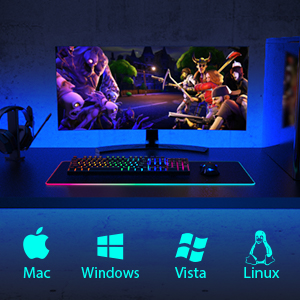
Figure 3.1: Compatible with Mac, Windows, Vista, and Linux operating systems.
4. Operating Instructions
4.1. Key Features
- Full 104-Key Anti-Ghosting: Ensures all key presses are registered accurately, even during rapid, simultaneous inputs, preventing missed commands.
- Classic Blue Switches: Provide a distinct tactile bump and an audible "click" sound, offering clear feedback for each keystroke. These switches are known for their responsiveness and durability, with a lifespan of 50 million keystrokes.

Figure 4.1: Diagram illustrating the Classic Blue Switch mechanism, highlighting its 4.0±0.2mm actuation distance and 60±15g actuation force.
4.2. Backlight Control
The keyboard features extensive backlighting options to enhance your gaming and typing experience.
- Dynamic Lighting Modes: Cycle through 9 dynamic lighting effects by pressing FN + INS.
- Gaming Backlight Modes: Select from 8 pre-set gaming backlight modes by pressing FN + 1~8. These modes illuminate specific key clusters relevant to different game genres (e.g., WASD for FPS games).
- Brightness Adjustment: Adjust backlight brightness levels.
- Speed Adjustment: Control the speed of dynamic lighting effects.
- Turn Off Backlight: The backlight can be turned off completely.

Figure 4.2: Visual representation of various backlight modes, including specific key illumination for MOBA and FPS games.
4.3. Multimedia Keys
Access common multimedia functions directly using the FN key in combination with the F-keys (F1-F12).
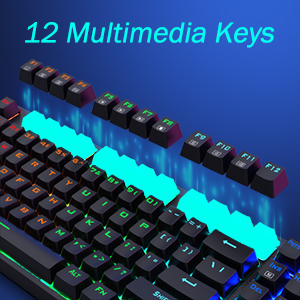
Figure 4.3: Illustration highlighting the 12 multimedia keys (F1-F12) on the keyboard.
5. Ergonomics
The keyboard is designed with user comfort in mind to reduce wrist discomfort and fatigue during extended use.
- Ergonomically Curved Surface: The keycap layout is stepped to conform to the natural curve of your fingers.
- Adjustable Angle: Features a natural 7-degree angle and foldable rear stands, allowing you to adjust the keyboard tilt for a more comfortable typing position.
- Anti-slip Feet: Ensures stability on your desk during intense gaming sessions.

Figure 5.1: Depiction of the keyboard's ergonomic design, showing the stepped keycap layout, foldable rear stand, and anti-slip feet.
6. Maintenance
Proper care will extend the life of your keyboard.
- Cleaning: Use a soft, dry cloth to wipe down the keyboard. For deeper cleaning, use compressed air to remove dust and debris from between the keys. Avoid using harsh chemicals or abrasive materials.
- Spill-Resistant Design: The keyboard features a splash-proof design with a metal panel, making it more resistant to accidental spills. In case of a spill, immediately disconnect the keyboard from your computer, wipe off any liquid, and allow it to dry completely before reconnecting.

Figure 6.1: Visual representation of the keyboard's spill-resistant capabilities.
7. Troubleshooting
If you encounter issues with your T-DAGGER Mechanical Gaming Keyboard, refer to the following common solutions:
- Keyboard Not Responding:
- Ensure the USB cable is securely plugged into both the keyboard and the computer.
- Try plugging the keyboard into a different USB port on your computer.
- Restart your computer.
- Test the keyboard on another computer to determine if the issue is with the keyboard or the computer's USB port.
- Backlight Not Working or Incorrect:
- Ensure the backlight is not turned off (refer to Section 4.2).
- Cycle through backlight modes and brightness settings using FN key combinations.
- Check for any software conflicts if you are using third-party lighting control software.
- Keys Not Registering or Double-Typing:
- Clean around the affected keys to remove any debris that might be obstructing the switch.
- Ensure the keyboard is connected directly to the computer and not through a USB hub, which might cause power issues.
8. Specifications
| Feature | Detail |
|---|---|
| Brand | T-DAGGER |
| Model Number | 3rd Generation |
| Connectivity Technology | USB Wired |
| Keyboard Description | Gaming |
| Number of Keys | 104 |
| Switch Type | Blue Mechanical Switches |
| Keystroke Lifespan | 50 Million |
| Backlight | Rainbow RGB |
| Special Features | Ergonomic, Backlit, Wrist Rest, Splash-Proof |
| Product Dimensions | 17.24 x 4.96 x 1.02 inches |
| Item Weight | 2.07 pounds |
| Compatible Devices | PC |

Figure 8.1: Keyboard dimensions, showing its full 104-key layout.
9. Warranty and Support
For warranty information and technical support, please refer to the documentation included with your purchase or visit the official T-DAGGER website. Keep your proof of purchase for warranty claims.
Related documents3rd Generation

Ask a question about this manual
Ask about setup, troubleshooting, compatibility, parts, safety, or missing instructions. Manuals+ will review the question and use this page’s manual context to help answer it.