
BluMill GM-001
BluMill Gaming Chair GM-001 User Manual
Model: GM-001
1. Introduction
This manual provides essential instructions for the safe and efficient use of your BluMill Gaming Chair. Please read it thoroughly before using the product and retain it for future reference.
Safety Information
- Do not exceed the maximum load capacity of 150 kg (330 lbs).
- Exercise caution when folding the chair to prevent injury.
- For maintenance, use only mild cleaning agents.
- This chair is designed for children and teenagers. Adults may find it less comfortable due to its size.
2. Product Components
The BluMill Gaming Chair includes the following main components:
- Ergonomic seat cushion with breathable microfiber material.
- Integrated speakers located at head height.
- Control panel for volume and connectivity.
- Bluetooth module for wireless connection.
- Foldable frame for easy storage.
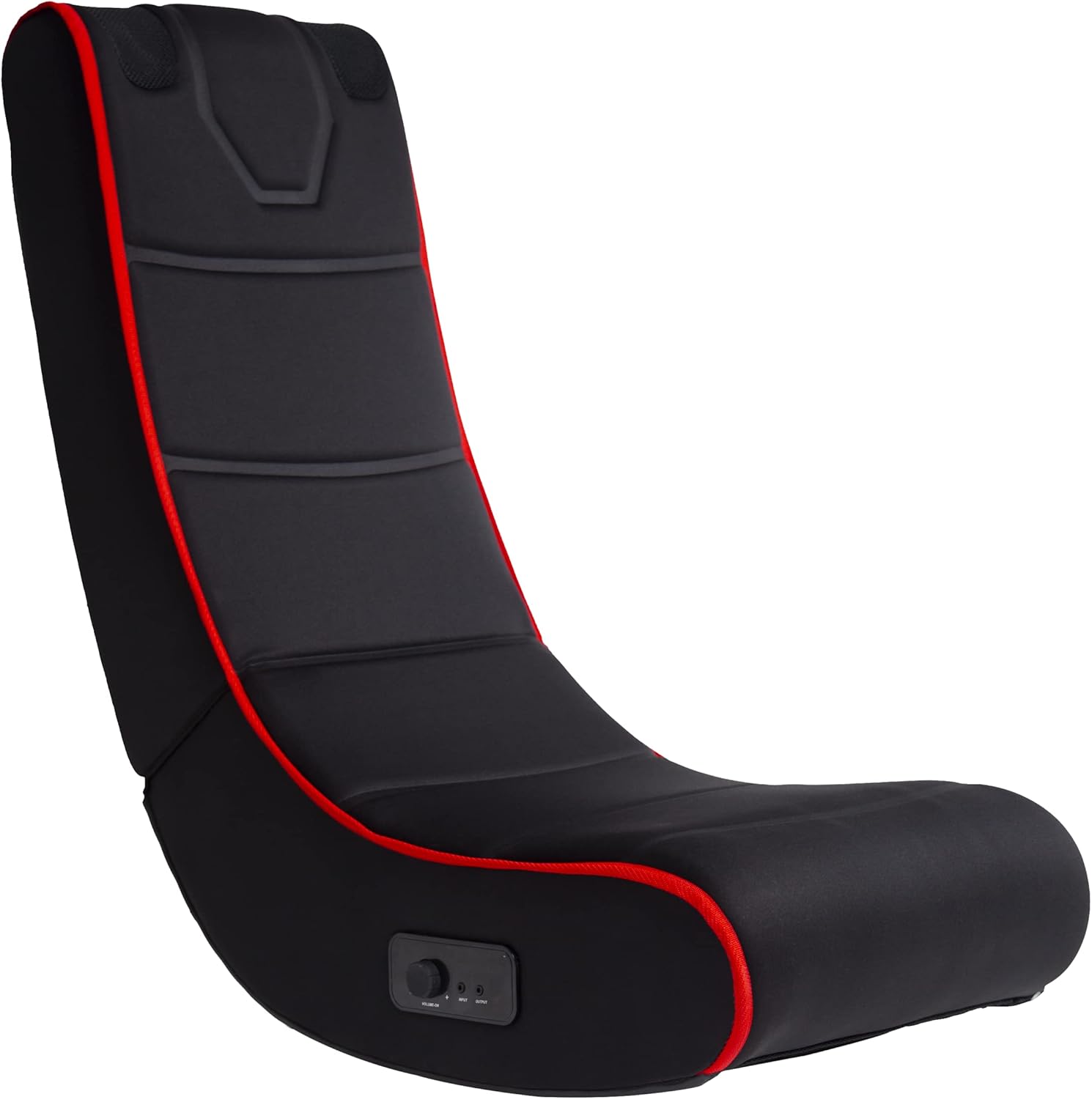
Figure 1: Front view of the BluMill Gaming Chair. This image shows the overall design and ergonomic shape of the chair.
3. Setup
- Unfolding the Chair: Carefully unfold the chair until it is fully extended and stable. Ensure the chair is securely locked in its open position.
- Placement: Place the chair on a flat, stable surface. Ensure there is sufficient space around the chair for safe use and movement.
- Powering the Speakers: The speakers require 4 AA batteries (not included). Locate the battery compartment, typically on the underside or side of the chair near the control panel. Use a small screwdriver to open the compartment, insert the batteries with correct polarity, and securely close the cover.

Figure 2: The BluMill Gaming Chair positioned in a living space, ready for use.

Figure 3: The BluMill Gaming Chair in its folded position, demonstrating its space-saving design for storage.
4. Operating Instructions
4.1 Control Panel Overview

Figure 4: Detailed view of the control panel, showing the volume knob, input/output jacks, and power indicator.
The control panel, located on the side of the chair, allows you to manage audio functions:
- Volume/Power Knob: Turn clockwise to increase volume and power on. Turn counter-clockwise to decrease volume and power off. The red light indicates power is on.
- INPUT Jack: For wired audio connection from devices without Bluetooth.
- OUTPUT Jack: To connect external headphones or another audio device.
4.2 Bluetooth Connection
- Power On: Turn the Volume/Power knob clockwise to power on the chair's audio system. The red indicator light will illuminate.
- Activate Bluetooth: The chair will automatically enter Bluetooth pairing mode.
- Pairing: On your device (smartphone, tablet, game controller, TV), enable Bluetooth and search for available devices. Select "BluMill Gaming Chair" (or similar name) from the list.
- Confirmation: Once paired, your device will indicate a successful connection, and audio will play through the chair's integrated speakers.
- Adjust Volume: Use the Volume/Power knob on the chair or your connected device to adjust the audio level.

Figure 5: Visual representation of the chair's Bluetooth connectivity and integrated speaker function.
4.3 Wired Audio Connection
- Connect Cable: Insert a 3.5mm audio cable (not included) into the INPUT jack on the chair's control panel.
- Connect to Device: Connect the other end of the audio cable to the headphone jack or audio output of your device (e.g., TV, game console, MP3 player).
- Adjust Volume: Use the Volume/Power knob on the chair and your connected device to adjust the audio level.

Figure 6: A person seated in the BluMill Gaming Chair, engaged in a video game, demonstrating typical usage.
5. Maintenance
- Cleaning: Wipe the chair with a soft, damp cloth using only mild cleaning agents. Avoid abrasive cleaners or solvents that could damage the material.
- Storage: When not in use, the chair can be folded for compact storage. Ensure it is stored in a dry place away from direct sunlight and extreme temperatures.
- Battery Replacement: Replace batteries when audio quality degrades or the chair fails to power on. Ensure correct polarity when inserting new batteries.
6. Troubleshooting
| Problem | Possible Cause | Solution |
|---|---|---|
| No sound from speakers. | Chair not powered on; low/dead batteries; volume too low; device not connected or muted. | Ensure power knob is on and red light is lit. Replace batteries. Increase volume on chair and connected device. Re-establish Bluetooth connection or check wired connection. |
| Bluetooth connection fails. | Chair not in pairing mode; device Bluetooth off; too far from chair; interference. | Ensure chair is powered on. Turn Bluetooth off and on again on your device. Move device closer to the chair. Try pairing in an area with less interference. |
| Poor sound quality. | Low batteries; poor connection; source audio quality. | Replace batteries. Ensure a stable Bluetooth or wired connection. Check the quality of the audio source. |
| Chair feels unstable. | Not fully unfolded; placed on uneven surface; exceeding weight limit. | Ensure chair is fully unfolded and stable. Place on a flat, level surface. Do not exceed the 150 kg weight limit. |
7. Specifications
| Brand | BluMill |
| Model Number | GM-001 |
| Color | Blue (Note: Product images display a black chair with red accents.) |
| Material | Leather (Seating surface described as breathable microfiber.) |
| Product Dimensions (Unfolded) | 80 cm (Depth) x 43 cm (Width) x 80 cm (Height) |
| Product Dimensions (Folded) | 46 cm (Depth) x 67 cm (Width) x 43 cm (Height) |
| Item Weight | 4.68 kg (10.3 lbs) |
| Maximum Load Capacity | 150 kg (330 lbs) |
| Connectivity | Bluetooth, Wired (3.5mm audio input) |
| Power Source (Speakers) | 4 x AA Batteries |

Figure 7: Dimensions of the BluMill Gaming Chair, illustrating its height, width, and depth when unfolded.
8. Warranty Information
Specific warranty details for the BluMill Gaming Chair GM-001 are not provided in the product information. Please refer to your purchase documentation or contact the retailer for warranty terms and conditions.
9. Customer Support
For further assistance, technical support, or inquiries regarding your BluMill Gaming Chair, please contact your retailer or visit the official BluMill website. Have your model number (GM-001) and purchase details ready when contacting support.
Ask a question about this manual
Ask about setup, troubleshooting, compatibility, parts, safety, or missing instructions. Manuals+ will review the question and use this page’s manual context to help answer it.