Introduction
This manual provides comprehensive instructions for setting up, operating, and maintaining your Dell UltraSharp U2723QE 27" 4K UHD Monitor. Please read this manual thoroughly before using your monitor to ensure optimal performance and longevity.
Setup
Unboxing and Initial Assembly
Carefully remove all components from the packaging. Ensure all parts are present before proceeding with assembly. The monitor stand typically requires minimal assembly, often involving attaching the base to the stand column and then securing the monitor panel to the stand.

Figure 1: Front view of the Dell UltraSharp U2723QE monitor.
Physical Adjustments
The Dell UltraSharp U2723QE offers extensive ergonomic adjustments for comfortable viewing:
- Height Adjustment: Raise or lower the monitor to your preferred viewing height.
- Tilt: Adjust the screen's vertical angle (forward or backward).
- Swivel: Rotate the monitor horizontally left or right on its base.
- Pivot: Rotate the monitor 90 degrees to switch between landscape and portrait orientation.

Figure 2: Side view illustrating the monitor's tilt capability.

Figure 3: Top view demonstrating the monitor's swivel functionality.
Connectivity
The monitor offers a variety of ports for connecting to your devices:
- HDMI (HDCP 2.2): Connect to PCs, gaming consoles, or Blu-ray players.
- DisplayPort 1.4: For high-resolution video input.
- USB-C 3.2 Gen 2 (Upstream/DisplayPort 1.4 Alt Mode): Provides up to 90W power delivery, video, and data transfer for laptops.
- USB-C 3.2 Gen 2 (Downstream): Data only, power up to 15W.
- 4 x USB 3.2 Gen 2 (Downstream): For connecting peripherals.
- USB 3.2 Gen 2 (Downstream with Battery Charging 1.2): For faster charging of compatible devices.
- LAN (RJ-45): For wired network connection.
- Audio line-out: For external speakers or headphones.

Figure 4: Detailed view of the monitor's rear ports.
Power Connection
Connect the power cable to the monitor's power input and then to a wall outlet. The monitor is designed to operate on 240 Volts.
Operating
Basic Usage
Once connected and powered on, the monitor should automatically detect the input signal. If not, use the joystick control on the back of the monitor to manually select the input source.
Display Settings
Access the On-Screen Display (OSD) menu using the joystick control on the back of the monitor to adjust various settings:
- Brightness/Contrast: Adjust the overall luminance and contrast levels.
- Color: Select preset color modes (e.g., sRGB, DCI-P3) or customize color settings.
- Display: Adjust aspect ratio, sharpness, and response time.
- Smart HDR: Enable or disable HDR functionality.
KVM Switch Functionality
The built-in KVM (Keyboard, Video, Mouse) switch allows you to control two different computers using a single keyboard and mouse connected to the monitor. This happens automatically when you switch the display input, eliminating the need to reconnect peripherals.
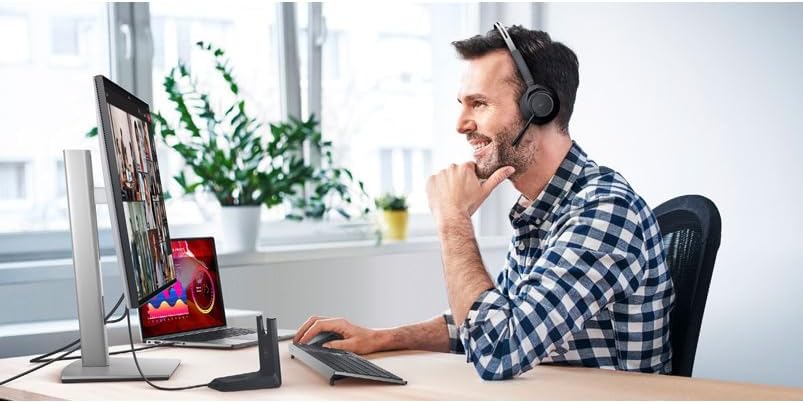
Figure 5: User utilizing the monitor in a professional setup.
USB Hub Functionality
The monitor acts as a USB hub, allowing you to connect various USB devices directly to its ports. The USB-C downstream port provides up to 15W of power, suitable for charging smartphones or other small devices.

Figure 6: Example of a dual monitor setup, showcasing connectivity.
Maintenance
To ensure the longevity and optimal performance of your monitor, follow these maintenance guidelines:
- Cleaning: Use a soft, lint-free cloth slightly dampened with water or a non-abrasive screen cleaner. Avoid harsh chemicals.
- Ventilation: Ensure proper airflow around the monitor to prevent overheating. Do not block ventilation openings.
- Handling: Avoid applying excessive pressure to the screen or dropping the monitor.
Troubleshooting
If you encounter issues with your monitor, consider the following common solutions:
- No Display: Check all cable connections (power, HDMI/DisplayPort/USB-C) and ensure the monitor is powered on. Verify the correct input source is selected in the OSD menu.
- Flickering/Distorted Image: Check cable connections. Ensure your graphics card drivers are up to date. Adjust resolution and refresh rate settings.
- Monitor Wobble: Ensure the stand is securely assembled and placed on a stable surface.
- Mac Scaling Issues: macOS may not perfectly scale 4K resolution on some monitors, leading to slightly blurry text. This is a software-related characteristic of macOS.
- HDR Limitations: While the monitor supports HDR, it's VESA DisplayHDR 400, which is a basic HDR standard. For professional HDR content creation, a monitor with full, proper HDR support is recommended.
Specifications
| Feature | Specification |
|---|---|
| Brand | Dell |
| Model Number | U2723QE |
| Screen Size | 27 Inches |
| Max Screen Resolution | 3840 x 2160 (4K UHD) |
| Aspect Ratio | 16:9 |
| Refresh Rate | 60 Hz |
| Response Time | 5 ms GTG (Fast) |
| Screen Coating | Anti-glare, 3H Hard Coating |
| Brightness | 400 Nit |
| Contrast Ratio | 2000:1 |
| Number of USB 3.0 Ports | 5 |
| Product Dimensions | 15.2 x 24.1 x 7.3 inches |
| Item Weight | 14.64 pounds |
Warranty & Support
Your Dell UltraSharp U2723QE Monitor comes with a standard manufacturer's warranty. For detailed warranty information, technical support, or service requests, please refer to the documentation included with your product or visit the official Dell support website.
Online resources, drivers, and troubleshooting guides are available at www.dell.com/support.