
Introduction
This manual provides essential information for the safe and efficient operation of your Westinghouse 43-inch 4K Ultra HD Certified Android LED TV, model WH43UD10. Please read these instructions thoroughly before using your television and retain them for future reference.
Important Safety Information
- Do not expose the TV to rain or moisture to prevent fire or electric shock.
- Do not open the cabinet. Refer servicing to qualified personnel only.
- Ensure proper ventilation. Do not block ventilation openings.
- Protect the power cord from being walked on or pinched.
- Unplug the TV during lightning storms or when unused for long periods.
- Use only attachments/accessories specified by the manufacturer.
Setup
Unboxing and Initial Inspection
Carefully remove the television and all accessories from the packaging. Inspect for any damage. Keep packaging materials for potential future transport.
Mounting Options
Your television supports both table-top and wall-mount installations.
- Table Mount: Attach the included stands to the bottom of the TV using the provided screws. Ensure the TV is placed on a stable, level surface.
- Wall Mount: For wall mounting, use a VESA compatible bracket (200 x 200 mm). Consult a professional for wall mounting to ensure safety and proper installation.

Image: Front and side view of the Westinghouse 43-inch TV with detailed dimensions in centimeters and inches.
Connecting Peripherals
Connect your external devices to the appropriate ports on the television.
- HDMI: Connect up to 3 HDMI devices (e.g., set-top box, gaming console, Blu-ray player).
- USB: Connect USB storage devices for media playback (2 USB ports available).
- Ethernet: For a wired internet connection.
- Auxiliary: For audio input.
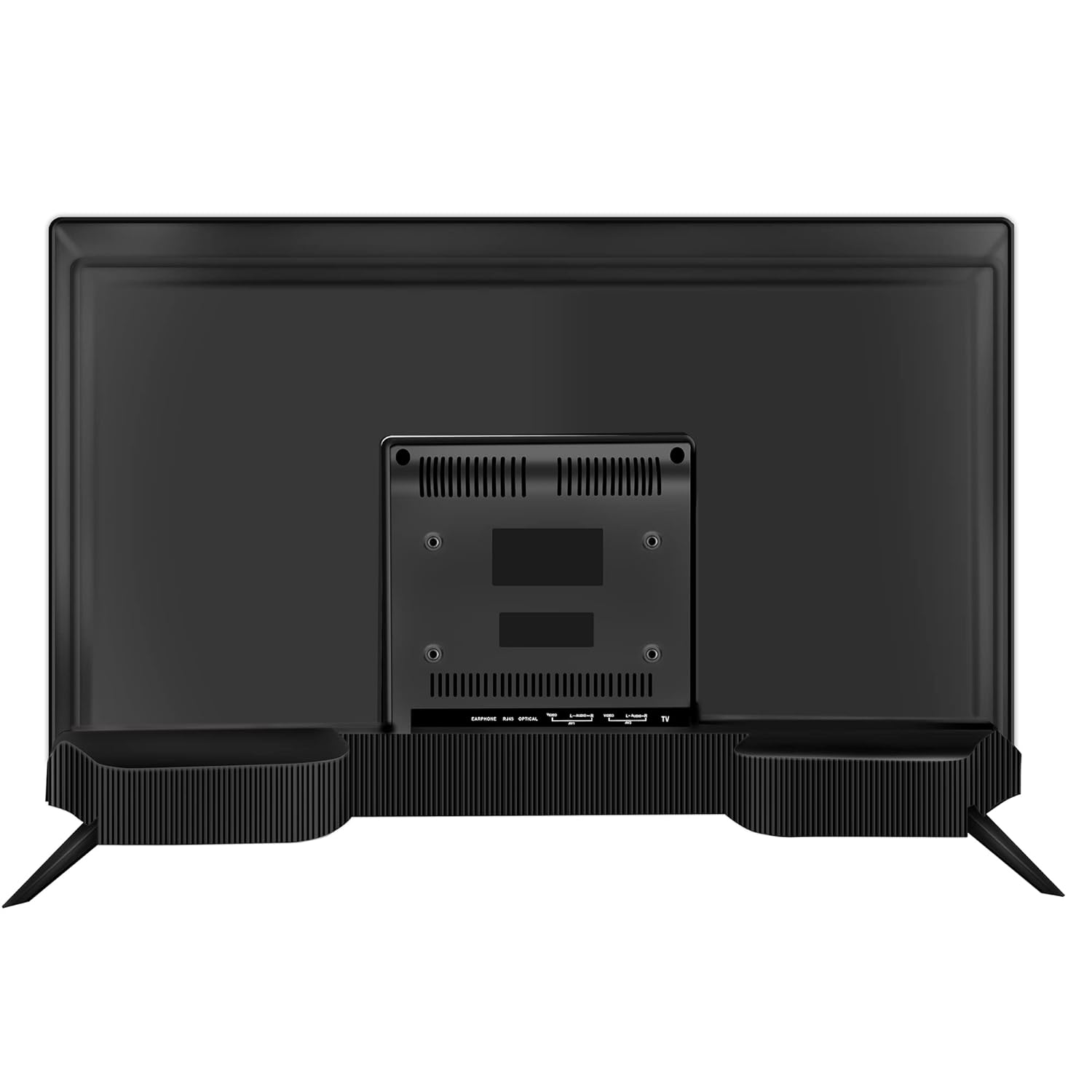
Image: Rear view of the Westinghouse 43-inch TV showing various input/output ports including HDMI, USB, and Ethernet.

Image: Side view of the Westinghouse 43-inch TV highlighting the accessible HDMI and USB ports.
Remote Control Setup
Insert the two AAA batteries (included) into the remote control, observing polarity. The remote supports both IR and Bluetooth connectivity. For Bluetooth functions like Google Voice Assistance, pair the remote with the TV during initial setup or via the TV's settings menu.
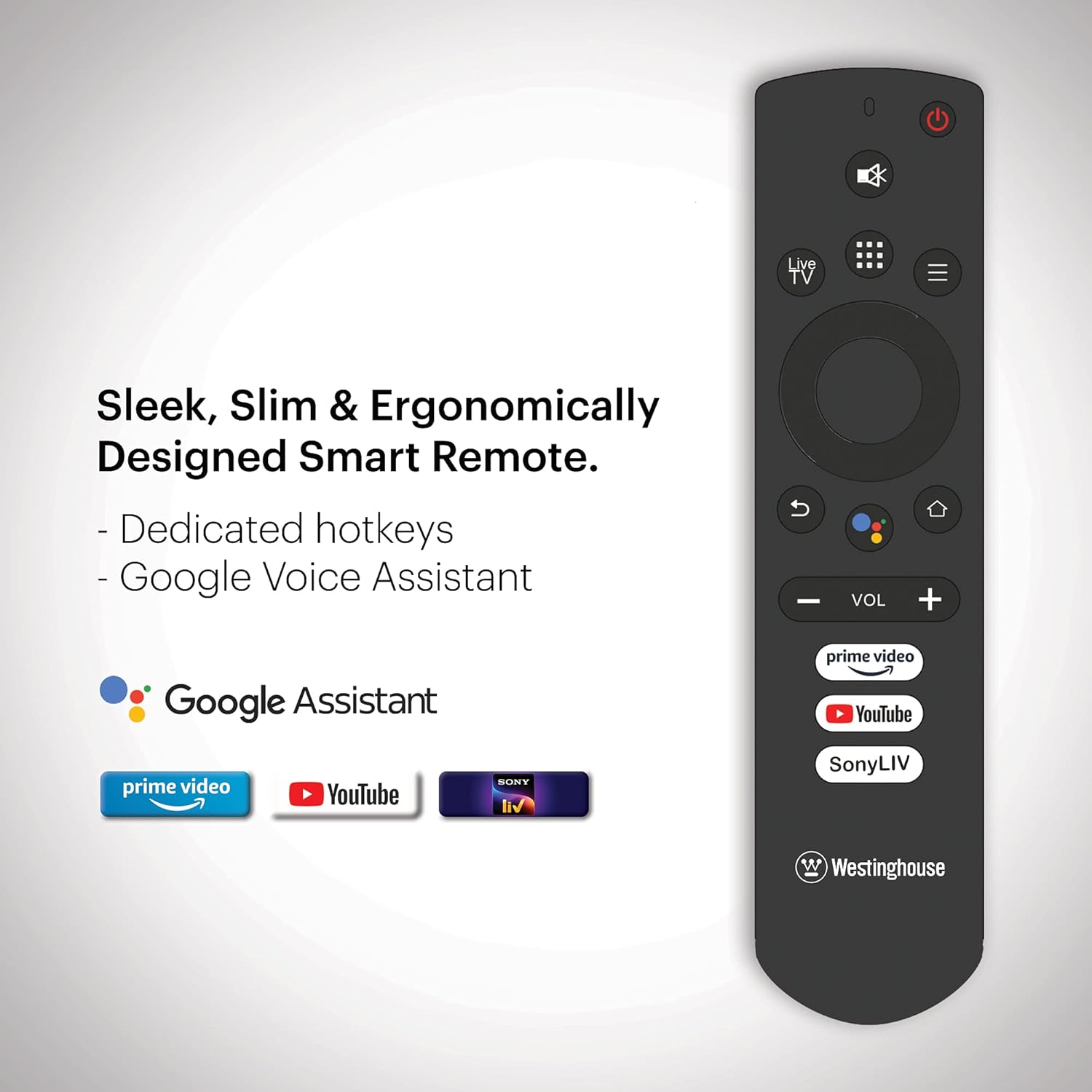
Image: Ergonomically designed smart remote control for the Westinghouse TV, featuring dedicated hotkeys for popular streaming services and Google Voice Assistant button.
Initial Power On and Android TV Setup
After connecting the power cord, press the power button on the remote or TV. Follow the on-screen instructions to complete the initial setup, which includes:
- Language selection.
- Network connection (Wi-Fi or Ethernet).
- Google account sign-in for Android TV features.
- Scanning for channels (if using an antenna).
- Pairing the Bluetooth remote control.
Operating Instructions
Power On/Off
Press the Power button on the remote control to turn the TV on or off. The TV enters standby mode when turned off.
Navigating Android TV
Use the directional pad and OK button on your remote to navigate the Android TV interface. The home screen provides access to installed apps, inputs, and settings.

Image: The Westinghouse Android TV home screen displaying various streaming applications and content recommendations.
Using Google Assistant
Press the Google Assistant button on your remote and speak into the microphone to control your TV, search for content, get answers, and more.
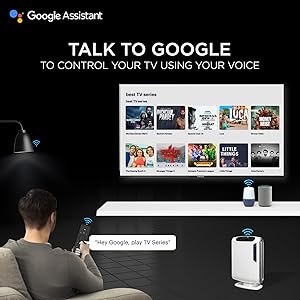
Image: A user interacting with the TV using Google Assistant voice commands via the remote control.
Applications and Streaming
Access a wide range of applications through the Google Play Store. Pre-installed applications include Amazon Prime Video, Sony Liv, Disney+Hotstar, Zee5, YouTube, and MX Player. You can download additional apps and games to enhance your entertainment experience.

Image: A collage of various popular streaming service logos and app icons available on the Android TV platform.
Chromecast Built-in
Use the built-in Chromecast feature to cast content from your compatible mobile devices or computer directly to your TV screen.
Audio Features
The TV is equipped with powerful 40W speakers for an immersive audio experience. Adjust volume using the VOL +/- buttons on the remote. You can also connect external audio devices via Bluetooth for a personalized sound setup.

Image: A couple enjoying music from the TV, illustrating the powerful 40-watt speakers and immersive sound experience.
Maintenance
Cleaning the TV
- Screen: Gently wipe the screen with a soft, lint-free cloth. For stubborn marks, slightly dampen the cloth with water or a specialized screen cleaner. Do not spray liquid directly onto the screen.
- Cabinet: Wipe the TV cabinet with a soft, dry cloth. Avoid using abrasive cleaners or solvents.
Software Updates
Your Android TV may receive periodic software updates. Ensure your TV is connected to the internet to receive these updates, which can improve performance and add new features. You can check for updates manually in the TV's settings menu.
General Care
- Avoid placing the TV in direct sunlight or near heat sources.
- Do not place heavy objects on top of the TV.
- Keep the TV away from strong magnetic fields.
Troubleshooting
| Problem | Possible Solution |
|---|---|
| No power | Check if the power cord is securely plugged into the TV and the wall outlet. Ensure the wall outlet is functional. |
| No picture, but sound is present | Check the input source. Ensure the connected device is powered on and functioning correctly. Try a different HDMI cable. |
| No sound, but picture is present | Check the volume level. Ensure the TV is not muted. Check audio settings and external audio connections. |
| Remote control not working | Replace batteries. Ensure there are no obstructions between the remote and the TV. Re-pair the Bluetooth remote if necessary. |
| Network connection issues | Check your Wi-Fi router or Ethernet cable. Restart your router. Re-enter Wi-Fi password in TV settings. |
| Apps are slow or crashing | Clear app cache or data in TV settings. Ensure sufficient storage space. Restart the TV. |
Factory Reset
If issues persist, a factory reset may resolve them. This will erase all personal data and settings. Navigate to Settings > Device Preferences > Reset and follow the on-screen prompts.
Specifications
| Feature | Detail |
|---|---|
| Brand | Westinghouse |
| Model Number | WH43UD10 |
| Screen Size | 43 Inches (108 cm) |
| Display Technology | LED |
| Resolution | 4K Ultra HD |
| Refresh Rate | 60 Hz |
| Operating System | Android 9.0 Pie |
| Memory Storage Capacity | 8 GB |
| Connectivity Technology | Ethernet, HDMI, USB, Wi-Fi, Bluetooth |
| Total HDMI Ports | 3 |
| Total USB Ports | 2 |
| Audio Output | 40 Watts (Speakers) |
| Response Time | 8 Milliseconds |
| Viewing Angle | 178 Degrees |
| Product Dimensions (D x W x H) | 23D x 97W x 62H Centimeters |
| Item Weight | 6.4 Kilograms |
| VESA Mount Standard | 200 x 200 mm |
| HDR Format Supported | IPS |
| Maximum Display Brightness | 500 Candela Per Square Meter |
| Contrast Ratio | 5000:1 |
Warranty and Support
Warranty Information
This product comes with a 1-year warranty provided by the manufacturer from the date of purchase. Please retain your invoice as proof of purchase.
Customer Support
For assistance, please contact the brand's toll-free number: 1800-103-3036. When contacting support, provide the product's model name (WH43UD10) and the seller's details as mentioned on your invoice. The service center will schedule a convenient service slot.
Manufacturer Contact Information: SPPL B-29,30&31 Sector 81 Noida UP-201305
