
1. Introduction
Thank you for choosing the icefox i8 Action Camera. This camera is designed to capture your adventures in stunning 4K video and 20MP photos. Featuring Electronic Image Stabilization (EIS), 5X digital zoom, Wi-Fi connectivity, and a waterproof design, it is ideal for various activities including vlogging, cycling, snorkeling, and more. This manual provides essential information for setting up, operating, and maintaining your camera.
2. Safety Information
- Waterproof Housing: Ensure the waterproof case is properly sealed before submerging the camera in water. The remote control is not waterproof.
- Battery Safety: Use only approved batteries. Do not expose batteries to high temperatures or direct sunlight. Dispose of batteries responsibly.
- Operating Temperature: Avoid using the camera in extremely high or low temperatures.
- Cleaning: Use a soft, dry cloth to clean the camera and lens. Avoid harsh chemicals.
- Storage: Store the camera in a cool, dry place away from direct sunlight when not in use.
3. Package Contents
Verify that all items are present in your package:
- icefox Action Camera
- Waterproof Case
- 2 x 1350mAh Batteries
- Bicycle Mount
- 360° Rotating Screw
- Release Buckles
- USB Cable
- J-hook
- Bandage
- Adapter2
- Adhesive Pads
- Flat Adhesive Pads
- Insurance Tether Strap
- Bracelet Remote Control
- Mount
- User Manual

Image: All accessories included with the icefox i8 Action Camera.
4. Product Overview
The icefox i8 Action Camera features a compact design with intuitive controls. It includes a front display for selfies and vlogging, and a rear touchscreen for easy navigation and playback.

Image: The icefox i8 Action Camera, showcasing its dual display and lens.
5. Setup
5.1. Battery Installation and Charging
The camera comes with two 1350mAh batteries for extended recording time. To install, open the battery compartment cover, insert the battery with the correct orientation, and close the cover securely. To charge, connect the camera to a USB power source using the provided USB cable. The battery indicator will show charging status.

Image: Battery compartment and charging setup for the camera.
5.2. MicroSD Card Installation
Insert a MicroSD card (up to 256GB, not included) into the designated slot. Ensure the card is inserted correctly until it clicks into place. A high-speed card (Class 10 or higher) is recommended for optimal performance, especially for 4K video recording.

Image: MicroSD card slot and capacity support.
5.3. Waterproof Case Usage
The included waterproof case allows the camera to be submerged up to 98 feet (30 meters). Before each use, inspect the case for any damage or debris on the rubber seal. Place the camera inside the case and ensure all latches are securely fastened. This protects your camera during water sports and other challenging conditions.

Image: The camera in its waterproof housing, ready for underwater use.
6. Operating Instructions
6.1. Power On/Off
To power on, press and hold the Power/Mode button. To power off, press and hold the Power/Mode button again until the screen turns off.
6.2. Mode Selection
Press the Power/Mode button repeatedly to cycle through different modes: Video, Photo, Burst Photo, Time-lapse, Slow-motion, and more. The selected mode will be displayed on the screen.
Video Mode (4K 60FPS)
Record high-definition videos at 4K resolution and 60 frames per second. This setting is ideal for capturing smooth, detailed footage of fast-paced action.
Image: Capturing dynamic 4K 60FPS video footage.
Photo Mode (20MP)
Capture crisp, high-resolution still images at 20 megapixels. Perfect for detailed photographs of your adventures.

Image: High-resolution 20MP photo capture.
Special Photo and Video Modes
- Burst Photo Mode: Capture multiple photos in quick succession, ideal for fast-moving subjects.
- Time-lapse Mode: Create dynamic time-condensed videos from a series of photos taken over time.
- Slow-motion Mode: Record videos at a higher frame rate to play back in slow motion, highlighting intricate details of movement.
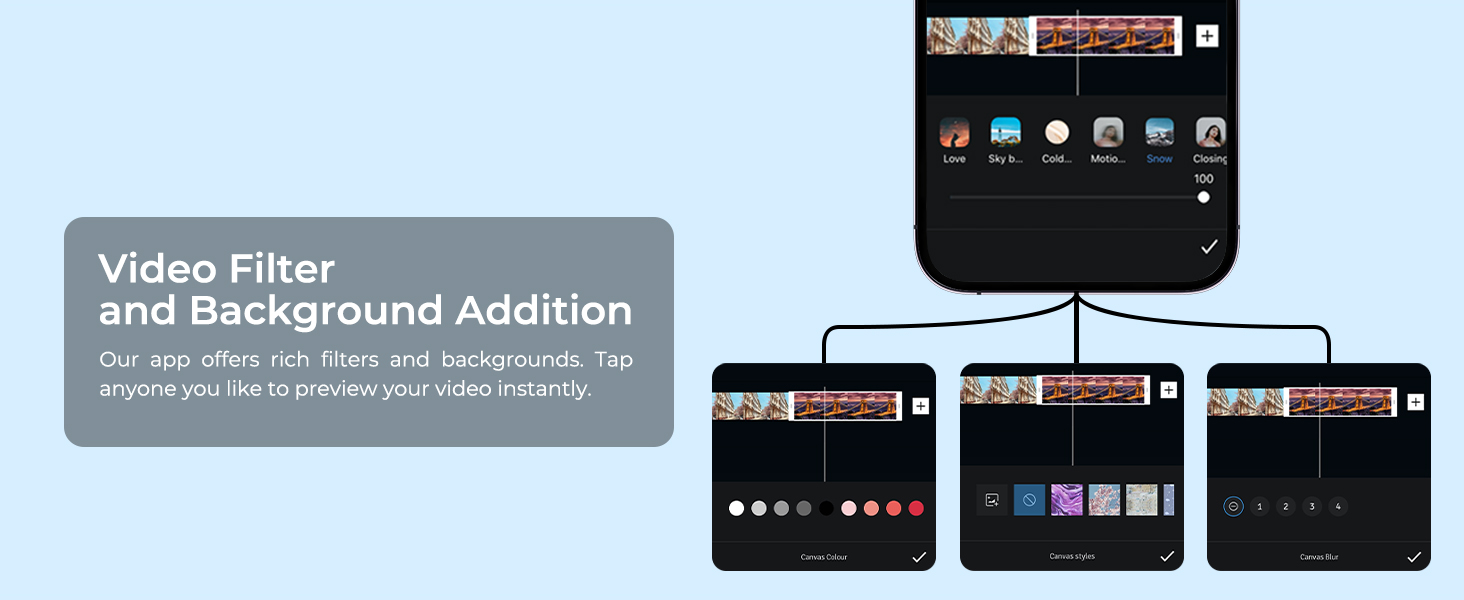
Image: Burst Photo Mode in action.

Image: Time-lapse mode examples.

Image: Slow-motion capture of water sports.
6.3. Electronic Image Stabilization (EIS)
The EIS system corrects camera shake, ensuring your footage remains smooth and clear, even during dynamic activities like cycling or skiing. Activate EIS in the camera settings for optimal stability.

Image: EIS comparison, demonstrating stable footage.
6.4. WiFi and Snap-Pro App
Connect your icefox i8 camera to the Snap-Pro app via Wi-Fi for seamless control, media transfer, and editing. The app allows you to import/export images and videos, add background music, subtitles, filters, and backgrounds to your content.
- Connecting to App: Enable Wi-Fi on your camera and connect your smartphone to the camera's Wi-Fi network. Open the Snap-Pro app to establish a connection.
- Editing Features: Utilize the app's video editing tools to enhance your footage before sharing.

Image: Snap-Pro App interface for editing.

Image: Importing and exporting media via the Snap-Pro App.
6.5. Remote Control
Use the included wrist remote control to easily take photos or start/stop video recording from a distance. Note that the remote control is not waterproof and should not be submerged.
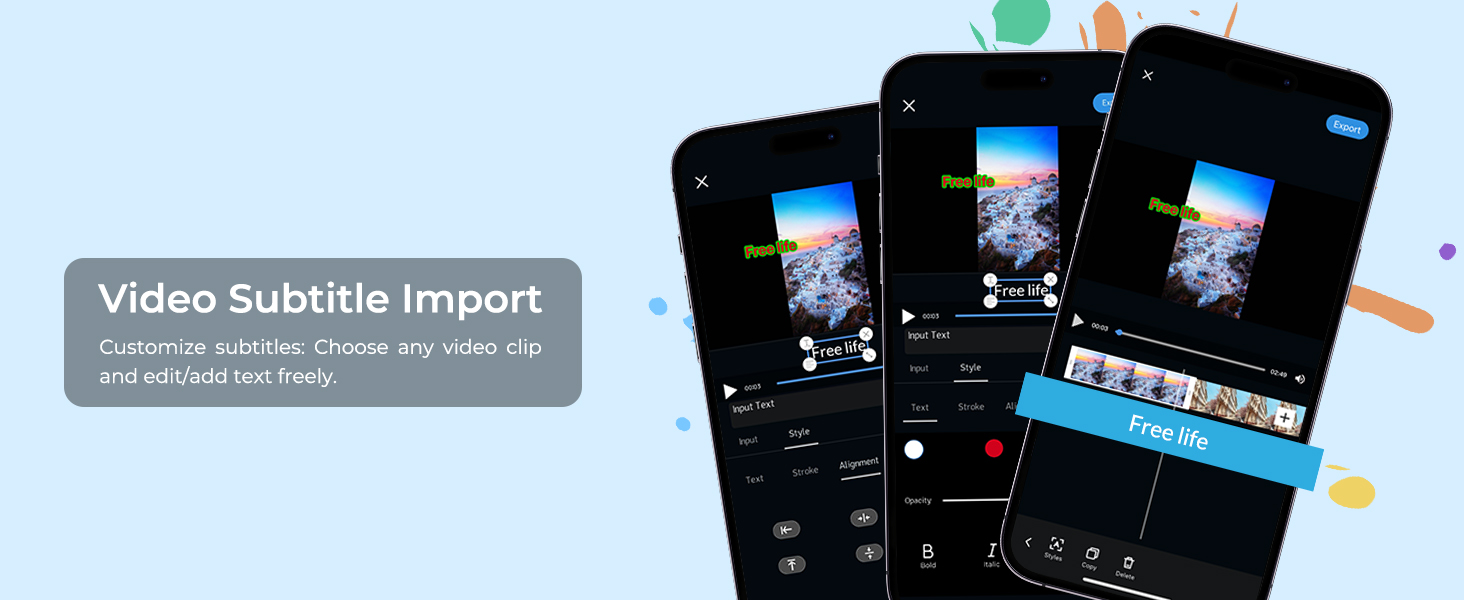
Image: Wrist Wireless Remote Control for convenient operation.
6.6. Official Product Videos
Video: An overview of the icefox Action Camera's features, including 4K 60FPS, 20MP, EIS, 5X Zoom, App support, and waterproof capabilities.
Video: Demonstrates the Icefox Action Camera 4K60FPS in various action scenarios, highlighting its performance and waterproof design.
7. Maintenance
- Cleaning: Wipe the camera body with a soft, lint-free cloth. For the lens, use a specialized lens cleaning cloth and solution.
- Waterproof Case Care: After each use in water, rinse the waterproof case with fresh water and allow it to air dry. Check the O-ring seal for any sand or debris.
- Battery Care: Store batteries in a cool, dry place. If not using the camera for an extended period, remove the batteries.
- Storage: Store the camera and accessories in a protective case to prevent damage.
8. Troubleshooting
- Camera Not Turning On: Ensure the battery is fully charged and correctly inserted. Try using a different charged battery.
- SD Card Error: Format the MicroSD card in the camera's settings. Ensure the card is Class 10 or higher and not exceeding 256GB.
- Poor Video/Photo Quality: Check lens for smudges. Ensure adequate lighting. Verify resolution and frame rate settings.
- Wi-Fi Connection Issues: Ensure the camera's Wi-Fi is enabled and your device is within range. Restart both the camera and your device.
- Remote Control Not Working: Check the remote's battery. Ensure it's paired correctly with the camera.
9. Specifications
| Feature | Specification |
|---|---|
| Brand | icefox |
| Model Number | i8 |
| Video Capture Resolution | 4K 60FPS (up to) |
| Photo Resolution | 20MP |
| Image Stabilization | EIS (Electronic Image Stabilization) |
| Waterproof Depth | Up to 98 feet (30M) with case |
| Zoom | 5X Digital Zoom |
| Connectivity | WiFi, Wireless Remote Control |
| Battery Capacity | 2 x 1350mAh |
| Storage | Micro SD (up to 256GB) |
| Screen Size | 2 inches |
| Product Dimensions | 23.46 x 16.22 x 9.45 inches |
| Item Weight | 1.21 pounds |
10. Warranty and Support
The icefox i8 Action Camera comes with a standard warranty. To activate your warranty and claim a 1-year free extension, please visit www.icefox-warranty.com within 14 days of purchase.
For further support, troubleshooting, or inquiries, please visit the official icefox Store on Amazon: Visit the icefox Store.