
1. Introduction
Thank you for choosing the YOTOPT Y61-EEA 10-inch Android 11 Tablet. This manual provides essential information for setting up, operating, and maintaining your device. Please read it thoroughly to ensure proper use and to maximize your tablet's potential.
Package Contents
- YOTOPT Y61-EEA 10-inch Android 11 Tablet
- Keyboard
- Mouse
- Protective Case
- Stylus Pen
- Power Adapter
- USB Type-C Cable
- USB OTG Adapter

Image: The YOTOPT Y61-EEA tablet displayed with its full set of accessories, including a keyboard, mouse, stylus, protective case, charger, and cables.
2. Safety Information
To prevent damage to your device or injury to yourself or others, observe the following precautions:
- Do not expose the tablet to extreme temperatures, direct sunlight, or high humidity.
- Avoid dropping or subjecting the tablet to severe impact.
- Use only the provided charger and cables. Using incompatible accessories may cause damage or fire.
- Keep the tablet away from water and other liquids.
- Do not attempt to disassemble or repair the tablet yourself. Contact authorized service personnel.
- Dispose of the tablet and its battery responsibly according to local regulations.
3. Getting Started (Setup)
3.1 Charging the Tablet
Before first use, fully charge your tablet. Connect the USB Type-C cable to the tablet's charging port and the other end to the power adapter. Plug the adapter into a wall outlet. The battery indicator on the screen will show charging status.

Image: A close-up view of the tablet's USB Type-C port with a charging cable connected, illustrating the charging process.
3.2 Powering On/Off
- To Power On: Press and hold the Power button until the YOTOPT logo appears on the screen.
- To Power Off: Press and hold the Power button until the power options menu appears. Select 'Power off'.
- To Restart: Press and hold the Power button until the power options menu appears. Select 'Restart'.
3.3 Initial Setup
Upon first power-on, follow the on-screen prompts to complete the initial setup:
- Select your preferred language.
- Connect to a Wi-Fi network.
- Sign in with your Google account or create a new one.
- Review and accept the terms and conditions.
- Set up screen lock (PIN, pattern, or password).
3.4 Inserting a MicroSD Card
The tablet supports storage expansion up to 1TB via a microSD card (sold separately). Locate the microSD card slot on the side of the tablet. Gently insert the microSD card into the slot until it clicks into place. Ensure the tablet is powered off before inserting or removing the card.

Image: The tablet screen displaying various applications, with a visual emphasis on the 1TB storage expansion capability for additional content.
3.5 Connecting Accessories
Your tablet comes with a keyboard, mouse, and stylus for enhanced productivity.
- Keyboard and Mouse: These accessories typically connect via Bluetooth. Go to Settings > Connected devices > Pair new device, and select the keyboard or mouse from the list of available devices. Follow any on-screen pairing instructions.
- Stylus Pen: The stylus can be used directly on the screen for navigation, drawing, or writing. No pairing is usually required for basic functionality.

Image: The YOTOPT tablet positioned on a wooden desk with its keyboard and protective case, demonstrating its use as a portable workstation.
4. Operating Instructions
4.1 Navigating Android 11 Go Edition
Your tablet runs on Android 11 Go Edition, optimized for smooth performance. Use touch gestures to navigate:
- Tap: Select an item.
- Swipe: Scroll through screens or lists.
- Pinch: Zoom in or out on images and web pages.
- Long Press: Access contextual menus or move icons.

Image: Several YOTOPT tablets arranged to showcase the clean and intuitive user interface of the Android 11 operating system.
4.2 Wi-Fi Connection
To connect to the internet:
- Go to Settings > Network & internet > Wi-Fi.
- Toggle Wi-Fi ON.
- Select your desired network from the list.
- Enter the password if prompted and tap 'Connect'.
4.3 Bluetooth Pairing
To connect Bluetooth devices like headphones or speakers:
- Go to Settings > Connected devices > Bluetooth.
- Toggle Bluetooth ON.
- Put your Bluetooth device into pairing mode.
- Select the device from the 'Available devices' list on your tablet.
- Confirm pairing if a prompt appears.

Image: A collage highlighting various tablet features, including a pair of Bluetooth headphones, indicating wireless audio connectivity.
4.4 Camera Usage
The tablet features a 5MP front camera and an 8MP rear camera with flash.
- Open the 'Camera' app from your home screen or app drawer.
- Tap the camera icon to switch between front and rear cameras.
- Tap the shutter button to take a photo or start/stop video recording.
- Adjust settings like flash, timer, and mode within the camera app.
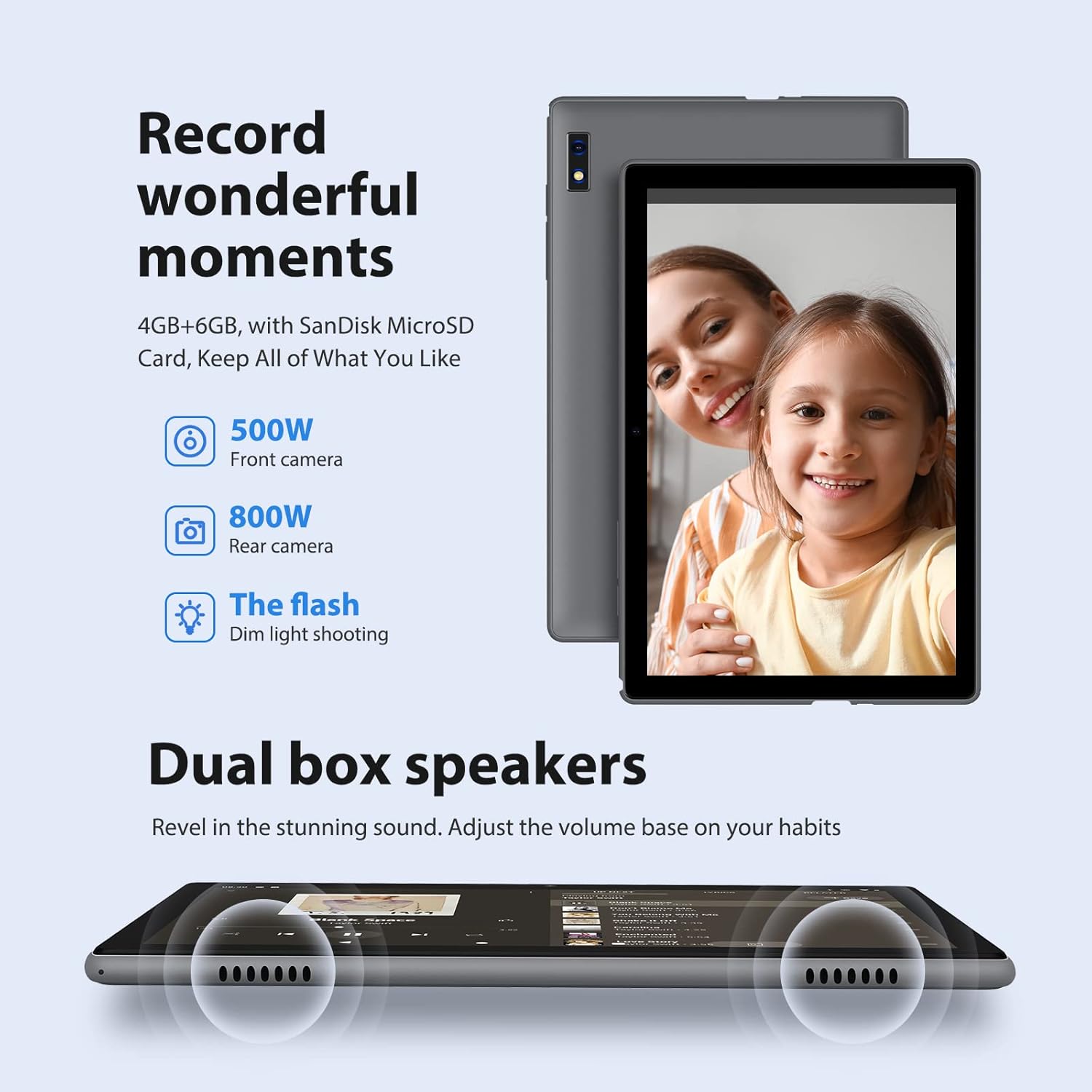
Image: A visual representation of the tablet's camera specifications, including the 5MP front camera, 8MP rear camera with flash, and the location of the dual box speakers.
4.5 Audio and Display Modes
- Dual Box Speakers: The tablet is equipped with dual speakers for clear audio output. Adjust volume using the physical volume buttons or on-screen controls.
- Eye Protection Mode: This mode reduces blue light emission to minimize eye strain. Activate it in Settings > Display.
- Dark Mode: Changes the system's color scheme to a darker palette, which can be more comfortable in low light and save battery on some displays. Activate it in Settings > Display.

Image: The tablet screen showcasing a music player application, demonstrating its audio playback capabilities.
4.6 USB OTG Functionality
The tablet supports USB On-The-Go (OTG), allowing you to connect USB devices such as flash drives, external hard drives, or other peripherals using the included USB OTG adapter. Connect the adapter to the tablet's Type-C port, then plug your USB device into the adapter.
5. Maintenance
5.1 Cleaning the Device
Use a soft, lint-free cloth to clean the tablet screen and body. For stubborn smudges, slightly dampen the cloth with water or a screen cleaner. Avoid using harsh chemicals or abrasive materials.
5.2 Battery Care
- Avoid fully discharging the battery frequently.
- Do not leave the tablet connected to the charger for extended periods after it is fully charged.
- Store the tablet in a cool, dry place if not used for a long time, with the battery charged to about 50%.
5.3 Software Updates
Periodically check for software updates to ensure optimal performance and security. Go to Settings > System > System update to check for and install available updates.
5.4 Storage Management
Regularly manage your tablet's storage to maintain performance. Delete unnecessary files, uninstall unused apps, and move large media files to the expandable microSD card.
6. Troubleshooting
If you encounter issues with your tablet, refer to the following common problems and solutions:
| Problem | Solution |
|---|---|
| Tablet won't turn on | Ensure the battery is charged. Connect the charger and wait a few minutes before attempting to power on again. If unresponsive, perform a forced restart by holding the power button for 10-15 seconds. |
| Wi-Fi connection issues | Check if Wi-Fi is enabled in settings. Restart your router and the tablet. Ensure you are within range of the Wi-Fi signal and have entered the correct password. |
| Slow performance | Close unused applications. Clear cache for frequently used apps. Check available storage and free up space if necessary. Restart the tablet. |
| Apps crashing or freezing | Force close the app (Settings > Apps & notifications > See all apps > [App Name] > Force stop). Clear the app's cache and data. Uninstall and reinstall the app. Ensure the tablet's software is up to date. |
| Touchscreen unresponsive | Restart the tablet. Ensure the screen is clean and dry. If the issue persists, contact support. |
7. Specifications
Detailed technical specifications for the YOTOPT Y61-EEA tablet:
| Feature | Detail |
|---|---|
| Brand | YOTOPT |
| Model Number | Y61-EEA |
| Operating System | Android 11 Go Edition |
| Processor | Octa-Core 1.8 GHz |
| RAM | 4 GB |
| Internal Storage (ROM) | 64 GB |
| Expandable Storage | Up to 1 TB via MicroSD card (not included) |
| Screen Size | 10.1 Inches |
| Screen Resolution | 1280 x 800 pixels (HD) |
| Front Camera | 5 MP |
| Rear Camera | 8 MP with Flash |
| Connectivity | 2.4 GHz Wi-Fi, Bluetooth 4.2 |
| Ports | USB Type-C (with OTG support) |
| Battery | Lithium-polymer (included) |
| Dimensions (L x W x H) | 24.6 x 16.3 x 1 cm (9.69 x 6.42 x 0.39 inches) |
| Weight | 495 grams (1.09 lbs) |

Image: The YOTOPT Y61-EEA tablet shown from the back and front, with an overlay of its core specifications including Android 11, Octa-Core processor, RAM, ROM, expandable storage, camera details, Wi-Fi, and battery capacity.
8. Warranty and Support
For warranty information, please refer to the warranty card included with your product or contact YOTOPT customer support directly. If you require technical assistance or have questions not covered in this manual, please reach out to the manufacturer's support channels.