
1. Introduction
This manual provides detailed instructions for the setup, operation, and maintenance of your XINMENG 60% Gaming Keyboard and Mouse Combo. Please read this manual thoroughly before use to ensure optimal performance and longevity of your product.
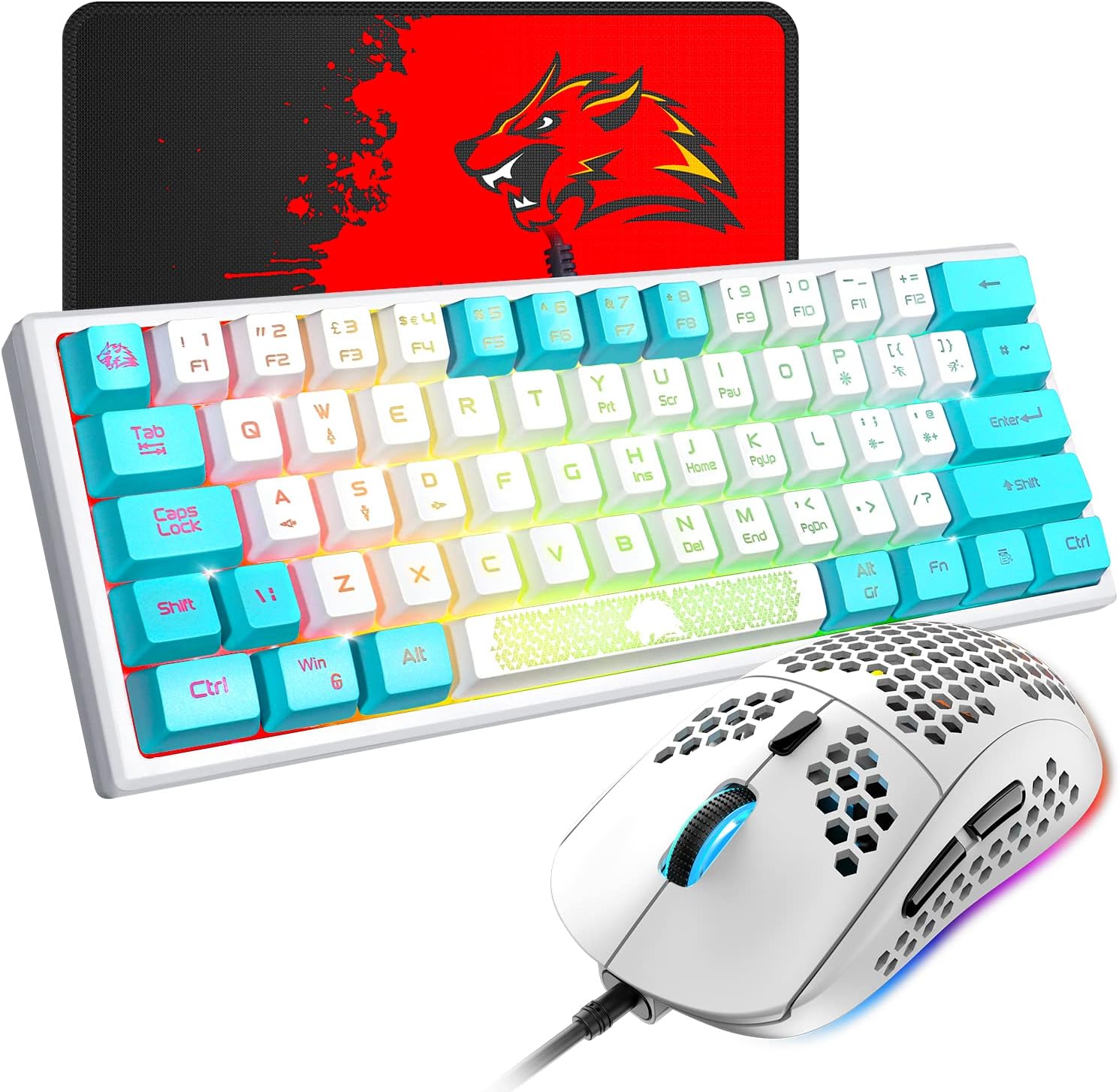
Image 1.1: The XINMENG 60% Gaming Keyboard and Mouse Combo, featuring a compact keyboard with RGB backlighting and a lightweight honeycomb optical mouse.
2. Product Features
- 60% Compact Layout Keyboard: Designed for space-saving, ideal for gaming setups and portability.
- RGB Backlighting: Customizable lighting effects for both keyboard and mouse, enhancing the user experience.
- Mechanical Feel Keyboard: Provides a tactile typing experience with reduced noise compared to traditional mechanical keyboards.
- Honeycomb Optical Mouse: Lightweight design (approximately 65 grams) with a perforated shell for improved heat dissipation and ergonomic comfort.
- Adjustable DPI Mouse: Up to 6400 DPI (6 levels, editable) for precise cursor control.
- FN Function Keys: The 61-key mini keyboard includes FN key combinations to access full-size 104-key keyboard functions.
- Wide Compatibility: Compatible with Windows XP, WIN 7/8/10, and MAC OS 2.0.

Image 2.1: Diagram illustrating the compact 60% layout of the keyboard, measuring approximately 11.8 inches in width and 4.3 inches in height.

Image 2.2: The compact keyboard being placed into a backpack, demonstrating its portability for travel, office, or home use.
3. Setup Instructions
- Unpacking: Carefully remove the keyboard and mouse from their packaging.
- Connection: Connect the USB cable of the keyboard to an available USB port on your computer. Connect the USB cable of the mouse to another available USB port on your computer.
- Driver Installation: The keyboard and mouse are plug-and-play devices. Your operating system should automatically detect and install the necessary drivers. No additional software installation is typically required.
- Initial Test: After connection, test the keyboard by typing and the mouse by moving the cursor and clicking buttons to ensure they are functioning correctly.
4. Operating Instructions
4.1 Keyboard Functions

Image 4.1: Examples of various RGB backlight effects available on the keyboard, showcasing different color patterns.
- RGB Backlight Control: Press FN + P to cycle through different backlight effects. The keyboard offers various cool backlight effects and monochromatic light options with 5 levels of brightness.
- FN Key Combinations: The keyboard utilizes FN key combinations to access secondary functions. Refer to the keycap legends for specific functions. For example:
- Press FN + W to switch between W, S, A, D keys and the Up, Down, Left, Right arrow keys. Press again to toggle back.
- The ESC key and space bar may have luminous patterns or secondary functions accessible via the FN key.

Image 4.2: Diagram illustrating the FN multi-function shortcut keys, showing how FN + W toggles between WASD and arrow key functions.
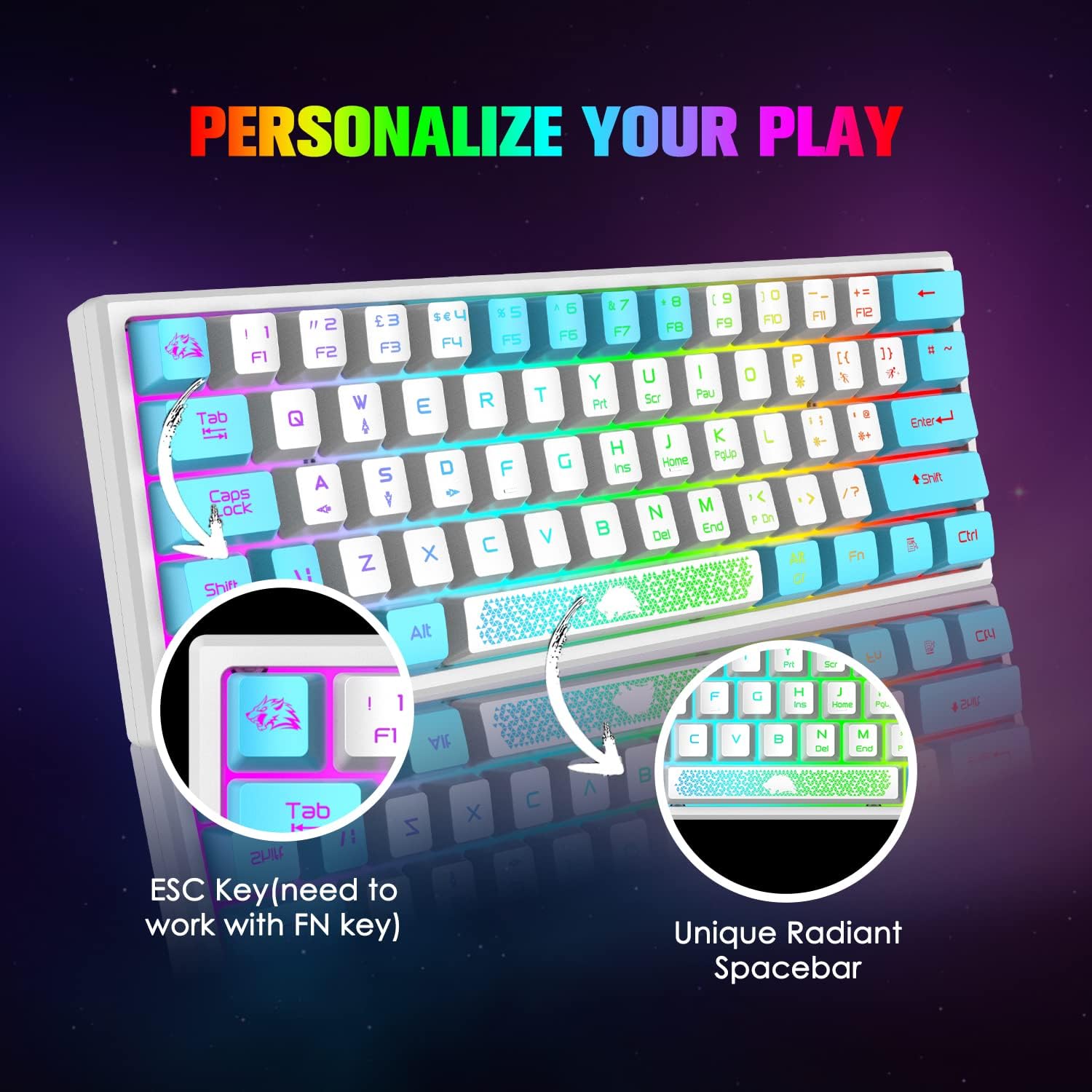
Image 4.3: Close-up view of the keyboard's ESC key and the unique radiant spacebar, highlighting their design and potential FN key functions.
4.2 Mouse Functions

Image 4.4: Diagram of the 6-button gaming mouse, labeling the DPI button, scroll wheel, left/right buttons, and forward/backward buttons. It also shows the 7-color auto-changing breathing backlight.
- DPI Adjustment: Use the dedicated DPI button (usually located behind the scroll wheel) to cycle through different DPI settings. The mouse supports up to 6400 DPI with 6 editable levels.
- Buttons: The mouse features 6 buttons: Left Click, Right Click, Scroll Wheel Click, DPI Button, Forward Button, and Backward Button.
- RGB Backlight: The mouse features a 7-color auto-changing breathing backlight. This lighting effect is typically automatic and cannot be manually adjusted.

Image 4.5: Side view of the mouse illustrating its DPI range, from 800 to 10000, with an indicator showing the current setting around 5000 DPI.

Image 4.6: The lightweight honeycomb shell design of the mouse, highlighting its ergonomic shape and perforated structure for comfort and heat dissipation.
5. Maintenance
- Cleaning: Use a soft, dry cloth to clean the surfaces of the keyboard and mouse. For deeper cleaning, a slightly damp cloth can be used, ensuring no liquid enters the internal components.
- Dust Removal: Use compressed air to remove dust and debris from between the keycaps and from the mouse's optical sensor.
- Cable Care: Avoid sharp bends or excessive pulling on the USB cables to prevent damage.
- Storage: When not in use, store the combo in a clean, dry environment away from direct sunlight and extreme temperatures.
6. Troubleshooting
- Keyboard/Mouse Not Responding:
- Ensure the USB cables are securely connected to your computer's USB ports.
- Try connecting the devices to different USB ports.
- Restart your computer.
- Backlighting Not Working:
- For the keyboard, ensure the backlight is not turned off or set to the lowest brightness. Press FN + P to cycle through modes.
- For the mouse, the backlight is automatic. If it's not working, try reconnecting the mouse.
- Keys Not Registering Correctly:
- Clean the affected key to ensure no debris is obstructing its mechanism.
- Verify that no FN key combination is active that might alter key functions (e.g., WASD/arrow key toggle).
- Mouse Cursor Jumps or is Inaccurate:
- Clean the mouse's optical sensor.
- Ensure you are using the mouse on a suitable surface, preferably a mouse pad.
- Adjust the DPI setting using the DPI button.
7. Specifications
| Feature | Detail |
|---|---|
| Brand | XINMENG |
| Model | B09TDCBSJD |
| Color | White & Blue |
| Connectivity Technology | USB Wired |
| Keyboard Layout | 60% (61 keys) |
| Keyboard Backlight | RGB, 5 brightness levels |
| Mouse DPI | Up to 6400 DPI (6 adjustable levels) |
| Mouse Buttons | 6 buttons |
| Mouse Design | Lightweight Honeycomb Optical |
| Compatible Devices | Gaming Console, Personal Computer |
| Operating System Compatibility | Windows XP, WIN 7/8/10, MAC OS 2.0 |
| Item Weight | 2.05 pounds (approximate for combo) |
| Package Dimensions | 17.13 x 6.46 x 2.44 inches |
8. Warranty and Support
For warranty information and customer support, please refer to the documentation included with your purchase or contact the retailer/manufacturer directly. Protection plans may be available for extended coverage; consult your purchase options for details.