
dalattin AB5050L38212US
dalattin 12.5ft LED Lights for TV User Manual
Model: AB5050L38212US
1. Introduction
This user manual provides comprehensive instructions for the installation, operation, and maintenance of your dalattin 12.5ft LED Lights for TV. Designed for 40-55 inch TVs and computers, these LED strip lights offer versatile lighting options with dual control modes via an infrared remote and a Bluetooth application. Enhance your viewing experience and transform your space with customizable colors and dynamic lighting effects.
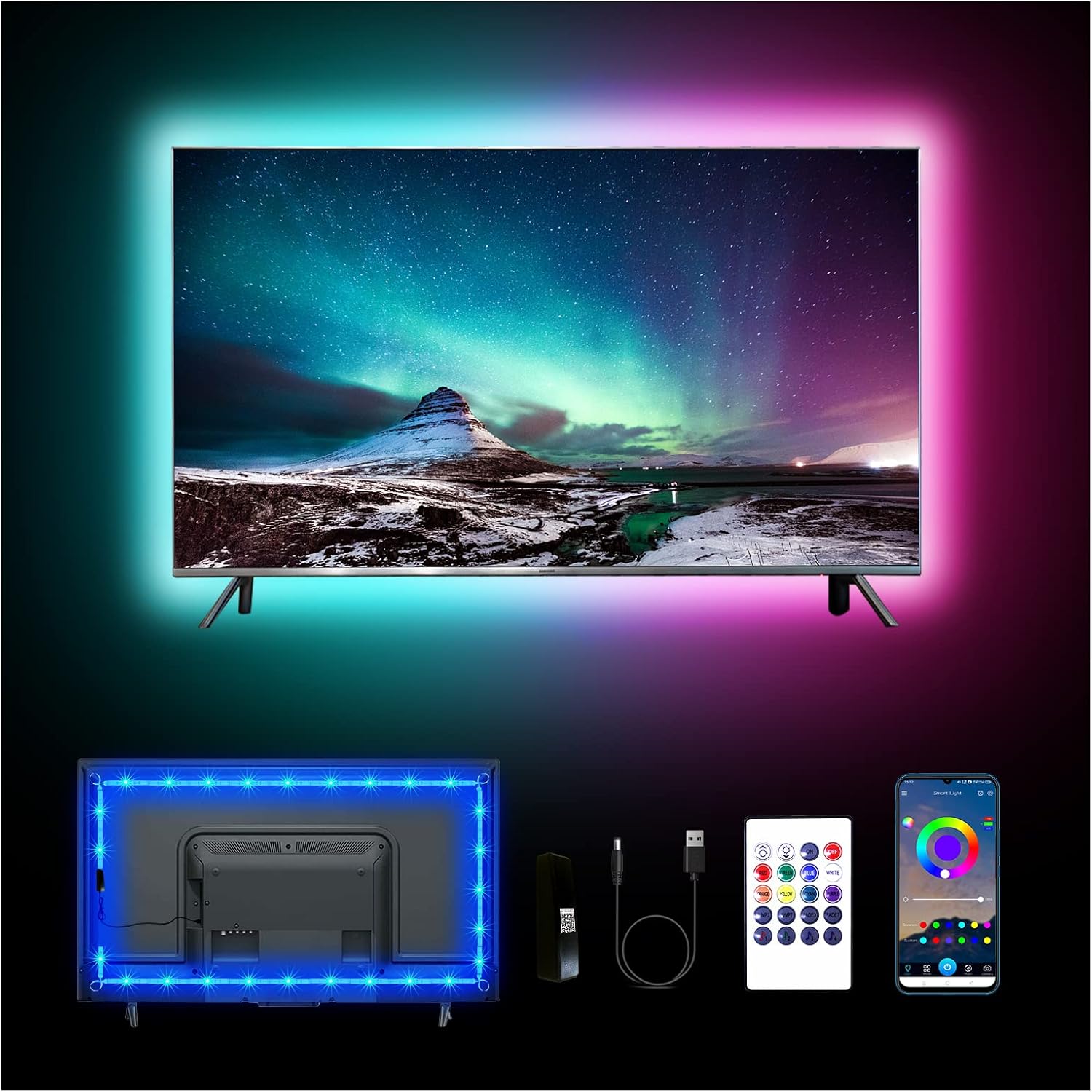
Image: Overview of the dalattin 12.5ft LED Lights for TV, showing the strip installed on a TV, the remote control, and the mobile app interface.
2. Safety Information
Please read and understand all safety instructions before using this product. Failure to follow these instructions may result in electric shock, fire, or other hazards.
- Ensure the power source is 5V USB. Do not connect to higher voltage power sources.
- Do not submerge the LED strip or controller in water or expose them to excessive moisture.
- Avoid bending the LED strip sharply, as this may damage the internal circuitry.
- Keep out of reach of children.
- Do not cover the LED strip when it is in operation, as this may cause overheating.
- Disconnect power before cleaning or performing any maintenance.
3. What's in the Box
Verify that all components are present upon unboxing:
- 1 x 12.5ft LED Light Strip
- 1 x Mini Infrared Controller
- 1 x Upgrade Controller (Bluetooth receiver)
- 1 x USB Power Cable
4. Setup and Installation
Follow these steps for proper installation of your dalattin LED TV backlight system:
- Prepare the Surface: Ensure the back of your TV or computer monitor is clean and dry. Use a clean cloth to wipe away any dust or debris. For optimal adhesion, you may use isopropyl alcohol to clean the surface and allow it to dry completely.
- Measure and Plan: Before peeling the adhesive, temporarily position the LED strip around the back of your TV to plan the layout. The 12.5ft strip is suitable for 40-55 inch TVs. Ensure the USB cable can reach a power source.
- Attach the LED Strip: Carefully peel off the adhesive backing from the LED strip, starting from one corner. Press the strip firmly onto the back of the TV, following the edges. Apply gentle pressure along the entire length to ensure good contact. Avoid sharp bends.
- Connect the Controller: Connect the LED strip to the upgrade controller (Bluetooth receiver) and then connect the upgrade controller to the USB power cable.
- Power On: Plug the USB power cable into a 5V USB port on your TV or a USB wall adapter. The lights should illuminate.

Image: Visual guide demonstrating the easy installation process, including cleaning the surface, attaching the strip, and connecting components.
5. Operating Instructions
Your dalattin LED lights can be controlled using the included mini infrared remote or the Bluetooth mobile application.
5.1. Using the Mini Infrared Remote Control
The remote control allows for basic functions such as power on/off, color selection, and brightness adjustment. Ensure the remote is pointed towards the infrared receiver on the controller for proper operation.
- Power Button: Press to turn the lights on or off.
- Color Buttons: Select from a variety of static colors.
- Brightness Adjustment: Use the up/down arrows to increase or decrease light intensity.
- Mode Buttons: Cycle through various dynamic lighting modes (e.g., flash, fade, jump).
5.2. Using the Bluetooth APP Control
For advanced features and customization, download the "MARVELLIGHT" application from your smartphone's app store (iOS/Android). The app offers over 16 million colors, multiple scene modes, music sync, and DIY customization.
- Download the App: Search for "MARVELLIGHT" in the App Store or Google Play Store and install it.
- Enable Bluetooth: Ensure Bluetooth is enabled on your smartphone.
- Open the App: Launch the MARVELLIGHT app. It should automatically detect and connect to your LED lights. If not, follow the in-app instructions to pair.
- Explore Features:
- Color Palette: Select any color from the spectrum.
- Scene Modes: Choose from pre-programmed lighting scenes for different moods or occasions.
- Music Sync: Activate the built-in microphone feature to synchronize light changes with music or ambient sounds.
- DIY Mode: Create and save your own custom lighting effects.
- Timer Function: Set schedules for the lights to turn on or off automatically.

Image: Screenshots of the MARVELLIGHT mobile application, illustrating the color selection, music sync, and timer functions.

Image: Depiction of the LED lights reacting to music, highlighting the built-in sensitive microphone feature.
6. Maintenance
To ensure the longevity and optimal performance of your dalattin LED lights, follow these maintenance guidelines:
- Cleaning: Gently wipe the LED strip with a dry, soft cloth to remove dust. Do not use liquid cleaners or abrasive materials.
- Storage: If storing the lights for an extended period, ensure they are clean, dry, and stored in a cool, dry place away from direct sunlight.
- Adhesion: If the adhesive begins to lose its grip, you may use additional double-sided adhesive tape designed for electronics to re-secure the strip.
7. Troubleshooting
If you encounter issues with your dalattin LED lights, refer to the following common problems and solutions:
| Problem | Possible Cause | Solution |
|---|---|---|
| Lights do not turn on. | No power, loose connection, remote battery dead, or controller issue. | Ensure USB cable is securely plugged into a 5V USB port. Check all connections between the strip, controller, and USB cable. Replace remote battery if using the IR remote. Try controlling with the app to rule out remote issues. Unplug and replug the USB power. |
| Remote control not working. | Remote battery dead, remote not pointed at receiver, or obstruction. | Replace the remote battery. Ensure the remote is pointed directly at the IR receiver on the controller. Remove any obstructions between the remote and receiver. Try controlling with the app. |
| App cannot connect to lights. | Bluetooth not enabled, app not paired, or interference. | Ensure Bluetooth is enabled on your smartphone. Restart the app and try pairing again. Move closer to the lights. Ensure no other devices are interfering with the Bluetooth connection. |
| Lights are dim or inconsistent. | Insufficient power, damaged strip, or incorrect brightness setting. | Ensure the USB power source provides sufficient power (5V). Increase brightness using the remote or app. Inspect the LED strip for any visible damage or kinks. |
8. Specifications
| Feature | Detail |
|---|---|
| Model Number | AB5050L38212US |
| Length | 12.5 feet (3.81 meters) |
| Compatibility | 40-55 inch TVs and computers |
| Control Modes | Mini Infrared Remote, Bluetooth APP (MARVELLIGHT) |
| Light Source | LED |
| Color Options | 16 Million Colors (via App) |
| Special Features | Music Sync (Built-in MIC), DIY Mode, Timer Function, Multiple Scene Modes |
| Power Source | USB Powered (5V) |
| Wattage | 5 watts |
| Indoor/Outdoor Usage | Indoor |
| Item Weight | 3.84 ounces |
9. Warranty and Support
dalattin products are manufactured to high-quality standards. For warranty information or technical support, please refer to the contact details provided with your purchase or visit the official dalattin website.
For further assistance, please contact customer support at support@dalattin.com or visit the dalattin Store on Amazon.
Ask a question about this manual
Ask about setup, troubleshooting, compatibility, parts, safety, or missing instructions. Manuals+ will review the question and use this page’s manual context to help answer it.