
Introduction
Thank you for purchasing the QT Shopping TG 117 Portable Wireless Bluetooth Speaker. This manual provides detailed instructions for setting up, operating, and maintaining your speaker. Please read this manual carefully before use to ensure optimal performance and longevity of your device. Keep this manual for future reference.
Package Contents
Please check the package for the following items:
- 1 x QT Shopping TG 117 Portable Wireless Bluetooth Speaker
- 1 x Micro USB Charging Cable
- 1 x 3.5mm Audio Cable
- 1 x User Manual (this document)
Product Overview
The QT Shopping TG 117 is a versatile portable Bluetooth speaker designed for various outdoor and indoor activities. It features dual 52mm speaker drivers for clear sound and deep bass, IPX5 water resistance, and multiple connectivity options including Bluetooth, FM radio, TF card, and AUX input.

Image: Front view of the QT Shopping TG 117 Portable Wireless Bluetooth Speaker in Blue and Yellow.

Image: Detailed view of the speaker's rear panel, showing the power button, volume controls, menu button, TF card slot, USB port, DC 5V charging port, and AUX port. Note: The speaker shown in this image is a blue/grey variant, but the port layout is identical.
Key Features:
- Powerful Audio: Dual 52mm speaker drivers with 10W output for clear sound and enhanced bass.
- IPX5 Water Resistance: Splash-proof, rain-proof, dust-proof, and sand-proof for outdoor use. (Note: Do not submerge the speaker in water.)
- Multiple Playback Modes: Bluetooth 3.0, FM Radio, TF Card (Micro SD), and 3.5mm AUX input.
- Hands-Free Calling: Built-in microphone for convenient hands-free phone calls.
- Long Battery Life: Integrated 1200mAh rechargeable battery provides 3-10 hours of playtime (varies by volume).
Setup
Initial Charging
Before first use, fully charge the speaker. Connect the micro USB charging cable to the speaker's DC 5V port and the other end to a USB power adapter (not included) or a computer's USB port. The charging indicator light will illuminate during charging and turn off once fully charged. A full charge typically takes 2-3 hours.
Power On/Off
- To Power On: Long press the Power button (usually marked with a power symbol) for approximately 3-4 seconds until you hear an audible prompt and the indicator light flashes.
- To Power Off: Long press the Power button again for approximately 3-4 seconds until you hear an audible prompt and the indicator light turns off.
Operating Instructions
Bluetooth Pairing
Follow these steps to connect your speaker via Bluetooth:
- Ensure the speaker is powered off.
- Long press the Power button for 4 seconds or more until the blue indicator light flashes rapidly. This indicates the speaker is in pairing mode.
- On your mobile device (smartphone, tablet, etc.), enable Bluetooth and search for available devices.
- Select "TG 117" from the list of found devices.
- Once connected, the blue indicator light will flash slowly, and you will hear a successful connection prompt.

Image: Illustration of the speaker connected to a smartphone, highlighting the one-button switch for music and calls.
FM Radio Mode
To use the FM radio function:
- Power on the speaker.
- Press the 'M' (Mode) button repeatedly until you enter FM radio mode. The speaker may announce "FM Mode" or display the frequency if it has an LED screen.
- To auto-scan and save stations, long press the Play/Pause button. The speaker will scan for available stations and save them.
- Use the Volume +/- buttons (short press) to switch between saved stations.
Hands-Free Calls
When connected to your phone via Bluetooth, the speaker supports hands-free calling:
- Answer Call: Press the Play/Pause button once to answer an incoming call.
- End Call: Press the Play/Pause button once during a call to end it.
- Reject Call: Long press the Play/Pause button to reject an incoming call.
- Redial Last Number: Double-press the Play/Pause button to redial the last dialed number.
Aux-in Mode
Connect non-Bluetooth devices using the 3.5mm audio cable:
- Connect one end of the 3.5mm audio cable to the speaker's AUX port.
- Connect the other end to the headphone jack of your audio device.
- The speaker will automatically switch to AUX mode, or you may need to press the 'M' (Mode) button to select it.
TF Card (Micro SD) Mode
Play music directly from a TF card:
- Insert a TF card (with MP3 audio files) into the TF card slot on the speaker.
- The speaker will automatically detect the card and begin playing music, or you may need to press the 'M' (Mode) button to select TF card mode.
Button Functions

Image: Diagram illustrating the functions of the speaker's control buttons. Note: The speaker shown in this image is a black variant, but the button layout and functions are identical.
| Button | Short Press | Long Press |
|---|---|---|
| Power Button | N/A | Power On/Off |
| Play/Pause Button | Play/Pause (Music), Answer/End Call (Phone) | Auto-scan (FM Mode), Reject Call (Phone) |
| 'M' (Mode) Button | Switch Modes (Bluetooth, FM, TF, AUX) | N/A |
| Volume - / Previous Track | Volume Down | Previous Track (Music), Previous Station (FM) |
| Volume + / Next Track | Volume Up | Next Track (Music), Next Station (FM) |
Maintenance
Proper care will extend the life of your speaker:
- Cleaning: Use a soft, dry cloth to clean the speaker's surface. Do not use abrasive cleaners or solvents.
- Water Resistance: The speaker is IPX5 water-resistant, meaning it can withstand gentle water spray and splashes. Do not submerge it in water or expose it to heavy rain. Ensure the charging port cover is securely closed when near water.
- Storage: Store the speaker in a cool, dry place away from direct sunlight and extreme temperatures.
- Battery Care: To maintain battery health, charge the speaker regularly, even if not in use for extended periods. Avoid fully draining the battery frequently.
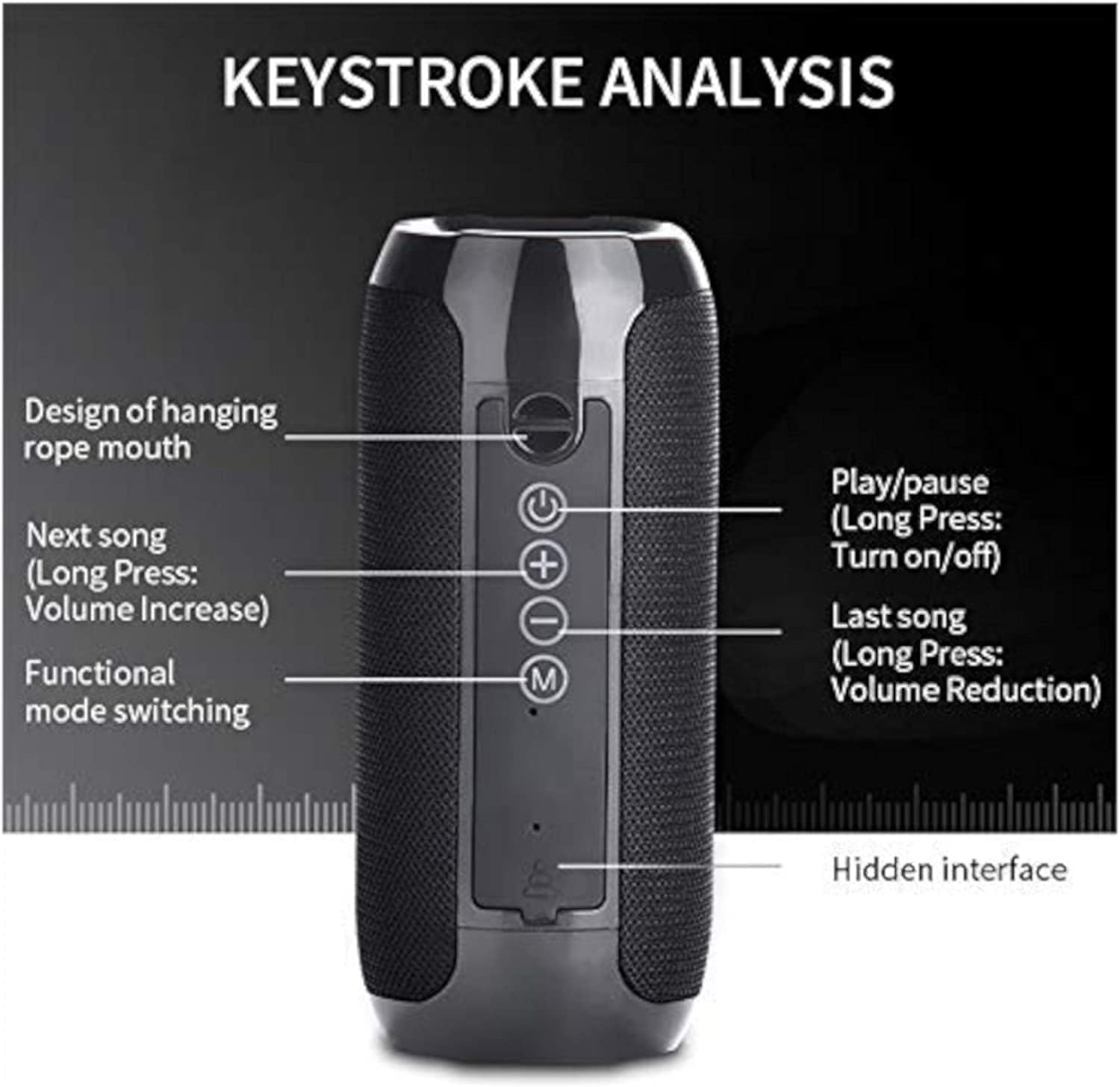
Image: A blue Bluetooth speaker with water splashes, demonstrating its splash-proof design. This highlights the IPX5 water resistance feature.
Troubleshooting
If you encounter issues with your speaker, please refer to the following common problems and solutions:
| Problem | Possible Cause | Solution |
|---|---|---|
| Speaker does not power on. | Low battery. | Charge the speaker fully. |
| Cannot pair via Bluetooth. | Speaker not in pairing mode; Bluetooth disabled on device; device too far. | Ensure speaker is in pairing mode (rapid blue light flash). Enable Bluetooth on your device. Move device closer to speaker (within 10 meters). |
| No sound or low volume. | Volume too low on speaker or connected device; incorrect mode. | Increase volume on both speaker and connected device. Ensure correct mode (Bluetooth, AUX, TF, FM) is selected. |
| FM radio reception is poor. | Weak signal; environmental interference. | Move to an open area. Try repositioning the speaker. |
| Speaker turns off unexpectedly. | Low battery. | Recharge the speaker. |
Specifications
| Feature | Detail |
|---|---|
| Model Number | TG 117 |
| Brand | QT Shopping |
| Speaker Output Power | 10 Watts (2 x 5W) |
| Speaker Driver Size | 2 x 52mm |
| Battery Capacity | 1200mAh Lithium Polymer |
| Playtime | 3-10 hours (varies by volume level) |
| Charging Time | 2-3 hours |
| Bluetooth Version | 3.0 |
| Water Resistance Rating | IPX5 |
| Connectivity Options | Bluetooth, 3.5mm AUX, TF Card, FM Radio |
| Dimensions | 8.5 x 4 x 0.5 inches (approximate) |
| Weight | 11.4 ounces / 322 grams (approximate) |
| UPC | 753625338774 |
Warranty and Support
For any questions, concerns, or support needs regarding your QT Shopping TG 117 Portable Wireless Bluetooth Speaker, please contact QT Shopping customer service. Refer to your purchase documentation or the retailer's website for specific warranty information and contact details.