
1. Setup
1.1 Package Contents
Verify that all components are present in your package:
- 9.84ft Neon Strip Light for TV x 1
- Corner Mounting Clips x 3
- Straight Mounting Clips x 6
- Positioning Cards (for 65-75 inch TVs) x 8
- Positioning Cards (for 48-55 inch TVs) x 9
- Power Adapter x 1
1.2 Pre-Installation Check
Before proceeding with installation, connect the strip light to the power adapter and test its functionality. Ensure all segments illuminate correctly.
Video: Official Govee installation guide. This video demonstrates the complete installation process for the Govee Neon TV Backlight, including pre-installation checks, surface preparation, and clip placement.
1.3 Surface Preparation
Clean the back panel of your TV thoroughly to ensure it is dry and free of dust or grease. This is crucial for optimal adhesion of the mounting clips.

Image: A hand wiping the back of a TV with a cloth. Ensure the TV's back panel is clean and dry before applying any adhesive components.
1.4 Mounting Clip Installation
- Select the appropriate positioning cards (A for 65-75 inch TVs, B for 48-55 inch TVs) based on your TV size.
- Align the black borders of the positioning cards with the edges of your TV's back panel.
- Peel off the adhesive backing from the straight mounting clips.
- Install the straight mounting clips one by one onto the TV back panel, following the guides on the positioning cards. Press each clip firmly for 10 seconds to ensure full adhesion.
- For corner mounting clips, they may need to be flexed when pressed onto the back panel to ensure they are fully attached in the correct orientation. If a corner clip does not fit well, carefully cut along the indicator line to adjust its position and re-install.
- After installing all clips, wait 24 hours before installing the LED strip to allow the adhesive to cure properly.

Image: Diagram showing the snap-in positioning installation for the LED strip on the back of a TV, indicating where clips should be placed.

Image: Instructions on how to adjust corner mounting clips by cutting them if they do not fit snugly on a curved TV back.
1.5 LED Strip Installation
Install the strip light starting from the bottom right corner and proceed counterclockwise. The side of the strip with a ridge should fit into the clips. Press the strip lightly into each clip to ensure it is firmly fastened.

Image: A TV with the Govee LED backlight installed, showing the light strip around the perimeter of the TV.
1.6 Control Box Placement
Ensure the control box is placed in a suitable and accessible location. Plug the strip into power once installation is complete.
2. Operating Your Govee H61B2 TV LED Backlight
2.1 Smart App Control
Download the Govee Home App to access a full range of features including Timer, Music functions, and group control with other Govee smart products. The app offers 64 dynamic scene modes and 11 music modes for an immersive viewing experience.

Image: A smartphone displaying the Govee Home App interface, demonstrating various RGBIC lighting effects and control options.
2.2 Voice Control (Alexa/Google Assistant)
Control your neon TV backlight using simple voice commands through Alexa or Google Assistant. You can turn the lights on/off, adjust brightness, and change modes hands-free.
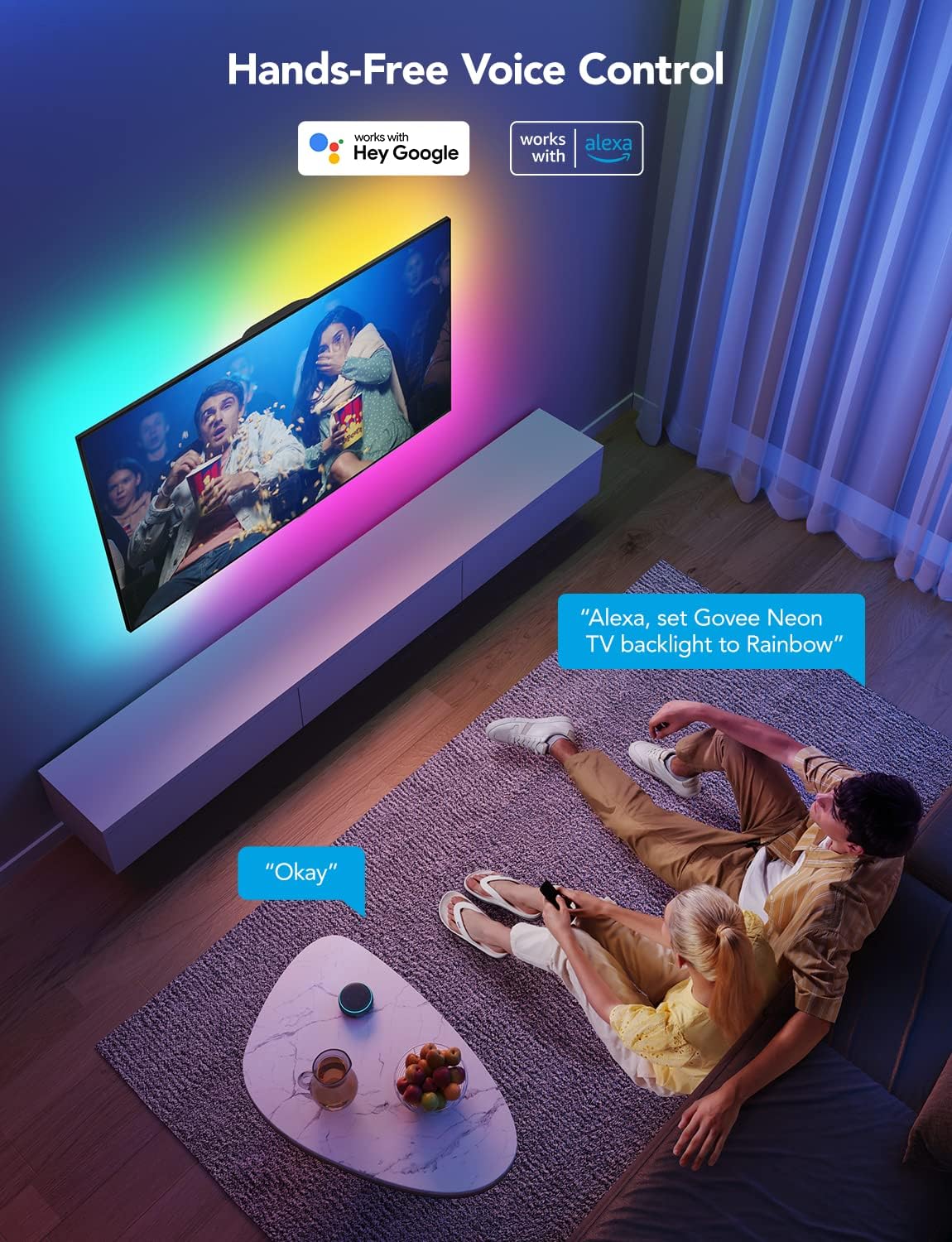
Image: A person interacting with a smart assistant to control the Govee TV LED backlight, illustrating hands-free voice control.
2.3 RGBIC Lighting Effects
The RGBIC technology allows the LED lights to display multiple colors simultaneously, creating dynamic and flowing multi-color effects inspired by nature, festivals, and emotions.

Image: A TV with the Govee LED backlight showcasing a vibrant, multi-color display, highlighting the RGBIC lighting effects.
2.4 Music Sync Mode
Utilize the music sync feature to synchronize the lighting effects with your audio, enhancing your viewing or listening experience.

Image: A TV with the Govee LED backlight displaying dynamic lighting effects synchronized with music, illustrating the 11 music modes.
2.5 Dynamic Scene Modes
Choose from 64 dynamic scene modes to match your mood or content, including effects like flowing, animated multi-color displays.

Image: A person interacting with the Govee Home App to select from 64 dynamic scene modes, with the TV backlight reflecting the chosen scene.
Video: Official Govee product overview. This video highlights the features and dynamic lighting capabilities of the Govee Neon TV Backlight, including RGBIC effects, music sync, and app control.
3. Maintenance
To maintain the performance and appearance of your Govee H61B2 TV LED Backlight, follow these guidelines:
- Cleaning: Gently wipe the LED strip and control box with a dry, soft cloth. Avoid using abrasive cleaners or solvents that could damage the product.
- Storage: If storing the product for an extended period, ensure it is clean and dry. Store in a cool, dry place away from direct sunlight.
4. Troubleshooting
If you encounter issues with your Govee H61B2 TV LED Backlight, refer to the following common solutions:
- Uneven Lighting or Partial Illumination: Ensure the LED strip is fully seated in all mounting clips. Check for any kinks or damage along the strip. If the issue persists, the strip may be faulty and require replacement.
- Adhesion Issues: Ensure the TV back panel was thoroughly cleaned and dry before applying clips. Allow 24 hours for the adhesive to cure before installing the strip. For curved TV backs, ensure corner clips were adjusted as per instructions.
- Connectivity Problems (App/Voice Control): Verify that your Govee H61B2 is properly connected to your Wi-Fi network and Bluetooth is enabled on your control device. Ensure the Govee Home App is updated to the latest version.
- Lights Not Turning On: Check that the power adapter is securely plugged into both the control box and a working power outlet. Test the strip light with the power adapter before installation to confirm it functions.
5. Specifications
| Model Number | H61B2 |
| Color | Multicolor |
| Brand | Govee |
| Indoor/Outdoor Usage | Indoor |
| Light Source Type | LED |
| Power Source | DC |
| Voltage | 24 Volts (DC) |
| Wattage | 36 watts |
| Control Method | Voice |
| Connectivity Protocol | Bluetooth, Wi-Fi |
| Material Type | Neon |
| Number of Light Sources | 180 |
| Item Weight | 1.28 Kilograms |
| Item Length | 9.84 Feet |
6. Warranty and Support
For warranty information or technical assistance, please contact Govee customer support through the Govee Home App or visit the official Govee website. Keep your purchase receipt for warranty claims.


