
1. Introduction
This manual provides essential information for the safe and efficient operation of your Caixun 32-inch HD LED TV. Please read this manual thoroughly before using the television and retain it for future reference. This television is designed for both home entertainment and as a computer monitor, offering versatile connectivity and a high-definition viewing experience.

Figure 1.1: Caixun 32-inch HD LED TV (Model EC32T1H)
2. Key Features
- Superb Visual Experience: Enjoy high-definition picture quality with a resolution of 1366x768 pixels, revealing clear details and vivid colors. The 178° wide viewing angle ensures a consistent and immersive visual experience from various positions.
- TV & Monitor Dual Use: Equipped with a PC input, this television can function as a computer monitor. Simply connect via an HDMI cable to enjoy a large screen display for your computing needs.
- Rich Interface Connectivity: Features multiple ports including 3x HDMI, 2x USB, 1x AV IN, and 1x TV (DVB-T/T2/S2) input. These interfaces allow connection to various external devices such as streaming sticks, computers, DVD players, and gaming consoles. The 60Hz refresh rate ensures smooth navigation and responsive control.
- Space-Saving Design: The slim-frame design of the 32-inch Caixun TV makes it an ideal fit for smaller spaces such as bedrooms, home offices, or kitchens, providing entertainment without occupying excessive room.

Figure 2.1: HD Picture Quality Comparison

Figure 2.2: TV and Monitor Dual Use

Figure 2.3: TV Interface Ports

Figure 2.4: TV Integration in a Kitchen Setting
3. What's in the Box
Upon unboxing your Caixun TV, please verify that all the following components are included:
- 1 x Caixun 32-inch HD LED TV
- 1 x Remote Control
- 2 x Remote Control Batteries (AAA)
- 1 x Set of TV Feet (Stand)
- 1 x User Manual (this document)
- 1 x Warranty Card
- 1 x Power Cable
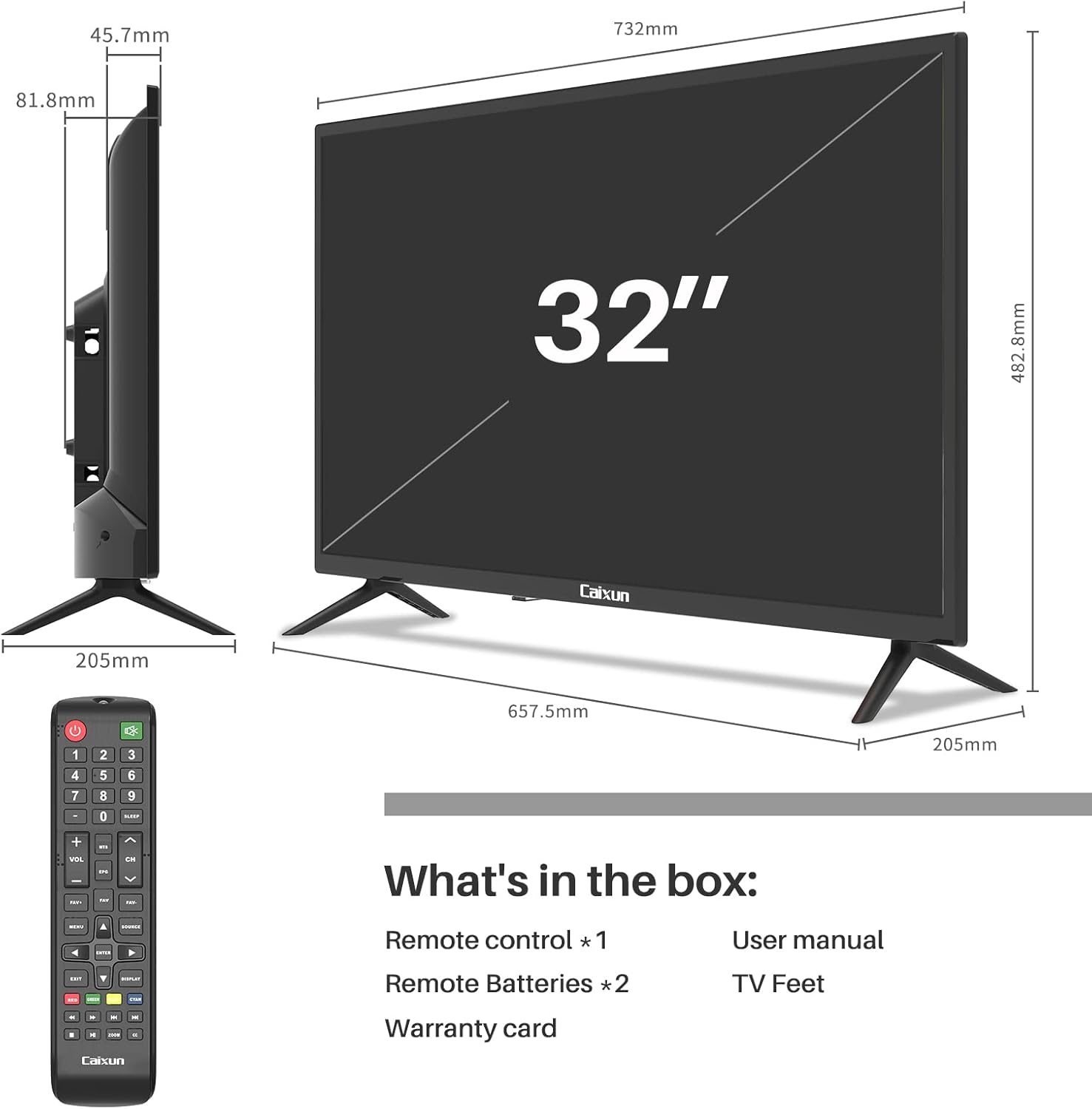
Figure 3.1: Package Contents and Dimensions
4. Setup
4.1. Attaching the TV Feet
- Carefully place the TV screen-down on a soft, clean surface to prevent scratches.
- Identify the left and right TV feet.
- Align each foot with the corresponding screw holes on the bottom of the TV.
- Secure the feet using the provided screws. Do not overtighten.
- Carefully lift the TV and place it on a stable, level surface.
4.2. Wall Mounting (Optional)
The Caixun TV supports VESA 100x100mm wall mounts. A wall mount bracket is not included in the package. Please refer to the wall mount manufacturer's instructions for proper installation. Ensure the wall can support the weight of the TV and the mount.

Figure 4.1: Stand or Wall Mount Options
4.3. Connecting Devices
- Power: Connect the power cable to the TV's power input and then to a wall outlet.
- Antenna/Cable: Connect your antenna or cable TV coaxial cable to the 'TV (DVB-T/T2/S2)' input.
- HDMI Devices: Use HDMI cables to connect devices like Blu-ray players, gaming consoles, or streaming devices to the HDMI ports (HDMI 1, HDMI 2, HDMI 3).
- USB Devices: Insert USB drives into the USB ports for media playback.
- AV Devices: Connect older devices using the AV IN port.
- Optical Audio: For digital audio output to a soundbar or home theater system, use the Optical port.
5. Operating Instructions
5.1. Power On/Off
Press the POWER button on the remote control or on the TV to turn the TV on or off.
5.2. Initial Setup Wizard
The first time you turn on the TV, an initial setup wizard will guide you through language selection, country/region, and channel scanning. Follow the on-screen prompts.
5.3. Input Source Selection
Press the SOURCE button on the remote control to cycle through available input sources (TV, HDMI 1, HDMI 2, HDMI 3, AV, USB). Select the desired input for your connected device.
5.4. Channel Scanning
To scan for available TV channels:
- Press the MENU button on the remote.
- Navigate to the 'Channel' or 'Setup' menu.
- Select 'Auto Scan' or 'Auto Tuning' and confirm. The TV will search for and store available channels.
5.5. Picture and Sound Settings
Access the 'Picture' and 'Sound' menus via the MENU button to adjust settings such as brightness, contrast, color, sound mode, and equalizer settings to your preference.

Figure 5.1: Gaming on the Caixun TV
6. Maintenance
6.1. Cleaning the Screen
Gently wipe the screen with a soft, lint-free cloth. For stubborn marks, lightly dampen the cloth with water or a specialized screen cleaner. Never spray liquid directly onto the screen.
6.2. Cleaning the Cabinet
Use a soft, dry cloth to clean the TV cabinet. Avoid using abrasive cleaners, waxes, or solvents as they can damage the finish.
6.3. Ventilation
Ensure adequate ventilation around the TV. Do not block ventilation openings on the back or sides of the TV. Maintain a minimum distance from walls and other objects to allow for proper airflow.
7. Troubleshooting
If you encounter issues with your TV, refer to the following common problems and solutions:
| Problem | Possible Cause | Solution |
|---|---|---|
| No power | Power cable disconnected; no power from outlet. | Check power cable connection. Test outlet with another device. |
| No picture, but sound is present | Incorrect input source selected; loose video cable. | Press SOURCE button to select correct input. Check HDMI/AV cable connections. |
| No sound, but picture is present | Volume too low or muted; external audio system issue. | Increase volume. Check mute status. If using external audio, check its connections and power. |
| Remote control not working | Batteries depleted or incorrectly inserted; obstruction. | Replace batteries. Ensure correct polarity. Remove any obstructions between remote and TV. |