
1. Product Overview
The YEHUA Wireless HDMI Transmitter (Model TX) is designed to provide a seamless wireless streaming experience. This device allows you to transmit high-definition video and audio signals from various source devices to a display without the need for cables. It supports 4K resolution and features like Miracast for versatile connectivity.
Key features include:
- Connect multiple transmitters to one receiver.
- One-touch switching between active transmitters.
- Supports 4K resolution output.
- Integrated Miracast functionality.
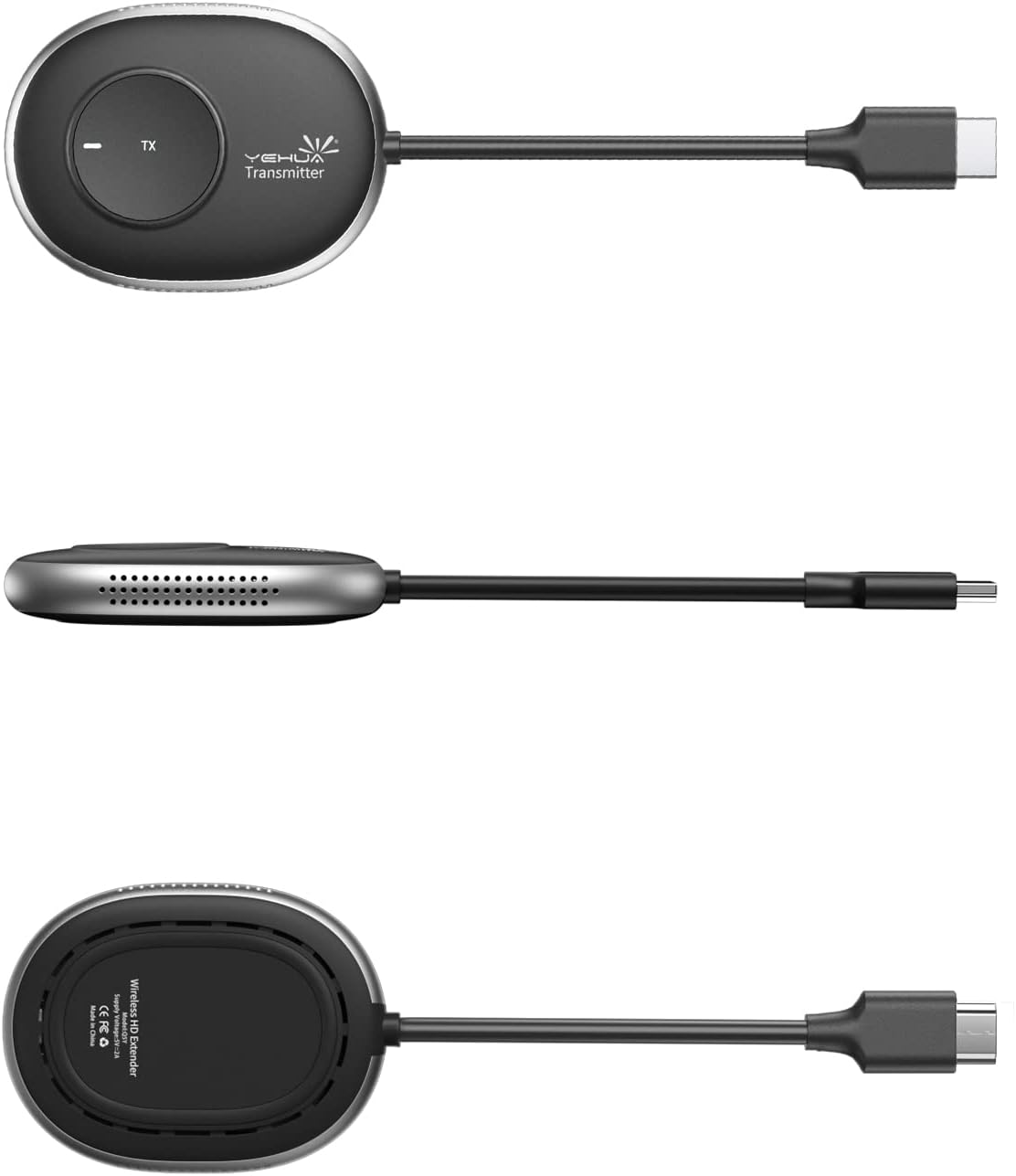
Figure 1: YEHUA Wireless HDMI Transmitter (Model TX) showing its compact design and various angles.
2. Package Contents
Please verify that all items are present in your package:
- YEHUA Wireless HDMI Transmitter (TX unit)
- YEHUA Wireless HDMI Receiver (RX unit) - (Note: Receiver may be sold separately or as part of a kit)
- USB Power Cable (for TX and/or RX)
- User Manual (this document)
3. Setup Instructions
Follow these steps to set up your YEHUA Wireless HDMI Transmitter and Receiver system.
3.1 Connecting the Receiver (RX)
- Connect the HDMI output of the Receiver (RX) to an HDMI input port on your display device (e.g., TV, monitor, projector).
- Connect the USB power cable to the Receiver (RX) and plug the other end into a 5V/2A USB power adapter (not always included) or a powered USB port on your display device. Ensure the RX unit powers on.
3.2 Connecting the Transmitter (TX)
- Connect the HDMI output of your source device (e.g., video camera, DV, set-top box, PS3/4/5, PC, laptop) to the HDMI input port on the Transmitter (TX).
- Connect the USB power cable to the Transmitter (TX) and plug the other end into a 5V/2A USB power adapter or a powered USB port on your source device. Ensure the TX unit powers on.

Figure 2: Connection Diagram illustrating how to connect the TX unit to various source devices (video camera, DV, set-top box, PS3/4/5, PC, laptop) and the RX unit to display devices (monitor, HDTV, projector), both powered by 5V/2A adapters.
3.3 Initial Pairing (if required)
In most cases, the TX and RX units are pre-paired. If they do not connect automatically:
- Ensure both TX and RX units are powered on.
- Press the pairing button on the RX unit (refer to the RX manual for exact location).
- Then, press the pairing button on the TX unit. The devices should connect within a few seconds.
4. Operating Instructions
Once the setup is complete, you can begin using your wireless HDMI system.
4.1 Basic Operation
- Power on your source device and display device.
- Select the correct HDMI input on your display device where the RX unit is connected.
- The TX unit will automatically transmit the signal from your source device to the RX unit. The display should show the content from your source.
4.2 Using Multiple Transmitters with One Receiver
The YEHUA system supports connecting multiple TX units to a single RX unit. This is ideal for presentations or collaborative environments where you need to switch between different source devices.
- Connect each additional TX unit to its respective source device and power it on, following the steps in Section 3.2.
- To switch between active transmitters, simply press the button on the desired TX unit. The receiver will then display the content from that specific transmitter.
- Note: The receiver can only display content from one transmitter at a time.

Figure 3: Illustration of one YEHUA RX unit connected to a large display, receiving signals from multiple TX units connected to laptops in a meeting room, demonstrating the one-touch switching capability.
5. Maintenance
To ensure the longevity and optimal performance of your YEHUA Wireless HDMI Transmitter, follow these maintenance guidelines:
- Cleaning: Use a soft, dry cloth to clean the devices. Do not use liquid cleaners or aerosols.
- Storage: Store the devices in a cool, dry place away from direct sunlight and extreme temperatures.
- Handling: Avoid dropping or subjecting the devices to strong impacts.
- Ventilation: Ensure the devices have adequate ventilation and do not block any vents.
6. Troubleshooting
If you encounter issues with your YEHUA Wireless HDMI Transmitter, refer to the following troubleshooting tips:
No Signal on Display
- Power Check: Ensure both the TX and RX units are properly powered on and their indicator lights are active.
- Cable Connections: Verify that all HDMI and USB power cables are securely connected to their respective ports.
- HDMI Input: Confirm that your display device is set to the correct HDMI input source where the RX unit is connected.
- Re-pairing: If the devices were previously working and now show no signal, try re-pairing them as described in Section 3.3.
- Source Device: Test your source device (e.g., laptop) by connecting it directly to the display via an HDMI cable to rule out issues with the source or display.
Poor Video Quality or Intermittent Signal
- Distance: Ensure the TX and RX units are within the recommended operating range. Obstacles like walls can reduce signal strength.
- Interference: Keep the devices away from other wireless devices (Wi-Fi routers, cordless phones) that might cause interference.
- Resolution: While the system supports 4K, ensure your source device and display are also configured for optimal resolution.
Audio Issues
- Volume: Check the volume levels on both your source device and display.
- Audio Settings: Verify audio output settings on your source device.
7. Specifications
| Feature | Specification |
|---|---|
| Brand | YEHUA |
| Model Number | TX |
| Connectivity Technology | HDMI |
| Connector Type | HDMI |
| Special Feature | Miracast |
| Resolution | 4K (3840 pixels) |
| Supported Internet Services | YouTube |
| Controller Type | Button Control |
| Form Factor | TV-Box |
| Compatible Devices | Television |
| Memory Storage Capacity | 16 GB |
| Video Codec | H.264, H.265/HEVC |
8. Warranty and Support
For warranty information and technical support, please refer to the documentation included with your purchase or visit the official YEHUA website. If you encounter issues not covered in this manual, please contact YEHUA customer service for assistance.
Manufacturer: YEHUA
ASIN: B09STQPR3R

