
1. Introduction
Thank you for choosing the ALLDOCUBE iPlay20P Android 11 Tablet. This manual provides essential information for setting up, operating, maintaining, and troubleshooting your device. Please read it carefully to ensure optimal performance and longevity of your tablet.
2. Safety Information
- Do not expose the tablet to extreme temperatures, direct sunlight, or high humidity.
- Avoid dropping or subjecting the tablet to strong impacts.
- Use only approved chargers and accessories to prevent damage and ensure safety.
- Keep the tablet away from water and other liquids.
- Do not attempt to disassemble or repair the tablet yourself. Contact customer support for assistance.
3. Product Overview
The ALLDOCUBE iPlay20P is a high-performance Android 11 tablet designed for various uses, from entertainment to productivity. It features a 10.1-inch Full HD IPS display, an 8-core CPU, 6GB RAM, 128GB internal storage, and a 6000mAh battery.
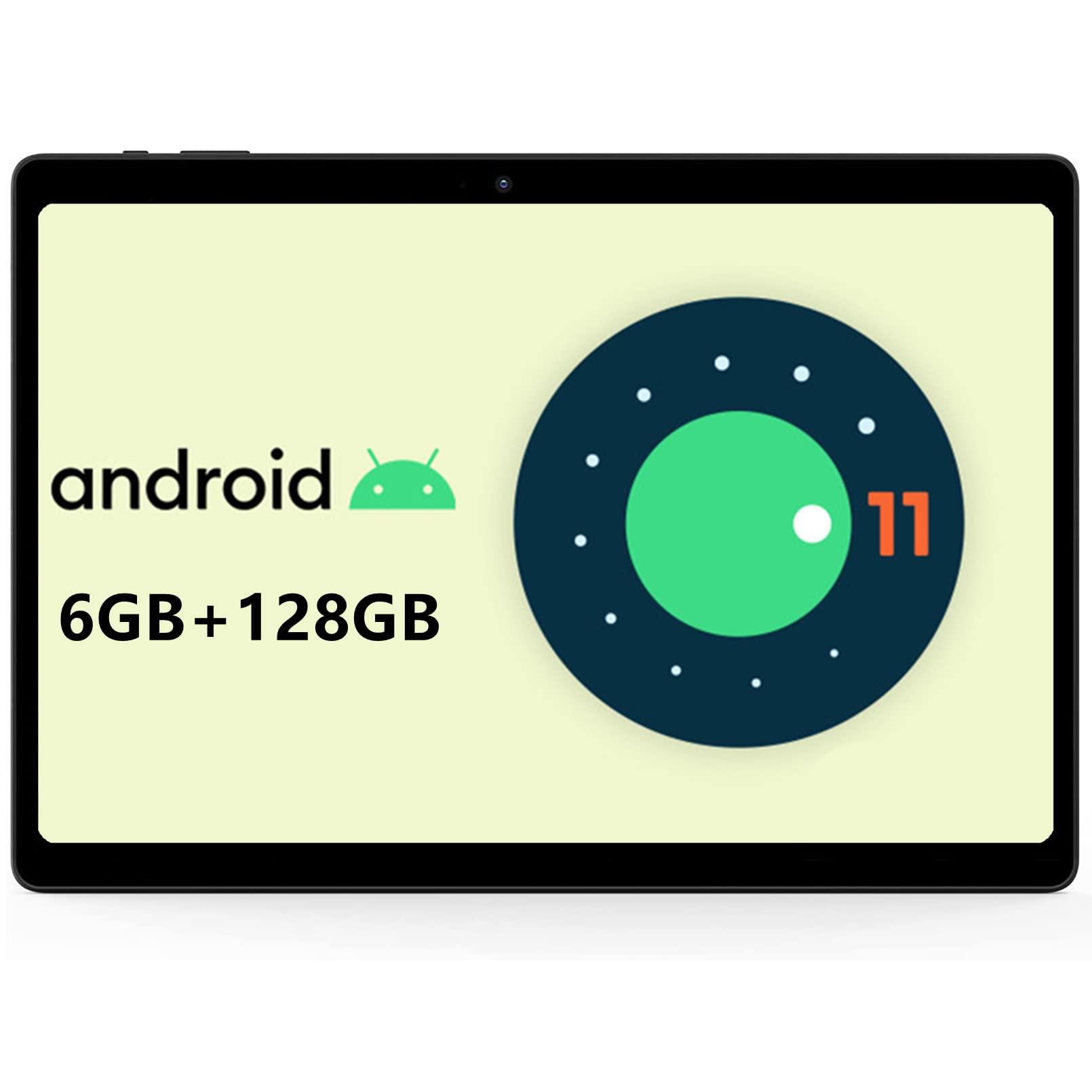
Image: Front view of the ALLDOCUBE iPlay20P tablet.
Key Features:
- High-Performance 8-Core Processor: Equipped with a powerful octa-core processor for smooth multitasking and efficient operation.
- Full HD IPS Display: A 10.1-inch screen with 1920x1200 resolution for vibrant visuals.
- Ample Memory and Storage: 6GB RAM and 128GB internal storage, expandable via TF card.
- Long-Lasting Battery: A 6000mAh battery provides extended usage times.
- Dual 4G LTE Support: Stay connected with dual 4G LTE capabilities.
- Dual-Band Wi-Fi & Bluetooth 4.2: Fast and stable wireless connectivity.
- Dual Cameras: 2MP front camera and 5MP rear camera for photos and video calls.
- Android 11 Operating System: Enjoy the latest features and security enhancements of Android 11.
4. Setup
4.1 Initial Charging
Before first use, fully charge your tablet using the provided charger. Connect the charger to the tablet's USB-C port and plug it into a power outlet. The battery indicator on the screen will show charging status.
4.2 Power On/Off
- To Power On: Press and hold the Power button until the ALLDOCUBE logo appears.
- To Power Off: Press and hold the Power button until the power options appear on the screen, then select "Power off."
- To Restart: Press and hold the Power button until the power options appear, then select "Restart."
4.3 Language Settings
To change the system language:
- Go to Settings.
- Navigate to System > Languages & input > Languages.
- Tap Add a language and select your desired language from the list.
- Once added, press and hold the icon next to your desired language and drag it to the top of the list to set it as the primary system language.
Video: This short video demonstrates how to change the system language on your ALLDOCUBE tablet.
4.4 SIM Card and MicroSD Card Installation
The tablet supports dual 4G LTE and expandable storage. Locate the SIM/MicroSD card tray on the side of the tablet. Use the provided ejector tool to open the tray. Insert your SIM card(s) and/or MicroSD card into the designated slots, ensuring correct orientation. Close the tray securely.
5. Operating Instructions
5.1 Basic Navigation
- Tap: Touch the screen once to open an app, select an item, or press a button.
- Touch & Hold: Press and hold an item to access more options or move it.
- Swipe: Drag your finger across the screen to scroll through pages or content.
- Pinch: Use two fingers to zoom in or out on images and web pages.
5.2 Connecting to Wi-Fi
- Go to Settings > Network & internet > Wi-Fi.
- Toggle the Wi-Fi switch to On.
- Select your desired Wi-Fi network from the list.
- Enter the password if prompted, then tap Connect.
5.3 Connecting to Bluetooth Devices
- Go to Settings > Connected devices > Bluetooth.
- Toggle the Bluetooth switch to On.
- Ensure your Bluetooth device is in pairing mode.
- Select your device from the list of available devices and follow any on-screen prompts to complete pairing.
5.4 Using 4G LTE
If you have installed a SIM card with an active data plan, your tablet will automatically connect to the 4G LTE network. You can manage mobile data settings in Settings > Network & internet > Mobile network.
5.5 Camera Usage
The tablet features a 2MP front camera and a 5MP rear camera. Open the Camera app to take photos or record videos. Tap the screen to focus and press the shutter button to capture.

Image: The tablet displaying its camera interface, ready for use.
5.6 Audio and Multimedia
The tablet is equipped with dual speakers for clear audio output and a 3.5mm headphone jack for private listening. You can adjust volume using the physical volume buttons or through the system settings.

Image: The tablet connected to wired headphones, demonstrating audio output options.
6. Maintenance
6.1 Battery Care
- Avoid fully discharging the battery frequently.
- Do not leave the tablet charging for extended periods after it's fully charged.
- Store the tablet in a cool, dry place if not used for a long time, with the battery charged to about 50%.
6.2 Cleaning
Use a soft, lint-free cloth to clean the tablet screen and body. Avoid using harsh chemicals or abrasive materials that could damage the surface.
6.3 Software Updates
Regularly check for and install system updates to ensure your tablet has the latest features, security patches, and performance improvements. Go to Settings > System > System update to check for updates.
7. Troubleshooting
7.1 Tablet Not Turning On
- Ensure the battery is charged. Connect the charger and wait a few minutes before attempting to power on.
- Press and hold the Power button for at least 10-15 seconds to force a restart.
7.2 Wi-Fi Connection Issues
- Check if Wi-Fi is enabled in settings.
- Restart your Wi-Fi router.
- Forget the network in your tablet's Wi-Fi settings and reconnect.
- Ensure you are within range of the Wi-Fi signal.
7.3 Slow Performance
- Close unnecessary background applications.
- Clear cache data for apps that are frequently used.
- Ensure sufficient storage space is available.
- Restart the tablet.
7.4 Factory Reset
If you encounter persistent issues, a factory reset may resolve them. Warning: This will erase all data on your tablet. Back up important data before proceeding.
- Go to Settings > System > Reset options.
- Select Erase all data (factory reset).
- Confirm your choice and follow the on-screen instructions.
8. Specifications
| Feature | Specification |
|---|---|
| Brand | ALLDOCUBE |
| Model Name | iPlay20P |
| Operating System | Android 11 |
| Display Size | 10.1 inches |
| Display Resolution | 1920x1200 pixels |
| CPU Brand | ARM (Helio P60 Octa-Core) |
| RAM Capacity | 6 GB |
| Memory Storage Capacity | 128 GB |
| Front Camera Resolution | 5 MP |
| Rear Camera Resolution | 2 MP |
| Connectivity | Cellular (4G LTE), Wi-Fi (2.4G/5G), Bluetooth 4.2, GPS |
| Battery Capacity | 6000 mAh |
| Speakers | 2 |
| Product Dimensions | 24.2 x 16.8 x 0.87 cm |
| Item Weight | 600 g |
9. Warranty and Support
9.1 Warranty Period
ALLDOCUBE provides a 1-year free warranty for this product.
9.2 Product Issues
If you encounter any issues with your product, please contact customer service via email first. We will send a new product free of charge or issue a full refund for your order.
9.3 Contacting Support
You can contact support through the following methods:
- Via Product Page: On the product page, click on the store name "ALLDOCUBE Global Store" below the "Add to Cart" button, then click "Ask a question" in the upper right corner to send a message.
- Via Amazon Account: Go to your Amazon account > Order History > Select the relevant order > Contact Seller.