
MOOER PRIME P1
Contents
MOOER Prime P1 Multi-Effects Processor User Manual
Model: PRIME P1 | Brand: MOOER
1. Introduction
The MOOER Prime P1 is a compact and versatile multi-effects processor designed for electric guitar, acoustic guitar, and bass. It integrates a wide range of effects, amplifier simulations, and essential practice tools such as a tuner, metronome, and drum machine. Its portable design and app-based control make it suitable for practice, recording, and live performance scenarios.

Figure 1.1: MOOER Prime P1 Multi-Effects Processor and its accompanying mobile application interface.
2. Setup
2.1 Package Contents
Before you begin, ensure all items are present in the package:
- 1 x Prime P1 Multi-Effects Processor
- 1 x Storage Bag
- 1 x Charging Cable (USB-C)
- 1 x Instruction Manual (this document)

Figure 2.1: Included accessories with the Prime P1 unit.
2.2 Charging the Device
The Prime P1 has a built-in Lithium Polymer battery. For optimal performance, fully charge the device before first use.
- Connect the provided USB-C charging cable to the Prime P1's USB port.
- Connect the other end of the cable to a standard USB power adapter (not included) or a computer's USB port.
- The device's indicator light will show charging status. A full charge typically lasts approximately 4.5 hours of continuous use.

Figure 2.2: Charging the Prime P1 using a power bank.
2.3 App Installation and Connection
The Prime P1 is primarily controlled via a dedicated mobile application. This app allows for comprehensive tone editing, preset management, and access to practice tools.
- Download the "MOOER Prime" app from your device's app store (available for iOS and Android).
- Ensure Bluetooth is enabled on your mobile device.
- Power on the Prime P1.
- Open the MOOER Prime app and follow the on-screen instructions to connect to your Prime P1 via Bluetooth.

Figure 2.3: Prime P1 connected to a smartphone for app control.
3. Operating Instructions
3.1 Basic Controls and Connections
The Prime P1 features a circular rotary button for basic control and various input/output jacks.
- Circular Rotary Button: Used to navigate and select presets (A/B/C/D) and adjust parameters directly on the device.
- Input Jack: Connect your instrument (electric guitar, acoustic guitar, or bass).
- Output Jack: Connect to headphones for silent practice or to an amplifier/PA system for live sound.
- USB-C Port: For charging, firmware updates, and OTG recording.

Figure 3.1: Prime P1 physical layout with input/output ports.
3.2 Effect Types and Tones
The Prime P1 offers a comprehensive suite of effects and amplifier models tailored for different instruments.
- Electric Guitar: 7 effect types with 126 total effects, including Overdrive (OD), Amp models (AMP), Cabinet simulations (CAB), Dynamics (DYNA), Modulation (MOD), Delay, and Reverb.
- Acoustic Guitar: 6 effect types.
- Bass: 10 effect types.
All effects and parameters can be extensively customized via the MOOER Prime app.
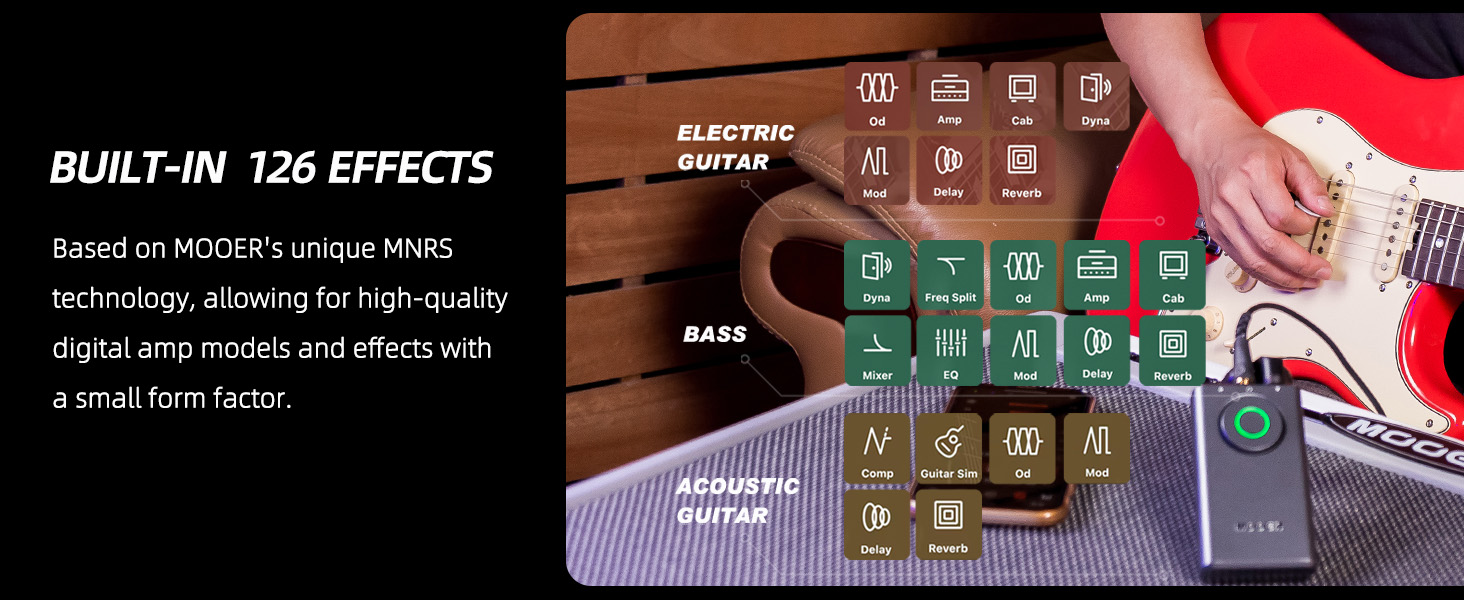
Figure 3.2: Overview of available effects and practice tools.
3.3 Practice Tools
The integrated practice tools enhance your playing experience:
- Tuner: A built-in smart tuner accessible via the app for accurate instrument tuning.
- Metronome: 10 different metronome types to help with rhythm practice.
- Drum Machine: 40 drum machine patterns for varied backing tracks.
- Looper: An 80-second looper capacity for creating and practicing over loops.
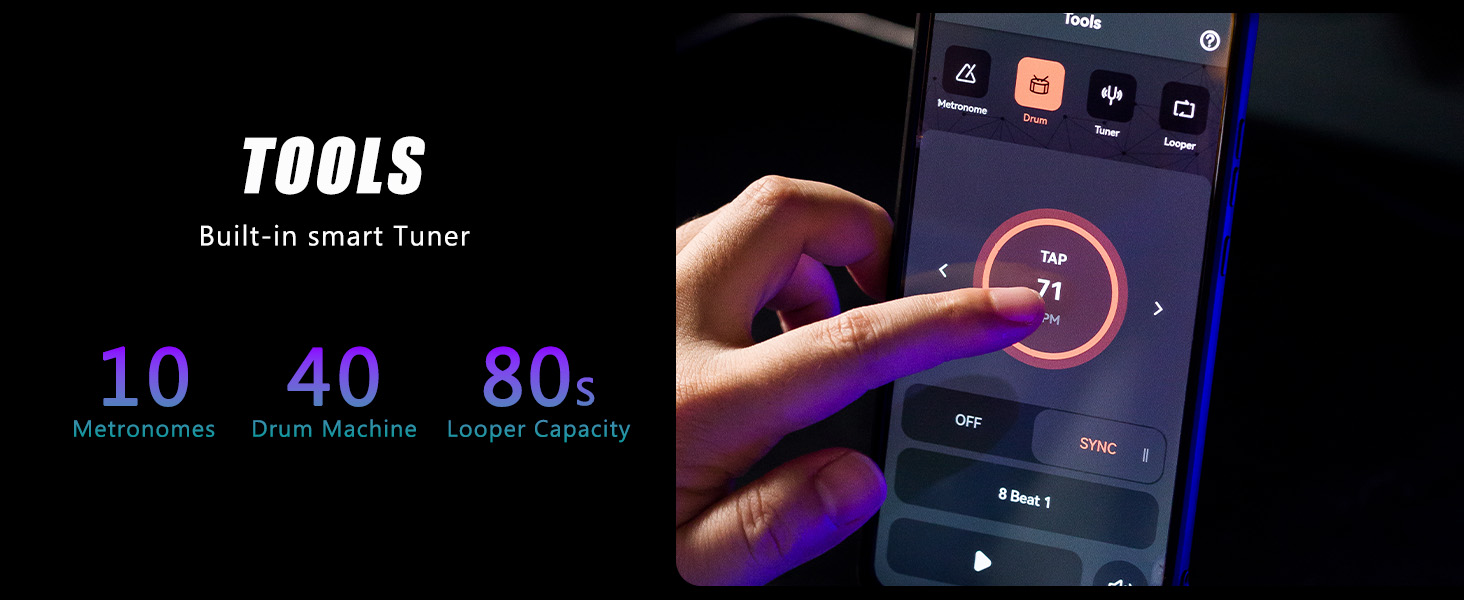
Figure 3.3: Practice tools interface within the MOOER Prime app.
3.4 OTG Recording Function
The Prime P1 supports On-The-Go (OTG) recording, allowing direct connection to compatible mobile phones or tablets for audio/video recording.
- Connect the Prime P1 to your mobile device using the appropriate OTG cable (not included, may require an adapter depending on your device).
- Open your preferred audio/video recording software on your mobile device.
- The Prime P1 will be recognized as an audio input device, enabling high-quality direct recording.

Figure 3.4: Prime P1 in use for OTG recording.
3.5 Cloud Tone Library
The MOOER Prime app features a Cloud Tone Library, allowing users to share and download custom tones.
- Browse and download tones created by other users.
- Upload and share your own custom tones with the community.

Figure 3.5: Cloud Tone Library interface.
4. Maintenance
- Cleaning: Use a soft, dry cloth to clean the device. Avoid using abrasive cleaners or solvents.
- Storage: Store the Prime P1 in a cool, dry place, away from direct sunlight and extreme temperatures. Use the provided storage bag for protection.
- Battery Care: To prolong battery life, avoid fully discharging the device frequently. If storing for extended periods, charge the battery to approximately 50% every few months.
- Firmware Updates: Periodically check the MOOER official website or the Prime app for firmware updates to ensure optimal performance and access to new features.

Figure 4.1: The compact size of the Prime P1, easily stored in its bag.
5. Troubleshooting
| Problem | Possible Cause | Solution |
|---|---|---|
| Device does not power on. | Low or depleted battery. | Charge the device using the provided USB-C cable. |
| Cannot connect to the app via Bluetooth. | Bluetooth is off on mobile device; device not in pairing mode; app issue. | Ensure Bluetooth is on. Restart both the Prime P1 and the app. Try re-pairing from the app's settings. |
| No sound output. | Incorrect cable connection; volume too low; incorrect output selected in app. | Check all cable connections. Increase volume on Prime P1, connected headphones/amp, and app. Verify output settings in the app. |
| Sound is distorted or noisy. | Input gain too high; faulty cable; interference. | Adjust input gain in the app. Try a different cable. Move away from sources of electromagnetic interference. |
| OTG recording not working. | Incompatible OTG cable/adapter; mobile device not supported; app permissions. | Ensure you are using a compatible OTG cable. Check your mobile device's OTG compatibility. Grant necessary audio recording permissions to the app. |
6. Specifications
| Feature | Detail |
|---|---|
| Model Number | PRIME P1 |
| Dimensions | 3.91 x 0.39 x 0.83 inches (9.93 x 0.99 x 2.11 cm) |
| Item Weight | 5.3 ounces (150 Grams) |
| Battery Type | 1 Lithium Polymer battery (included) |
| Power Source | Battery Powered |
| Voltage | 9 Volts |
| Compatible Devices | Amplifier, Headphones, Mobile Devices (via OTG) |
| Hardware Interface | USB |
| Signal Format | Analog |
| Operating System | Android, iOS |
| Effects Count | 126 (total for electric guitar) |
| Looper Capacity | 80 seconds |
| Metronomes | 10 types |
| Drum Machine | 40 patterns |
7. Warranty and Support
MOOER provides professional after-sales service for its products. For any product-related questions or issues, please contact customer service.
- Customer Service: Contact MOOER customer service for assistance. Response typically within 24 hours.
- Warranty Information: Specific warranty terms and conditions may vary by region. Please refer to the official MOOER website or your purchase documentation for detailed warranty information.
- Online Resources: Visit the official MOOER website for product registration, firmware updates, FAQs, and additional support resources.
Note: Protection plans may be available for purchase separately through retailers. These plans are independent of the manufacturer's warranty.
Ask a question about this manual
Ask about setup, troubleshooting, compatibility, parts, safety, or missing instructions. Manuals+ will review the question and use this page’s manual context to help answer it.