1. Introduction
Thank you for choosing the MAXDONE A3 Laminator (Model FN335). This device is designed to protect and preserve your important documents, photos, and other materials using both hot and cold lamination methods. Please read this manual carefully before operating the laminator to ensure safe and efficient use.
2. Important Safety Instructions
- Read all instructions before use.
- Keep the laminator away from water or other liquids.
- Do not operate the laminator if the power cord or plug is damaged.
- Ensure the laminator is placed on a stable, flat surface with adequate ventilation.
- Do not touch the laminator's hot surfaces during or immediately after hot lamination.
- Unplug the laminator when not in use or before cleaning.
- Keep out of reach of children.
- Only use laminating pouches recommended for your laminator.
- This appliance is equipped with Overheating Protection, Overvoltage Protection, Overcurrent Protection, and Short-Circuit Protection for enhanced safety.
3. Package Contents
Your MAXDONE A3 Laminator package typically includes:
- MAXDONE A3 Laminator (FN335)
- Power Cord
- Laminating Pouches (starter pack)
- Paper Trimmer
- Corner Rounder
4. Product Overview
Familiarize yourself with the main components of your laminator:

Image: Front view of the MAXDONE A3 Laminator, showing the feed slot, control panel, and output tray.
- Power On/Off Button: Located on the right side of the control panel.
- Mode Selector: Switch between COLD and HOT lamination modes.
- Status Indicator Lights: Indicate power and readiness.
- Feed Slot: Where laminating pouches are inserted.
- Output Tray: Where laminated documents exit.
- ABS Release Button: Used to clear jammed documents.
5. Setup
- Unpack: Carefully remove the laminator and all accessories from the packaging.
- Placement: Place the laminator on a stable, flat, and heat-resistant surface. Ensure there is enough space around the machine for proper ventilation and for documents to pass through freely.
- Connect Power: Plug the power cord into the laminator and then into a standard electrical outlet.
6. Operating Instructions
6.1. Selecting Lamination Mode

Image: Diagram illustrating the two laminating modes: Hot Mode for menus, cards, letters, photos, certificates; and Cold Mode for specimens, receipts, tickets.
- Hot Lamination: Ideal for most standard documents, photos, and certificates. Provides a permanent seal.
- Cold Lamination: Suitable for heat-sensitive materials or documents printed with thermal ink. Uses pressure-sensitive pouches.
6.2. Step-by-Step Lamination Process

Image: Visual guide showing four steps for easy operation: 1. Wait for red light to turn green, 2. Place document in pouch, 3. Insert pouch into laminator, 4. Finish.
- Power On and Select Mode: Press the Power On/Off button. Select either HOT or COLD mode using the switch. For hot lamination, wait for the red indicator light to turn green, indicating the machine has reached the optimal temperature (approximately 90 seconds warm-up time).
- Prepare Document: Place your document neatly inside a laminating pouch, ensuring it is centered and there is an even border around the edges.
- Insert Pouch: Insert the sealed edge of the laminating pouch into the laminator's feed slot. The machine will automatically feed the pouch through.
- Retrieve: Once the laminated document exits the output tray, allow it to cool on a flat surface before handling.
6.3. Using the ABS Release Button

Image: Illustration of the ABS Release Button and common causes of paper jams, such as rolled paper, warped pouches, incorrect insertion, or mismatched pouch size.
In case of a paper jam or misfeed, immediately press and hold the ABS Release Button. This will disengage the rollers, allowing you to gently pull the jammed pouch out of the feed slot. Release the button once the pouch is clear.
6.4. Using Included Accessories
- Paper Trimmer: Use the included paper trimmer to cut documents or laminated items to your desired size. Always use on a flat, stable surface.
- Corner Rounder: After lamination, use the corner rounder to create smooth, rounded corners on your documents for a professional finish and to prevent sharp edges.
7. Maintenance
- Cleaning: Ensure the laminator is unplugged and completely cool before cleaning. Wipe the exterior with a soft, dry cloth. Do not use abrasive cleaners or solvents.
- Roller Cleaning: Periodically run a cleaning sheet (available separately) through the laminator to remove any adhesive residue from the rollers.
- Storage: Store the laminator in a clean, dry place when not in use.
8. Troubleshooting
If you encounter issues with your laminator, refer to the following common problems and solutions:
| Problem | Possible Cause | Solution |
|---|---|---|
| Document jams or misfeeds |
| Press the ABS Release Button to clear the jam. Ensure documents are centered in the pouch, sealed edge first, and inserted straight. Use correct pouch size. |
| Laminated document has wrinkles or bubbles |
| Ensure the laminator is fully warmed up for hot lamination. Use appropriate pouch thickness (80-125mic). Ensure document is flat and smooth inside the pouch. |
| Laminator not heating up |
| Check power connection. Ensure power switch is on. Try a different outlet. If problem persists, contact customer support. |
| Laminator is noisy | Normal operating noise is approximately 30dB (quiet library level). Excessive noise may indicate an issue. | If noise is unusually loud or grinding, unplug the device and contact customer support. |
9. Specifications

Image: The MAXDONE A3 Laminator shown with dimensions (42.8cm length, 12.2cm width, 6.5cm height) and features like moisture-proof, waterproof, anti-scratch, and fade-resistant lamination.
- Model: FN335
- Laminating Width: Up to 33 cm (A3 Wide)
- Pouch Thickness: Suitable for 80-125 mic pouches
- Laminating Speed: 355 mm/min
- Warm-up Time: Approximately 90 seconds
- Dimensions: 44.6 x 15 x 13.7 cm (Product); 42.8 x 12.2 x 6.5 cm (Approximate operational dimensions)
- Weight: 1.65 kg
- Noise Level: Approximately 30dB
- Lamination Modes: Hot and Cold
- Safety Features: NTC Intelligent Temperature Control, Overheating Protection, Overvoltage Protection, Overcurrent Protection, Short-Circuit Protection.
10. Warranty and Support
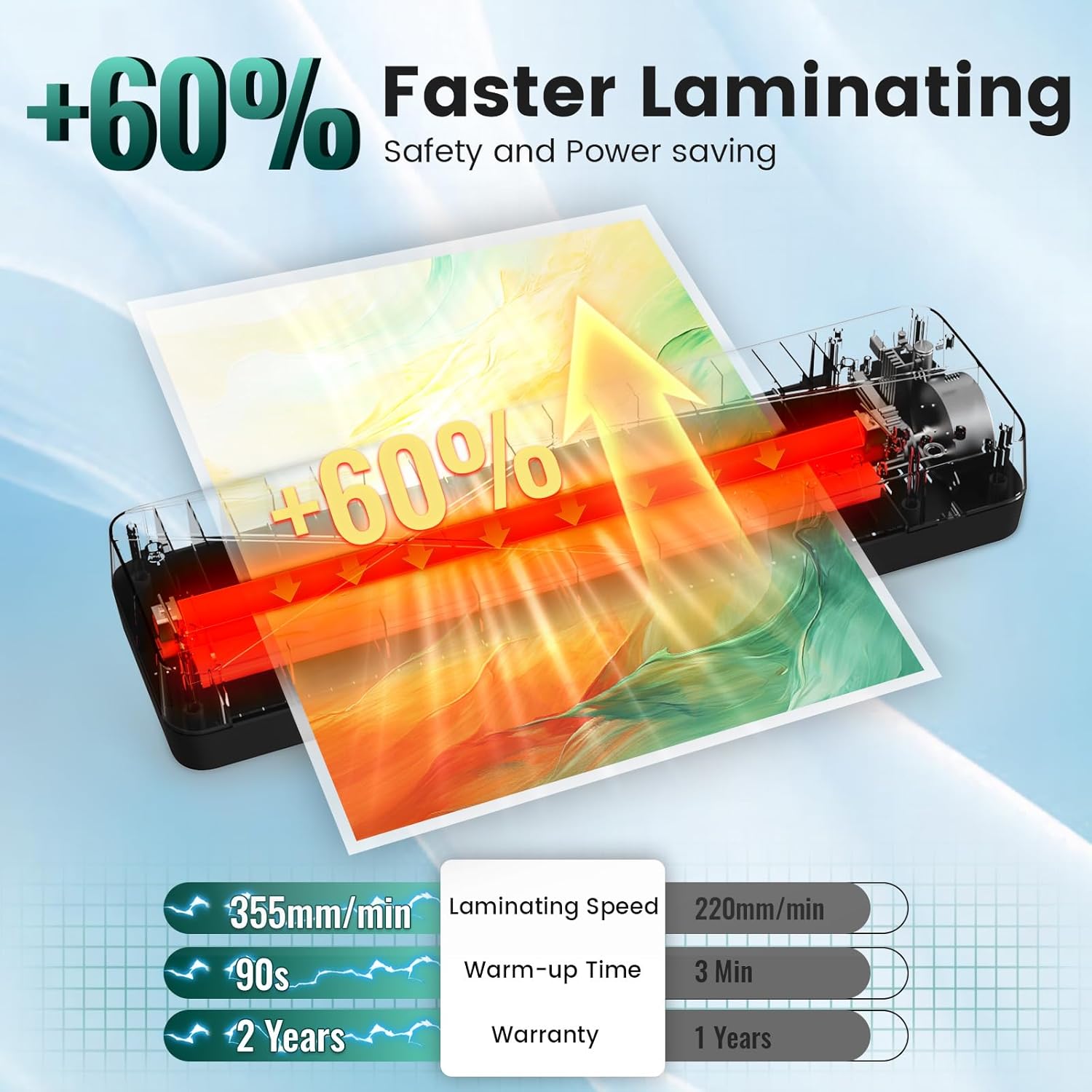
Image: Comparison showing 355mm/min laminating speed, 90s warm-up time, and a 2-year warranty.
The MAXDONE A3 Laminator (FN335) comes with a 2-year warranty from the date of purchase, covering manufacturing defects. Please retain your proof of purchase for warranty claims.
For technical support, warranty service, or general inquiries, please contact MAXDONE customer service through the retailer where you purchased the product or visit the official MAXDONE website.