
Yupiteru SN-TW9200dP
Yupiteru SN-TW9200dP Dual Camera Dash Recorder Instruction Manual
Introduction
This manual provides detailed instructions for the installation, operation, and maintenance of your Yupiteru SN-TW9200dP Dual Camera Dash Recorder. Please read this manual thoroughly before using the product to ensure proper function and safety. Keep this manual for future reference.

Image: The Yupiteru SN-TW9200dP dual camera dash recorder units.
Product Features
The Yupiteru SN-TW9200dP is a high-performance dual-camera dash recorder designed to capture clear video footage both in front of and behind your vehicle. Key features include:
- Dual Camera System: Records simultaneously from front and rear cameras.
- Wireless LAN Connectivity: Operate and view footage via a smartphone app.
- STARVIS™ Technology: Enhanced night vision for clear recordings in low-light conditions.
- SUPER NIGHT Model: Optimized for superior night recording performance.
- Full HD Recording: High-resolution 1080p video capture for both cameras.
- Built-in GPS: Records location and speed data.
- HDR (High Dynamic Range): Improves video quality in varying light conditions, reducing overexposure and underexposure.
- SD Card Format-Free: Proprietary file system reduces the need for frequent SD card formatting.
- 16GB microSD Card Included: Ready for immediate use.
- Slim Design: Compact form factor for discreet installation.
- 3-Year Warranty: Ensures product reliability and customer support.
- Parking Recording (Optional): Continuous recording even when the engine is off with an optional accessory.

Wireless LAN

Super Night

HDR

High Quality & Wide Angle

Slim Design

3-Year Warranty
Setup
1. Package Contents
Before installation, ensure all components are present:
- Front Camera Unit
- Rear Camera Unit
- 5V Converter Power Direct Connection Cord (approx. 4m)
- Front Camera Mounting Bracket (Adhesive type)
- Rear Camera Mounting Bracket (Adhesive type)
- Front Camera Unit Cable
- Rear Camera Unit Cable
- Front Camera Unit Tape
- Rear Camera Unit Tape
- 16GB microSD Card (Class 10 or higher)
- Instruction Manual (Download type)
- Warranty Card
- Dash Recorder Sticker
2. Installation Location
Choose an installation location that does not obstruct the driver's view or interfere with airbag deployment. The front camera should be mounted centrally on the windshield, and the rear camera on the rear window.

Image: Proper placement of the dash camera units on the windshield and rear window.

Image: View of the front camera installed from the driver's perspective.
3. Mounting the Cameras
- Clean the chosen areas on the windshield and rear window thoroughly.
- Attach the adhesive mounting brackets to the front and rear camera units.
- Firmly press the camera units with attached brackets onto the cleaned areas. Ensure the lenses have a clear view.
- Connect the power cable to the front camera and route it discreetly to the vehicle's 12V power source.
- Connect the rear camera cable to the front camera and route it discreetly to the rear of the vehicle.
4. Inserting the MicroSD Card
Insert the provided 16GB microSD card into the designated slot on the main unit. Ensure it is inserted correctly until it clicks into place.

Image: The included 16GB microSD card.
Operating Instructions
1. Power On/Off
The dash recorder automatically powers on and begins recording when the vehicle's ignition is turned on. It powers off automatically when the ignition is turned off.
2. Smartphone App Control
To access settings, view live footage, or download recorded videos, install the dedicated Yupiteru smartphone app. Connect your smartphone to the dash recorder via its built-in wireless LAN.
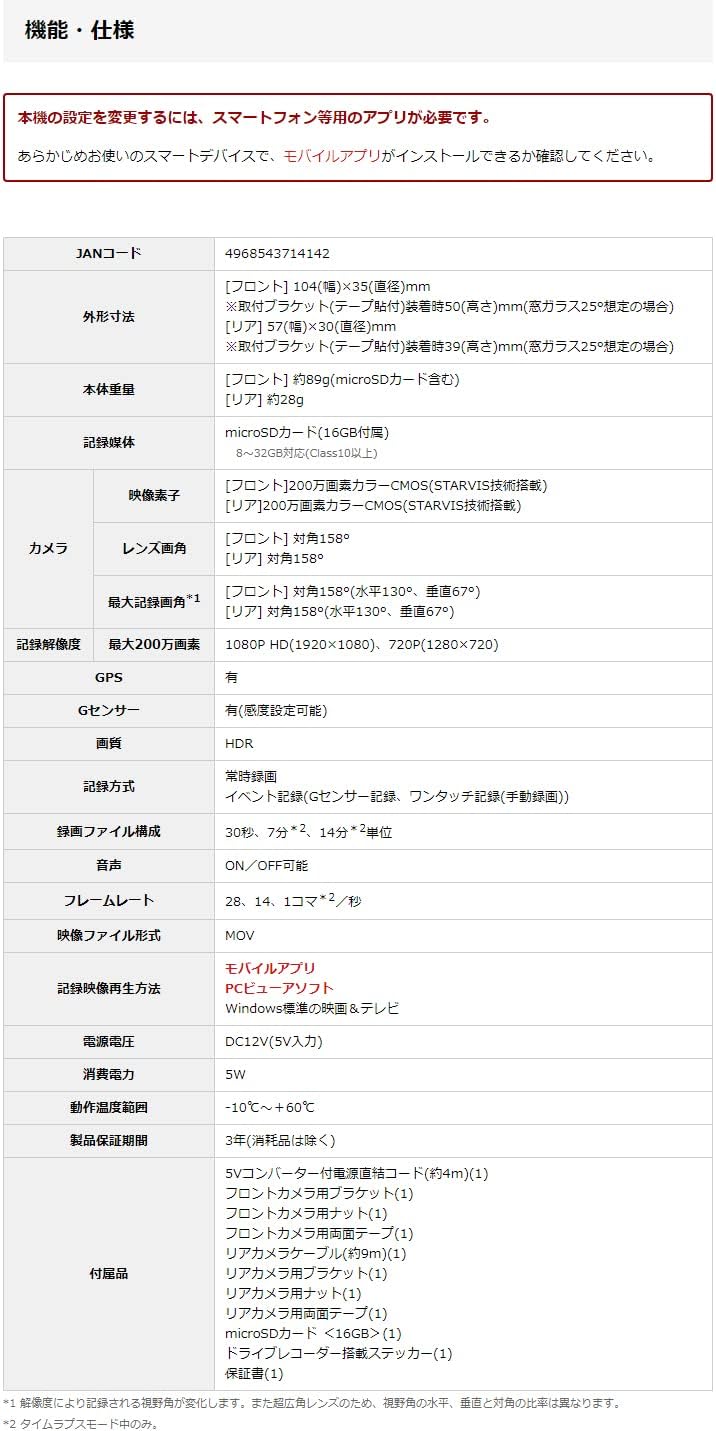
Image: Smartphone displaying the Yupiteru app interface for dash cam control and video playback.
Note: An internet connection is not required for direct connection between the dash recorder and your smartphone via wireless LAN.
3. Recording Modes
- Continuous Recording: Automatically records when the vehicle is in motion.
- Event Recording (G-sensor): Automatically records and locks footage upon detecting an impact or sudden braking.
- Manual Recording: Initiate recording manually via the app or device button.
- Parking Recording (Optional): Requires a separate accessory. Records events while the vehicle is parked, including impact detection and time-lapse recording for extended periods.

Image: Icon representing parking recording functionality.

Image: Illustration of parking recording protecting against hit-and-run incidents and vandalism.
4. Viewing Recorded Footage
- Smartphone App: Connect via wireless LAN to view and download videos directly to your phone.
- PC Viewer Software: Download the dedicated PC viewer software to review footage with GPS data, speed, and G-sensor information.
- Direct SD Card Access: Remove the microSD card and insert it into a computer with a compatible card reader.
Maintenance
1. SD Card Management
The SN-TW9200dP features a proprietary file system that minimizes the need for frequent SD card formatting. However, it is recommended to periodically check the SD card's health using the dedicated app or PC software.

Image: Icon indicating error prevention for the SD card.
2. Cleaning the Lenses
Regularly clean the front and rear camera lenses with a soft, dry cloth to ensure clear video quality. Avoid using abrasive cleaners or solvents.
3. Firmware Updates
Check the Yupiteru website periodically for firmware updates. Keeping your device's firmware up-to-date ensures optimal performance and access to new features.
Troubleshooting
| Problem | Possible Cause | Solution |
|---|---|---|
| Device does not power on. | No power supply; loose connection. | Check power cable connection to the vehicle's 12V socket and the dash cam. Ensure the vehicle's ignition is on. |
| Recording stops or footage is corrupted. | SD card error; full SD card; incompatible SD card. | Check SD card health via the app. Replace the SD card if damaged. Ensure it's a Class 10 or higher microSD card. |
| Cannot connect to smartphone app. | Wireless LAN disabled; incorrect password; app not updated. | Ensure wireless LAN is enabled on the dash cam. Verify the correct password. Update the smartphone app to the latest version. |
| Video quality is poor. | Dirty lens; low light conditions; privacy film interference. | Clean camera lenses. Ensure HDR is enabled for challenging light conditions. Note that privacy glass or smoke film may affect rear camera clarity. |
| GPS not acquiring signal. | Obstructed view of sky; GPS module issue. | Ensure the dash cam has a clear view of the sky. Move the vehicle to an open area. |
Specifications
| Feature | Detail |
|---|---|
| Brand | Yupiteru |
| Model | SN-TW9200dP |
| Video Capture Resolution | 1080p (Full HD) |
| Camera Sensor | Front: 2-megapixel color CMOS (STARVIS™ technology) Rear: 2-megapixel color CMOS (STARVIS™ technology) |
| Lens Angle (Diagonal) | Front: 158° Rear: 158° |
| Recording Pixels | Max 2 million pixels (1920x1080) |
| GPS | Built-in |
| HDR | Equipped (Front & Rear) |
| Recording Format | MOV |
| Frame Rate | 28.14 fps (Front), 14 fps (Rear) |
| Power Supply | DC12V (5V input) |
| Power Consumption | 5W |
| Operating Temperature | -10°C to +60°C |
| Included MicroSD Card | 16GB (Class 10 or higher) |
| Mounting Type | Adhesive |
| Control Method | Smartphone App |
| Dimensions (Front Unit) | 104mm (W) x 35mm (D) x 50mm (H) (excluding bracket) |
| Dimensions (Rear Unit) | 39mm (W) x 25mm (D) x 25mm (H) (excluding bracket) |
| Weight (Front Unit) | Approx. 89g (excluding microSD card) |
| Weight (Rear Unit) | Approx. 28g |
Note: Specifications are subject to change without notice. Diagonal angle may vary slightly depending on the lens and measurement method.
Warranty
The Yupiteru SN-TW9200dP comes with a 3-year manufacturer's warranty from the date of purchase. Please retain your proof of purchase and the included warranty card for any warranty claims. The warranty covers defects in materials and workmanship under normal use. It does not cover damage caused by misuse, accidents, unauthorized modifications, or natural disasters.
Image: Icon indicating a 3-year warranty.
Support
For further assistance, technical support, or to download the latest manuals and software, please visit the official Yupiteru website. You can also contact Yupiteru customer service directly for inquiries regarding your product.
- Official Website: www.yupiteru.co.jp (Please note: This link is for illustrative purposes and may not be the exact support page.)
- Customer Service: Refer to the contact information provided on your warranty card or the official website.
Ask a question about this manual
Ask about setup, troubleshooting, compatibility, parts, safety, or missing instructions. Manuals+ will review the question and use this page’s manual context to help answer it.