
Beelink SER5 Pro R7-5825U 16GB+500GB
Beelink SER5 Pro Mini PC User Manual
Model: R7-5825U 16GB+500GB
1. Introduction
This user manual provides comprehensive instructions for the setup, operation, maintenance, and troubleshooting of your Beelink SER5 Pro Mini PC. This compact and powerful desktop computer is designed for a wide range of applications, from office productivity and creative design to gaming and multimedia consumption.
2. Safety Information
Please read all safety instructions carefully before using the device. Failure to follow these instructions may result in fire, electric shock, or other injuries.
- Use only the provided power adapter.
- Do not expose the device to water or excessive humidity.
- Avoid placing the device near heat sources or in direct sunlight.
- Ensure proper ventilation to prevent overheating.
- Do not attempt to disassemble or repair the device yourself. Contact qualified personnel for service.
3. What's in the Box
Verify that all items are present in the package:
- 1 x Beelink SER5 5825U Mini PC
- 1 x HDMI Cable (100CM)
- 1 x Power Adapter
- 1 x User Manual (this document)

Image: Package contents showing the Beelink SER5 Pro Mini PC, power adapter, HDMI cable, and user manual.
4. Product Overview
The Beelink SER5 Pro Mini PC is a compact yet powerful computing solution. Below are the key features and port configurations.
4.1 Key Features

Image: Overview of the Beelink SER5 Pro's main specifications, highlighting its AMD Ryzen 7 5825U processor, graphics capabilities, memory, storage, and connectivity options.
- Processor: AMD Ryzen 7 5825U (8 Cores/16 Threads, up to 4.5GHz)
- Graphics: AMD Radeon Graphics (8 Cores, 2000MHz)
- Memory: 16GB DDR4 3200MHz (expandable up to 64GB)
- Storage: 500GB M.2 NVMe SSD (expandable up to 2TB, plus 2.5-inch HDD slot)
- Wireless Connectivity: Wi-Fi 6, Bluetooth 5.2
- Display Output: Supports 4K@60Hz Triple Display via DP1.4, HDMI 2.0, and Type-C
4.2 Ports and Connectors

Image: Detailed view of the front and rear ports available on the Beelink SER5 Pro Mini PC.
The Beelink SER5 Pro Mini PC offers a variety of ports for extensive connectivity:
- Front Ports:
- 1 x CLR CMOS button
- 2 x USB 3.2 Gen2 (10Gbps)
- 1 x Type-C (Data & Video)
- 1 x 3.5mm Audio Jack (Earphone)
- 1 x Power Button
- Rear Ports:
- 1 x Gigabit Ethernet (LAN)
- 1 x USB 2.0
- 1 x USB 3.2 Gen2 (10Gbps)
- 1 x DisplayPort 1.4
- 1 x HDMI 2.0 (4K@60Hz)
- 1 x DC Power Input
5. Setup Guide
Follow these steps to set up your Beelink SER5 Pro Mini PC:
- Connect to Display: Connect your monitor(s) to the Mini PC using the HDMI, DisplayPort, or Type-C video outputs. For triple display setup, use a combination of these ports.
- Connect Peripherals: Plug in your keyboard, mouse, and any other USB devices into the available USB ports.
- Connect to Network (Optional): For a wired connection, connect an Ethernet cable from your router or modem to the LAN port on the Mini PC. For wireless, you will configure Wi-Fi after initial boot.
- Connect Power: Connect the power adapter to the DC power input port on the Mini PC, then plug the adapter into a power outlet.
- Power On: Press the power button on the front of the Mini PC. The system will boot up, and you will be guided through the initial Windows 11 Pro setup process.

Image: Front and rear views of the Beelink SER5 Pro Mini PC, illustrating its compact design and port layout for easy setup.
5.1 VESA Mount Installation (Optional)
The Beelink SER5 Pro Mini PC comes with a VESA mount bracket, allowing you to attach it to the back of a compatible monitor or to a wall, saving desk space.

Image: Visual guide for VESA mount installation, demonstrating how to secure the mini PC to a monitor.
- Fix the VESA bracket to the Mini PC with the provided screws.
- Fix the bracket on the back of your display or desired surface with screws.
6. Operating Instructions
Your Beelink SER5 Pro Mini PC comes pre-installed with Windows 11 Pro, offering a familiar and powerful operating environment.
6.1 Initial Windows Setup
Upon first boot, follow the on-screen prompts to complete the Windows 11 Pro setup, which includes:
- Region and keyboard layout selection.
- Network connection (Wi-Fi or Ethernet).
- Microsoft account sign-in or local account creation.
- Privacy settings configuration.
6.2 Connectivity and Performance
Leverage the advanced features of your Mini PC for optimal performance:
- Triple Display Support: Connect up to three 4K displays simultaneously for enhanced productivity in design, office work, or multimedia viewing.
- Wi-Fi 6 & Bluetooth 5.2: Enjoy faster and more stable wireless connections for internet browsing, streaming, and connecting peripherals.
- High-Speed Storage: The PCIe 3.0 SSD provides rapid boot times and application loading. Additional storage can be added via the 2.5-inch HDD slot.

Image: The Beelink SER5 Pro Mini PC supporting a triple monitor setup, ideal for various applications.

Image: Illustration of Wi-Fi 6 and Bluetooth 5.2 capabilities, emphasizing improved speed and stability.

Image: Performance comparison highlighting the high read/write speeds of the NVMe SSD.
7. Maintenance
Proper maintenance ensures the longevity and optimal performance of your Mini PC.
- Keep Clean: Regularly clean the exterior of the Mini PC with a soft, dry cloth. Avoid using liquid cleaners directly on the device.
- Ventilation: Ensure that the ventilation holes are not obstructed to allow for proper airflow and prevent overheating.
- Software Updates: Keep your operating system and drivers updated to the latest versions for security and performance improvements.
- Storage Management: Periodically clear unnecessary files and applications to maintain optimal storage performance.
7.1 Cooling System
The Beelink SER5 Pro features an efficient cooling system designed for lower noise and better heat dissipation.

Image: Internal view of the cooling system, highlighting the fan and heat sink components.
8. Troubleshooting
If you encounter issues with your Beelink SER5 Pro Mini PC, refer to the following common solutions:
| Problem | Possible Cause | Solution |
|---|---|---|
| No power/Does not turn on | Power adapter not connected properly; Power outlet issue. | Ensure power adapter is securely connected to both the Mini PC and a working power outlet. Try a different outlet. |
| No display on monitor | Incorrect cable connection; Monitor input not selected; Driver issue. | Check HDMI/DP/Type-C cable connections. Ensure monitor is set to the correct input source. Try a different cable or monitor. Update graphics drivers. |
| Slow performance | Too many applications running; Insufficient storage space; Overheating. | Close unnecessary applications. Free up disk space. Check ventilation and ensure the device is not overheating. |
| Wi-Fi/Bluetooth issues | Driver issue; Interference; Router problem. | Restart the Mini PC and your router. Update wireless drivers. Ensure no strong interference sources are nearby. |
If the issue persists, please contact Beelink customer support for further assistance.
9. Specifications
Detailed technical specifications for the Beelink SER5 Pro Mini PC (R7-5825U 16GB+500GB).
| Feature | Detail |
|---|---|
| Processor | AMD Ryzen 7 5825U (8C/16T, up to 4.5GHz) |
| Graphics Coprocessor | AMD Radeon Vega 8Cores 2000Mhz |
| RAM | 16 GB DDR4 3200MHz (Dual channel, expandable to 64GB) |
| Hard Drive | 500 GB M.2 NVMe SSD (PCIe x4, expandable to 2TB) |
| Max Screen Resolution | 3840 x 2160 pixels (4K) |
| Wireless Type | 802.11ax (Wi-Fi 6), Bluetooth 5.2 |
| USB Ports | 3 x USB 3.2 Gen2, 1 x USB 2.0, 1 x Type-C (Data & Video) |
| Video Output | 1 x HDMI 2.0, 1 x DisplayPort 1.4, 1 x Type-C |
| Ethernet | 1 x Gigabit LAN (1000Mbps) |
| Audio Jack | 1 x 3.5mm Audio Jack |
| Operating System | Windows 11 Pro (pre-installed) |
| Item Weight | 1.96 pounds |
| Dimensions | 4.9 x 4.4 x 1.6 inches |
10. Warranty and Support
Beelink USA is committed to providing excellent customer service and support for your Mini PC.
- Warranty: Your Beelink SER5 Pro Mini PC comes with a One Year Warranty from the date of purchase. Please retain your proof of purchase for warranty claims.
- After-sales Service: Beelink USA offers 24-hour online reply support.
- Contact Support:
- Log in to your Amazon account.
- Go to "Your Orders".
- Find your Beelink Mini PC order.
- Select "Ask Product Question" to contact Beelink USA directly.
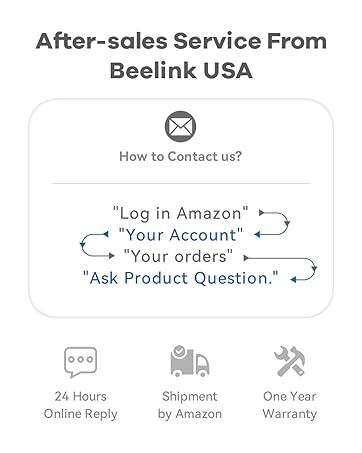
Image: Beelink USA after-sales service details, including contact methods and warranty information.
11. Official Product Video
Watch the official Beelink factory introduction video to learn more about the manufacturing process and quality control behind your Mini PC.
Video: Beelink factory Introduction Video (Duration: 0:34). This video provides insight into the production and quality assurance processes at the Beelink manufacturing facility.
Ask a question about this manual
Ask about setup, troubleshooting, compatibility, parts, safety, or missing instructions. Manuals+ will review the question and use this page’s manual context to help answer it.