
1. Introduction
This manual provides essential information for setting up, operating, maintaining, and troubleshooting your SAMSUNG Galaxy S21 FE 5G. Please read this guide thoroughly to ensure optimal performance and longevity of your device.
2. Product Overview
The SAMSUNG Galaxy S21 FE 5G is a feature-rich smartphone designed for versatile use. It features a vibrant display, advanced camera system, and robust performance.

Image: Front and back view of the SAMSUNG Galaxy S21 FE 5G smartphone.
Key Features:
- Display: 6.4" FHD+ Dynamic AMOLED 2X, 120Hz refresh rate.
- Processor: Qualcomm SM8350 Snapdragon 888 5G (5 nm), Octa-core.
- Memory & Storage: 6GB RAM, 128GB Internal Storage.
- Camera System: Rear: 12MP Ultra-Wide + 12MP Wide-angle + 8MP Telephoto. Front: 32MP.
- Battery: 4500mAh capacity.
- Security: Under Display Fingerprint sensor.
- Connectivity: 5G, Bluetooth, Wi-Fi, GPS.
3. Setup
3.1. SIM Card Installation
- Locate the SIM card tray on the side of your device.
- Insert the SIM ejection tool (or a small paper clip) into the small hole on the tray and press firmly until the tray ejects.
- Place your Nano-SIM card(s) into the tray with the gold contacts facing down. Ensure proper orientation.
- Gently push the tray back into the slot until it clicks into place.
3.2. Initial Power On
- Press and hold the Power/Side key until the SAMSUNG logo appears.
- Follow the on-screen prompts to complete the initial setup, including language selection, Wi-Fi connection, Google account setup, and fingerprint/face recognition setup.
3.3. Network Compatibility
This device is an Unlocked US Model, compatible with most GSM and CDMA carriers such as AT&T, T-Mobile, MetroPCS, Verizon, and Straight Talk. Verify compatibility with your specific carrier before use.
4. Operating Instructions
4.1. Display and Navigation
- The 6.4-inch Dynamic AMOLED 2X display offers a 120Hz refresh rate for smooth scrolling and responsiveness.
- Navigate using gestures or traditional navigation buttons (configurable in Settings).
- The Under Display Fingerprint sensor allows for quick and secure unlocking.
4.2. Camera Usage
Your device features a versatile triple-lens rear camera and a high-resolution front camera.
- Open the Camera app from the home screen or lock screen.
- Select desired modes (Photo, Video, Portrait, Pro, etc.) by swiping across the bottom of the viewfinder.
- Tap the shutter button to capture photos or start/stop video recording.
4.3. Battery Management
The 4500mAh battery provides extended usage. To optimize battery life:
- Adjust screen brightness and screen timeout settings.
- Enable Power Saving mode when needed.
- Close unused apps running in the background.
- Use the provided charging cable and a compatible power adapter for charging.
4.4. Connectivity
- Wi-Fi: Connect to wireless networks via Settings > Connections > Wi-Fi.
- Bluetooth: Pair with Bluetooth devices (headphones, speakers) via Settings > Connections > Bluetooth.
- Mobile Data: Ensure mobile data is enabled for internet access when Wi-Fi is unavailable.
5. Maintenance
5.1. Cleaning Your Device
- Use a soft, lint-free cloth to clean the screen and body.
- Avoid using harsh chemicals or abrasive materials.
- Do not expose the device to excessive moisture.
5.2. Software Updates
Regularly check for and install software updates to ensure your device has the latest features, security patches, and performance improvements. Go to Settings > Software update.
6. Troubleshooting
If you encounter issues with your device, try the following steps:
- Restart Device: A simple restart can resolve many minor software glitches.
- Check Connectivity: For network issues, ensure Wi-Fi or mobile data is enabled and signal strength is adequate. Try toggling Airplane Mode on and off.
- Battery Drain: Review battery usage in Settings to identify apps consuming excessive power.
- App Issues: If an app is not working correctly, try clearing its cache or reinstalling it.
- Factory Reset: As a last resort, a factory reset can resolve persistent software problems. Back up your data before performing a factory reset (Settings > General management > Reset > Factory data reset).
For more complex issues, refer to Samsung's official support resources.
7. Specifications
| Feature | Specification |
|---|---|
| Model Name | Galaxy S21 FE 5G |
| Display | 6.4 Inches FHD+ Dynamic AMOLED 2X (2400 x 1080) |
| Refresh Rate | 120 Hz |
| Processor | Qualcomm SM8350 Snapdragon 888 5G (Octa-core, 2.8 GHz) |
| RAM | 6 GB |
| Internal Storage | 128 GB |
| Rear Camera | 12MP Ultra-Wide + 12MP Wide-angle + 8MP Telephoto |
| Front Camera | 32 MP |
| Battery Capacity | 4500 Milliamp Hours |
| Operating System | Android |
| Dimensions (L x W x H) | 6.13 x 2.93 x 0.31 inches |
| Item Weight | 6.2 ounces |
| Connectivity | 5G, Bluetooth, Wi-Fi, GPS |
| Special Features | Under Display Fingerprint, Accelerometer, Internet Browser, Music Player, Speakerphone, Touchscreen, Unlocked |
8. Warranty and Support
This SAMSUNG Galaxy S21 FE 5G is a renewed product. Amazon Renewed products are inspected, tested, and refurbished to be fully functional.
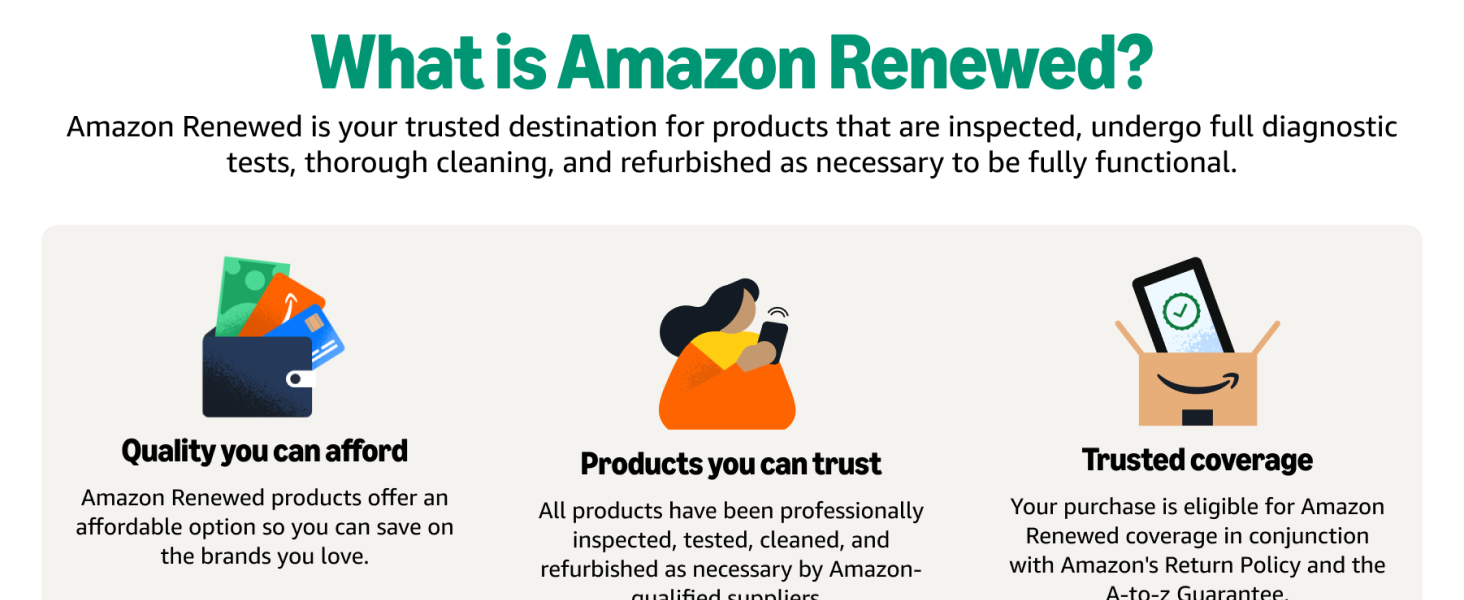
Image: Explanation of Amazon Renewed program, highlighting inspection, testing, and refurbishment processes.
8.1. Amazon Renewed Guarantee
Your purchase is covered by the Amazon Renewed Guarantee, which provides a refund or replacement within 90 days of receipt if you are not satisfied. This guarantee is in conjunction with Amazon's Return Policy and the A-to-z Guarantee.
8.2. Product Condition
Renewed products are fully functional and come with generic or original accessories and packaging. The battery life is guaranteed to be greater than 80% of the original capacity.
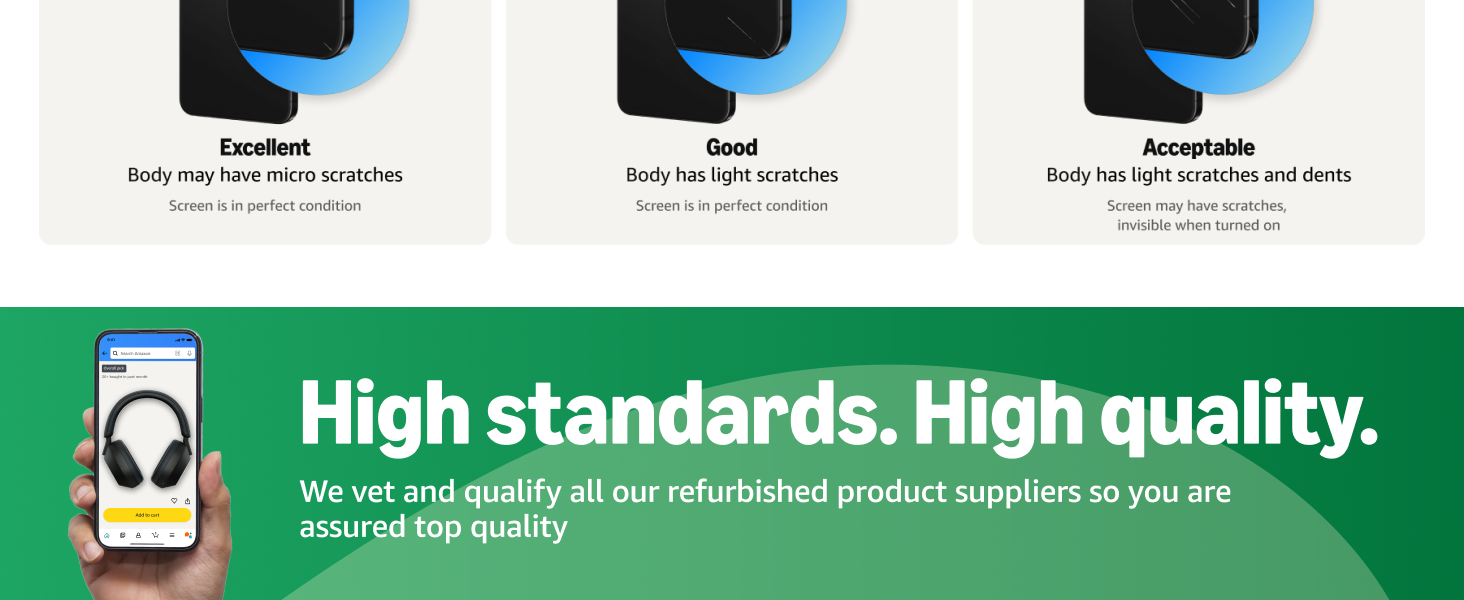
Image: Details on refurbished product conditions, including potential cosmetic imperfections like micro scratches or light dents.
8.3. Manufacturer Support
For specific technical support, software inquiries, or advanced troubleshooting beyond the scope of this manual, please visit the official SAMSUNG support website or contact their customer service.