1. Introduction
The Waveshare ESP32-S2 MCU WiFi Development Board is a compact and versatile module designed for Internet of Things (IoT) applications. It integrates a low-power Wi-Fi System-on-Chip (SoC) and mass memory, making it suitable for various embedded projects. This manual provides essential information for setting up, operating, and maintaining your development board.
2. Key Features
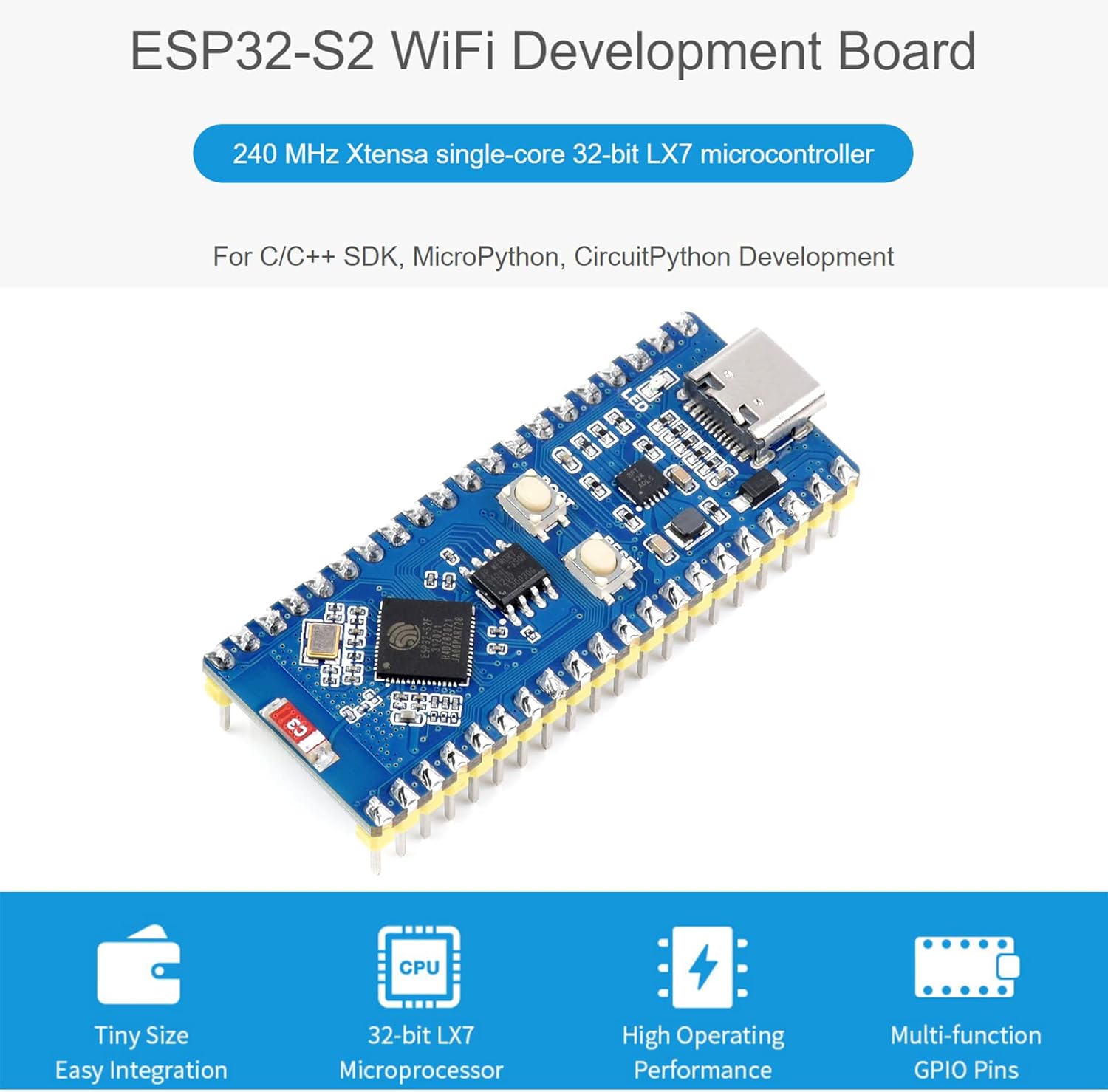
Image: Overview of the ESP32-S2 WiFi Development Board highlighting its core features.
- 2.4 GHz WiFi Development Board: Supports Raspberry Pi Pico expansion board ecosystem for IoT application development.
- Microprocessor: Based on single-core 32-bit LX7 microprocessor ESP32-S2FH4, with a clock frequency up to 240 MHz.
- Memory: Integrated 320KB SRAM, 128KB ROM, 8MB PSRAM, and 4MB Flash memory.
- Wireless Connectivity: Supports IEEE802.11 b/g/n with an on-board 2.4 GHz WiFi ceramic antenna, offering up to 150 Mbps data transfer rate.
- USB-C Connector: Features a USB-C connector for convenient connection and on-chip integrated full-speed USB OTG interface.
- Peripherals: Includes LCD interface (8-bit serial RGB/8080/6800), TWAI controller (ISO11898-1 compatible), capacitive sensor GPIO, temperature sensor, and RMT (TX/RX).
- Development Support: Compatible with C/C++, MicroPython, and CircuitPython, with comprehensive SDK and development resources.
- Compact Design: Small form factor with castellated module for direct soldering to user-designed carrier boards.
3. Hardware Overview
This section details the main components and their functions on the ESP32-S2 Standard Version development board.
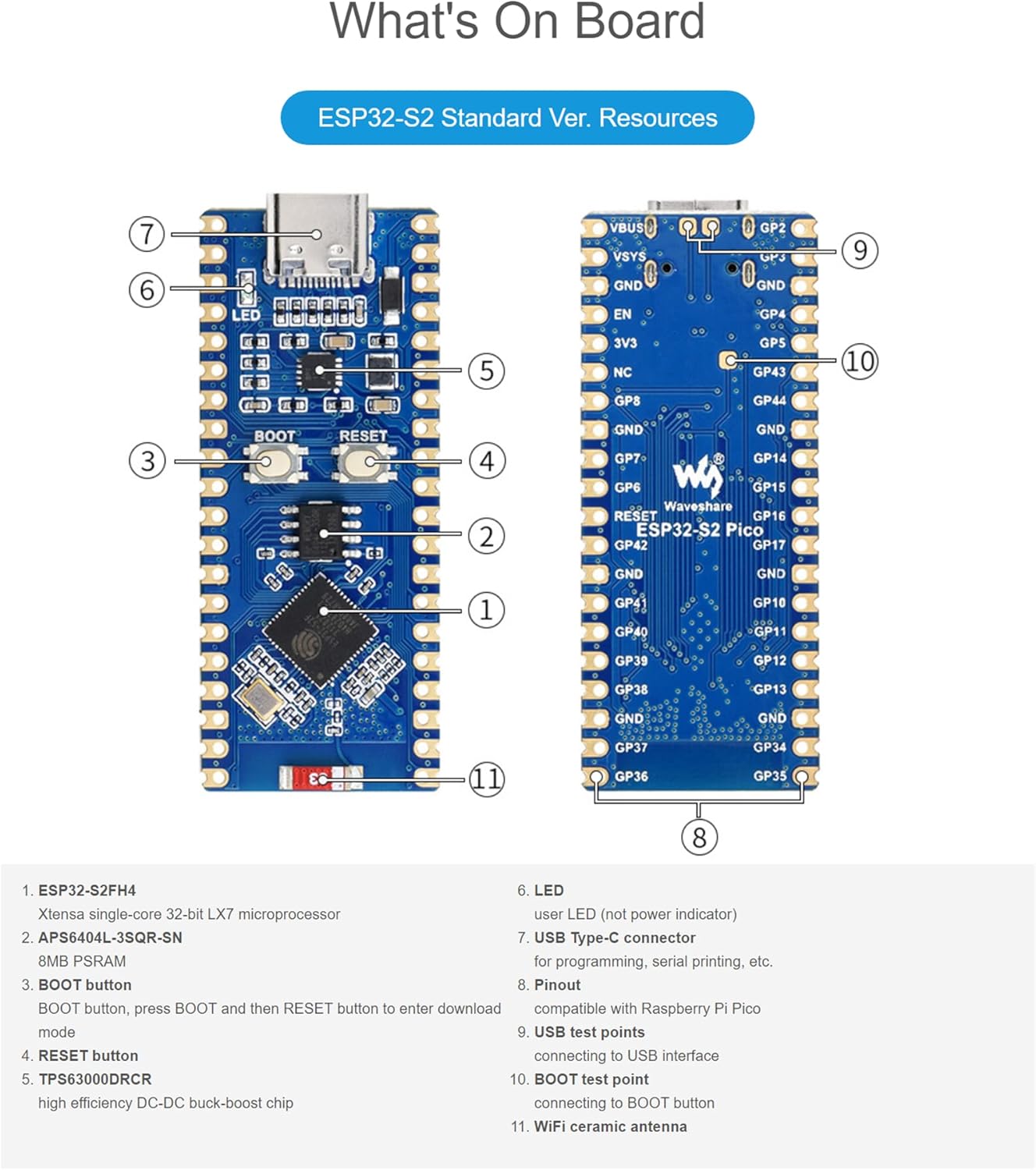
Image: Labeled diagram of the ESP32-S2 Standard Version board components.
- ESP32-S2FH4: Xtensa single-core 32-bit LX7 microprocessor.
- APS6404L-3SQR-SN: 8MB PSRAM.
- BOOT button: Button to enter download mode (press BOOT, then RESET).
- RESET button: Resets the board.
- TPS63000DRCR: High efficiency DC-DC buck-boost chip.
- LED: User LED (not power indicator).
- USB Type-C connector: For programming, serial printing, etc.
- Pinout: Compatible with Raspberry Pi Pico.
- USB test points: For connecting to USB interface.
- BOOT test point: For connecting to BOOT button.
- WiFi ceramic antenna: On-board antenna for wireless communication.
4. Pinout Diagram
The ESP32-S2 development board features configurable pin functions, allowing flexible development and integration. Below are the pinout diagrams for the Standard Version and LCD Version.

Image: Pinout diagrams for the ESP32-S2 Standard Version and ESP32-S2 LCD Version, indicating various pin functions.
The pinout includes various interfaces such as Power, Ground, UART, GPIO, ADC, SPI, System Control, and I2C. Refer to the diagram for specific pin assignments and functions.
5. Technical Specifications
| Feature | Specification |
|---|---|
| Microprocessor | ESP32-S2FH4 (Single-core 32-bit LX7) |
| Clock Frequency | Up to 240 MHz |
| SRAM | 320KB |
| ROM | 128KB |
| PSRAM | 8MB |
| Flash Memory | 4MB |
| Wireless Standard | IEEE802.11 b/g/n (2.4 GHz) |
| Data Transfer Rate | Up to 150 Mbps |
| Connectivity Interface | USB Type-C (OTG), GPIO, UART, SPI, I2C, ADC, LCD, TWAI |
| Dimensions | 3.5 x 2.05 x 0.87 inches (Package) |
| Item Weight | 0.493 ounces |
| Manufacturer | Waveshare |
6. Setup Instructions
To begin using your Waveshare ESP32-S2 development board, follow these basic setup steps:
- Power Supply: Connect the board to a computer or a suitable 5V power adapter using a USB Type-C cable. The board will draw power through the USB connection.
- Driver Installation: Depending on your operating system, you may need to install USB-to-serial drivers (e.g., CP210x or CH340 drivers) if the board is not recognized automatically. Refer to the official ESP-IDF documentation or Waveshare's product page for specific driver links.
- Development Environment: Install the necessary development tools. The ESP32-S2 supports the Espressif IoT Development Framework (ESP-IDF), Arduino IDE with ESP32 core, MicroPython, or CircuitPython. Choose the environment that best suits your project requirements.
- First Program: Once the development environment is set up, you can upload your first program (e.g., a "blink" example) to verify the board's functionality. Use the USB Type-C connection for programming.
7. Operating the Board
The ESP32-S2 board is designed for flexible operation across various programming paradigms.
- Programming Languages: Develop applications using C/C++, MicroPython, or CircuitPython.
- SDKs: Utilize the comprehensive SDKs provided by Espressif or community-driven libraries for specific functionalities.
- GPIO Control: Access and control the various General Purpose Input/Output (GPIO) pins for connecting sensors, actuators, and other peripherals. Refer to the pinout diagram for available pins.
- WiFi Connectivity: Implement Wi-Fi functionalities to connect to local networks, cloud services, or create access points for IoT applications.
- USB OTG: Leverage the USB On-The-Go (OTG) interface for advanced USB functionalities, such as acting as a USB host or device.
Detailed programming guides and examples are available on the Waveshare wiki and Espressif documentation websites.
8. Maintenance and Care
Proper care ensures the longevity and reliable operation of your development board:
- Handling: Handle the board by its edges to avoid touching components, especially the pins, which can be sensitive to static electricity.
- Storage: Store the board in an anti-static bag when not in use, in a cool, dry environment away from direct sunlight and extreme temperatures.
- Cleaning: If necessary, gently clean the board with a soft, dry brush or compressed air. Avoid using liquids or abrasive materials.
- Power Supply: Always use a stable and appropriate 5V power supply. Over-voltage can damage the board.
- Firmware Updates: Regularly check for and apply firmware updates for the ESP32-S2 chip and your chosen development environment to benefit from bug fixes and new features.
9. Troubleshooting
If you encounter issues with your ESP32-S2 development board, consider the following common troubleshooting steps:
- Board Not Detected:
- Ensure the USB Type-C cable is securely connected to both the board and your computer.
- Verify that the correct USB-to-serial drivers are installed on your computer.
- Try a different USB port or cable.
- Failed to Upload Program:
- Check that the correct board and COM port are selected in your development environment.
- Ensure the board is in download mode. For the ESP32-S2, this typically involves pressing and holding the BOOT button, then pressing and releasing the RESET button, and finally releasing the BOOT button.
- Verify your code for syntax errors or compilation issues.
- WiFi Connection Issues:
- Double-check your Wi-Fi credentials (SSID and password).
- Ensure the board is within range of the Wi-Fi access point.
- Verify that the Wi-Fi antenna is not obstructed or damaged.
- Unexpected Behavior:
- Review your code for logical errors.
- Check power supply stability.
- Consult online forums and the Waveshare/Espressif community for similar issues and solutions.
10. Warranty and Support
Specific warranty details for the Waveshare ESP32-S2 MCU WiFi Development Board are not provided within this manual. For warranty information, technical support, and additional resources, please refer to the official Waveshare website or contact their customer service directly. Online documentation, forums, and community support are also valuable resources for development assistance.
Waveshare Official Website: www.waveshare.com