
Dicota CE03474
Dicota Pro Plus 4K Webcam User Manual
Model: CE03474
Introduction
This manual provides comprehensive instructions for the setup, operation, and maintenance of your Dicota Pro Plus 4K Webcam (Model CE03474). Please read this manual thoroughly before using the product to ensure optimal performance and longevity.
Package Contents
Verify that all items are present in the package:
- Dicota Pro Plus 4K Webcam (Model CE03474)
- Integrated USB 2.0 Cable
- Integrated Mounting Clip/Stand
Product Overview
The Dicota Pro Plus 4K Webcam is designed for high-quality video communication, offering 4K resolution at 60 frames per second. It features an integrated privacy cover and a versatile mounting clip/stand.
Key Components
- 4K Lens: High-resolution optical sensor.
- Integrated Microphone: For audio capture.
- Privacy Cover: Physical slider to block the camera lens.
- Mounting Clip/Stand: Adjustable base for securing the webcam to a monitor, laptop, or flat surface.
- USB 2.0 Cable: For connecting to your computer.
Product Views
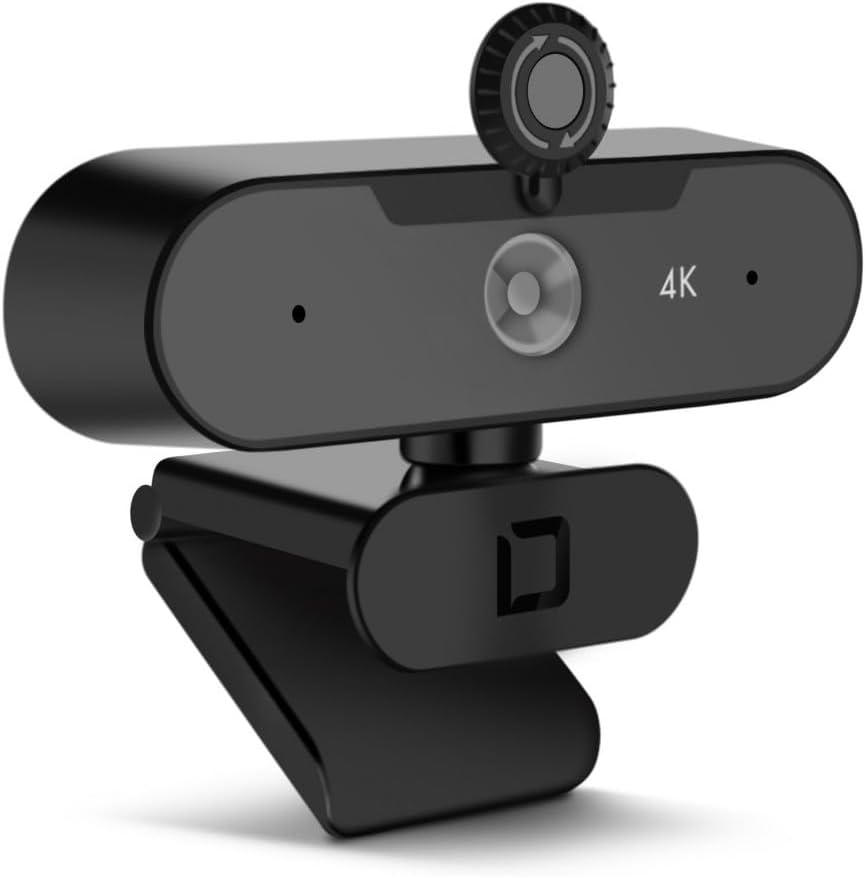
Figure 1: Front view of the Dicota Pro Plus 4K Webcam with its privacy cover in the open position, revealing the lens.
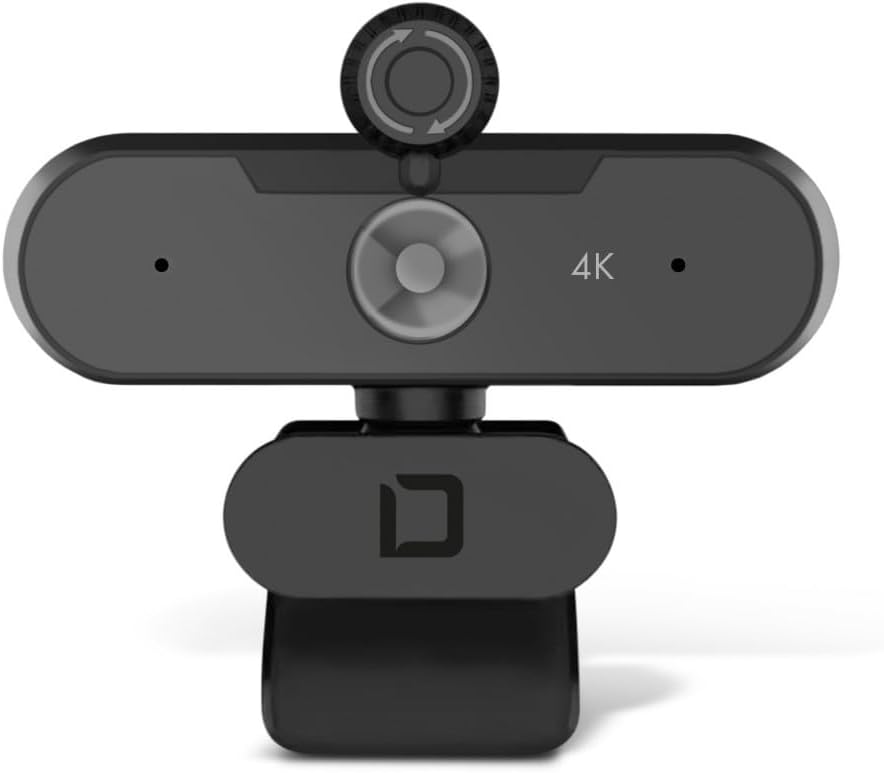
Figure 2: Front view of the Dicota Pro Plus 4K Webcam with its privacy cover in the closed position, obscuring the lens for privacy.

Figure 3: The Dicota Pro Plus 4K Webcam securely mounted on top of a computer monitor using its integrated clip.

Figure 4: The Dicota Pro Plus 4K Webcam attached to the top edge of a laptop screen, demonstrating its versatility for portable use.

Figure 5: The Dicota Pro Plus 4K Webcam mounted on a tripod, illustrating its compatibility with standard tripod mounts for flexible placement.
Setup
1. Mounting the Webcam
- On a Monitor/Laptop:
- Unfold the flexible clip/stand.
- Place the webcam on top of your monitor or laptop screen, ensuring the front lip rests on the screen and the rear part of the clip secures it from behind.
- Adjust the angle of the webcam to your desired position.
- On a Flat Surface:
- Fold the clip/stand to form a stable base.
- Place the webcam on a flat, stable surface such as a desk or shelf.
- On a Tripod:
- The webcam's mounting clip includes a standard tripod thread.
- Screw the webcam onto a compatible tripod (not included).
2. Connecting to Your Computer
- Plug the integrated USB 2.0 cable from the webcam into an available USB port on your computer.
- The webcam is plug-and-play. Your operating system (e.g., macOS) should automatically detect and install the necessary drivers. No additional software installation is typically required.
- Allow a few moments for your computer to recognize the device.
Operating Instructions
1. Using the Webcam
- Ensure the webcam is properly connected to your computer.
- Open your preferred video conferencing application (e.g., Zoom, Microsoft Teams, Google Meet) or video recording software.
- In the application's settings, select "Dicota Pro Plus 4K Webcam" as your video input device. You may also need to select it as your audio input device if you intend to use the integrated microphone.
- Slide the privacy cover to the open position to reveal the lens.
- Adjust the webcam's position and angle for optimal framing.
2. Privacy Cover
The integrated privacy cover provides a physical barrier for your privacy. Slide the cover to the left to open the lens for use, and slide it to the right to cover the lens when not in use.
3. Video and Audio Settings
Most video applications allow you to adjust video resolution, frame rate, brightness, contrast, and other settings. Refer to your application's documentation for specific instructions on how to customize these settings for the Dicota Pro Plus 4K Webcam.
Maintenance
- Cleaning the Lens: Use a soft, lint-free cloth specifically designed for optical lenses. Do not use abrasive cleaners or solvents. Gently wipe the lens to remove dust or smudges.
- General Cleaning: Wipe the body of the webcam with a soft, dry cloth.
- Storage: When not in use for extended periods, store the webcam in a clean, dry environment. Ensure the privacy cover is closed to protect the lens.
- Avoid Extreme Conditions: Do not expose the webcam to extreme temperatures, humidity, or direct sunlight.
Troubleshooting
No Image or Video Feed
- Check USB Connection: Ensure the USB cable is securely plugged into both the webcam and your computer. Try a different USB port.
- Privacy Cover: Verify that the privacy cover is slid open, revealing the lens.
- Application Settings: Confirm that the "Dicota Pro Plus 4K Webcam" is selected as the video input device in your video conferencing or recording software.
- Restart Computer: Sometimes a simple restart can resolve detection issues.
- Driver Check (macOS): While typically plug-and-play, ensure your macOS is up to date.
Poor Video Quality
- Lighting: Ensure adequate lighting in your environment. Avoid strong backlighting.
- Lens Cleanliness: Clean the webcam lens as described in the Maintenance section.
- Application Settings: Check if the video resolution is set to 4K (3840 x 2160 pixels) in your application's settings.
- Internet Connection: For video calls, a stable and fast internet connection is crucial for high-quality streaming.
Microphone Not Working
- Application Settings: Confirm that "Dicota Pro Plus 4K Webcam" is selected as the audio input device in your application's settings.
- System Sound Settings: Check your computer's sound input settings to ensure the webcam microphone is enabled and not muted.
- Volume Levels: Adjust microphone input volume in both your application and system settings.
Specifications
| Feature | Detail |
|---|---|
| Model Number | CE03474 |
| Maximum Video Resolution | 3840 x 2160 pixels (4K) |
| Maximum Frame Rate | 60 fps |
| Interface | USB 2.0 |
| Privacy Type | Integrated Webcam Cover |
| Product Color | Black |
| Mounting Type | Clip/Stand (with tripod thread) |
| Supported Operating Systems | macOS |
| Dimensions (Width x Depth x Height) | 106 mm x 57 mm x 53.5 mm (approx. 4.17 x 2.24 x 2.11 inches) |
| Item Weight | 4.6 ounces (approx. 130 grams) |
| Connectivity Technology | USB |
| Video Capture Format | MP4 |
| Supported Audio Format | AAC, MP3 |
Warranty and Support
For warranty information or technical support, please refer to the documentation provided at the time of purchase or contact Dicota customer service through their official website. Please have your product model number (CE03474) and purchase details ready when contacting support.
Related documentsCE03474


Ask a question about this manual
Ask about setup, troubleshooting, compatibility, parts, safety, or missing instructions. Manuals+ will review the question and use this page’s manual context to help answer it.