
Introduction
The T-Dagger Arena T-TGK321 is a compact 60% mechanical gaming keyboard designed for performance and versatility. Featuring T-Dagger Brown mechanical switches, this keyboard offers a tactile and quiet typing experience with a durability of 50 million clicks. Its 61-key layout provides maximum desk space while retaining full functionality through FN key combinations. This manual will guide you through the setup, operation, maintenance, and troubleshooting of your T-Dagger Arena keyboard.
Package Contents
Please check the box for the following items:
- T-Dagger Arena T-TGK321 Mechanical Gaming Keyboard
- USB-C to USB-A Cable (1.5 meters, detachable)
- Keycap Puller
- Switch Puller
- User Manual (this document)
Setup
- Unpack the Keyboard: Carefully remove the keyboard and all accessories from the packaging.
- Connect the Cable: Insert the USB-C end of the provided cable into the port on the keyboard. Connect the USB-A end of the cable to an available USB port on your computer.
- System Recognition: Your computer should automatically detect and install the necessary drivers for the keyboard. This process may take a few moments. The keyboard is compatible with Windows 10 and later operating systems.
- Test Functionality: Once recognized, the keyboard's rainbow backlighting should illuminate. Test a few keys to ensure proper operation.
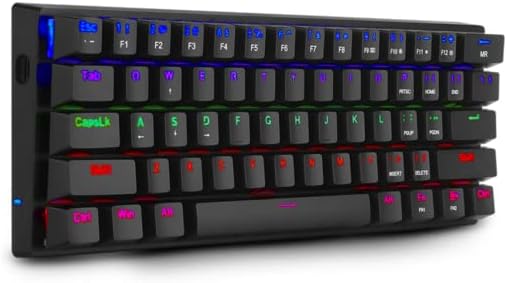
Image: The T-Dagger Arena T-TGK321 keyboard connected and illuminated with rainbow backlighting.
Operating Instructions
The T-Dagger Arena T-TGK321 features a 60% layout, meaning some functions are accessed via the Function (FN) key. The keyboard supports full N-key rollover, ensuring every keypress is registered accurately during intense gaming sessions.
FN Key Combinations
To access secondary functions, press and hold the FN key, then press the desired key. The keyboard features a double FN key for enhanced accessibility.
- FN + Number Keys (1-0): Access F1-F10 functions.
- FN + - (minus) / = (equals): Access F11 / F12 functions.
- FN + P / [ / ] / ; / ' / , / . / /: Access various special characters or functions depending on the specific keycap legends.
- FN + Arrow Keys: Typically used for navigation (Home, End, Page Up, Page Down) or media controls. Refer to keycap legends for exact functions.
- FN + Windows Key: Locks or unlocks the Windows key to prevent accidental presses during gaming.
Backlighting Control
The keyboard features vibrant rainbow backlighting. Specific key combinations, often involving the FN key and other designated keys (e.g., P, [), are used to cycle through lighting modes, adjust brightness, or change speed. Consult the keycap legends for specific lighting control functions.
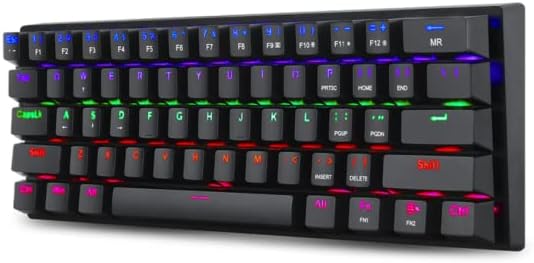
Image: A different perspective of the T-Dagger Arena T-TGK321 keyboard, highlighting the keycap legends for secondary FN functions.

Image: A detailed view of the T-Dagger Brown mechanical switches and the durable double-shot injection keycaps.
Maintenance
Proper maintenance ensures the longevity and optimal performance of your keyboard.
- Cleaning: Regularly clean the keyboard with a soft, dry cloth. For deeper cleaning, use the provided keycap puller to remove keycaps and clean dust and debris from the switch area using compressed air or a small brush.
- Spill Resistance: The keyboard features a spill-resistant design. While it can withstand minor splashes, it is not waterproof. In case of a spill, immediately disconnect the keyboard from your computer, wipe off any liquid, and allow it to dry completely before reconnecting.
- Cable Care: Handle the detachable USB-C cable with care. Avoid bending or twisting it excessively to prevent damage.
Troubleshooting
If you encounter issues with your T-Dagger Arena T-TGK321 keyboard, try the following troubleshooting steps:
- Keyboard Not Responding:
- Ensure the USB cable is securely connected to both the keyboard and the computer.
- Try connecting the keyboard to a different USB port on your computer.
- Test the keyboard on another computer to rule out a system-specific issue.
- Restart your computer.
- Backlighting Not Working:
- Check if the backlighting has been turned off using an FN key combination.
- Ensure the keyboard is properly connected and receiving power.
- Keys Not Registering:
- Remove the keycap using the keycap puller and inspect the switch for any obstructions.
- Gently re-seat the keycap.
Specifications
| Type | Mechanical Gaming Keyboard |
| Switches | T-Dagger Brown (Tactile, Silent) |
| Actuation Force | 45 grams |
| Durability | 50 Million Clicks |
| Key Layout | 60% Compact, 61 Keys |
| Keycaps | Double-shot Injection, Laser-Engraved |
| Backlighting | Rainbow RGB |
| Cable | Detachable USB-C to USB-A, PVC, 1.5 meters |
| N-Key Rollover | Full |
| Construction | Reinforced ABS Plastic |
| Spill-Resistant | Yes |
| Keyboard Layout | English |
| Weight | 390 grams |
| Dimensions (L x W x H) | 293 x 104 x 35 mm |
| Operating System Compatibility | Windows 10 |

Image: The T-Dagger Arena T-TGK321 keyboard positioned on a gaming desk alongside a gaming mouse.
Warranty and Support
For warranty information or technical support, please refer to the official T-Dagger website or contact your local retailer. Keep your purchase receipt as proof of purchase for any warranty claims.

