
1. Introduction
Thank you for purchasing the Paladone Xbox Controller Digital Alarm Clock. This officially licensed product combines the iconic design of an Xbox controller with the functionality of a digital alarm clock, displaying time, date, and alarm settings. This manual provides essential information to ensure proper use and enjoyment of your device.

Image 1.1: Front view of the Paladone Xbox Controller Digital Alarm Clock.
2. Product Overview
The Xbox Controller Digital Alarm Clock features a digital display for time, date, and alarm, along with intuitive controls integrated into the controller design. It is powered via USB.
Key Features:
- Digital display for time, month, day, and alarm settings.
- Integrated control buttons for easy setup.
- USB powered (cable included).
- Compact design, suitable for bedside tables or desks.

Image 2.1: Display showing current time, date, and alarm time, with control buttons highlighted.
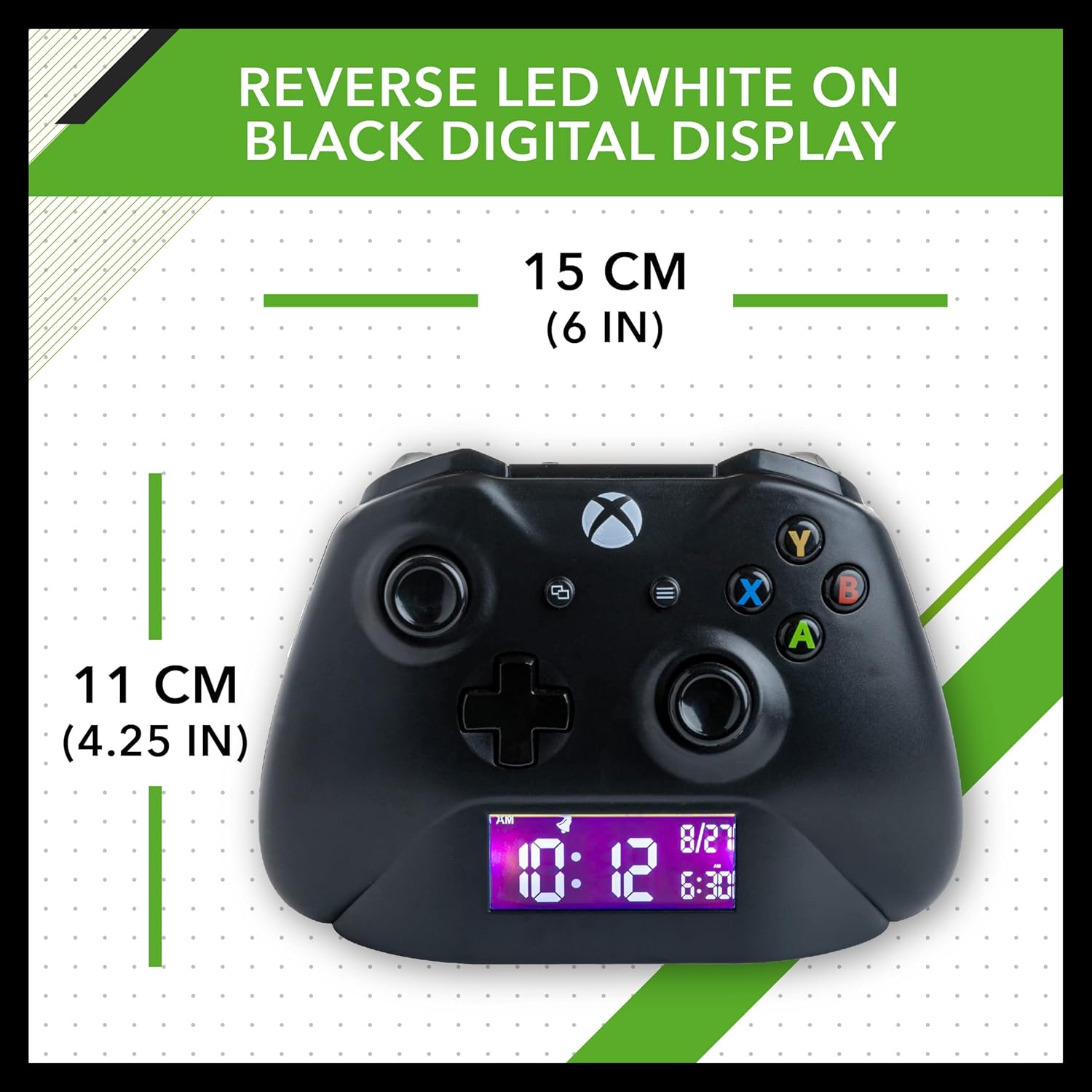
Image 2.2: Product dimensions: approximately 15 cm (6 in) wide and 11 cm (4.25 in) high.
3. Setup
3.1 Power Connection
- Locate the Micro USB port on the back of the alarm clock.
- Connect the provided Micro USB to USB cable to the port.
- Plug the USB end of the cable into a compatible USB power adapter (not included) or a powered USB port.
- The digital display will illuminate, indicating the device is powered on.

Image 3.1: The alarm clock connected to power via the included Micro USB cable.
3.2 Battery Backup (Optional)
While primarily USB powered, the device may support battery backup for retaining settings during power outages. Please refer to the packaging or additional documentation for specific battery requirements and installation instructions. Batteries are not included.
4. Operating Instructions
The alarm clock features several control buttons on the top surface, designed to resemble an Xbox controller. These buttons are used for setting the time, date, and alarm.
4.1 Setting the Time and Date
- Press and hold the SET button (usually located near the display) until the time digits begin to flash.
- Use the UP and DOWN buttons (often represented by the D-pad or similar directional buttons) to adjust the hour.
- Press SET again to move to the minute setting, then adjust using UP and DOWN.
- Continue pressing SET to cycle through and adjust the month and day.
- Press SET one last time to confirm all settings and exit the setup mode.
4.2 Setting the Alarm
- Press the ALARM button (look for an alarm icon or similar) to enter alarm setting mode. The alarm time digits will flash.
- Use the UP and DOWN buttons to adjust the alarm hour.
- Press ALARM again to move to the minute setting, then adjust using UP and DOWN.
- Press ALARM one last time to confirm the alarm setting.
- To activate or deactivate the alarm, press the ALARM ON/OFF button (this might be the same as the ALARM button with a short press, or a dedicated switch). An alarm icon will appear on the display when active.
4.3 Snooze Function
When the alarm sounds, press the large SNOOZE button (often a prominent button on the top, like the Xbox logo button) to temporarily silence the alarm. The alarm will sound again after a short interval (typically 5-9 minutes).
4.4 Display Brightness
The digital display features adjustable brightness. Look for a dedicated BRIGHTNESS button or a combination of buttons (e.g., holding an UP/DOWN button) to cycle through brightness levels or dim the display.
5. Maintenance
5.1 Cleaning
- Wipe the surface of the alarm clock with a soft, dry cloth.
- Avoid using abrasive cleaners, solvents, or harsh chemicals, as these may damage the finish.
5.2 Storage
When not in use for extended periods, disconnect the power cable and store the alarm clock in a cool, dry place away from direct sunlight and extreme temperatures.
6. Troubleshooting
6.1 Display Not Lighting Up
- Ensure the USB cable is securely connected to both the alarm clock and a powered USB port or adapter.
- Verify that the power source is active. Try plugging the USB adapter into a different outlet or using a different USB port.
- If using battery backup, check if the batteries are correctly inserted and have sufficient charge.
6.2 Alarm Not Sounding
- Confirm that the alarm is activated (an alarm icon should be visible on the display).
- Check the alarm volume settings, if applicable.
- Ensure the alarm time is correctly set for AM/PM.
6.3 Difficulty Setting Time/Alarm
- Refer to sections 4.1 and 4.2 for detailed instructions.
- Ensure you are pressing and holding buttons for the correct duration to enter setting modes.
7. Specifications
| Brand | Paladone |
| Model Number | PP8972XB |
| Display Type | Digital |
| Power Source | Corded Electric (USB) |
| Special Feature | Alarm |
| Product Dimensions | Approx. 15 cm (6 in) wide x 11 cm (4.25 in) high |
| Material | Plastic, Acrylonitrile Butadiene Styrene |
| Batteries Included | No |
8. Official Product Video
Watch the official product video for a visual guide on the Paladone Xbox Controller Digital Alarm Clock.
Video 8.1: Official product video showcasing the Xbox Controller Digital Alarm Clock.
9. Warranty and Support
For warranty information and customer support, please refer to the documentation included with your product or visit the official Paladone website. Keep your proof of purchase for any warranty claims.