
Logitech 960-001441
Logitech Brio 300 Full HD Webcam User Manual
Model: 960-001441 | Brand: Logitech
1. Introduction
The Logitech Brio 300 is a Full HD webcam designed to enhance your video meeting experience. It features 1080p resolution for natural image quality, RightLight 2 auto light correction to adapt to various lighting conditions, and a noise-reducing microphone for clear audio. The integrated privacy shutter provides instant control over your camera's visibility. This webcam is certified for popular video conferencing platforms such as Zoom, Microsoft Teams, and Google Meet, ensuring seamless integration and hassle-free meetings.
2. What's in the Box
- Logitech Brio 300 Webcam (Off-White)
- Integrated USB-C Cable (5 ft / 1.5 m)
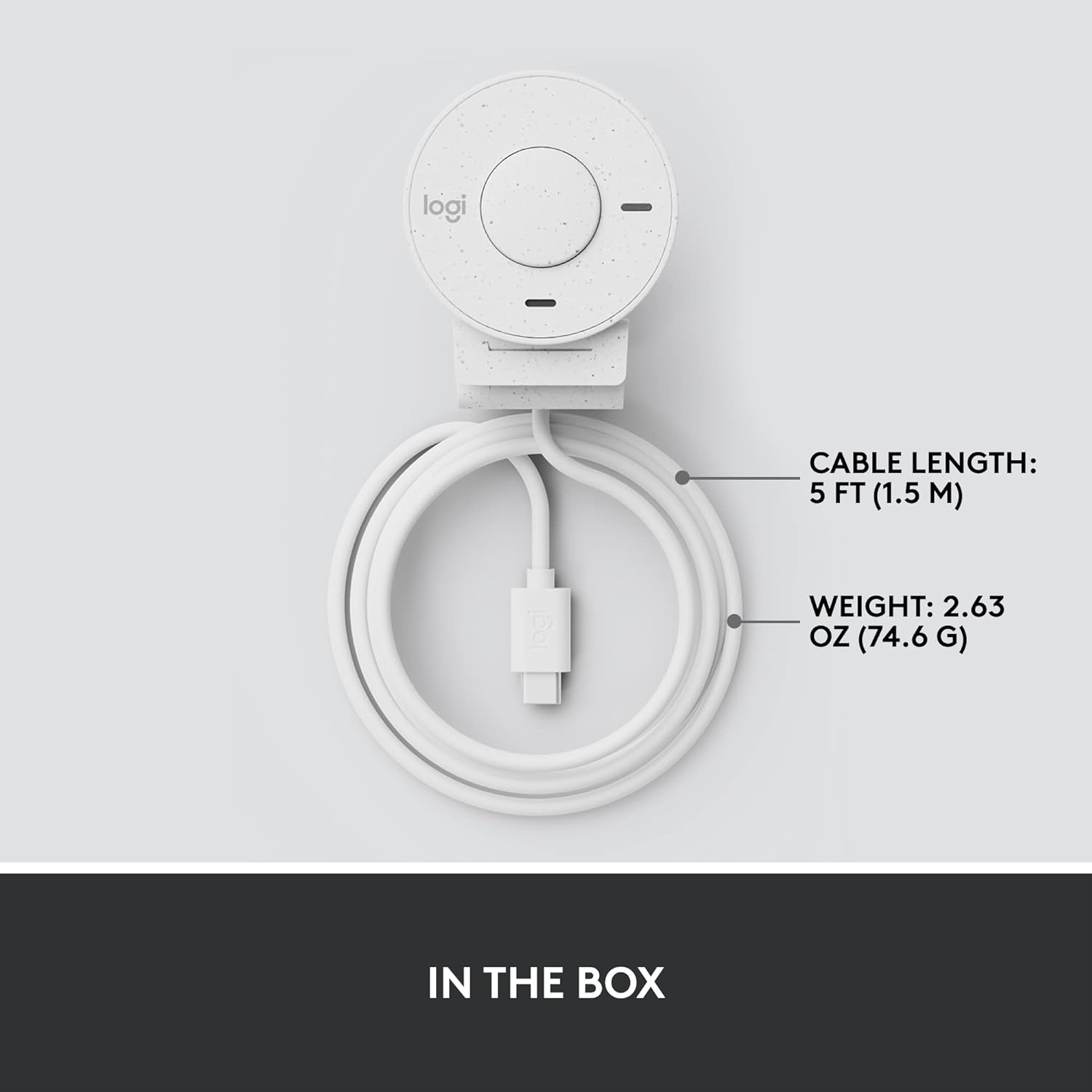
Figure 2.1: Logitech Brio 300 webcam with its integrated USB-C cable, showing the compact design and cable length.
3. Setup
3.1. Placement
Position the Logitech Brio 300 webcam on your monitor or laptop screen. The integrated mounting clip is designed to securely fit various screen thicknesses without scratching, thanks to its rubberized pads.

Figure 3.1: The Logitech Brio 300 webcam, showing its design and how it sits on a monitor.
3.2. Connection
Connect the integrated USB-C cable from the webcam directly to an available USB-C port on your computer. The webcam is plug-and-play, meaning it should be automatically recognized by your operating system (Windows, macOS, Chrome OS).
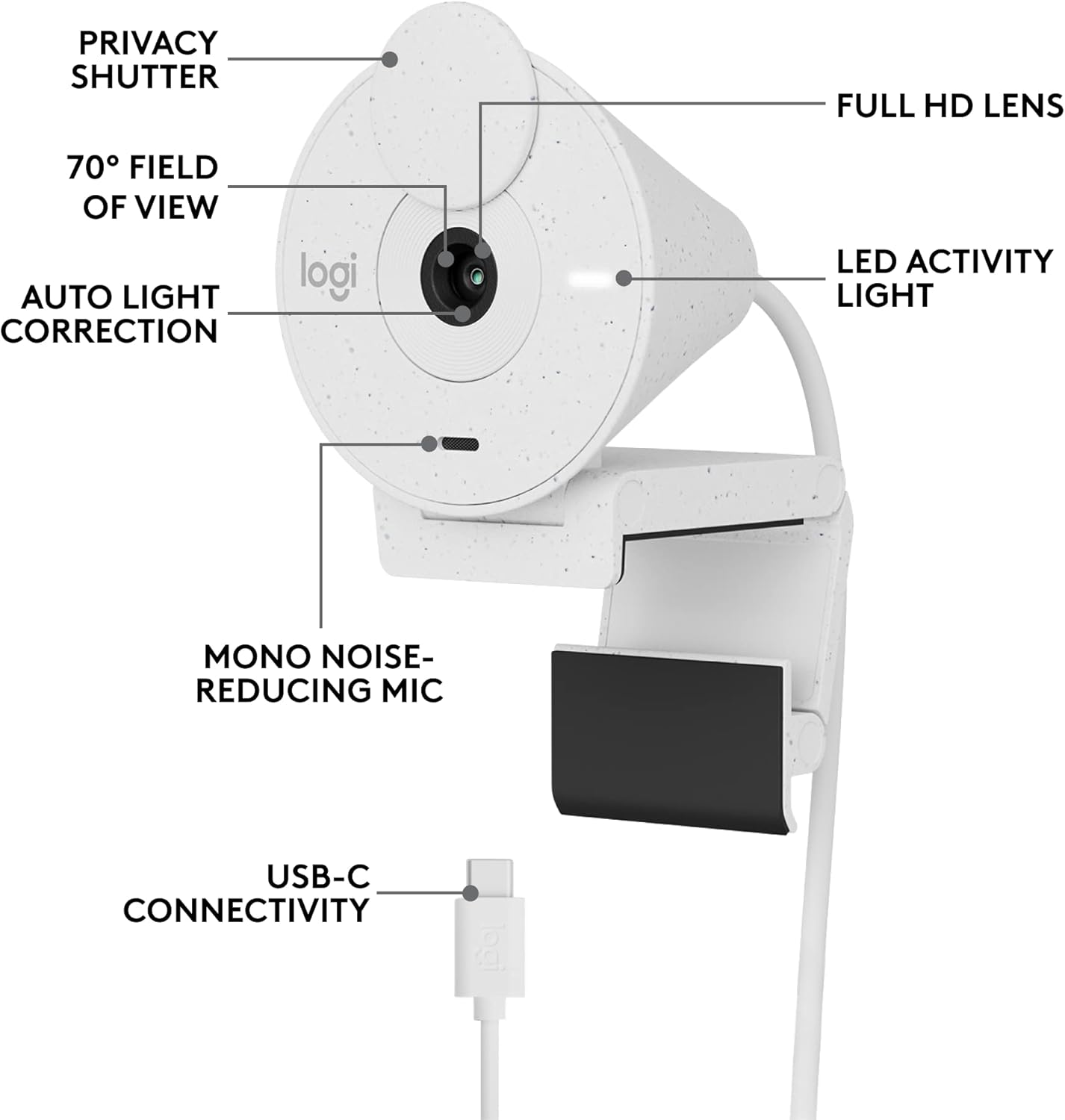
Figure 3.2: Detailed view of the Logitech Brio 300, highlighting its USB-C connectivity and other key components.
3.3. Software Installation (Optional but Recommended)
For advanced customization and optimal performance, download and install the free Logi Tune application from the official Logitech website. Logi Tune allows you to adjust color, image quality, and other settings for your webcam.
Visit Logitech Logi Tune to download the software.
4. Operating the Webcam
4.1. Privacy Shutter
The Brio 300 features an integrated privacy shutter. To cover the lens and ensure privacy, simply spin the circular cover over the lens. Spin it back to uncover the lens when you are ready to use the camera.
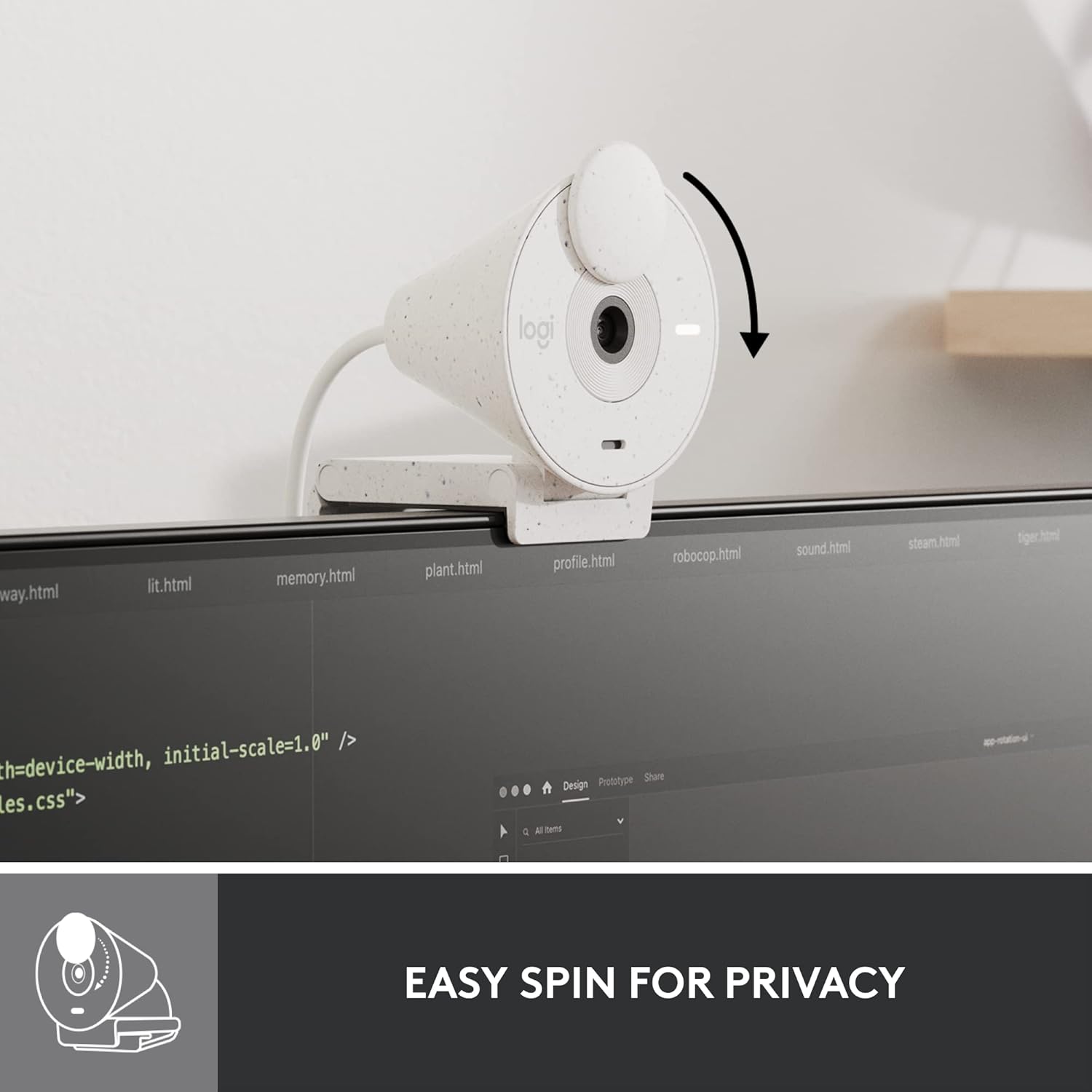
Figure 4.1: Demonstrating the easy-to-use spin privacy shutter on the Brio 300.
4.2. Auto Light Correction (RightLight 2)
The webcam is equipped with RightLight 2 technology, which automatically adjusts to poor lighting conditions. This ensures you appear clear and well-lit, even in dim environments.

Figure 4.2: Visual representation of the Brio 300's auto light correction feature improving image quality in low light.
4.3. Noise Reduction Microphone
The integrated mono microphone features noise reduction, suppressing background sounds to ensure your voice is heard clearly during calls.
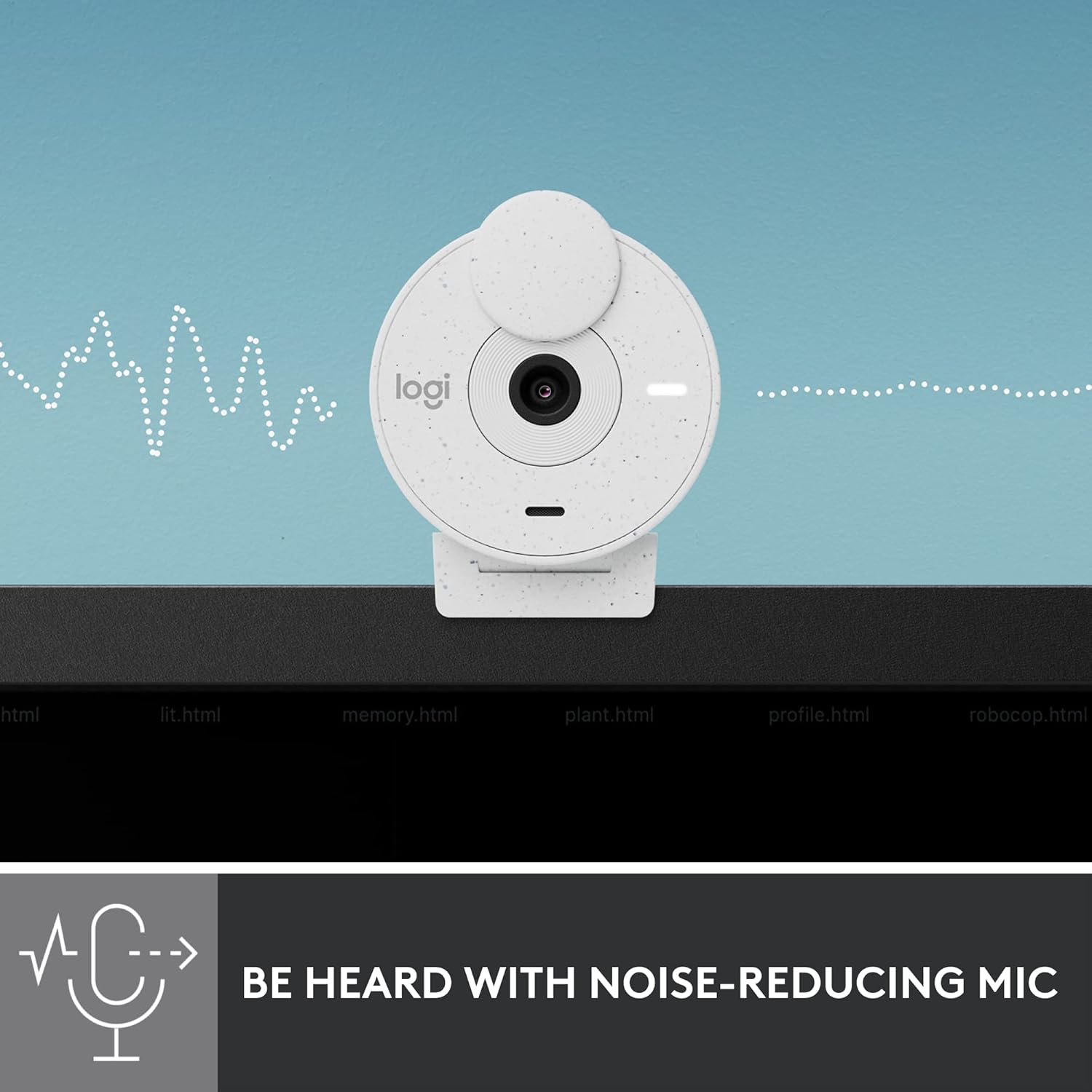
Figure 4.3: Illustration of the Brio 300's noise-reducing microphone capturing clear audio.
4.4. Compatibility
The Brio 300 is certified for Zoom, Microsoft Teams, and Google Meet, ensuring broad compatibility with most video conferencing platforms.

Figure 4.4: The Brio 300 is certified for major meeting platforms, including Zoom, Microsoft Teams, and Google Meet.
5. Maintenance
To ensure the longevity and optimal performance of your Logitech Brio 300 webcam, follow these simple maintenance guidelines:
- Cleaning the Lens: Gently wipe the camera lens with a soft, lint-free cloth. For stubborn smudges, slightly dampen the cloth with a lens cleaning solution. Avoid abrasive materials or harsh chemicals.
- Cleaning the Body: Use a soft, dry cloth to clean the body of the webcam. Do not use liquid cleaners directly on the device.
- Storage: When not in use, especially during travel, ensure the privacy shutter is closed to protect the lens. Store the webcam in a clean, dry place away from extreme temperatures.
6. Troubleshooting
If you encounter issues with your Logitech Brio 300, try the following troubleshooting steps:
- No Video/Audio:
- Ensure the USB-C cable is securely connected to both the webcam and your computer.
- Check if the privacy shutter is open.
- Verify that the webcam is selected as the primary video and audio device in your video conferencing application settings (e.g., Zoom, Microsoft Teams, Google Meet).
- Try connecting the webcam to a different USB-C port or a different computer to rule out port or system issues.
- Poor Video Quality:
- Ensure adequate lighting in your environment. While RightLight 2 helps, sufficient ambient light is crucial for optimal image quality.
- Clean the camera lens as described in the Maintenance section.
- Update your webcam drivers and the Logi Tune software to the latest version.
- Check your internet connection speed, as a slow connection can affect video streaming quality.
- Poor Audio Quality:
- Ensure the microphone is not obstructed.
- Minimize background noise in your environment.
- Adjust microphone levels in your computer's sound settings or Logi Tune.
7. Specifications
| Feature | Detail |
|---|---|
| Max Screen Resolution | FHD (1080p) |
| Video Capture Resolution | 1080p |
| Photo Sensor Technology | CMOS |
| Connectivity Technology | USB-C |
| Special Feature | Low Light Correction (RightLight 2) |
| Microphone | Mono, Noise Reduction |
| Privacy Feature | Integrated Privacy Shutter |
| Item Weight | 3.99 ounces |
| Product Dimensions | 4.6 x 3.5 x 2.7 inches |
| Material | Minimum 48% Post-Consumer Recycled Plastic |
8. Warranty and Support
The Logitech Brio 300 webcam comes with a limited hardware warranty. For detailed warranty information, technical support, and frequently asked questions, please visit the official Logitech support website or refer to the full user manual available in PDF format.
Official User Manual (PDF): Download Here
For software support and customization, download the Logi Tune application.
Related Documents - 960-001441
 |
Logitech Brio Stream Webcam & MX Master 3S Mouse User Manual | Setup & Features Comprehensive user manual for Logitech Brio Stream 4K Webcam and MX Master 3S Wireless Performance Mouse. Learn about setup, features, MagSpeed scrolling, Darkfield 8000 DPI sensor, Logitech Flow, and more for enhanced productivity. |
 |
Logitech C920e HD Webcam Setup Guide Comprehensive setup guide for the Logitech C920e HD Webcam, including installation, privacy shutter attachment, and connection instructions. |
 |
Logitech C930e Business Webcam: Setup Guide and Features Learn how to set up and connect your Logitech C930e Business Webcam. This guide covers product features, installation, privacy shutter, and dimensions. |
 |
Logitech MX BRIO Setup Guide: Crystal Clear Video for Your Workspace Learn how to set up and use your Logitech MX BRIO webcam with this comprehensive setup guide. Discover features like the ultrawide lens, dual noise-cancelling microphones, and easy mounting options for enhanced video conferencing. |
 |
Logitech BRIO Ultra HD Business Webcam: Complete Setup Guide Comprehensive setup guide for the Logitech BRIO Ultra HD Business Webcam, covering product features, unboxing, installation of the privacy shutter, mounting options for monitors and tripods, and USB connection. |
 |
Logitech C1000s 4K Webcam Complete Setup Guide A comprehensive setup guide for the Logitech C1000s 4K webcam, covering product features, setup instructions for monitors and tripods, and connection details. |
Ask a question about this manual
Ask about setup, troubleshooting, compatibility, parts, safety, or missing instructions. Manuals+ will review the question and use this page’s manual context to help answer it.