
Eztronics Corp ELM 327
OBD2 Car Bluetooth Code Scanner Reader ELM 327 Automotive Diagnostic Tool User Manual
Model: ELM 327 | Brand: Eztronics Corp
1. Product Overview
The Eztronics Corp OBD2 Bluetooth Code Scanner Reader is a wireless diagnostic tool designed to interface with your vehicle's On-Board Diagnostics (OBD-II) system. It allows users to read and clear diagnostic trouble codes, monitor real-time sensor data, and assess the overall health of their vehicle's engine and related systems. This device supports all standard OBD-II protocols, providing comprehensive compatibility with a wide range of vehicles.

Image: The Eztronics Corp OBD2 Bluetooth Scanner, showing its compact design and standard OBD-II connector.
Key capabilities include:
- Reading and clearing diagnostic fault codes (DTCs), including generic and manufacturer-specific codes.
- Turning off the Malfunction Indicator Lamp (MIL), commonly known as the "Check Engine" light.
- Displaying real-time sensor data from various vehicle systems.
- Wireless connectivity via Bluetooth, with an effective range of over 15 meters.
- Compatibility with software applications on multiple platforms, including Palm, PDA, mobile phones (Android/iOS via third-party apps), Windows PCs, and Windows smartphones.
2. Setup Guide
Follow these steps to set up your OBD2 Bluetooth Code Scanner:
- Locate the OBD-II Port: The OBD-II port is typically located under the dashboard on the driver's side of the vehicle. Refer to your vehicle's owner's manual if you have difficulty locating it.
- Connect the Scanner: Firmly plug the OBD2 Bluetooth scanner into the vehicle's OBD-II port. Ensure it is securely seated. The device's power indicator light should illuminate, indicating it is receiving power.
- Turn On Vehicle Ignition: Turn your vehicle's ignition to the "ON" position (do not start the engine unless required by your diagnostic software). This powers the OBD-II system.
- Install Diagnostic Software: Download and install a compatible OBD-II diagnostic application on your smartphone, tablet, or PC. Popular applications include Torque (Android), OBD Fusion (iOS/Android), or various PC-based software.
- Pair via Bluetooth:
- Enable Bluetooth on your device (smartphone, tablet, or PC).
- Search for available Bluetooth devices. The scanner will typically appear as "OBDII", "HH OBD", or a similar name.
- Select the scanner to pair. If prompted for a PIN, common PINs are "1234" or "0000".
- Configure Software: Open your chosen diagnostic application and navigate to its settings. Select the Bluetooth connection type and choose the paired OBD2 scanner from the list of devices.
- Establish Connection: The application should now attempt to connect to the OBD2 scanner and the vehicle's ECU. A successful connection will typically be indicated by a status message within the app.

Image: The OBD2 scanner plugged into a vehicle's diagnostic port, ready for use.
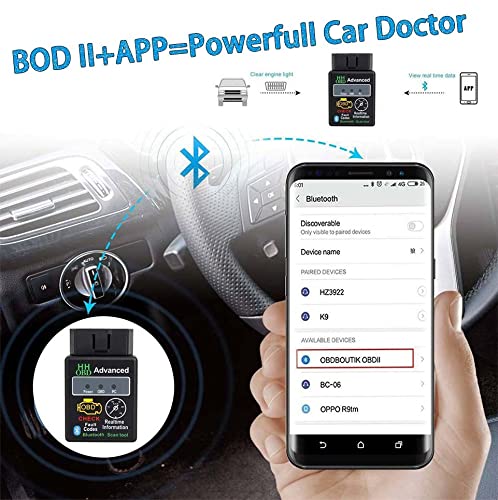
Image: A smartphone screen displaying the Bluetooth pairing process, showing the OBD2 device listed for connection.
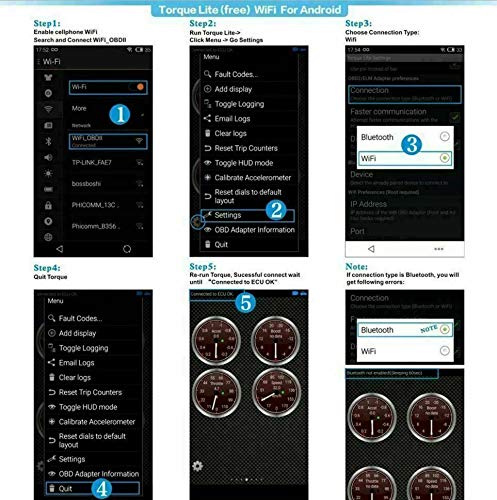
Image: Screenshots illustrating the steps to configure the diagnostic application for Bluetooth connection, including selecting the device and connection type.
3. Operating Instructions
Once connected, you can utilize the diagnostic software to perform various functions:
- Read Diagnostic Trouble Codes (DTCs):
Navigate to the "Read Codes" or "Fault Codes" section of your application. The scanner will retrieve any stored diagnostic trouble codes from the vehicle's ECU. Each code will typically be accompanied by a description of the fault.
- Clear Fault Codes:
After addressing a vehicle issue, you can clear the stored fault codes and turn off the "Check Engine" light. Use the "Clear Codes" or "Erase DTCs" function in your application. Note: Clearing codes without resolving the underlying issue will likely result in the codes reappearing.
- View Real-time Sensor Data:
Access the "Live Data" or "Sensor Data" section to view various parameters in real-time. This can help diagnose performance issues. The data displayed may include:
- Engine RPM (Revolutions Per Minute)
- Calculated Load Value
- Coolant Temperature
- Fuel System Status
- Vehicle Speed
- Short Term Fuel Trim
- Long Term Fuel Trim
- Intake Manifold Pressure
- Timing Advance
- Intake Air Temperature
- Air Flow Rate (MAF)
- Absolute Throttle Position
- Oxygen Sensor Voltages / Associated Short Term Fuel Trims
- Fuel Pressure
- I/M Readiness Status:
Check the readiness status of various emission-related monitors. This is useful for emissions testing.

Image: A smartphone screen showing the diagnostic application displaying various real-time vehicle data parameters, such as speed and RPM.
4. Supported Protocols
The OBD2 Bluetooth Code Scanner supports the following OBD-II communication protocols:
- ISO9141-2 (5 baud init, 10.4 Kbaud)
- ISO14230-4 KWP (5 baud init, 10.4 Kbaud)
- ISO14230-4 KWP (fast init, 10.4 Kbaud)
- ISO15765-4 CAN (11bit ID, 500 Kbaud)
- ISO15765-4 CAN (29bit ID, 500 Kbaud)
- ISO15765-4 CAN (11bit ID, 250 Kbaud)
- ISO15765-4 CAN (29bit ID, 250 Kbaud)
- SAE J1939 CAN (29bit ID, 250 Kbaud)
- USER1 CAN (11bit ID, 125 Kbaud)
- USER2 CAN (11bit ID, 50 Kbaud)
5. Troubleshooting
- Device Not Powering On:
Ensure the scanner is fully inserted into the OBD-II port. Check your vehicle's fuse box for any blown fuses related to the OBD-II port (often labeled "CIGAR" or "ACC").
- Cannot Pair via Bluetooth:
Make sure Bluetooth is enabled on your device. Try restarting both your device and the vehicle's ignition. Ensure no other devices are currently connected to the scanner. Verify the correct pairing PIN (1234 or 0000).
- Application Cannot Connect to ECU:
Confirm that the scanner is properly paired via Bluetooth and selected within your diagnostic application's settings. Ensure the vehicle's ignition is in the "ON" position. Some vehicles may require the engine to be running for full communication. Try a different diagnostic application if issues persist.
- Incorrect Data Readings or No Data:
Verify that your vehicle supports the OBD-II standard (most vehicles manufactured after 1996 in the US, 2001 in EU for petrol, 2004 for diesel). Ensure the application is correctly configured for your vehicle's protocol (though most apps auto-detect). Update your diagnostic application to the latest version.
- "Check Engine" Light Remains On After Clearing Codes:
This indicates that the underlying issue causing the fault code has not been resolved. The code will reappear once the vehicle's system detects the fault again. Address the vehicle's mechanical or electrical problem before attempting to clear codes permanently.
6. Technical Specifications
| Feature | Detail |
|---|---|
| Model | ELM 327 (ASIN: B09QX581HX) |
| Brand | Eztronics Corp |
| Connectivity | Bluetooth 2.1 (Wireless range > 15 meters) |
| Supported Protocols | ISO9141-2, ISO14230-4 KWP, ISO15765-4 CAN, ISO15765-4 CAN, ISO15765-4 CAN, ISO15765-4 CAN, SAE J1939 CAN, USER1 CAN, USER2 CAN |
| Operating Voltage | 12V (from vehicle OBD-II port) |
| Compatible Operating Systems (for software) | Android, iOS (via third-party apps), Windows PC (Windows XP mentioned, but generally compatible with modern Windows versions via drivers), Palm, PDA. |
| Date First Available | January 21, 2022 |
| Global Trade Identification Number (GTIN) | 06928522074436 |
7. Maintenance
The OBD2 Bluetooth Code Scanner requires minimal maintenance:
- Cleaning: Wipe the device with a soft, dry cloth to remove dust or dirt. Do not use liquid cleaners or solvents.
- Storage: Store the scanner in a cool, dry place away from direct sunlight and extreme temperatures when not in use.
- Handling: Avoid dropping the device or subjecting it to strong impacts. Handle the connector carefully to prevent damage to the pins.
- Software Updates: Regularly check for updates to your chosen diagnostic application to ensure optimal performance and compatibility with new vehicle models or features.
8. Warranty and Support
For information regarding warranty coverage for your Eztronics Corp OBD2 Bluetooth Code Scanner, please refer to the product packaging or the retailer's purchase terms. Typically, electronic devices come with a limited manufacturer's warranty covering defects in materials and workmanship.
For technical support, troubleshooting assistance beyond this manual, or warranty claims, please contact Eztronics Corp customer service through the contact information provided with your purchase or on the official Eztronics Corp website. When contacting support, please have your product model (ELM 327) and ASIN (B09QX581HX) ready.