
1. Introduction
This manual provides comprehensive instructions for the installation, operation, and maintenance of the Hikvision DS-3E1105P-EI 4-Port Smart Managed 100 Mbps PoE Switch. Please read this manual thoroughly before using the product to ensure correct usage and to prevent damage.
2. Safety Information
- Ensure the power supply voltage is within the specified range.
- Do not expose the device to water or moisture.
- Avoid placing the device in direct sunlight or near heat sources.
- Do not open the device casing; refer all servicing to qualified personnel.
- Use only Hikvision-approved accessories and power adapters.
- Properly ground the device to prevent electrical hazards.
3. Product Overview
The Hikvision DS-3E1105P-EI is a 4-port smart managed Power over Ethernet (PoE) switch designed for reliable network connectivity and power delivery to compatible devices. It features 100 Mbps data transfer rates and smart management capabilities.
3.1 Front Panel
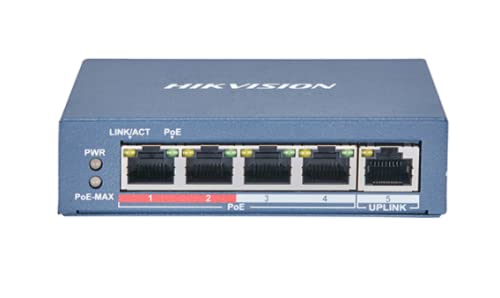
Figure 1: Front view of the Hikvision DS-3E1105P-EI PoE switch. This image displays the four PoE ports, one uplink port, and LED indicators for power (PWR), link/activity (LINK/ACT), and PoE status (PoE-MAX).
- PoE Ports (1-4): These ports provide both data connection and power to PoE-compatible devices such as IP cameras or VoIP phones.
- Uplink Port (5): This port is used to connect the switch to a router, NVR, or another network switch. It does not provide PoE.
- PWR LED: Indicates the power status of the switch. Lit when power is on.
- LINK/ACT LEDs: For each port, indicates network link status and data activity. Lit when a link is established, flashes during data transmission.
- PoE-MAX LED: Indicates the overall PoE power consumption status.
3.2 Side View
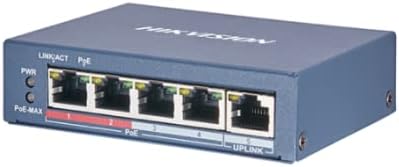
Figure 2: Side view of the Hikvision DS-3E1105P-EI PoE switch. This image highlights the compact design and screw holes for mounting options.
4. Setup
4.1 Package Contents
Before installation, verify that all items are present in the package:
- Hikvision DS-3E1105P-EI PoE Switch
- Power Adapter
- Quick Start Guide
- Mounting Accessories (if included)
4.2 Installation Steps
- Placement: Place the switch on a stable, flat surface or mount it securely using appropriate hardware. Ensure adequate ventilation around the device.
- Connect Network Devices:
- Connect PoE-compatible devices (e.g., IP cameras) to ports 1-4 using Ethernet cables.
- Connect the uplink port (port 5) to your router or network backbone using an Ethernet cable.
- Connect Power: Connect the provided power adapter to the switch's power input and then plug it into a power outlet. The PWR LED should illuminate.
- Verify Connections: Check the LINK/ACT LEDs for each connected device. A solid green light indicates a successful link, and flashing indicates data activity.
5. Operating the Switch
The DS-3E1105P-EI switch operates automatically once powered on and connected. It provides Power over Ethernet (PoE) to connected devices on ports 1-4 and facilitates data transfer across the network.
5.1 LED Indicators
| Indicator | Status | Description |
|---|---|---|
| PWR | Solid Green | The switch is powered on. |
| LINK/ACT | Solid Green | A network link is established. |
| LINK/ACT | Flashing Green | Data is being transmitted or received. |
| LINK/ACT | Off | No network link or device connected. |
| PoE-MAX | Solid Green | PoE power output is normal. |
| PoE-MAX | Flashing Green | PoE power output is approaching maximum capacity. |
| PoE-MAX | Off | No PoE devices connected or PoE function is disabled. |
6. Maintenance
- Cleaning: Use a soft, dry cloth to clean the exterior of the switch. Do not use liquid or aerosol cleaners.
- Ventilation: Ensure that the ventilation openings are not blocked to prevent overheating.
- Firmware Updates: Periodically check the Hikvision official website for firmware updates to ensure optimal performance and security.
- Power Cycle: If the switch experiences issues, try power cycling it by disconnecting and reconnecting the power adapter.
7. Troubleshooting
| Problem | Possible Cause | Solution |
|---|---|---|
| No power (PWR LED off) | Power adapter not connected or faulty; power outlet issue. | Check power adapter connection. Try a different power outlet. Ensure the adapter is functional. |
| No network link (LINK/ACT LED off) | Ethernet cable faulty or disconnected; connected device is off or faulty. | Verify cable connections. Try a different Ethernet cable. Ensure the connected device is powered on and functioning. |
| PoE device not receiving power | Device is not PoE-compatible; cable issue; switch PoE budget exceeded. | Ensure the device is PoE-compatible. Check the Ethernet cable. Verify the total power consumption does not exceed the switch's PoE budget. |
| Slow network speed | Cable quality; network congestion; device issues. | Use high-quality Ethernet cables. Reduce network traffic if possible. Check the connected devices for performance issues. |
8. Specifications
| Feature | Detail |
|---|---|
| Brand | Hikvision Inc |
| Model | DS-3E1105P-EI |
| Number of Ports | 4 (PoE) + 1 (Uplink) |
| Data Transfer Rate | 100 Megabits Per Second |
| Switch Type | Managed |
| Interface Type | PoE |
| Compatible Devices | Desktop |
| Color | Blue |
| Manufacturer | Hikvision Inc |
| UPC | 681541875915 |
| ASIN | B09QTXT94S |
9. Warranty and Support
For warranty information and technical support, please refer to the official Hikvision website or contact their customer service department. Keep your purchase receipt for warranty claims.
Official Hikvision Website: www.hikvision.com