
Introduction
This manual provides essential information for the safe and efficient operation of your Skyworth 75SUD9350F 75 Inch 4K UHD HDR Smart Android 10.0 LED TV. Please read these instructions thoroughly before using the product and retain them for future reference. The Skyworth 75SUD9350F offers boundless enjoyment and a healthy viewing experience with rich and vibrant colors. Its built-in professional image processing engine enhances every scene, and the 4K HDR screen optimizes image details for a superior visual experience.

Image: Front view of the Skyworth 75SUD9350F 75-inch TV.
Setup Instructions
1. Unpacking
- Carefully remove the TV from its packaging. Due to its size, it is recommended that two or more people handle the TV.
- Check for any damage during transit. If damage is found, contact your retailer immediately.
- Ensure all included components are present: Power cable, remote control, and base stand.
2. Attaching the Base Stand
Place the TV face down on a soft, clean surface to prevent screen damage. Align the base stand with the mounting holes on the bottom of the TV. Secure the stand using the provided screws. Refer to the diagram below for proper alignment.

Image: A couple watching the Skyworth 75SUD9350F TV, illustrating the TV with its stand in a living room setting.
3. Wall Mounting (Optional)
If you choose to wall mount your TV, remove the base stand. Use a VESA-compatible wall mount kit (not included) that supports the TV's weight and VESA pattern. Follow the instructions provided with your wall mount kit. Professional installation is recommended for safety.
4. Connecting Devices
- HDMI: Connect external devices such as Blu-ray players, game consoles, or set-top boxes to the HDMI ports. This TV has 3 HDMI ports.
- USB: Connect USB storage devices to the 2 USB 2.0 ports for media playback.
- Ethernet: For a stable internet connection, connect an Ethernet cable from your router to the TV's Ethernet port.
- Power: Connect the power cable to the TV and then to a power outlet.
5. Initial Power On
After connecting all necessary cables, press the power button on the remote control or the TV. The TV will guide you through the initial setup process, including language selection, network connection, and Google account setup for Android TV features.
Operating Instructions
1. Remote Control Functions
The included remote control allows you to navigate the TV's interface, adjust settings, and access smart features. Familiarize yourself with the power, volume, channel, input, and smart app buttons.
2. Smart Android TV 10.0 Features
Your TV runs on Android TV 10.0, providing access to a wide range of apps and services. Navigate the home screen to find installed apps like Netflix, YouTube, Twitch, and Prime Video. The TV features a Boundless Screen 4.0 for an immersive viewing experience.

Image: A person standing on a mountain top with arms raised, looking at a large transparent screen displaying the 'Boundless Screen 4.0' feature, emphasizing an immersive experience.
3. Picture and Sound Settings
- Picture: Access picture settings to adjust brightness, contrast, color, and sharpness. The TV supports 4K UHD and HDR for enhanced visual quality. The Trocilus Extreme 2.0 engine ensures rich and vivid colors.
- Sound: Adjust audio settings, including volume, sound mode, and equalizer. The TV supports Dolby Vision and Dolby Atmos for an immersive audio experience.

Image: The Skyworth TV displaying a vibrant, colorful floral image, highlighting the 'Trocilus Extreme 2.0' technology for rich and vivid colors.
4. Special Features
- Sport Mode: Optimize picture and sound settings for sports content to ensure clear and smooth motion, even during rapid movements.
- Google Assistant: Use voice commands to control your TV, search for content, launch apps, and manage smart home devices. Simply say "Hey Google" or press the Google Assistant button on your remote.
- Built-in Chromecast: Cast content from your compatible mobile devices or computer directly to your TV screen.
- Bluetooth 5.0: Connect Bluetooth-enabled devices such as headphones, soundbars, or game controllers wirelessly to your TV.
- Smart Training Assistant: Utilize the built-in training app with video resources for home fitness.

Image: The Skyworth TV showing a basketball player in mid-air, with a 'Sport Mode' icon and text indicating smooth motion for fast-paced content.

Image: A woman speaking into her phone, with the Skyworth TV displaying weather information, demonstrating the Google Assistant voice control feature.

Image: A couple dancing in a living room, with the Skyworth TV displaying music visuals, illustrating the Bluetooth 5.0 feature for sharing music.
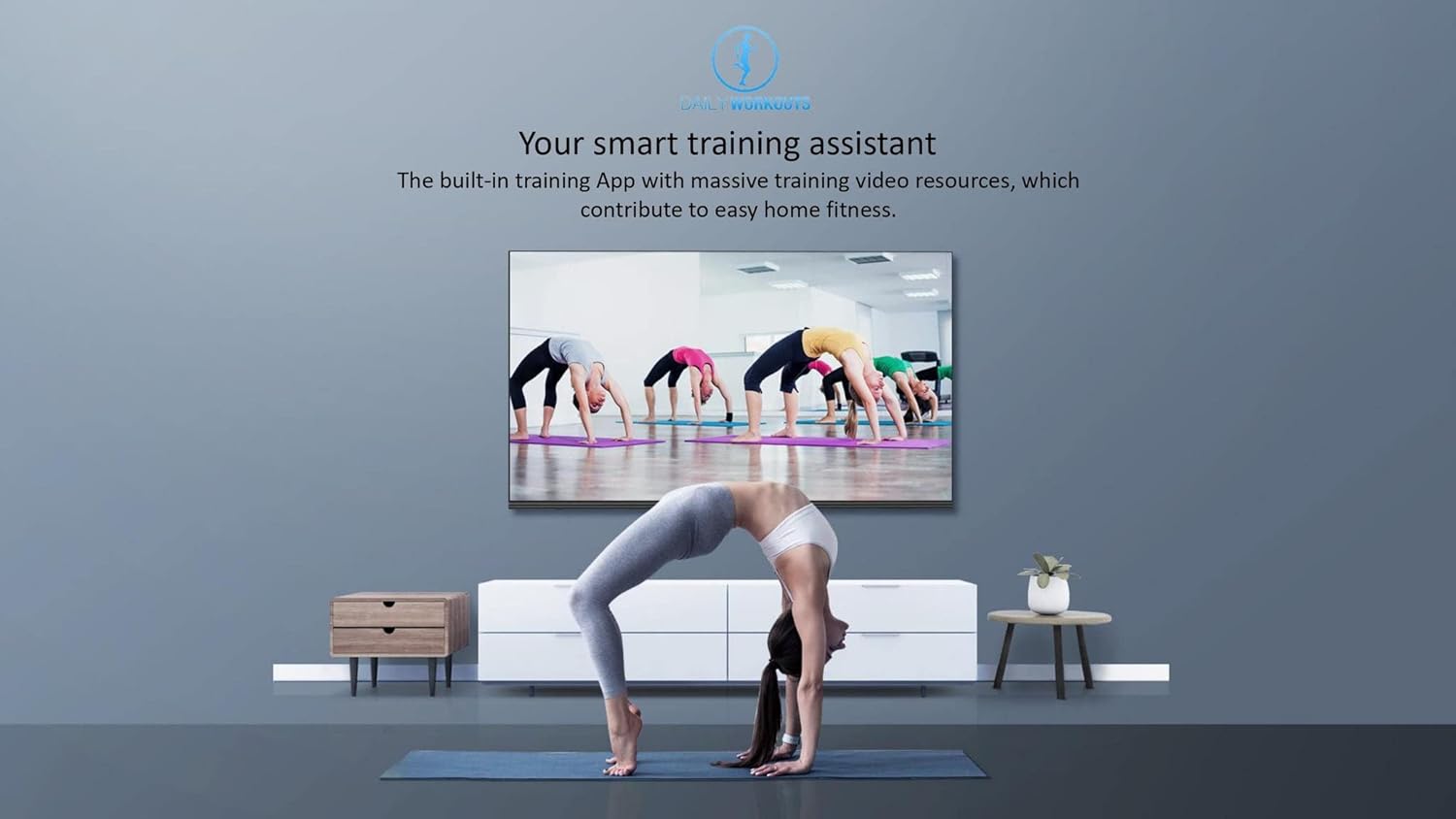
Image: A woman performing a yoga pose in a living room, with the Skyworth TV displaying a fitness video, highlighting the smart training assistant feature.
Maintenance
1. Cleaning the TV
- Screen: Gently wipe the screen with a soft, lint-free cloth. For stubborn marks, use a screen-specific cleaning solution applied to the cloth, not directly to the screen.
- Body: Wipe the TV's body and stand with a soft, dry cloth. Avoid using abrasive cleaners or solvents.
- Always unplug the TV before cleaning.
2. Software Updates
Your Android TV may receive software updates periodically. Ensure your TV is connected to the internet to receive these updates, which can improve performance and add new features. You can check for updates in the TV's settings menu.
Troubleshooting
| Problem | Possible Solution |
|---|---|
| No Power | Check if the power cable is securely connected to the TV and the power outlet. Ensure the power outlet is functional. Try pressing the power button on the TV itself. |
| No Picture, but Sound is Present | Check the input source. Ensure the connected device is powered on and functioning correctly. Try a different HDMI cable or port. |
| No Sound, but Picture is Present | Check the volume level and mute status. Ensure external audio devices (if connected) are properly configured. Check audio output settings in the TV menu. |
| Remote Control Not Working | Replace the batteries in the remote control. Ensure there are no obstructions between the remote and the TV's IR sensor. Re-pair the Bluetooth remote if applicable. |
| Network Connection Issues | Check your Wi-Fi router or Ethernet cable connection. Restart your router and TV. Re-enter Wi-Fi password in TV settings. |
| Apps Not Loading or Crashing | Ensure the TV has a stable internet connection. Try clearing the app's cache or data in the TV's settings. Restart the TV. |
Specifications
| Feature | Detail |
|---|---|
| Brand | Skyworth |
| Model Name | 75SUD9350F |
| Screen Size | 75 Inches |
| Display Technology | 4K Ultra HD, LED |
| Resolution | 4K |
| Refresh Rate | 60 Hz |
| Operating System | Android |
| Internal Memory | 32GB |
| RAM | 2GB |
| Connectivity Technology | HDMI, USB, Ethernet, Bluetooth |
| Total HDMI Ports | 3 |
| Total USB Ports | 2 (USB 2.0) |
| Wireless Communication Technology | Bluetooth 5.0 |
| Supported Internet Services | Netflix (and others via Android TV) |
| Audio Output Mode | Stereo, Dolby Atmos |
| Included Components | Power cable, remote control, base stand |
| Product Dimensions (DxWxH) | 36.3 x 166.8 x 103.4 cm |
| Color | Black |
| Mounting Type | Tabletop (Wall mountable with VESA kit) |
| Manufacturing Year | 2021 |
Warranty Information
This Skyworth 75SUD9350F TV comes with a manufacturer's warranty for two years from the date of purchase. Please retain your proof of purchase for warranty claims. The warranty covers manufacturing defects and malfunctions under normal use. For specific terms and conditions, refer to the warranty card included with your product or contact Skyworth customer service.
Support
For further assistance, technical support, or service inquiries regarding your Skyworth 75SUD9350F TV, please contact Skyworth customer service. You can typically find contact information on the manufacturer's official website or in the documentation provided with your product. When contacting support, please have your TV model number (75SUD9350F) and serial number ready.