
1. Introduction
The ANYCUBIC Photon M3 Plus is a high-performance resin 3D printer designed for detailed and efficient additive manufacturing. Featuring a 9.25-inch 6K monochrome LCD screen, it offers exceptional accuracy and a large build volume. Key functionalities include ultra-fast printing, smart resin filling, and cloud connectivity for remote operation and monitoring. This manual provides essential information for setting up, operating, and maintaining your Photon M3 Plus printer.

Figure 1.1: ANYCUBIC Photon M3 Plus Resin 3D Printer.
2. Setup Guide
Follow these steps to set up your ANYCUBIC Photon M3 Plus printer for the first time.
2.1 Unboxing and Component Check
Carefully remove all components from the packaging. Verify that all items listed in the user manual are present. The package typically includes the printer unit, build plate, resin vat, power adapter, USB drive, tools, and safety equipment like gloves and masks.
Video 2.1: Unboxing and initial setup of the ANYCUBIC Photon M3 Plus. This video demonstrates how to safely unpack the printer and identify its main components.
2.2 Installing the Automatic Feeding Module
Attach the automatic feeding module to the designated slot on the printer. Ensure it is securely fastened with the provided screws. Connect the module's cable to the corresponding port on the printer's side.
2.3 Power Connection and Initial Boot
Connect the power adapter to the printer and a suitable power outlet. Turn on the printer using the power switch. The touch screen will illuminate, displaying the ANYCUBIC logo and then the main interface.
2.4 LCD Screen Protector Installation
The printer comes with a screen protector to prevent scratches and damage to the LCD. Carefully clean the screen surface, align the protector, and apply it smoothly, removing any air bubbles.

Figure 2.1: Applying the screen protector to the LCD panel.
2.5 Build Plate Installation and Leveling
Install the build plate onto the Z-axis arm. Loosen the leveling screws on the build plate. Place the provided leveling paper on the LCD screen. Lower the build plate until it gently presses against the paper. Tighten the leveling screws while applying slight downward pressure to the build plate. Confirm the leveling by attempting to pull the paper with slight resistance.
2.6 Resin Vat Placement
Place the empty resin vat onto the printer's platform, ensuring it sits flush and is secured by its retaining clips or screws.
3. Operating Instructions
Learn how to operate your Photon M3 Plus for successful 3D printing.
3.1 Preparing for Print
- Ensure the printer is leveled and the resin vat is clean and properly installed.
- Shake the resin bottle well before use.
- Pour resin into the vat, ensuring it does not exceed the MAX fill line.
- Insert the USB drive containing your sliced 3D model file (.pwmb) into the printer's USB port.
3.2 Starting a Print
On the printer's touchscreen, navigate to the 'Print' menu. Select your desired model file from the USB drive. Confirm the print settings and initiate the print. The printer will automatically lower the build plate and begin the printing process.

Figure 3.1: The Photon M3 Plus significantly reduces print times for models.
3.3 Smart Resin Filling
The Photon M3 Plus features an automatic resin feeding function. Connect a resin bottle to the automatic feeding module. The printer will detect low resin levels in the vat and automatically dispense more resin as needed during printing, preventing print failures due to insufficient resin.

Figure 3.2: Smart Resin Filling in action, ensuring continuous resin supply.

Figure 3.3: The smart resin filling feature allows for hands-free operation during printing.
3.4 Cloud Connectivity and Remote Printing
The printer supports cloud transfer and cloud printing via USB-A2.0/LAN/WAN connections. This allows for remote file transfer and initiation of prints. Cloud monitoring features require a firmware update and an optional camera (sold separately) to view printing progress in real-time.
Video 3.1: Demonstration of the smart resin filling and cloud printing capabilities.

Figure 3.4: Anycubic Cloud features for remote management.
4. Maintenance
Regular maintenance ensures the longevity and optimal performance of your 3D printer.
4.1 Cleaning the Build Plate and Resin Vat
After each print, carefully remove the build plate and clean off any residual resin using isopropyl alcohol and a soft cloth. Scrape off any cured resin from the FEP film in the resin vat using a plastic scraper. Avoid using metal scrapers to prevent damage to the FEP film.
4.2 LCD Screen Care
Always ensure the LCD screen is clean before placing the resin vat. Use a soft, lint-free cloth and a small amount of isopropyl alcohol to gently wipe the screen. The installed screen protector helps in preventing direct damage to the LCD.
4.3 Z-axis Maintenance
Periodically inspect the Z-axis linear guides and ball screw for any dust or resin residue. Clean as necessary and apply a small amount of lubricant if recommended by the manufacturer to ensure smooth movement.

Figure 4.1: High-precision ball screw for stable Z-axis movement.
5. Troubleshooting
This section addresses common issues you might encounter with your Photon M3 Plus.
5.1 Print Failures (No Adhesion, Partial Prints)
- Build Plate Leveling: Re-level the build plate carefully, ensuring even pressure across the entire surface.
- Exposure Settings: Verify that your resin's exposure settings (bottom exposure time, normal exposure time) are correct for the specific resin you are using. Consult the resin manufacturer's recommendations.
- Temperature: Ensure the printing environment is within the recommended temperature range for your resin (typically 20-25°C).
- FEP Film Condition: Inspect the FEP film in the resin vat for damage, cloudiness, or cured resin particles. Replace if necessary.
- Resin Quality: Ensure the resin is not expired and has been properly mixed.

Figure 5.1: The laser-engraved build plate enhances adhesion and print success.
5.2 Screen Issues (No Display, Partial Display)
- Cable Connection: Check all internal cable connections to the LCD screen.
- Firmware: Ensure your printer's firmware is up to date.
- LCD Lifespan: LCD screens are consumable parts and have a limited lifespan. If the screen is faulty after extensive use, it may require replacement.

Figure 5.2: The 9.25" 6K HD screen provides high resolution and detail.
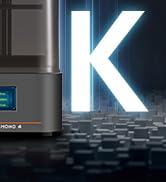
Figure 5.3: High contrast ratio for improved print details.
5.3 Automatic Resin Filling Issues
- Hose Connection: Ensure the resin feeding hoses are securely connected and not kinked.
- Resin Bottle: Check if the resin bottle is properly installed and contains sufficient resin.
- Sensor Cleanliness: Clean the resin level sensor in the vat to ensure it's not obstructed by cured resin.
6. Specifications
| Feature | Detail |
|---|---|
| Product Dimensions | 9.64 x 7.75 x 4.8 inches (24.5 x 19.7 x 12.2 cm) |
| Item Weight | 26.46 Pounds (12 Kilograms) |
| Material | Aluminum |
| Color | Yellow, Black |
| Manufacturer | ANYCUBIC |
| LCD Screen | 9.25" 6K Monochrome |
| Accuracy | 34um |
| Max Build Size | 9.6" x 7.8" x 4.8" (24.5 x 19.7 x 12.2 cm) |
7. Warranty and Support
For detailed warranty information and technical support, please refer to the official ANYCUBIC user guide provided with your product or visit the ANYCUBIC official website. You can also download the comprehensive user guide in PDF format for further assistance:
For specific issues not covered in this manual, please contact ANYCUBIC customer support directly.